Ticket Settings Module – Ticmint Support Portal
This document provides a step-by-step guide to help organisers configure Ticket Settings for their events on the Ticmint Support Portal. Ticket Settings allow you to control ticket appearance, pricing behaviour, checkout rules, taxes, upgrades, and additional fees.
Step 1: Access Ticket Settings
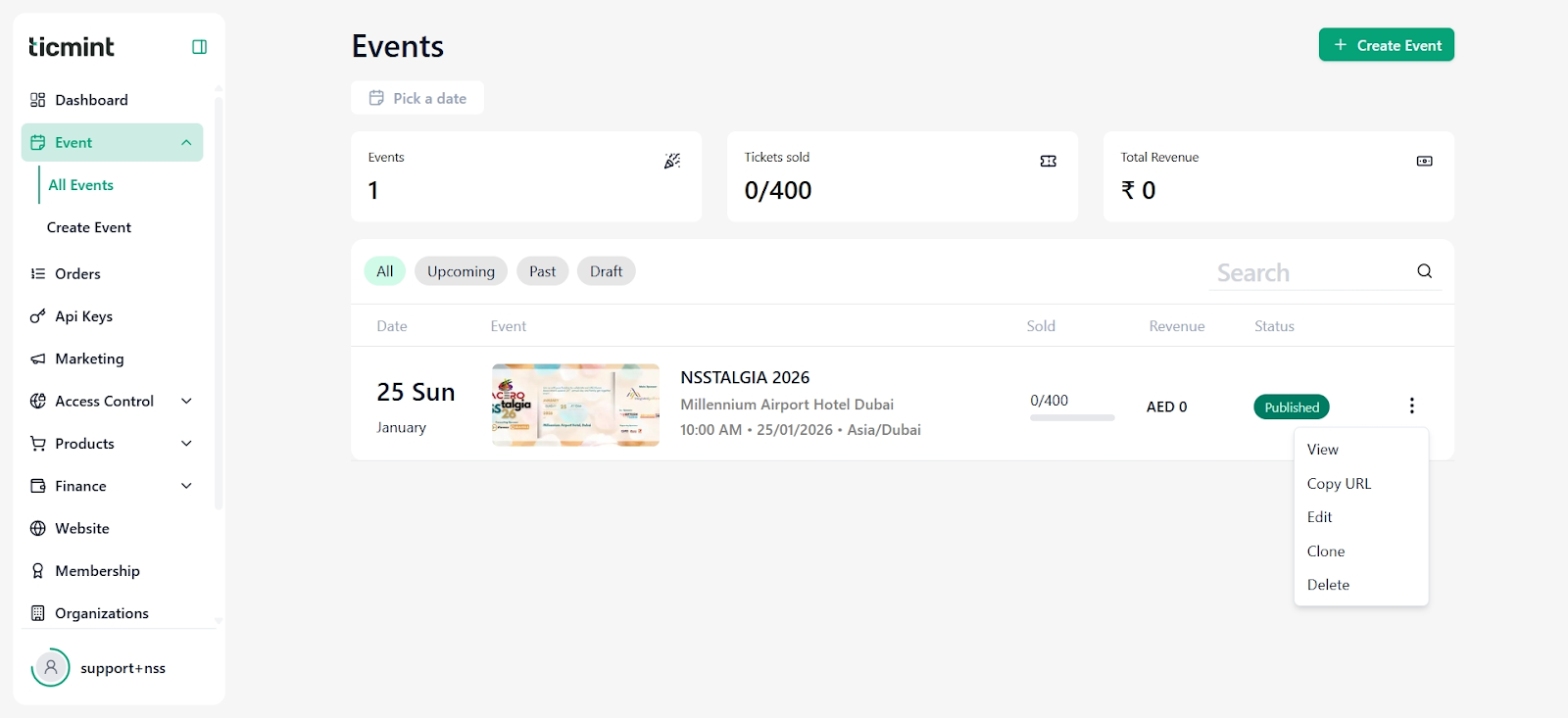
Log in to the Ticmint Support Portal.
From the left navigation menu, click Event.
Select All Events and choose the event you want to manage.
Click Edit Event.
From the event menu, select Ticket Settings.
You will now see the Ticket Settings dashboard for the selected event.
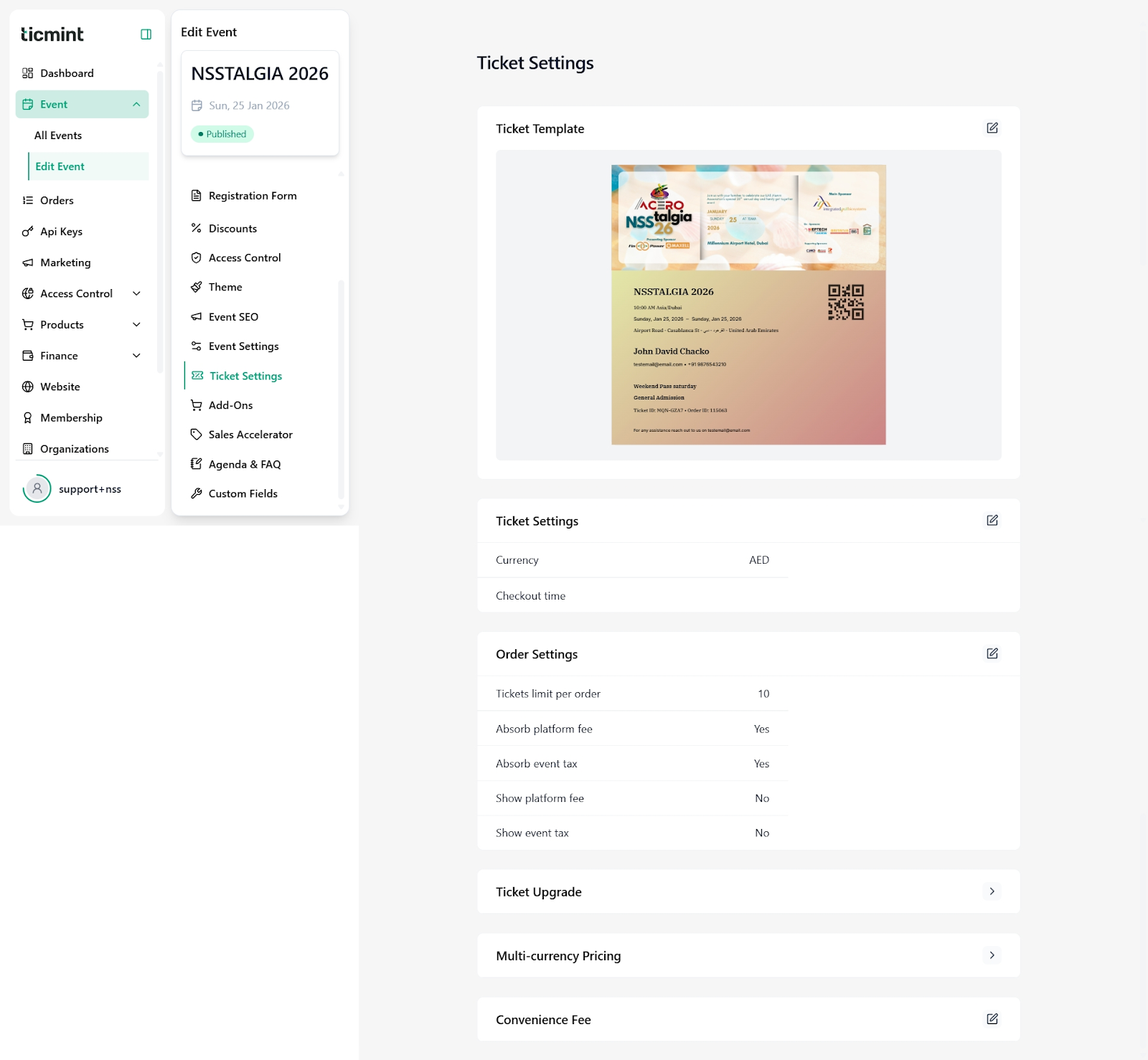
Step 2: Ticket Template
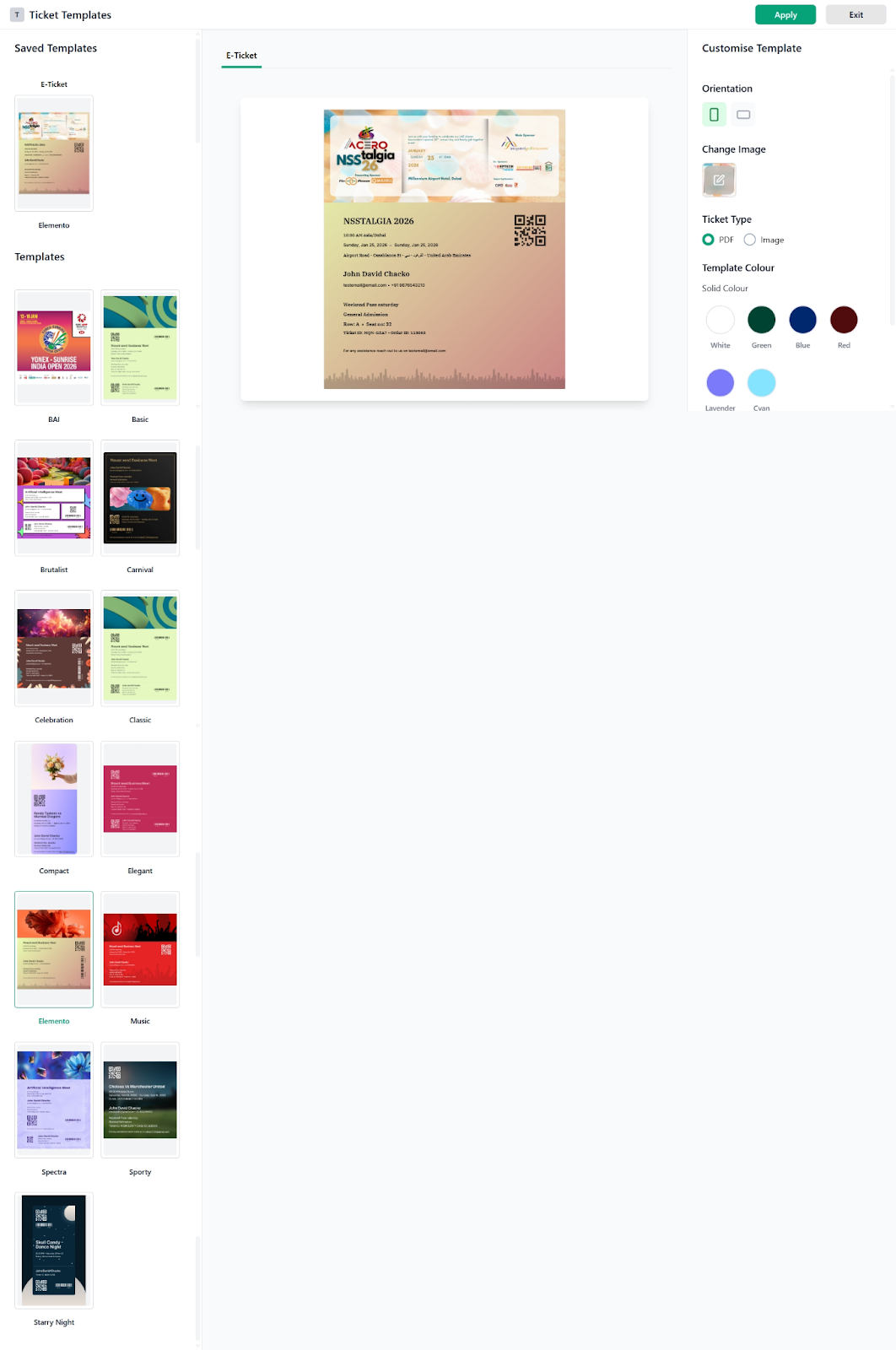
The Ticket Template defines how your ticket will look when issued to attendees.
What you can do:
Preview the current ticket design
Edit the template by clicking the edit (✏️) icon
Inside the template editor, you can:
Select from multiple pre-designed templates
Change orientation (portrait or landscape)
Upload or replace background images
Choose ticket type (PDF or Image)
Select a colour theme
Once finalized, click Apply to save the template.
Step 3: Basic Ticket Settings
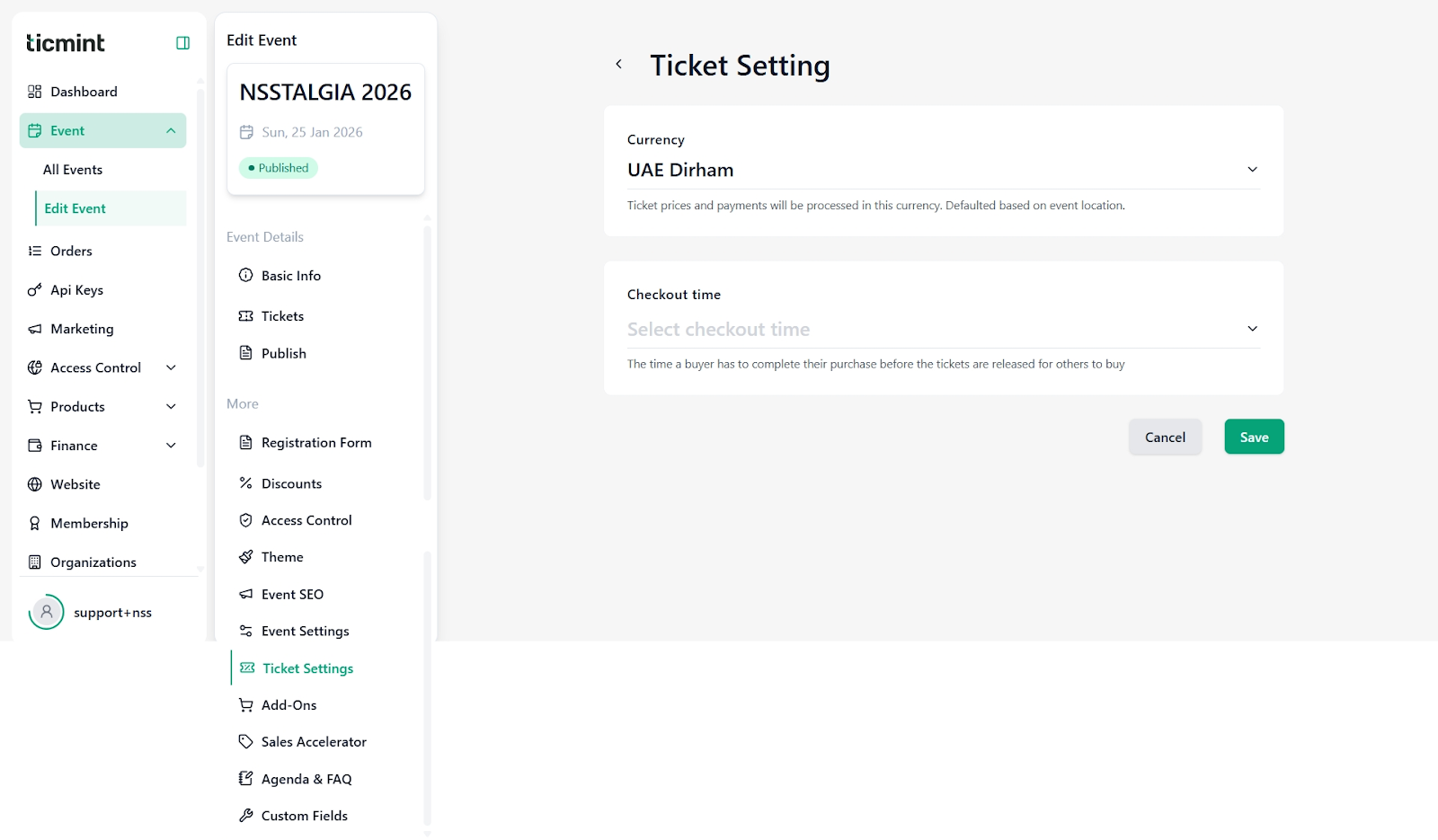
Currency
Select the currency in which tickets will be sold.
The currency is usually auto-selected based on the event location.
Example: AED (UAE Dirham)
Checkout Time
Define how long a buyer can hold tickets before completing payment.
If payment is not completed within this time, tickets are released back to inventory.
Click Save after making changes.
Step 4: Order Settings
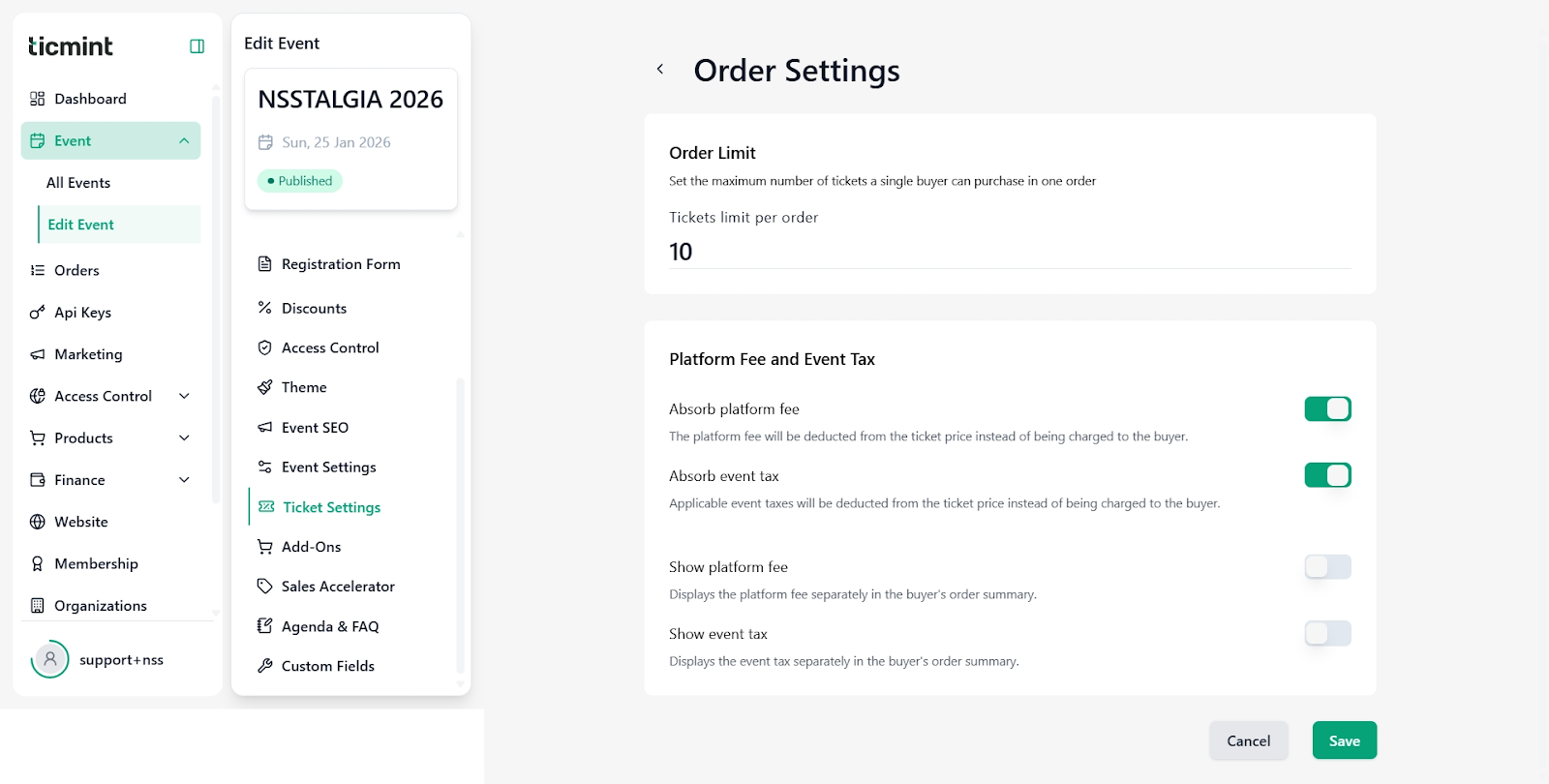
Tickets Limit per Order
Set the maximum number of tickets a single buyer can purchase in one order.
Example: 10 tickets per order
Platform Fee & Event Tax Handling
You can control how fees and taxes are displayed and charged:
Absorb platform fee: Platform fee is deducted from the ticket price instead of being charged to the buyer.
Absorb event tax: Taxes are included in the ticket price.
Show platform fee: Displays the platform fee separately to the buyer.
Show event tax: Displays tax separately in the order summary.
Toggle options as required and click Save.
Step 5: Ticket Upgrades
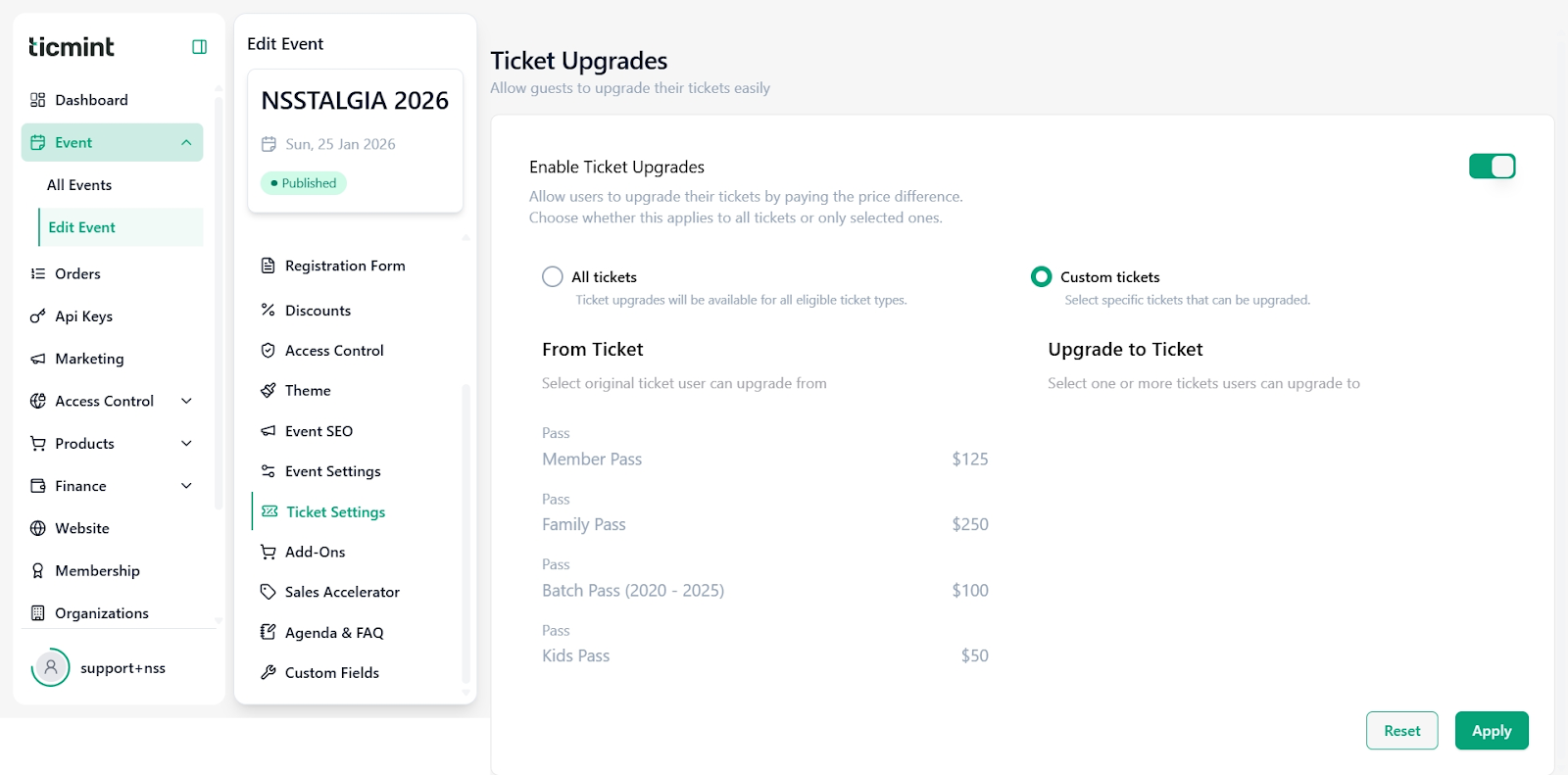
Ticket Upgrades allow attendees to upgrade their tickets by paying the price difference.
How to configure:
Enable Ticket Upgrades.
Choose whether upgrades apply to:
All tickets, or
Custom tickets only
Select the From Ticket (original ticket).
Select the Upgrade To Ticket (higher-value ticket).
This feature is useful for upselling VIP passes or premium seating.
Click Apply to save the upgrade rules.
Step 6: Multi-Country Pricing
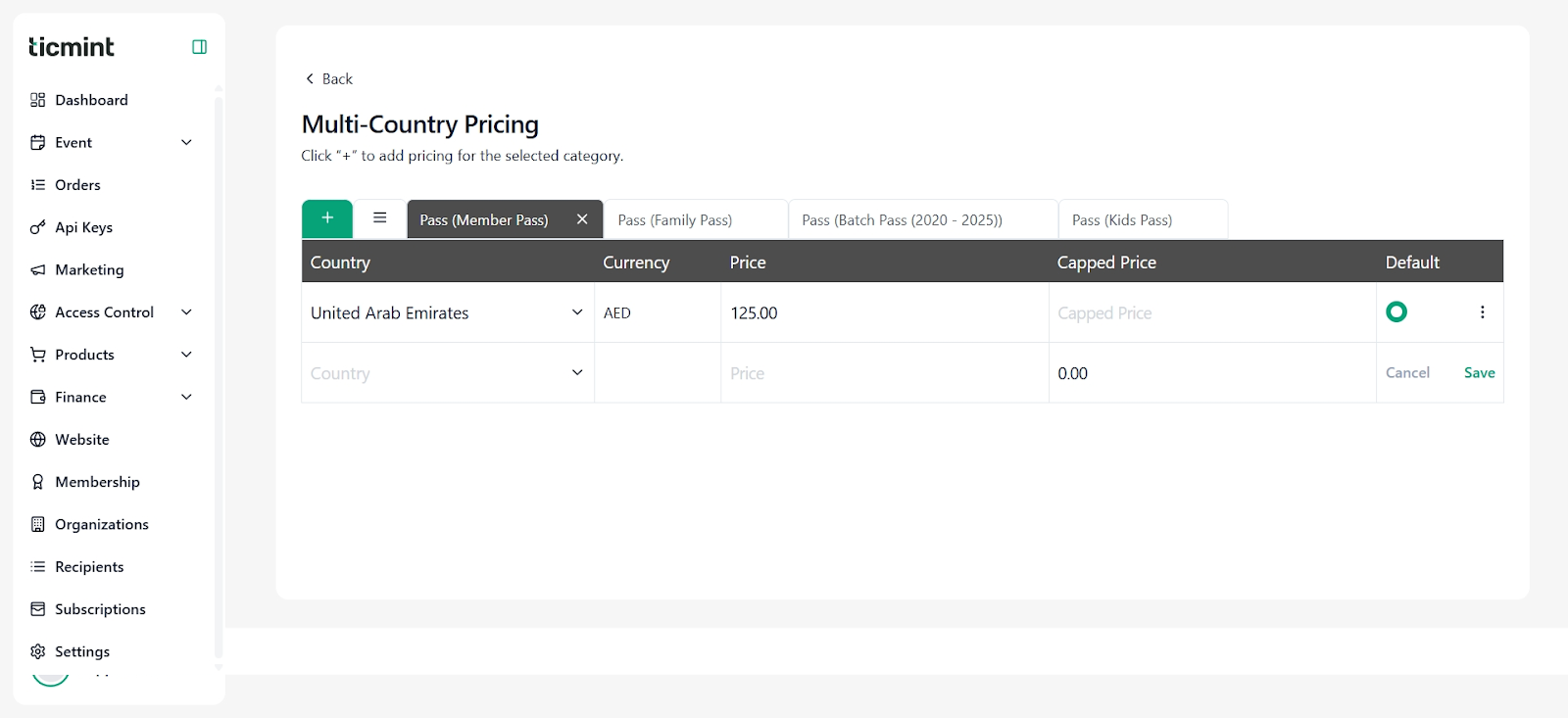
Multi-country pricing allows you to define different ticket prices for different countries.
Steps:
Click Multi-Currency Pricing.
Select the ticket category (e.g., Member Pass, Family Pass).
Click + to add pricing.
Choose the Country.
Select the Currency.
Enter the Price and optional Capped Price.
Mark one price as Default.
Click Save to apply pricing.
Step 7: Convenience Fee
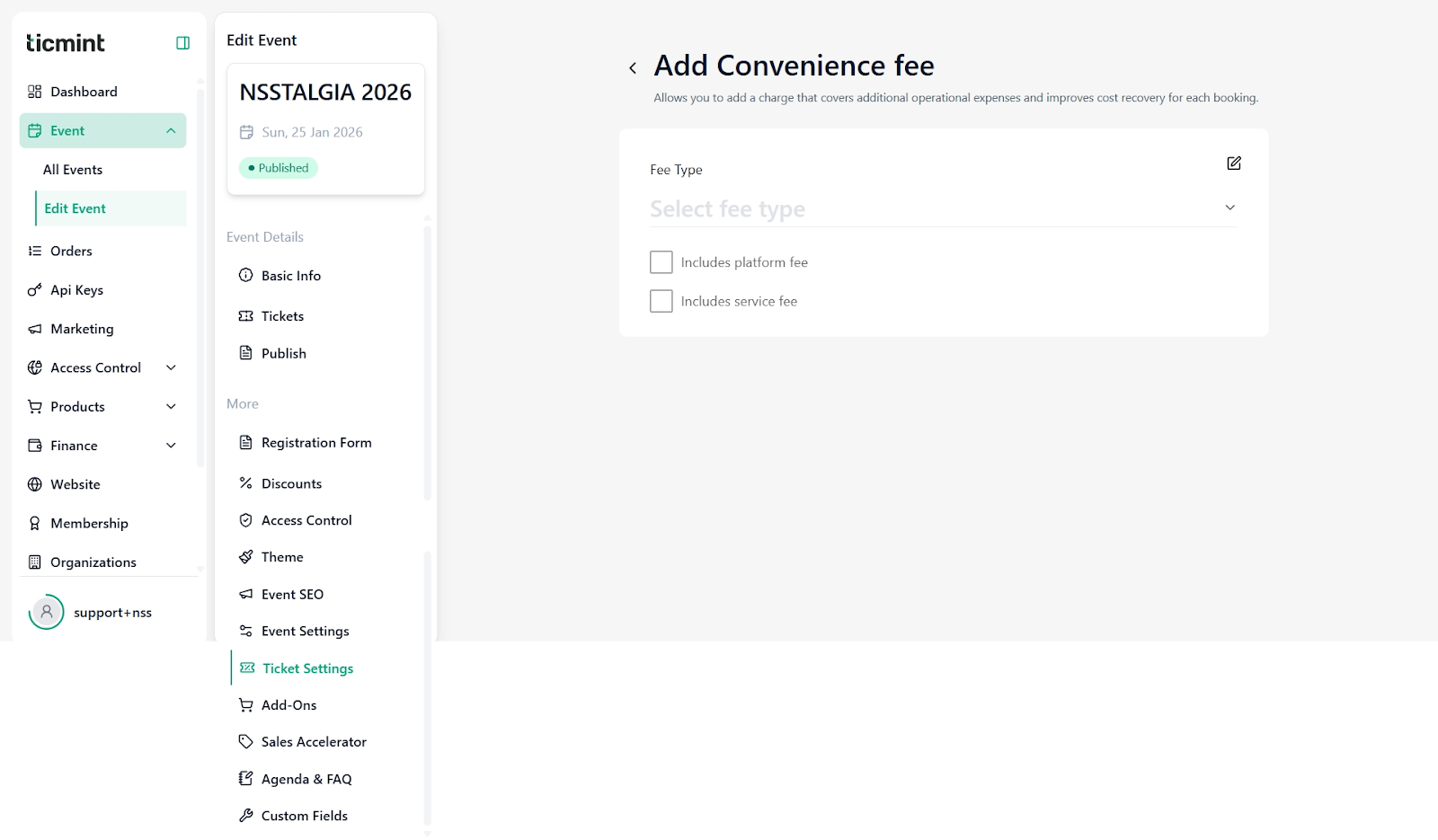
Convenience fees help cover operational and service costs.
Configuration:
Click Add Convenience Fee.
Select a Fee Type.
Choose whether the fee:
Includes platform fee
Includes service fee
This fee will be added during checkout and will be visible to buyers.
Save changes once configured.
Best Practices
Always preview your ticket template before publishing.
Use checkout time wisely to avoid ticket hoarding.
Clearly decide whether fees are absorbed or shown to buyers.
Enable ticket upgrades to increase average order value.
Use multi-country pricing for international audiences.
Need Help?
If you face any issues while configuring Ticket Settings:
Contact Ticmint Support via the support portal
Share your Event Name and Registered Email for faster assistance
Was this article helpful?
That’s Great!
Thank you for your feedback
Sorry! We couldn't be helpful
Thank you for your feedback
Feedback sent
We appreciate your effort and will try to fix the article