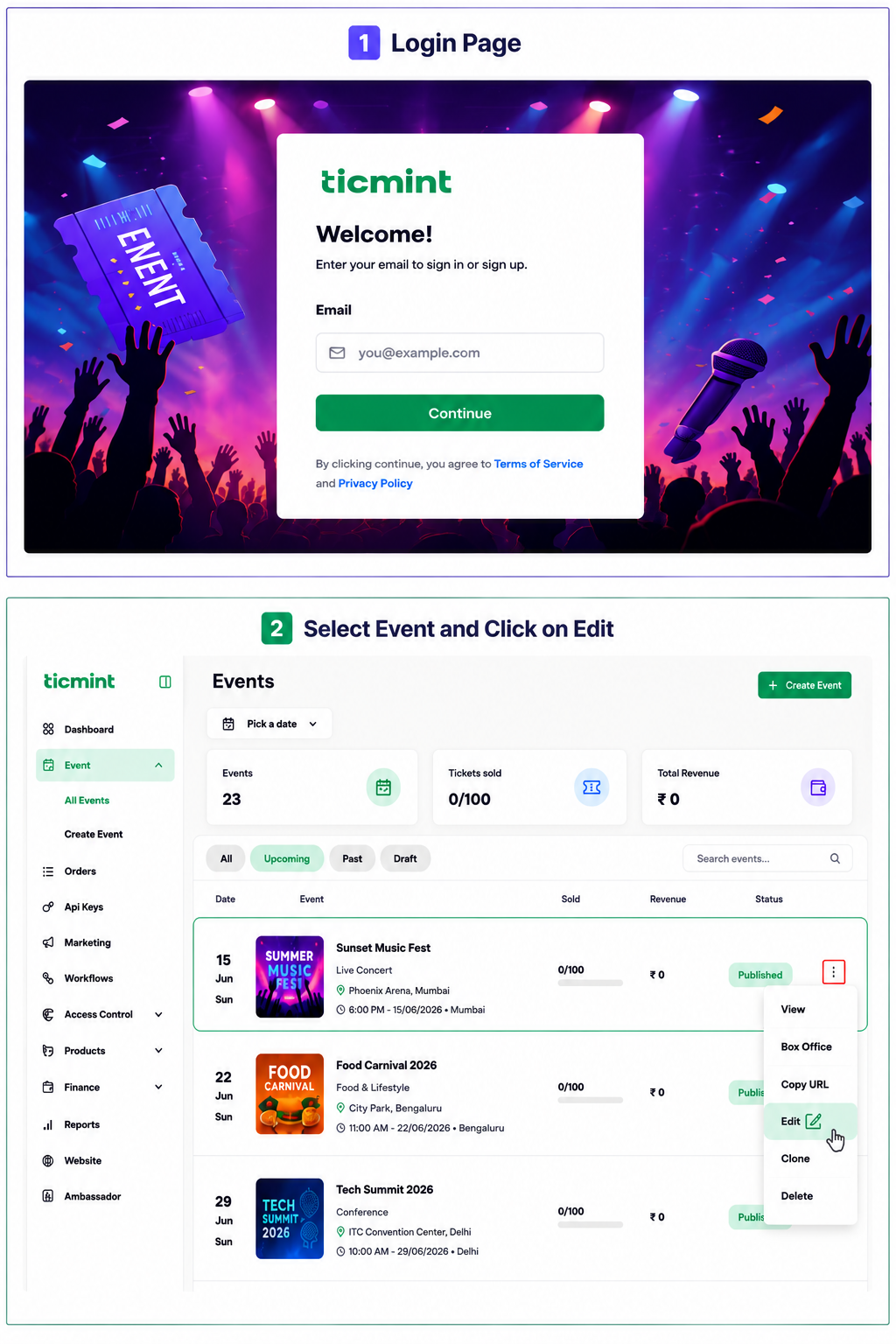
Step 1: Open the Event
Log in to the Ticmint Dashboard, navigate to All Events, choose the desired event, and click Edit.
Step 2: Enable Multi-Currency Pricing
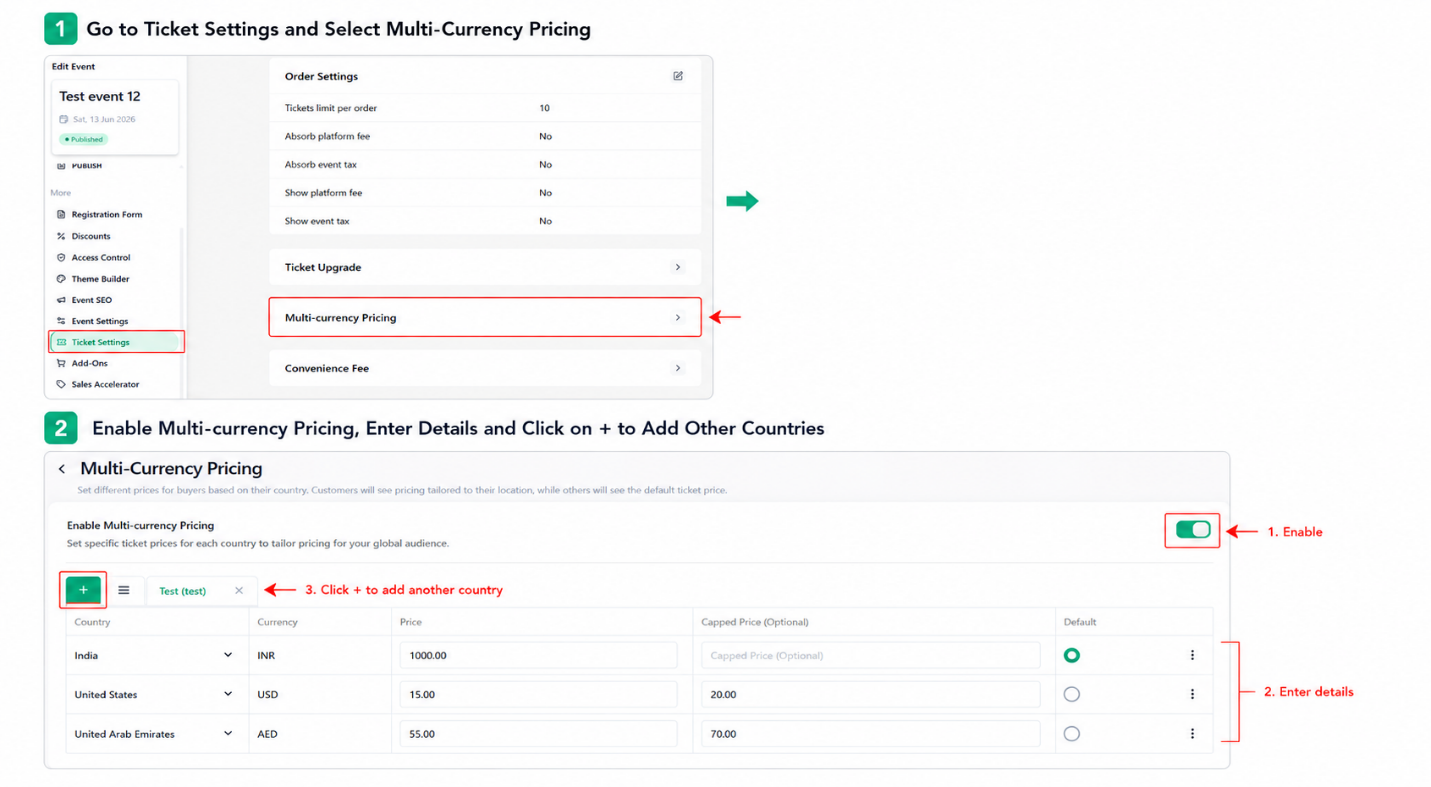
Go to Ticket Settings and select Multi-Currency Pricing.
☐ Enable the Multi-Currency Pricing option
Enter the required details:
☐ Select the Country
☐ Choose the Currency
☐ Enter the Price
☐ Enter the Capped Price
☐ Set the Default Currency
To add pricing for additional countries:
☐ Click the + (Plus) icon
☐ Repeat the process for each country and currency
Important
Make sure all details such as Country, Currency, Price, Capped Price, and Default Currency are accurate before saving. Carefully review the multi-currency settings to ensure correct ticket pricing across different regions.
Learn more about Ticmint plans and fees on the Ticmint website.
Was this article helpful?
That’s Great!
Thank you for your feedback
Sorry! We couldn't be helpful
Thank you for your feedback
Feedback sent
We appreciate your effort and will try to fix the article