Registration Form – How to Set Up & Use (Per Order and Per Ticket)

Created by Ticmint Support, Modified on Thu, 21 May at 4:15 PM by Ticmint Support

The Registration Form helps organisers collect essential attendee information during ticket purchase. Organisers can customise the form by adding their own questions, selecting different answer types, marking fields as required, and collecting uploads directly during checkout.

Registration Forms can be configured either Per Order or Per Ticket, depending on the type of information required.


1. Accessing the Registration Form

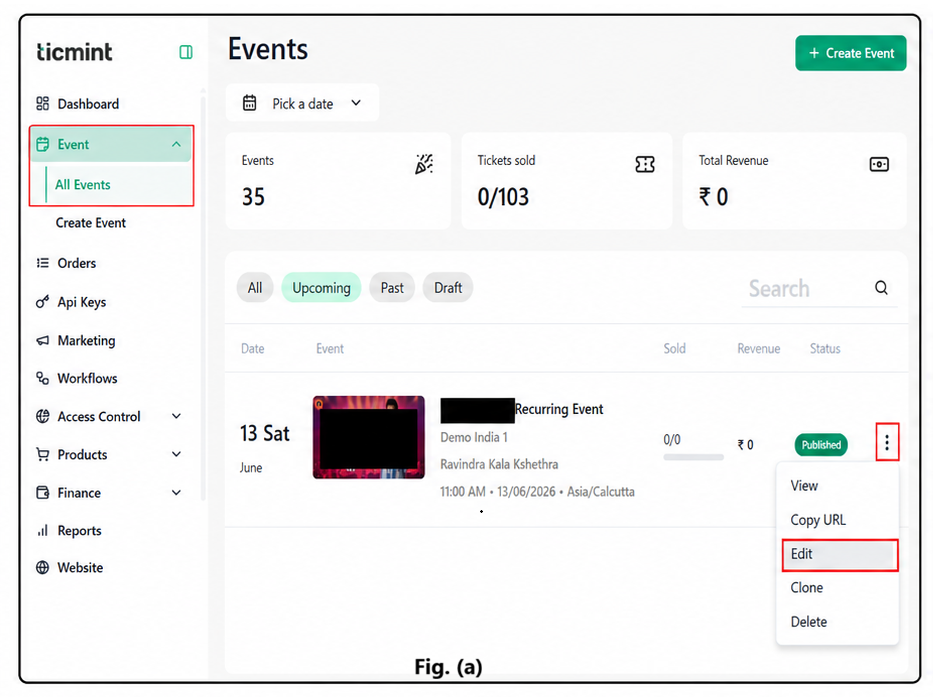
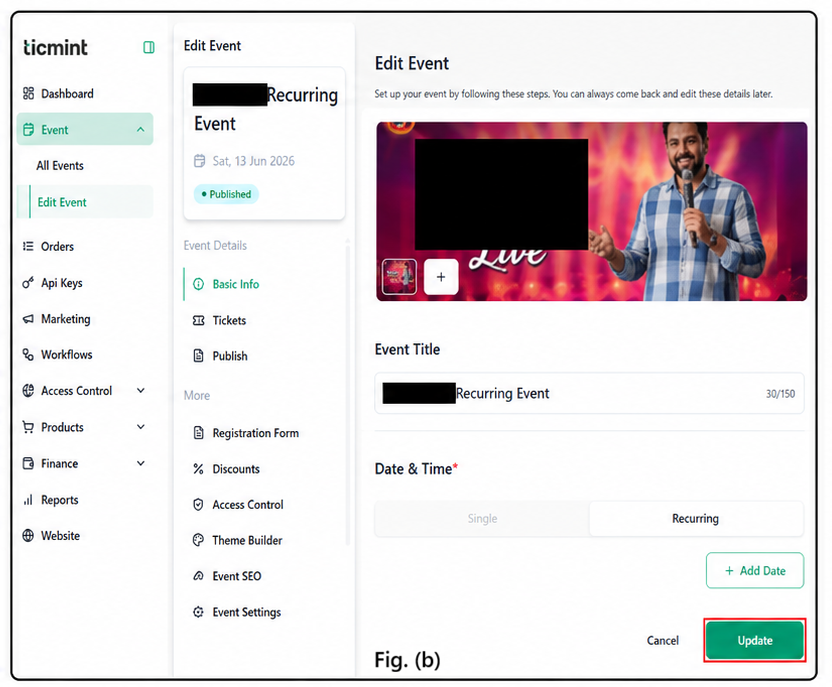
  1. Go to your Event Dashboard.

  2. Select the event you want to edit.

  3. From the left-side menu, click Registration Form under the More section.

This opens the Registration Form configuration page where you can create and manage attendee questions.


2. Choosing the Form Scope


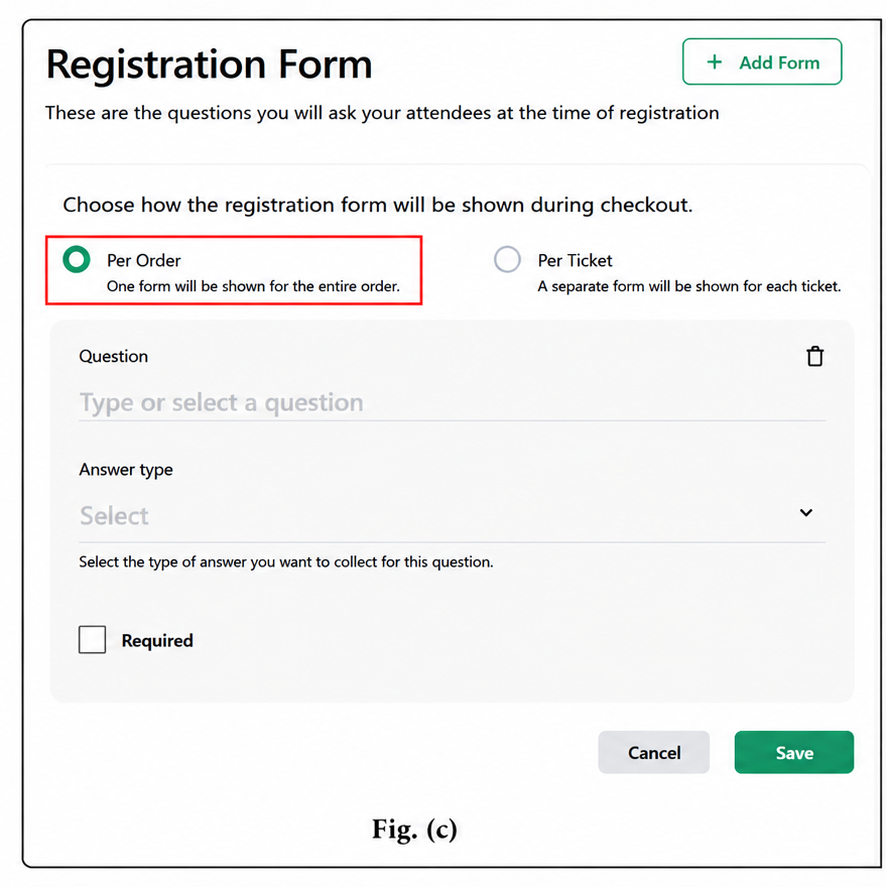
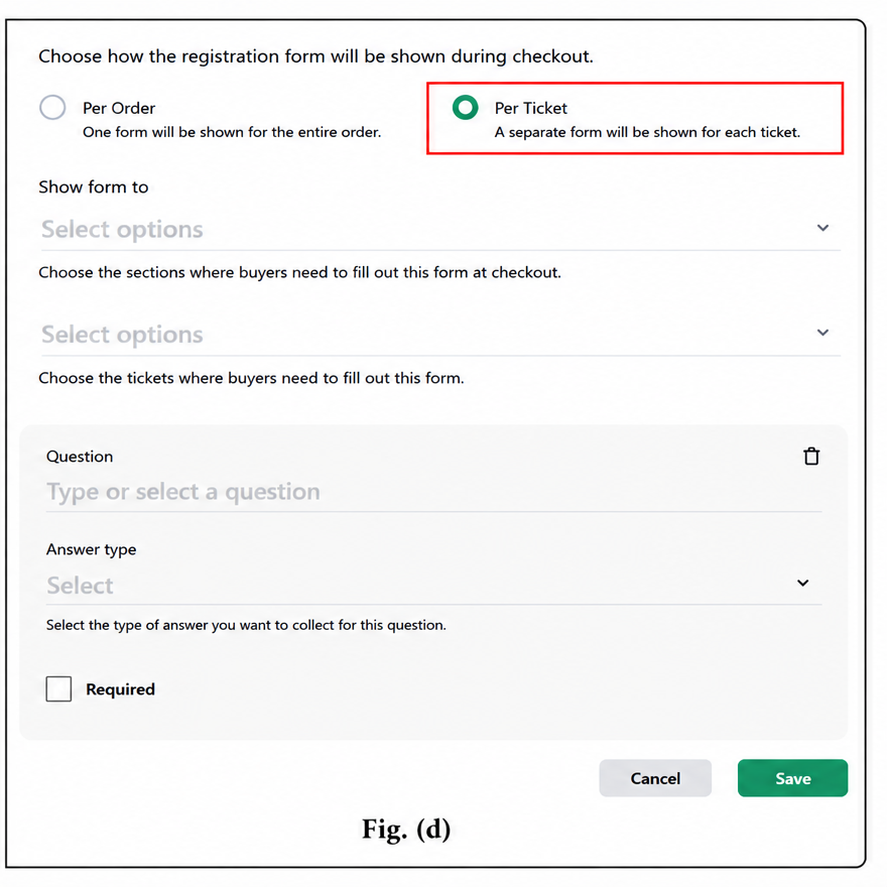
At the top of the Registration Form page, select how the form should appear during checkout.

Per Order

The form is displayed once per transaction.

This option is useful when you only need one set of answers for the entire purchase.

Common Examples

  • Purchaser Name

  • Buyer Email Address

  • Company Name

  • General Dietary Preferences


Per Ticket

The form is displayed separately for every ticket purchased.

This is useful when individual attendee information is required for each ticket holder.

Common Examples

  • Attendee Name

  • T-Shirt Size

  • Dietary Requirements

  • ID Information


3. Adding Questions


  1. Click + Add Question.

  2. Enter the question text.

Example:
“What is your T-shirt size?”

  1. Select the required answer type.


Available Answer Types

Text

Allows attendees to enter free-form text responses.

Use For

  • Names

  • Addresses

  • Descriptions

  • Open-ended answers


Number

Accepts numeric input only.

Use For

  • Age

  • Quantity

  • ID Numbers


Phone Number

Provides a dedicated phone number field.

Use For

  • Mobile Numbers

  • Contact Information


Multi Select

Allows attendees to choose multiple options from a list.

Use For

  • Allergies

  • Interests

  • Dietary Restrictions


Single Select

Allows attendees to select only one option.

Use For

  • Gender

  • T-shirt Size

  • Meal Preference


Checkbox

Displays a single checkbox option.

Use For

  • Terms & Conditions

  • Consent Confirmation

  • Opt-in Agreements


Name

Provides a structured field for full name collection.

Use For

  • Attendee Name Collection


Nationality

Provides a selectable nationality field.

Use For

  • Country Tracking

  • International Events


Email

Requires attendees to enter a valid email address.

Use For

  • Ticket Delivery

  • Confirmation Emails

  • Communication


File Upload

Registration Forms now support file uploads during checkout, including Guest Checkout.

Attendees can upload files directly within the registration form.

Supported File Types

  • Images

  • PDF Files

  • CSV Files

Use For

  • ID Proof Submission

  • Resume Uploads

  • Supporting Documents

  • Medical Certificates

  • Custom Event Requirements

This feature is supported in both:

  • Logged-in Checkout

  • Guest Checkout


Required Questions

Enable the Required option if attendees must answer the question before completing checkout.

Required questions help ensure organisers receive all mandatory attendee information.


4. Saving and Publishing

  1. After adding all required questions, click Save.

  2. The registration form will automatically appear during checkout according to the selected scope:

  • Per Order

  • Per Ticket


Best Practices

  • Keep forms short for a faster checkout experience.

  • Only mark essential fields as required.

  • Use Per Ticket forms only when attendee-specific information is necessary.

  • Test the form using a trial registration before publishing the event.

  • Use File Upload fields only when supporting documents are genuinely required.

Properly configured registration forms help organizers collect accurate attendee information and improve overall event management efficiency.


Was this article helpful?

That’s Great!

Thank you for your feedback

Sorry! We couldn't be helpful

Thank you for your feedback

Let us know how can we improve this article!

Select at least one of the reasons
CAPTCHA verification is required.

Feedback sent

We appreciate your effort and will try to fix the article