Any changes made here will be reflected on the Event Details page.
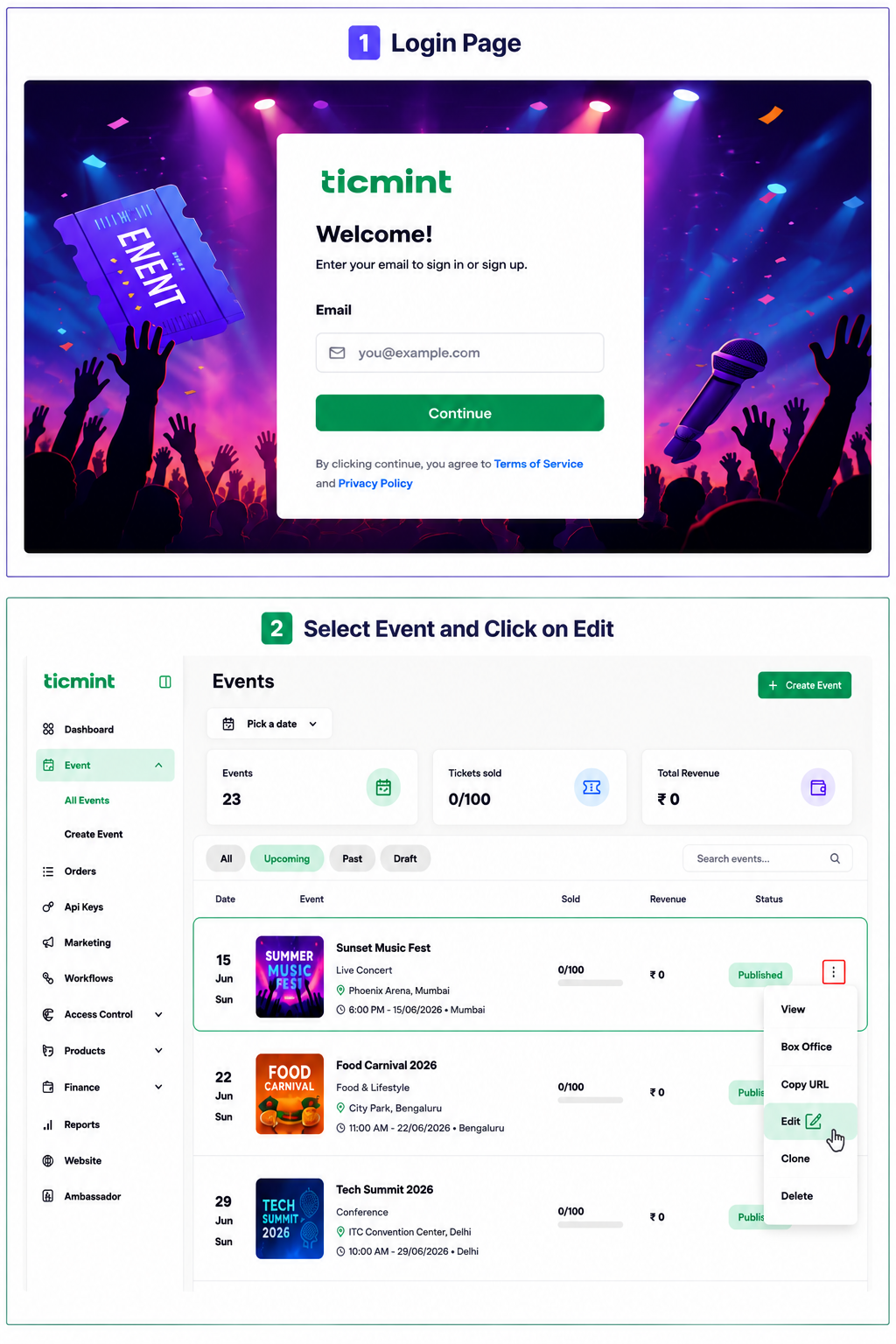
Step 1: Access Event Creation
Login to the Ticmint Dashboard and select all event and click on edit.
Step 2: Choose the Price Visibility Option
Click on Event Settings to open the event configuration options.
Within Event Settings, select the Show Price dropdown menu.
Choose the appropriate price visibility option:
☐ Show Price – Displays the ticket price on the Event Details page
☐ Override Display Price – Allows you to customize how the price appears on the Event Details page
☐ Hide Price – Hides the ticket price from the Event Details page
☐ Click Save

Important
The selected Ticket Price Visibility setting will be applied to the Event Details page. After saving, review the event page to ensure the ticket price is displayed correctly.
Learn more about tiered ticket pricing on the Ticmint blog.
Was this article helpful?
That’s Great!
Thank you for your feedback
Sorry! We couldn't be helpful
Thank you for your feedback
Feedback sent
We appreciate your effort and will try to fix the article