Introduction
Order settings allow you to control how platform fees and event taxes are applied and displayed during ticket purchases. These settings play an important role in determining the final amount customers pay and how pricing is presented during checkout.
Configuring these settings correctly helps create a better purchasing experience, improves transparency, and allows you to manage your event revenue effectively.
Why Absorbing or Not Absorbing Fees & Taxes Matters
Choosing whether to absorb or pass platform fees and taxes directly affects:
Customer experience
Final ticket pricing
Event revenue
Checkout transparency
Purchase conversion rates
Different events may require different pricing strategies. Some organisers prefer showing a single final ticket price, while others prefer displaying each charge separately.
Understanding Absorbing Fees & Taxes
What happens when you absorb fees or taxes?
When fees or taxes are absorbed, the cost is included within the ticket price itself. Customers do not see these amounts added separately during checkout.
Example:
Ticket Price: ₹500
Platform Fee: ₹20
Event Tax: ₹25
Customer pays: ₹500
The organization covers the fee and tax internally.
Benefits of absorbing fees/taxes:
✔ Cleaner pricing display
✔ Better customer experience
✔ Reduces unexpected charges at checkout
✔ Can improve ticket purchase completion rates
✔ Customers see one final amount
Understanding Non-Absorbed Fees & Taxes
What happens when you do not absorb fees or taxes?
When fees or taxes are not absorbed, they are added separately during checkout.
Example:
Ticket Price: ₹500
Platform Fee: ₹20
Event Tax: ₹25
Customer pays:
Ticket Price → ₹500
Platform Fee → ₹20
Event Tax → ₹25
Total → ₹545
Benefits of not absorbing fees/taxes:
✔ Protects your event revenue
✔ Keeps your ticket price unchanged
✔ Provides complete cost transparency
✔ Makes reporting and calculations easier
How to Configure Platform Fees & Event Taxes
Step 1: Log in to your Dashboard
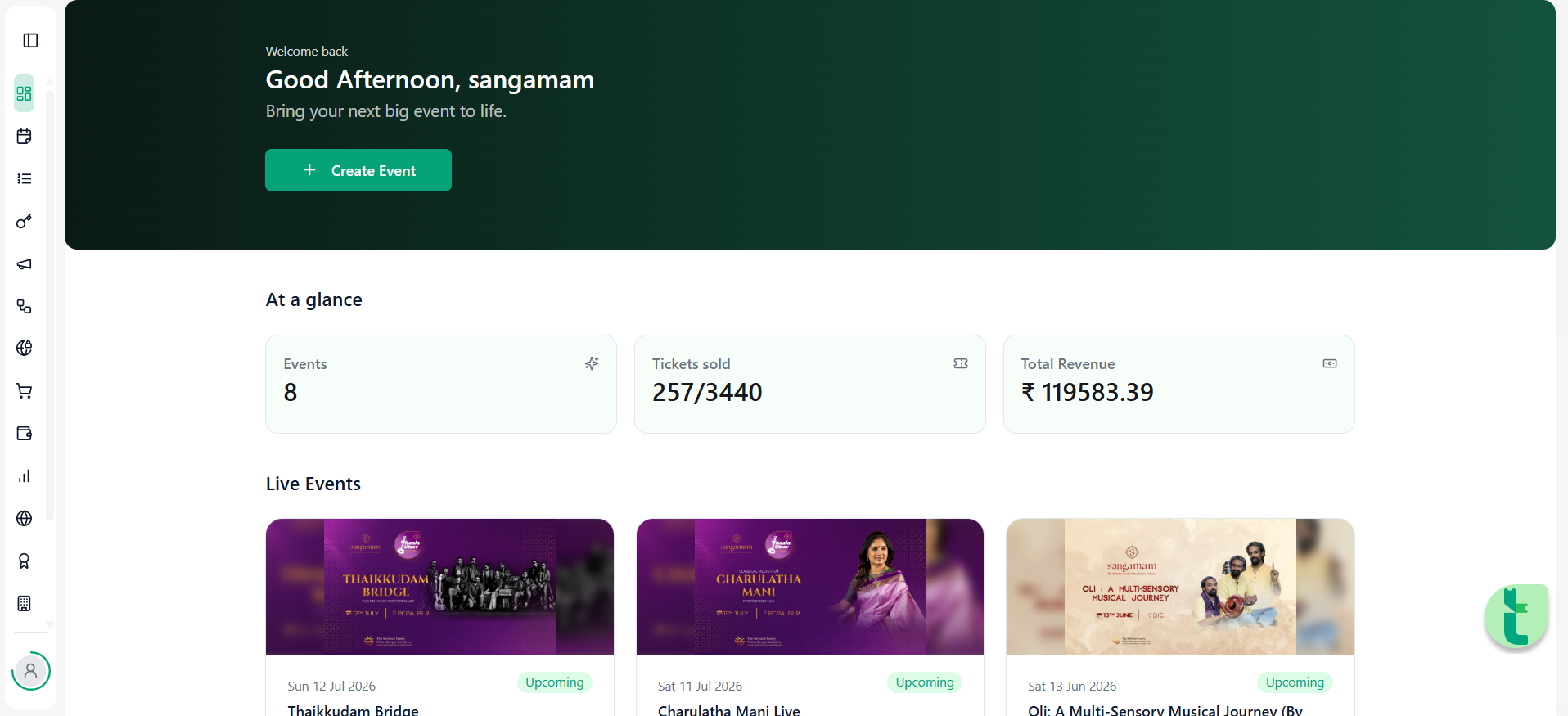
Sign in using your account credentials.
Step 2: Open Your Event
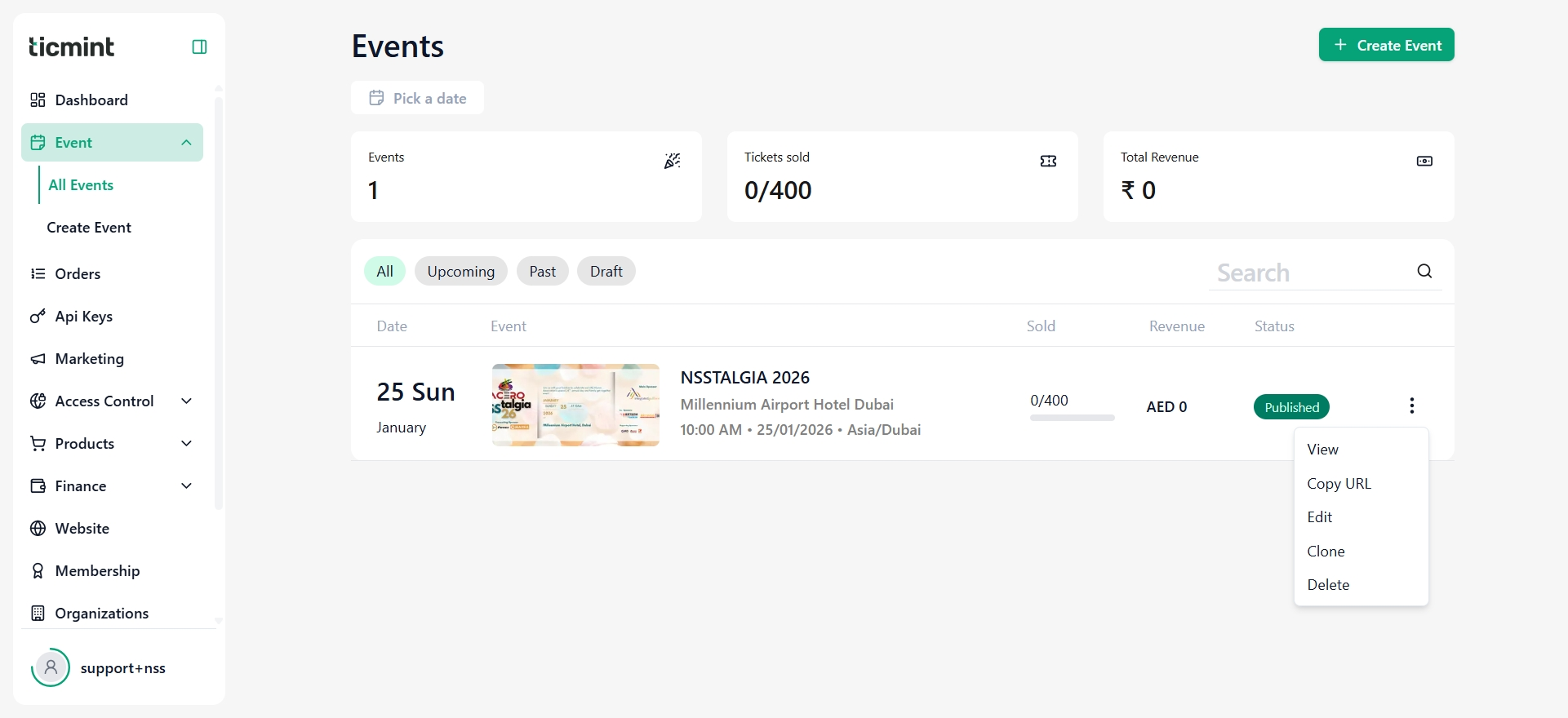
Go to All Events
Locate your event
Click the three-dot menu on the right side
Select Edit Event
Step 3: Open Ticket Settings
Navigate to the Ticket Settings section.
You will find configuration options related to:
Ticket limits
Platform fees
Event taxes
Fee display settings
Ticket Settings Explained
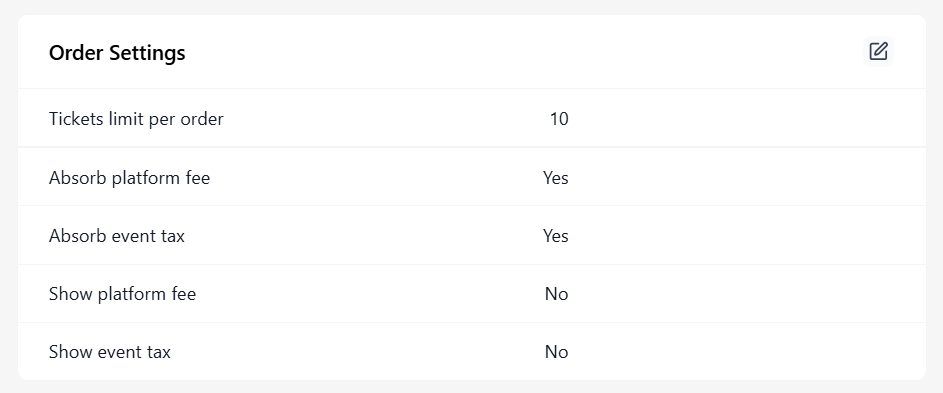
Configure Ticket Limit Per Order
This setting controls the maximum number of tickets a customer can purchase in a single order.
Example:
If limit = 5
A customer cannot purchase more than 5 tickets in one transaction.
Why is this important?
Prevents bulk purchases
Reduces misuse
Helps manage ticket availability fairly
Absorb Platform Fee (Yes / No)
This setting decides who pays the platform service fee.
If set to YES
Platform fee is included within the ticket price
Customers do not see additional platform charges
The organizer absorbs the cost
Example:
Ticket Price: ₹500
Platform Fee: ₹20
Customer Pays: ₹500
If set to NO
Platform fee is added separately
Customers pay the fee
Example:
Ticket Price: ₹500
Platform Fee: ₹20
Customer Pays: ₹520
Absorb Event Tax (Yes / No)
This setting determines whether event taxes are included in the ticket price.
If set to YES
Tax is already included within ticket pricing
Customers see one final amount
Example:
Ticket Price: ₹500 (tax included)
Customer Pays: ₹500
If set to NO
Tax is added separately during checkout
Example:
Ticket Price: ₹500
Event Tax: ₹25
Customer Pays: ₹525
Show Platform Fee Separately (Yes / No)
This controls whether the platform fee appears as a separate line item during checkout.
If set to YES
Customer sees:
Ticket Price: ₹500
Platform Fee: ₹20
Total: ₹520
Why use this?
Gives customers visibility of service charges
Improves transparency
If set to NO
Platform fee will not appear separately.
Why use this?
Creates a cleaner checkout page
Show Event Tax Separately (Yes / No)
This controls whether tax appears separately.
If set to YES
Customer sees:
Ticket Price: ₹500
Event Tax: ₹25
Total: ₹525
Benefits:
Clear tax visibility
Easier understanding of charges
If set to NO
Tax is not shown separately.
Benefits:
Cleaner pricing display
Suggested Configuration Examples
Option 1: Customer-Friendly Pricing
Recommended if you want a simple checkout experience.
Settings:
Absorb Platform Fee → Yes
Absorb Event Tax → Yes
Show Platform Fee Separately → No
Show Event Tax Separately → No
Result:
Customers see one final price without additional charges.
Option 2: Transparent Pricing
Recommended if you want complete visibility of charges.
Settings:
Absorb Platform Fee → No
Absorb Event Tax → No
Show Platform Fee Separately → Yes
Show Event Tax Separately → Yes
Result:
Customers can see each charge clearly.
Final Step
After making all required changes:
Review your settings
Click Save
Your order settings will be updated and applied immediately to your event.
Learn more about Ticmint plans and fees on the Ticmint website.
Was this article helpful?
That’s Great!
Thank you for your feedback
Sorry! We couldn't be helpful
Thank you for your feedback
Feedback sent
We appreciate your effort and will try to fix the article