Overview
Manage additional configurations for your event, including categorization, ticketing options, RSVP settings, authentication requirements, invoice attributes, payment gateways, and ticket price visibility.
Accessing Event Settings
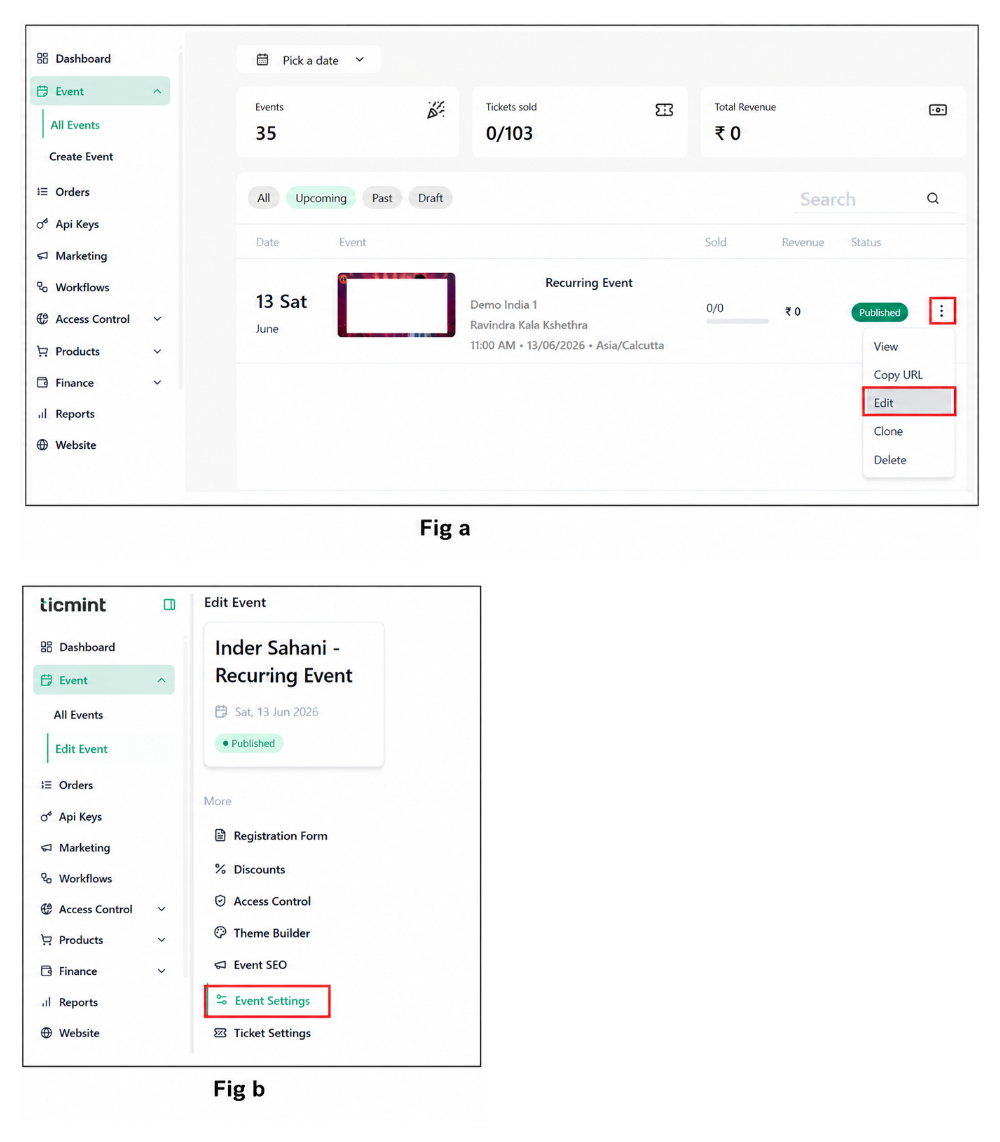
For an Existing Event Fig. (a)
Navigate to Events.
Select the required event.
Click Edit.
Select Edit Event.
Navigate to Event Settings.
For a New Event Fig.(b)
Navigate to Events.
Click Create Event.
Complete the Basic Information section.
Proceed to Event Settings.
Categorisation & Tags
Categories and tags help attendees discover your event through search and recommendations.
Steps
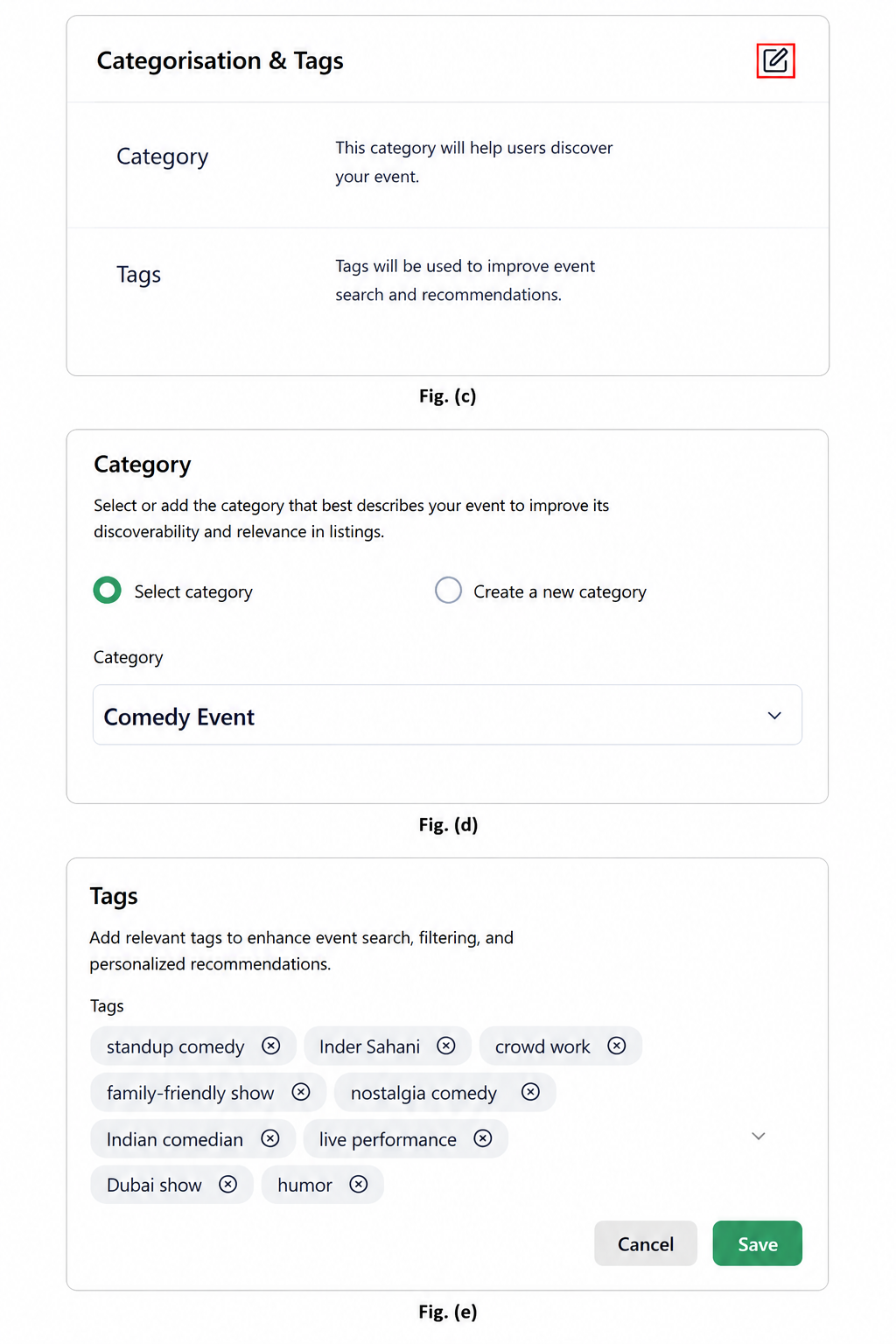
Click Edit under Categorisation & Tags. Fig. (c)
Select an existing category or create a new category. Fig. (d)
Enter relevant tags for the event. Fig. (e)
Click Save.
Advanced Ticket Options
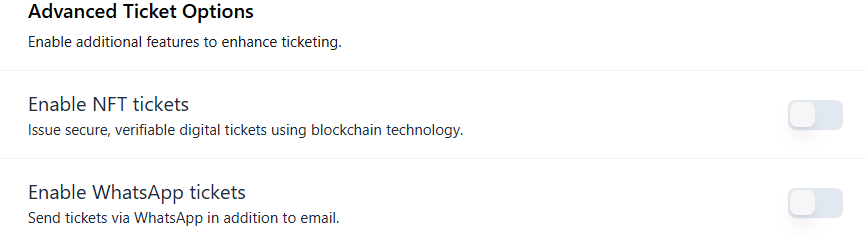
Enable additional ticketing features to enhance attendee experience and ticket security.
Enable NFT Tickets: Issue secure and verifiable digital tickets using blockchain technology.
Enable WhatsApp Tickets: Send tickets to attendees via WhatsApp in addition to email delivery.
RSVP Button Visibility Settings
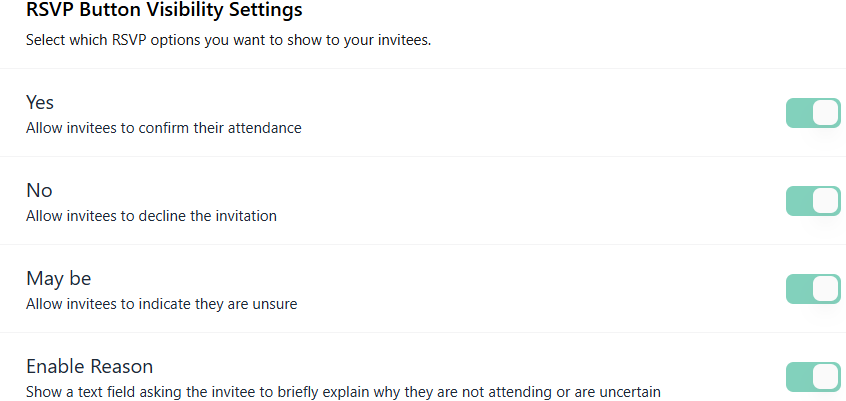
Control which RSVP response options are available to invitees.
Available RSVP Options
Yes: Allows invitees to confirm their attendance.
No: Allows invitees to decline the invitation.
Maybe: Allows invitees to indicate that they are unsure about attending.
Enable Reason: Displays a text field that allows invitees to provide a reason when selecting No or Maybe.
Authentication
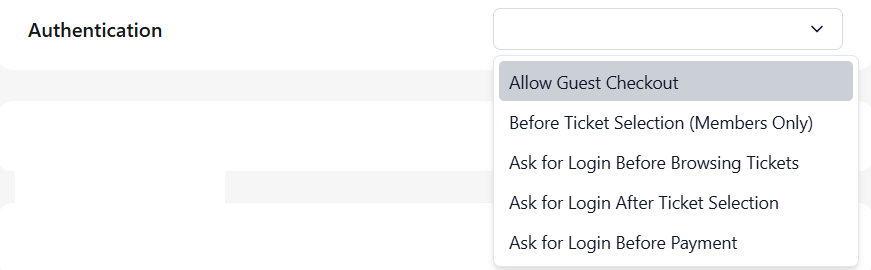
Configure when users must authenticate before accessing tickets or completing purchases.
Available Options
Allow Guest Checkout: Users can purchase tickets without logging in.
Before Ticket Selection (Members Only): Users must be logged in before selecting tickets.
Ask for Login Before Browsing Tickets: Users must log in before viewing ticket options.
Ask for Login After Ticket Selection: Users can browse and select tickets but must log in before proceeding.
Ask for Login Before Payment: Users can browse and select tickets but must log in before completing payment.
Set Sale Dates
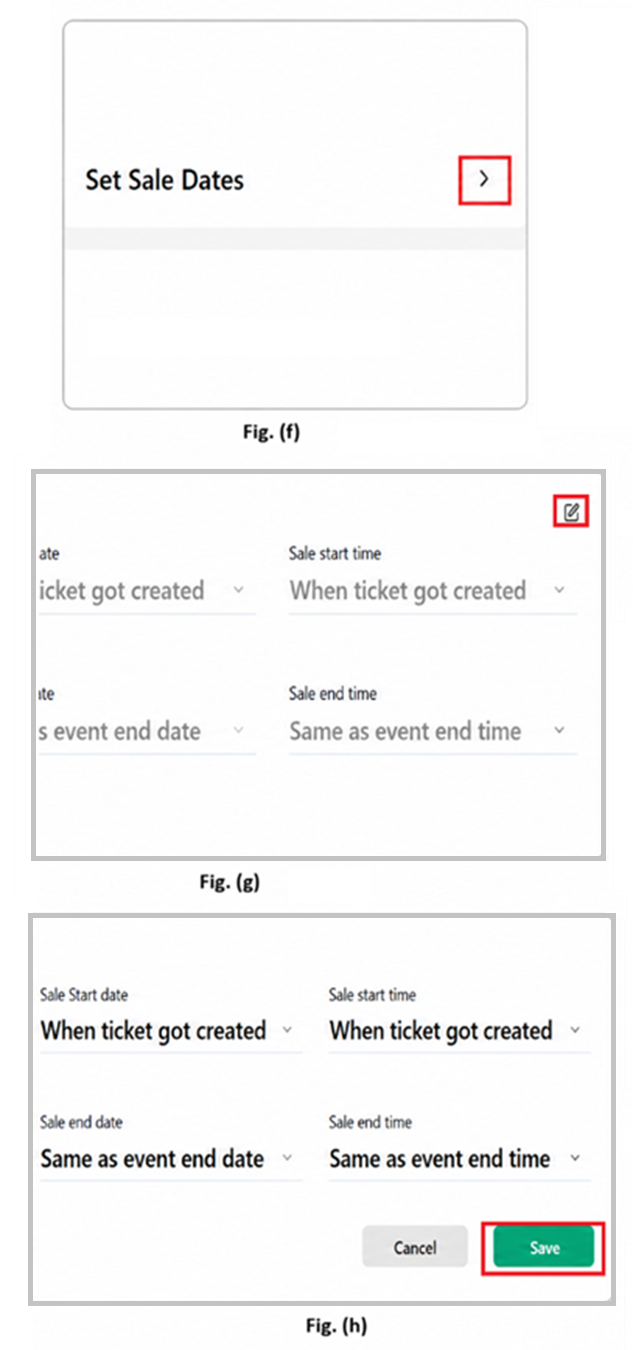
Configure custom ticket sale periods for the event.
Steps
Click Edit under Set Sale Dates. Fig. (f)
Click on edit and select the sale start and end time and date. Fig. (g)
Click Save. Fig. (h)
Invoice Attributes
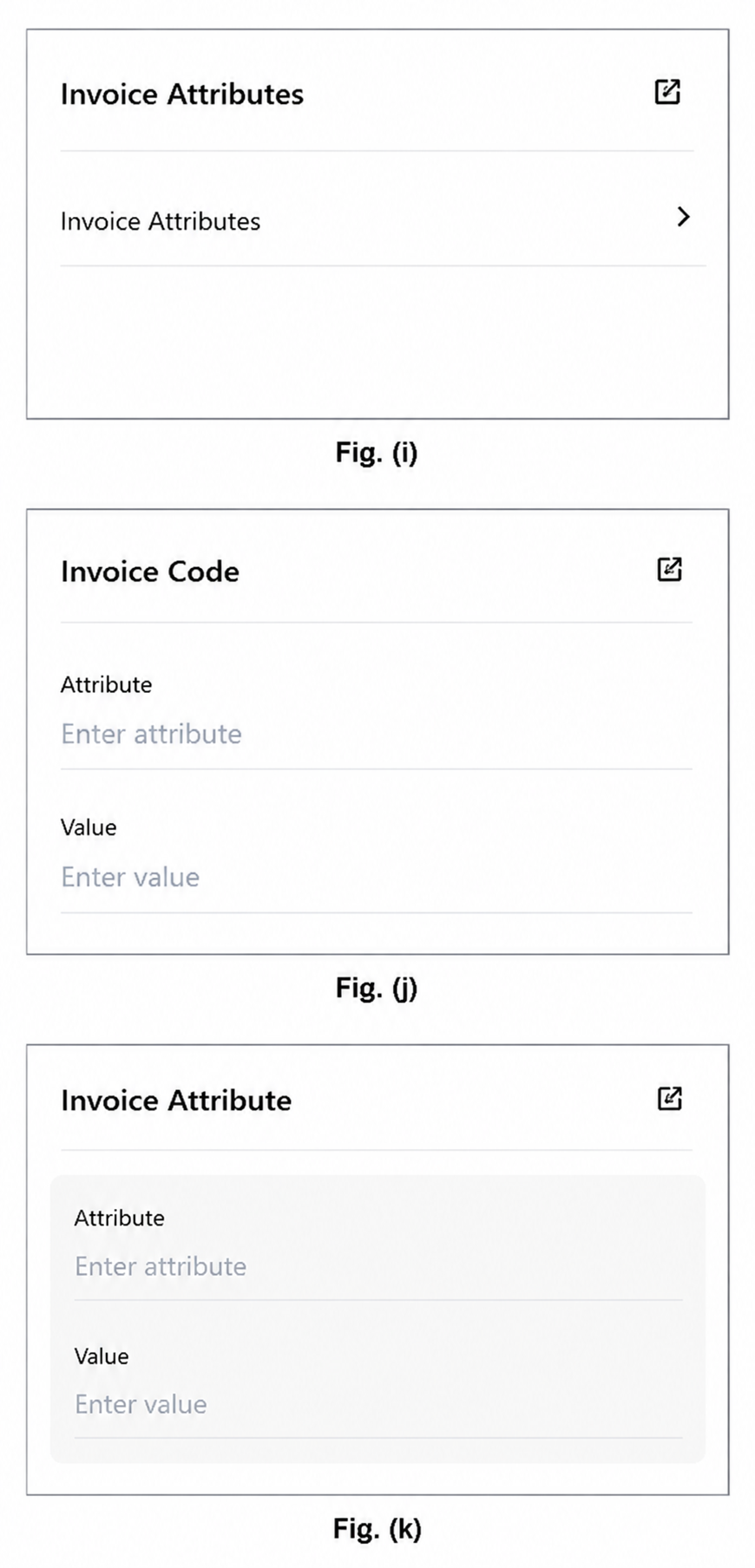
Customize invoice information for ticket purchases. Fig. (i)
Invoice Code
Steps
Click Edit beside Invoice Code. Fig. (j)
Enter the required attribute name.
Enter the corresponding value.
Save changes.
Steps
Click Edit beside Invoice Attributes. Fig. (k)
Enter the attribute name.
Enter the corresponding value.
Save changes.
Payment Gateway
Configure the payment gateway used to process ticket purchases.
Steps
Navigate to Payment Gateway and Select the preferred payment gateway.
Configure any required gateway settings and Save changes.

Ticket Price Visibility
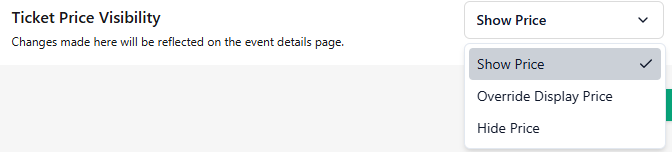
Control how ticket pricing is displayed on the event details page.
Available Options on drop down
Show Price: Displays the actual ticket price to attendees.
Override Display Price: Displays a custom price label instead of the actual ticket price.
Hide Price: Hides ticket pricing information from the event details page.
Save Changes
After completing all required configurations:
Review the settings.
Click Save.
Note: All changes made in Event Settings are reflected on the event details page and ticket purchasing flow.
Best Practices
Use accurate categories and tags for better reach
Enable WhatsApp tickets to reduce delivery issues
Set sale dates carefully to avoid early or late closures
Add invoice attributes for professional billing
Need Help?
If you face any issues with Event Settings:
Visit the Ticmint Help Centre
Contact Ticmint Support via the support portal
Share your event name and registered email for faster assistance
Was this article helpful?
That’s Great!
Thank you for your feedback
Sorry! We couldn't be helpful
Thank you for your feedback
Feedback sent
We appreciate your effort and will try to fix the article