Ticket Cancellation and Refund Support Guide
This guide explains how event organisers can cancel tickets and process refunds using the Ticmint Dashboard. It includes step-by-step instructions, explanations of each cancellation/refund option, refund timelines, attendee notifications, and support procedures.
Ticmint allows organisers to manage cancellations according to their event-specific cancellation policy directly from the dashboard.
1. Accessing the Ticmint Dashboard
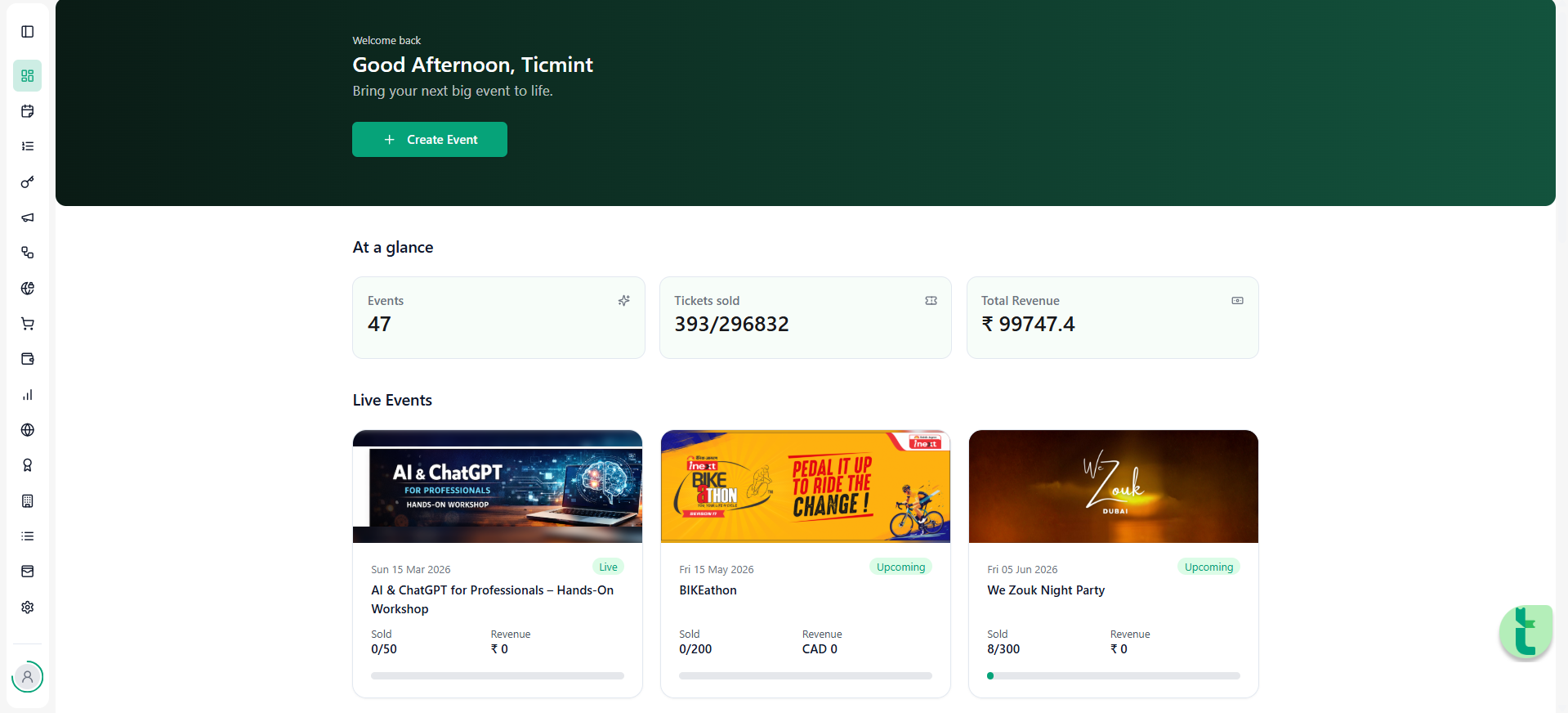
To begin managing cancellations or refunds:
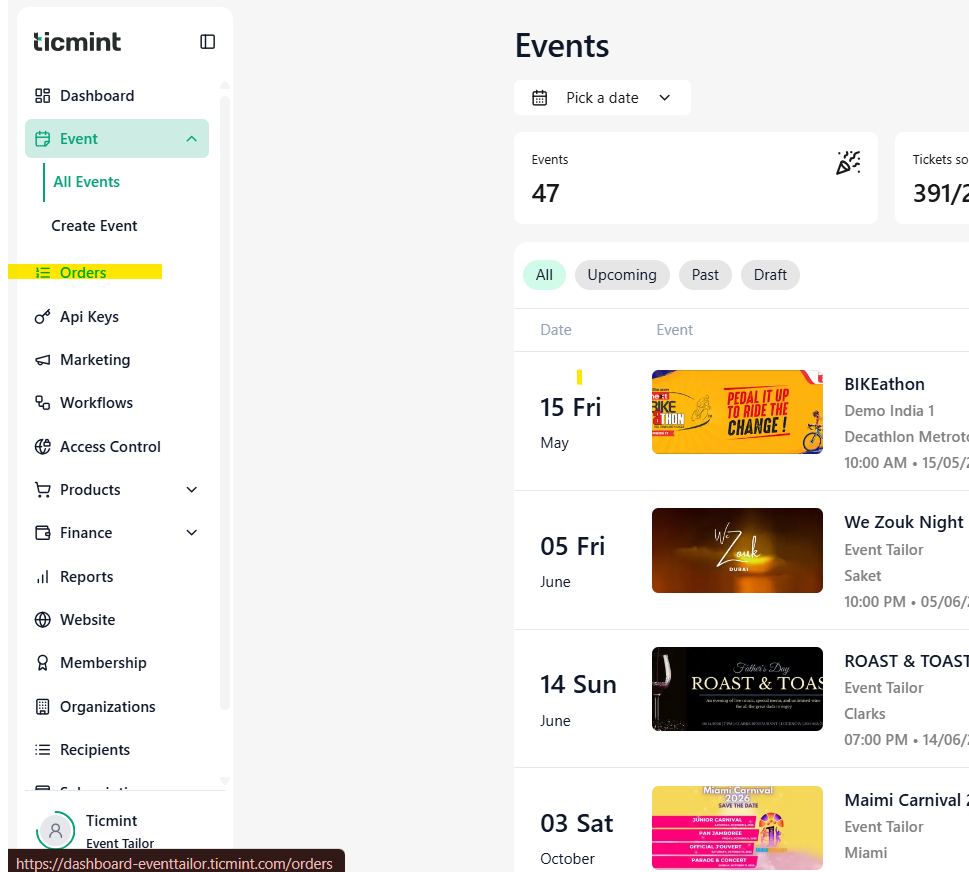
Log in to the Ticmint Dashboard using your organiser credentials.
Navigate to the Orders or All Orders section from the dashboard menu.
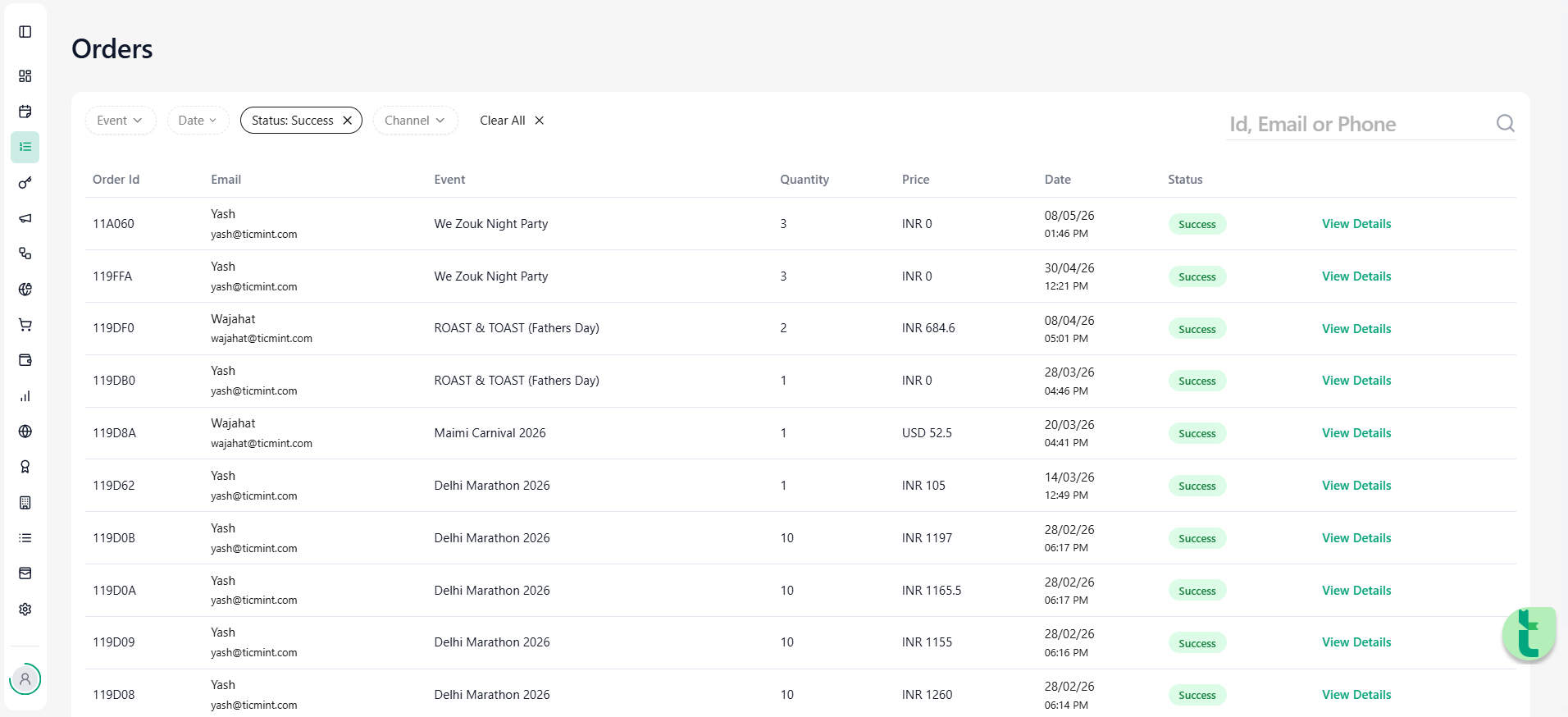
Search for the attendee/order using:
Attendee Name
Email Address
Order ID
Phone Number
Select the required order to open the detailed order view.
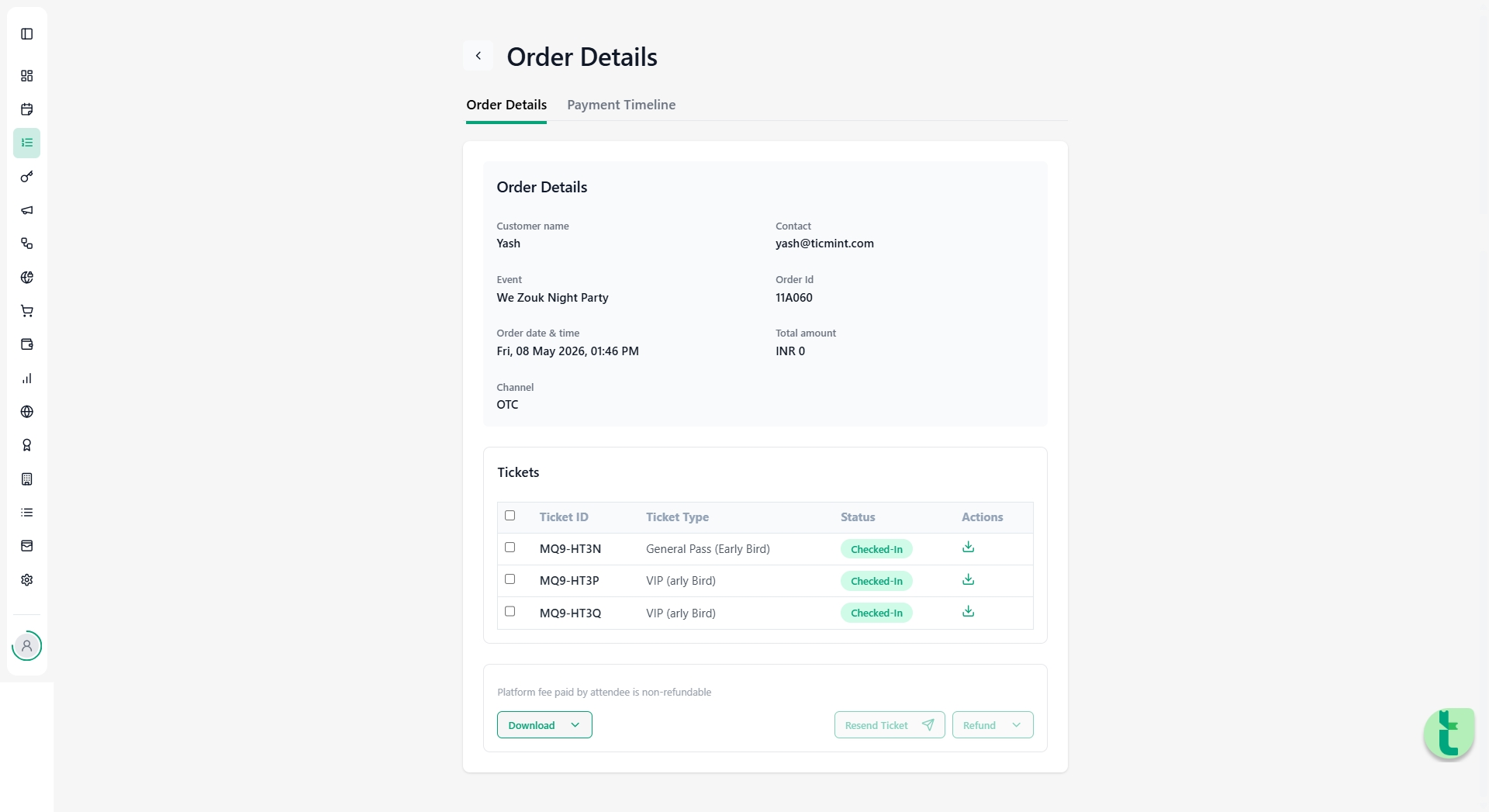
The order detail page provides:
Ticket information
Download ticket option
Resend ticket option
Cancellation and refund controls
2. How to Cancel or Refund a Ticket
Once the order detail page is open:
Select the ticket(s) you want to manage by ticking the checkbox.
Click the Delete/Trash icon or the cancellation action button.
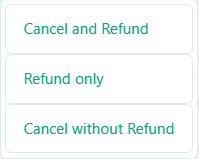
Choose one of the available options:
Cancel & Refund
Cancel Only
Refund Only
Each option performs a different action, explained below.
3. Cancellation and Refund Options
A. Cancel & Refund
What Happens
The ticket is immediately cancelled.
The ticket becomes invalid for event entry.
The ticket is automatically returned to inventory and becomes available for resale.
The attendee receives a refund of 95% of the ticket value.
A 5% platform fee remains non-refundable.
Attendee Notification
The attendee automatically receives an email containing:
Cancellation confirmation
Refund amount
Transaction details
Refund processing information
Recommended Use
Use this option when:
The attendee qualifies for a refund
The organiser wants the ticket available for resale
B. Cancel Only
What Happens
The ticket is cancelled immediately.
The ticket becomes invalid for entry.
The ticket is returned to inventory for resale.
No refund is issued.
Attendee Notification
The attendee receives an email confirming:
Ticket cancellation
No refund applicable under the organiser’s policy
Recommended Use
Use this option for:
Non-refundable tickets
Policy violations
Complimentary or restricted access tickets
C. Refund Only
What Happens
The attendee receives a 95% refund.
The ticket remains invalid.
The ticket is NOT returned to inventory.
The ticket cannot be reused or resold.
A 5% platform fee remains non-refundable.
Attendee Notification
The attendee receives an email including:
Refund confirmation
Refund amount
Ticket status
Transaction reference
Recommended Use
Use this option when:
You want to refund the attendee
You do not want the ticket to be resold
4. Refund Processing Timeline
If a refund is applicable:
Refunds are processed to the attendee’s original payment method.
Standard processing time is 5–7 business days.
Processing duration may vary depending on:
Bank processing timelines
Payment gateway
Credit/debit card provider
Some financial institutions may require additional processing time.
If Refund Is Delayed
Attendees should:
Check with their bank or payment provider
Verify the original payment method used
Contact the organiser or Ticmint Support if the refund does not reflect after the expected timeframe
5. Event-Specific Refund Policies
Each organiser may configure custom cancellation rules for their event, including:
Refund eligibility
Refund percentages
Non-refundable ticket conditions
Cancellation cut-off periods
Refund deadlines
Ticmint follows the organiser-defined cancellation policy for all refund actions.
Attendees are advised to review the event’s refund policy before purchasing tickets.
6. Ticket Status After Cancellation
7. Automated Email Notifications
Depending on the selected action, attendees automatically receive confirmation emails containing:
Ticket cancellation status
Refund details
Transaction references
Ticket validity status
Expected refund timeline
These notifications ensure transparency and clear communication between organisers and attendees.
8. Handling Refund Issues or Disputes
If an attendee raises a refund or cancellation concern:
Organisers Should:
Verify the attendee’s order in the All Orders section.
Review the event cancellation policy.
Check refund and transaction logs.
Confirm whether the refund action was successfully processed.
Contact Ticmint Support For:
Refund trace requests
Technical refund failures
Payment gateway issues
Chargeback or dispute investigations
9. Best Practices for Organisers
Always verify ticket details before processing cancellations.
Clearly communicate refund policies on the event page.
Inform attendees about processing timelines.
Maintain records of manual refund decisions.
Use “Refund Only” carefully, as tickets cannot be resold afterward.
10. Quick Summary
Learn more about handling ticket refunds on the Ticmint blog.
Was this article helpful?
That’s Great!
Thank you for your feedback
Sorry! We couldn't be helpful
Thank you for your feedback
Feedback sent
We appreciate your effort and will try to fix the article