The Registration Form helps organisers collect essential attendee information during ticket purchase. Organisers can customize the form by adding their own questions, selecting different answer types, marking fields as required, and collecting file uploads directly during checkout.
Registration Forms can be configured either Per Order or Per Ticket, depending on the type of information required.
Navigate to Registration Form
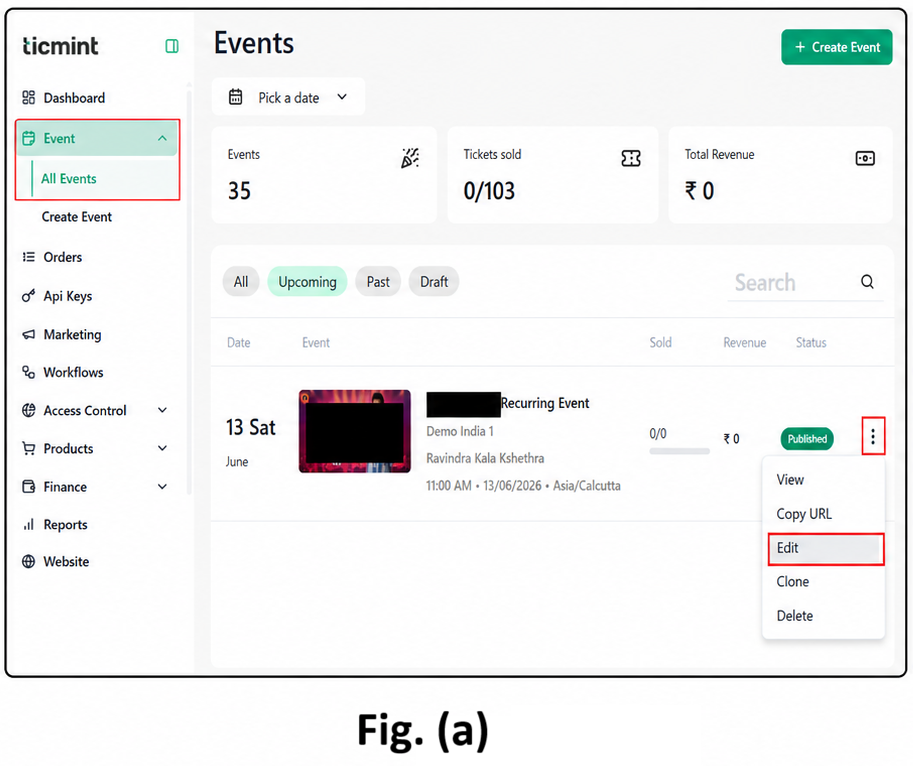
Navigate to Events.
Select the required event.
Click Edit.
If the event is already created, select Edit Event. Fig. (a)
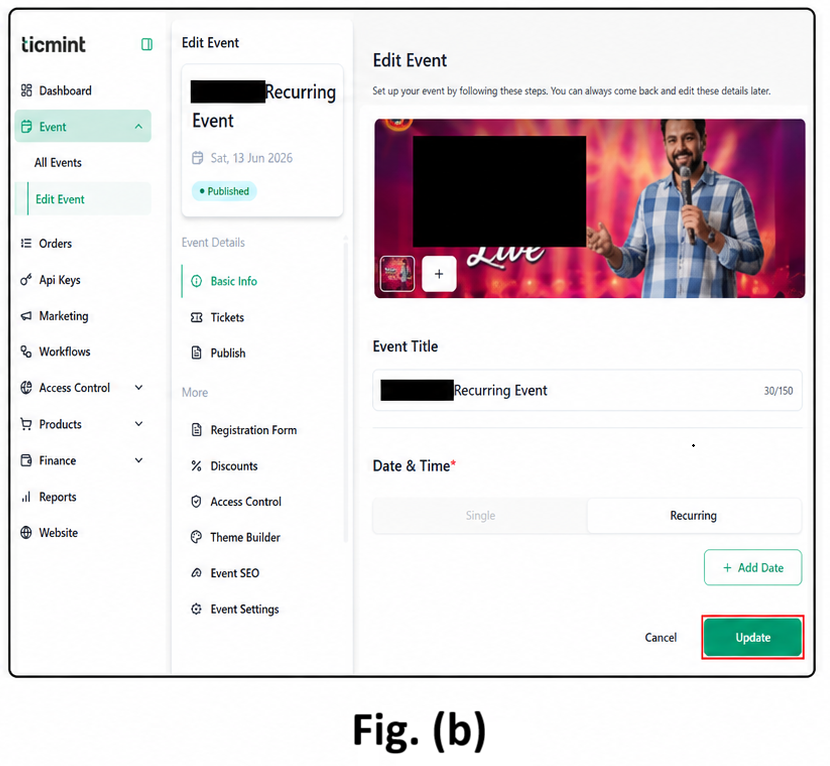
If creating a new event, complete the Basic Information section first, then navigate to the Registration tab. Fig. (b)
1. Per Order
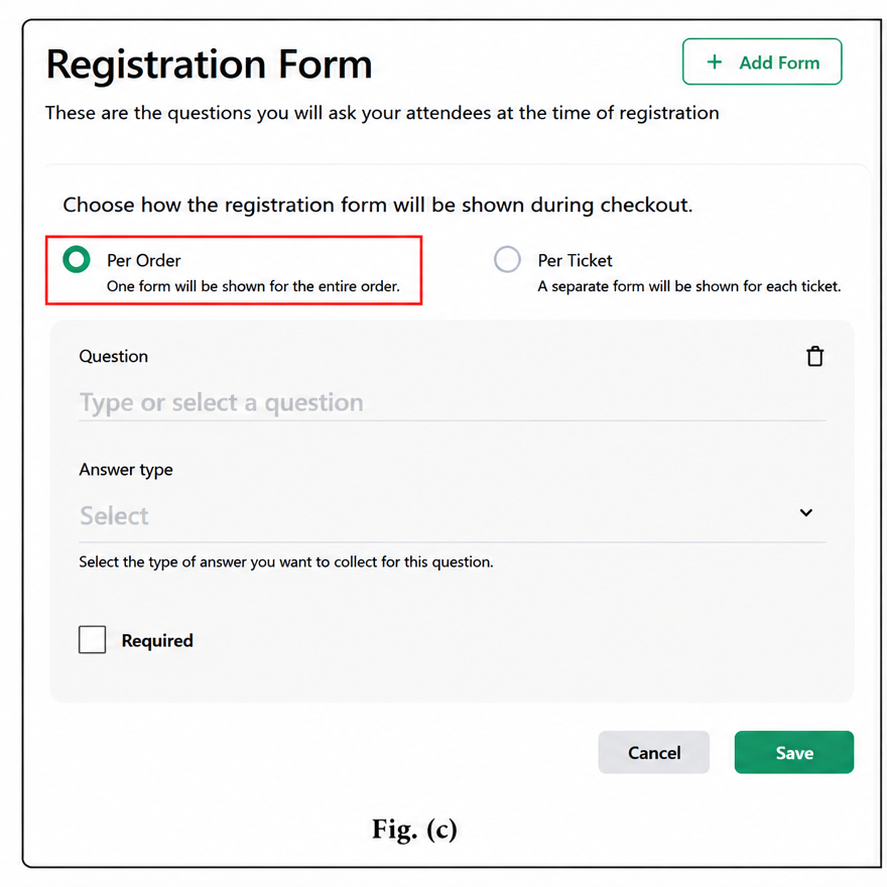
A single form is displayed for the entire order. Fig. (c)
Steps:
Enter the question.
Select the answer type from the Answer Type dropdown.
If the question is mandatory, enable the Required checkbox.
Click Save.
2. Per Ticket
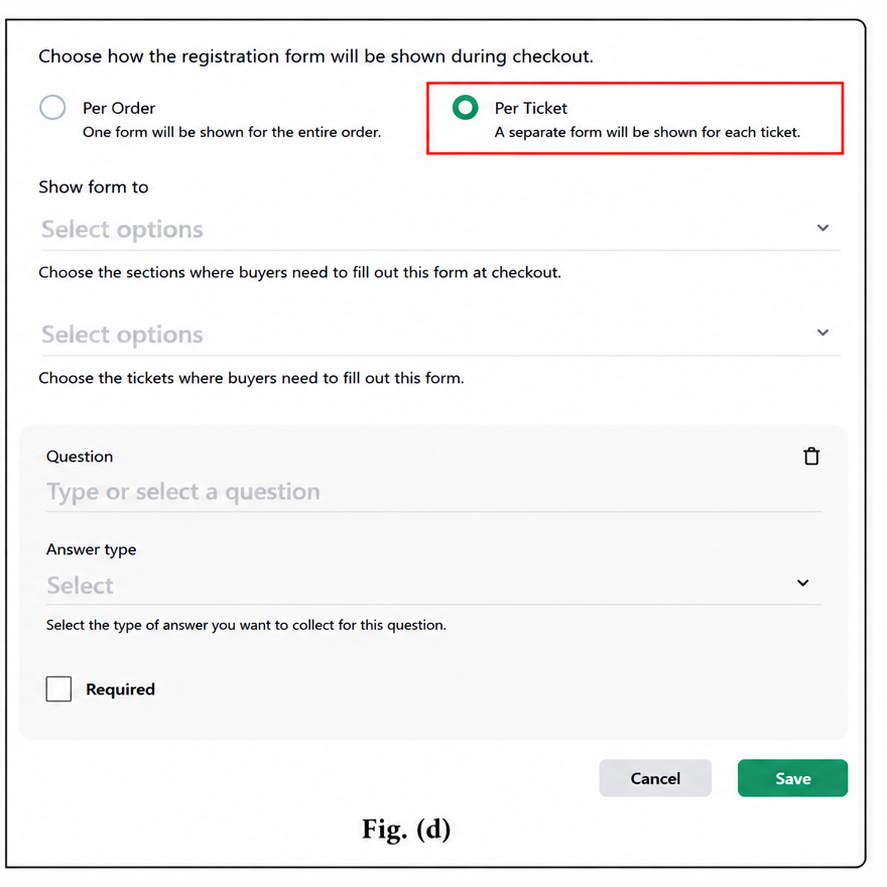
A separate form is displayed for each ticket. Fig. (d)
Steps:
Select the Show Form To dropdown.
Choose the sections where buyers need to fill out the form during checkout.
Select the Select Option dropdown.
Choose the ticket(s) for which buyers must complete the form.
Enter the question.
Select the answer type from the Answer Type dropdown.
If the question is mandatory, enable the Required checkbox.
Click Save.
Note
Click + Add Form in the top-right corner to create multiple forms.
Learn more about conference ticketing software on the Ticmint website.
Was this article helpful?
That’s Great!
Thank you for your feedback
Sorry! We couldn't be helpful
Thank you for your feedback
Feedback sent
We appreciate your effort and will try to fix the article