This document provides a step-by-step guide to editing and managing the Registration Form for an existing event on the Ticmint Support Portal. The Registration Form allows organisers to collect attendee or buyer information during ticket checkout, either per order or per ticket.
Overview
Using the Registration Form, you can:
Collect buyer or attendee details
Add custom questions
Choose answer types (text, dropdown, multiple choice, etc.)
Decide whether responses are mandatory
The form can be configured to appear:
Per Order (once per transaction)
Per Ticket (for each ticket purchased)
Step 1: Access the Registration Form
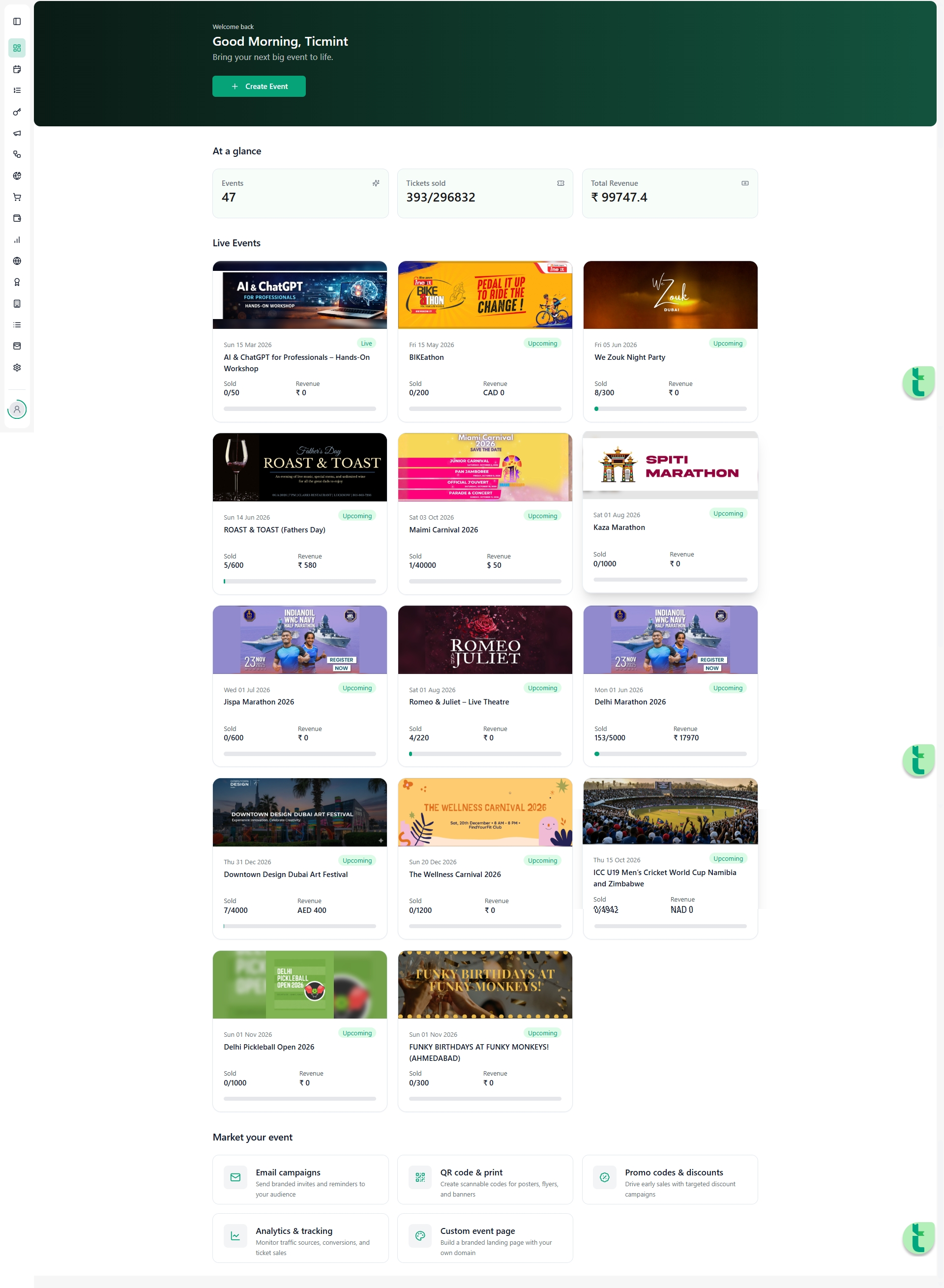
Log in to your Ticmint Dashboard.
Open Events and select the event you want to edit (e.g., Copa Del Rey).
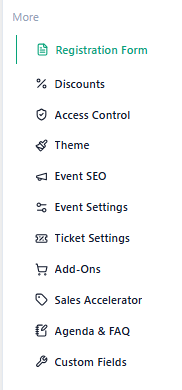
From the left-side menu, scroll to the More section.
Click on Registration Form.
You will be redirected to the Registration Form configuration page.
Step 2: Choose the Form Scope
At the top of the Registration Form page, select how often the form should appear during checkout.
Per Order
The form appears once per purchase.
Best suited for collecting buyer-level information.
Common use cases:
Purchaser name
Email address
Company name
General dietary preferences
Per Ticket
The form appears for every ticket purchased.
Best suited for collecting individual attendee details.
Common use cases:
Attendee name
T-shirt size
Meal preference
Special requirements
Select the option that best fits your event needs.
Step 3: Edit or Add Questions
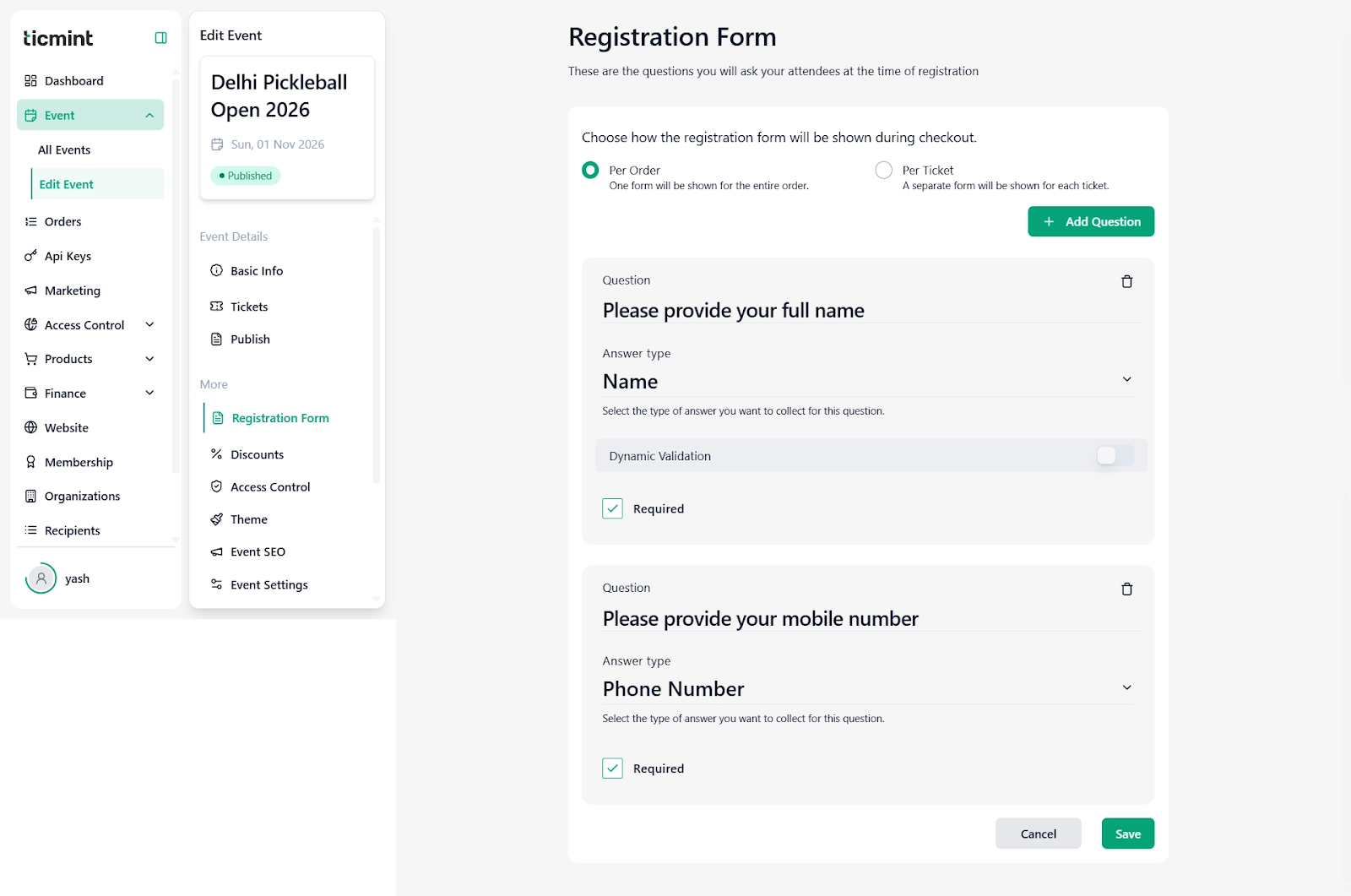
Add a New Question
Click + Add Question.
Enter the Question Text (e.g., What is your T-shirt size?).
Choose an Answer Type, such as:
Text
Dropdown
Multiple Choice
Other supported input types
Enable Required if attendees must answer before proceeding.
Click Save to add the question.
Repeat these steps to add multiple questions.
Edit an Existing Question
Locate the question you want to update.
Click the Edit (✏️) icon.
Modify the question text, answer type, or required status.
Click Save to apply changes.
Delete a Question
Click the Delete (?️) icon next to the question.
Confirm deletion when prompted.
⚠️ Deleted questions cannot be recovered.
Step 4: Save and Publish Changes
After adding or editing questions, click Save.
The updated Registration Form will appear during checkout based on the selected scope (Per Order or Per Ticket).
It is recommended to perform a test booking to confirm the form behaves as expected.
Best Practices
Keep the form short to ensure a smooth checkout experience
Only mark essential questions as Required
Use Per Ticket forms only when individual attendee data is necessary
Test the registration flow before publishing or promoting your event
Need Help?
If you face any issues while editing the Registration Form:
Refresh the page and retry
Ensure all required fields are configured correctly
Contact Ticmint Support with your event name and screenshots for faster assistance
Was this article helpful?
That’s Great!
Thank you for your feedback
Sorry! We couldn't be helpful
Thank you for your feedback
Feedback sent
We appreciate your effort and will try to fix the article