This document provides a step-by-step guide on how to edit an existing event on the Ticmint Dashboard. Editing an event allows organisers to update event details, tickets, settings, and promotional options even after the event has been created.
Overview
The Edit Event feature allows you to:
Update event information (name, description, images)
Modify date, time, timezone, and location
Manage RSVP, approval, and seating settings
Edit ticket sections and ticket types
Update publishing and promotion settings
Step 1: Log in to Ticmint
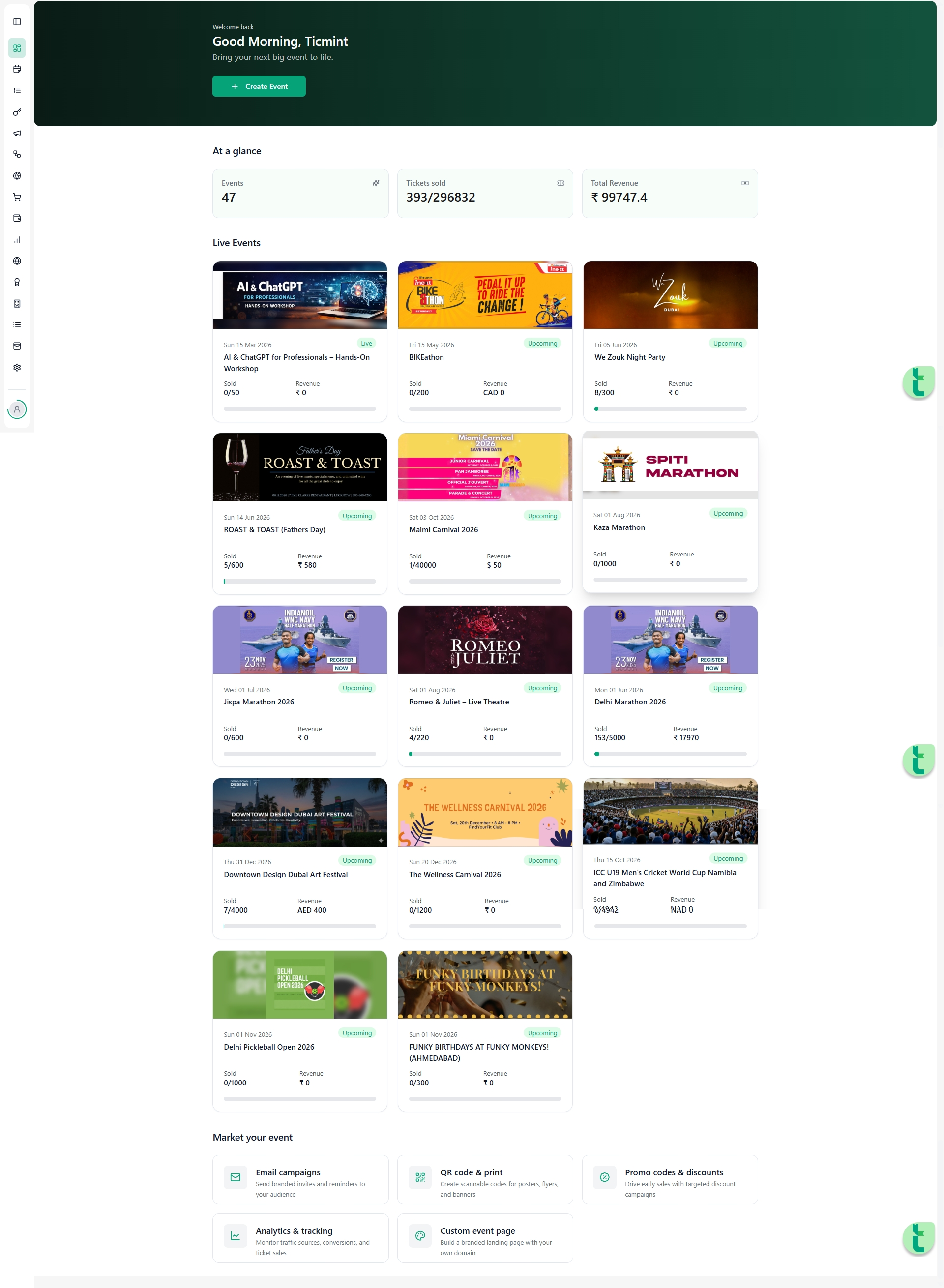
Log in to your Ticmint Dashboard using your registered email or Google account.
Once logged in, you will land on the Dashboard Home screen.
Step 2: Navigate to Events
From the left-hand navigation menu, click on Event.
Select All Events to view your event list.
Locate the event you want to edit.
Each event card displays:
Event name
Event date & time
Ticket price
Status (Draft / Published)
Step 3: Open Edit Event
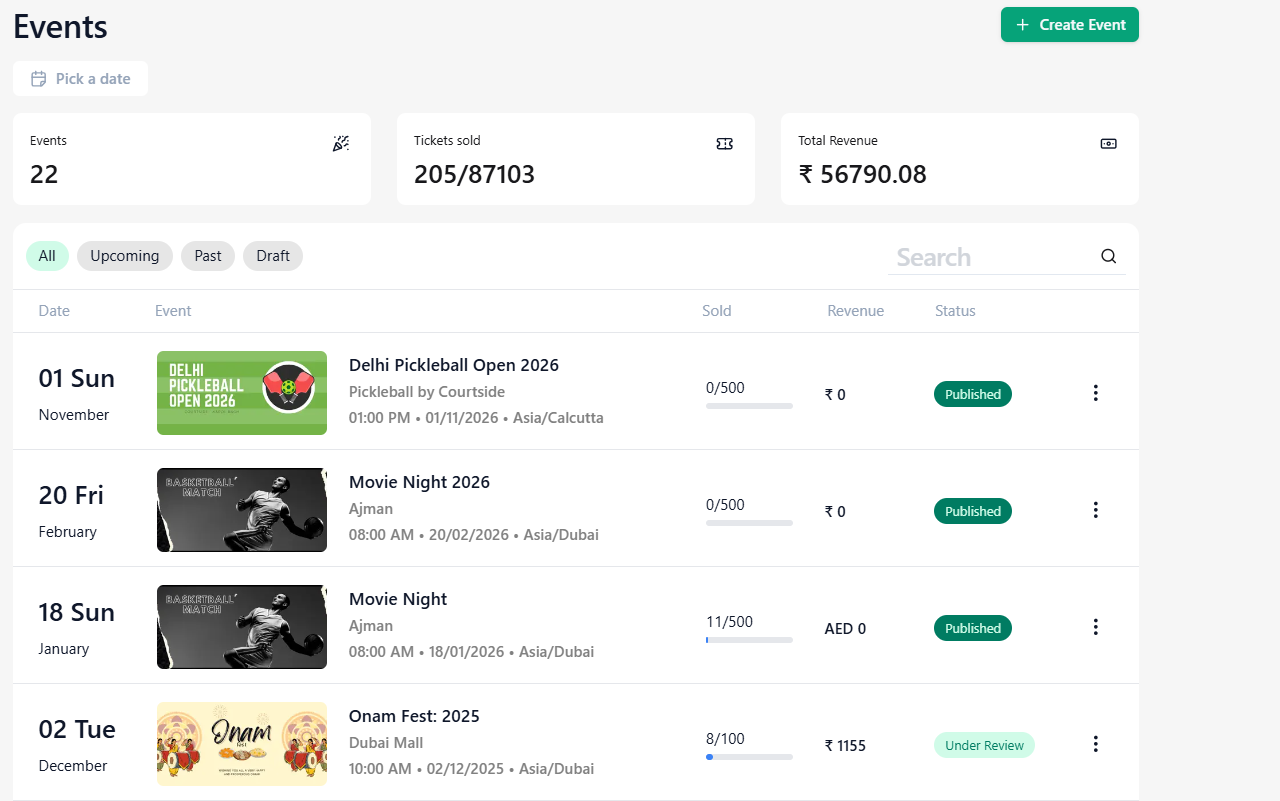
Click on the three-dot (⋮) menu next to the event.
Select Edit.
You will now enter the Edit Event flow, where all editable sections are available.
Step 4: Edit Basic Event Details
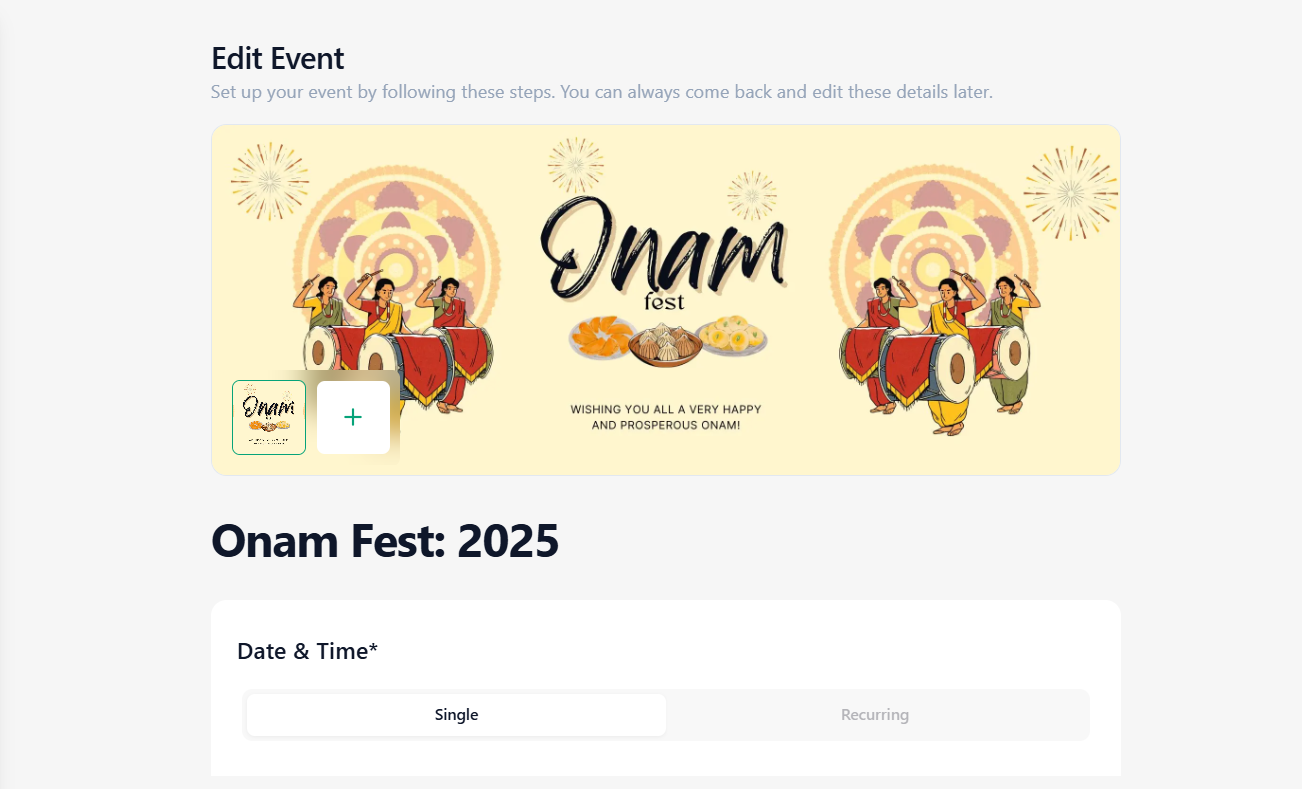
Event Name
Update the event name if required (for example, correcting spelling or rebranding).
Cover Image
Replace or update the event banner image.
1920 × 738 px (Web Banner)
1000 × 1000 px (Mobile Banner)
Use a high-quality image that represents your event.
Event Timing & Timezone
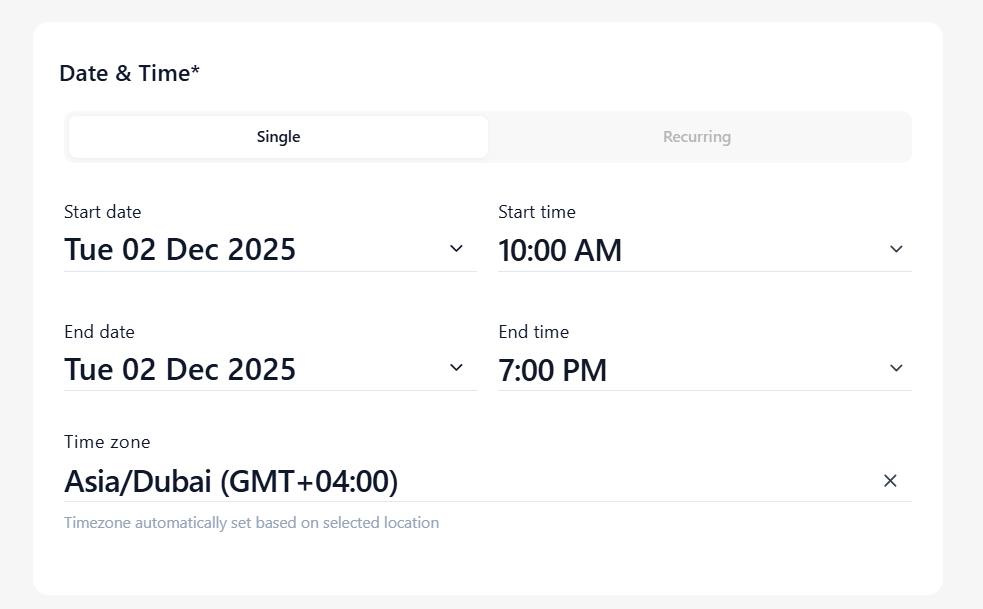
Modify the Start Date & Time and End Date & Time.
Update the Timezone to match your audience or venue location.
Step 5: Edit Event Platform & Location
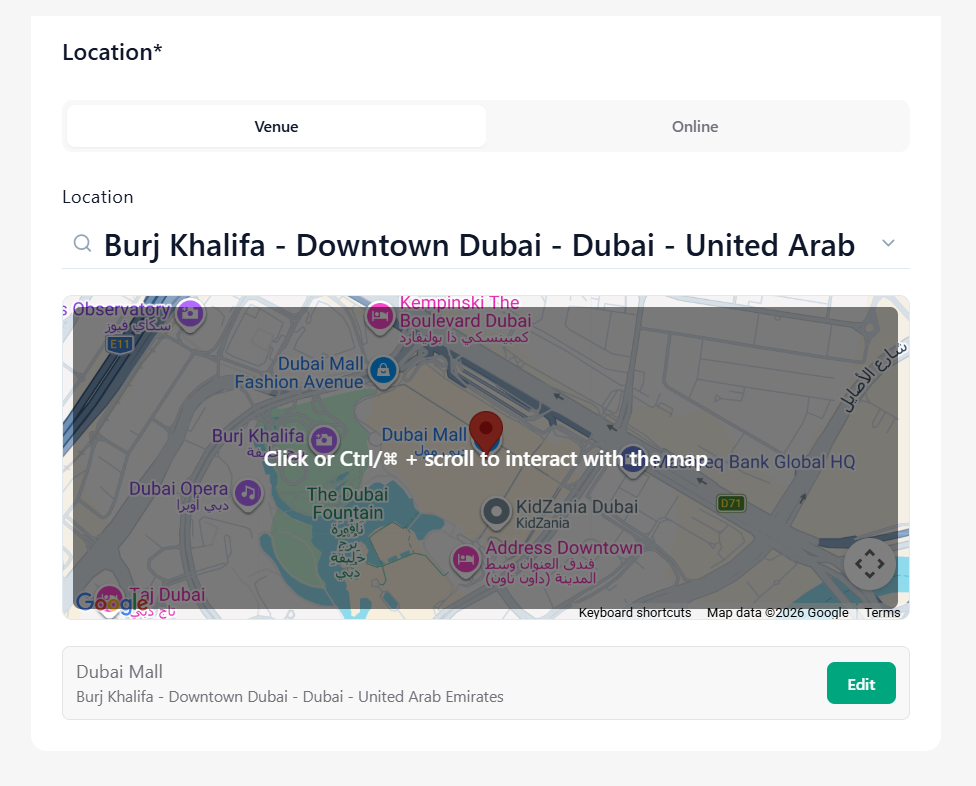
Physical Event
Select Venue mode.
Update the venue address or name.
Use the search panel to select the correct location from suggestions.
Online Event
Select the Online option.
Update meeting platform details (Zoom, Google Meet, etc.).
Step 6: Edit Event Description
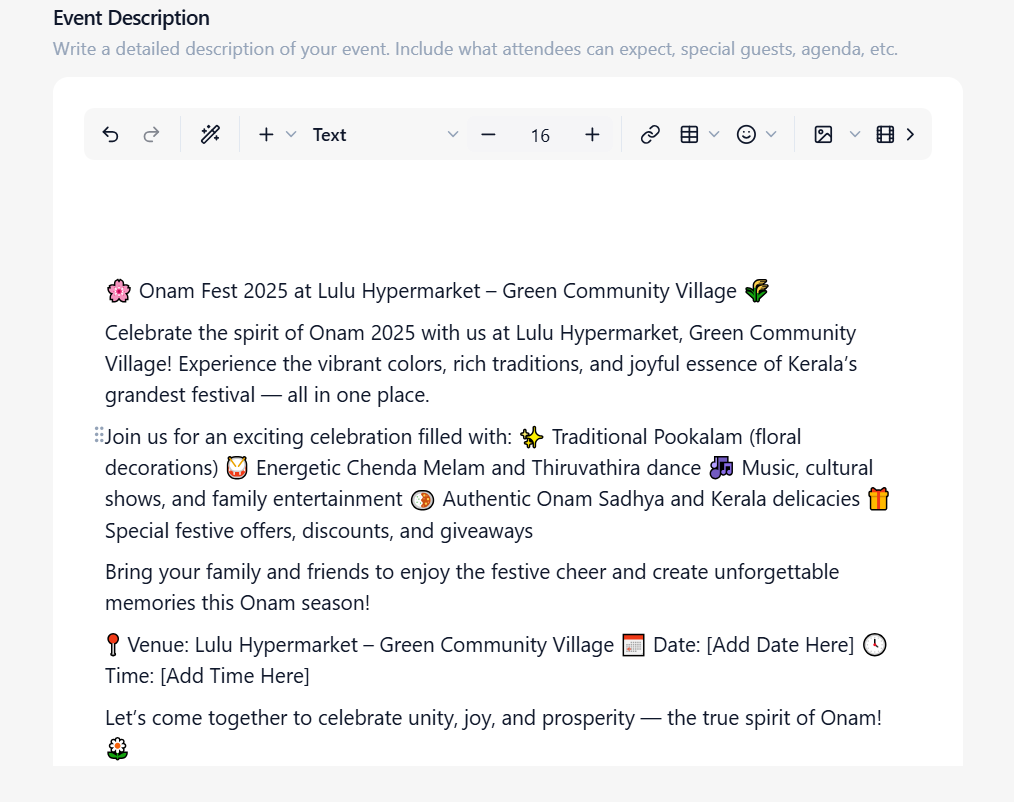
Update the Event Description to reflect new information, such as:
Agenda changes
Guest or artist updates
Instructions for attendees
Rich Content Support
Add or edit images and videos inside the description.
Use visuals like promo creatives, previous event highlights, or venue walkthroughs.
Step 7: Edit Event Access & Attendance Controls
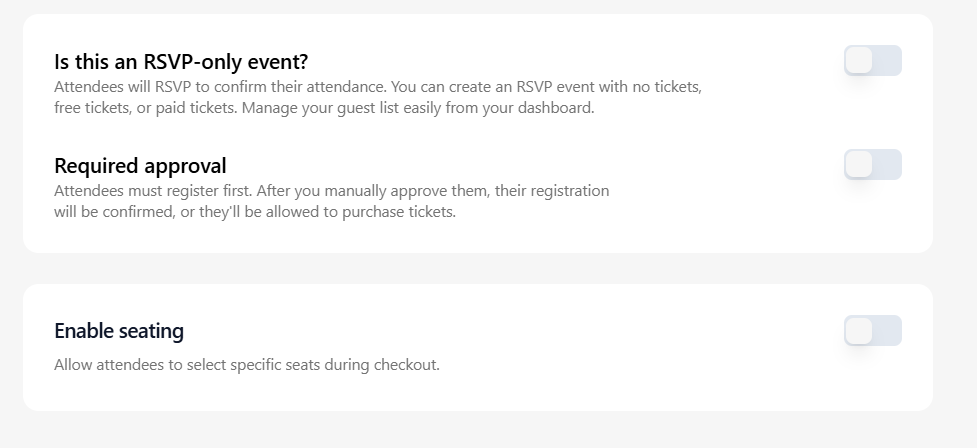
RSVP Only
Enable or disable RSVP Only mode.
Restricts access to confirmed RSVPs only.
Require Approval
Enable Require Approval to review attendee requests.
Approve or reject registrations manually.
Enable Seating
Enable or modify Seating settings.
Allows seat selection or assignment during registration.
Step 8: Edit Sections & Tickets
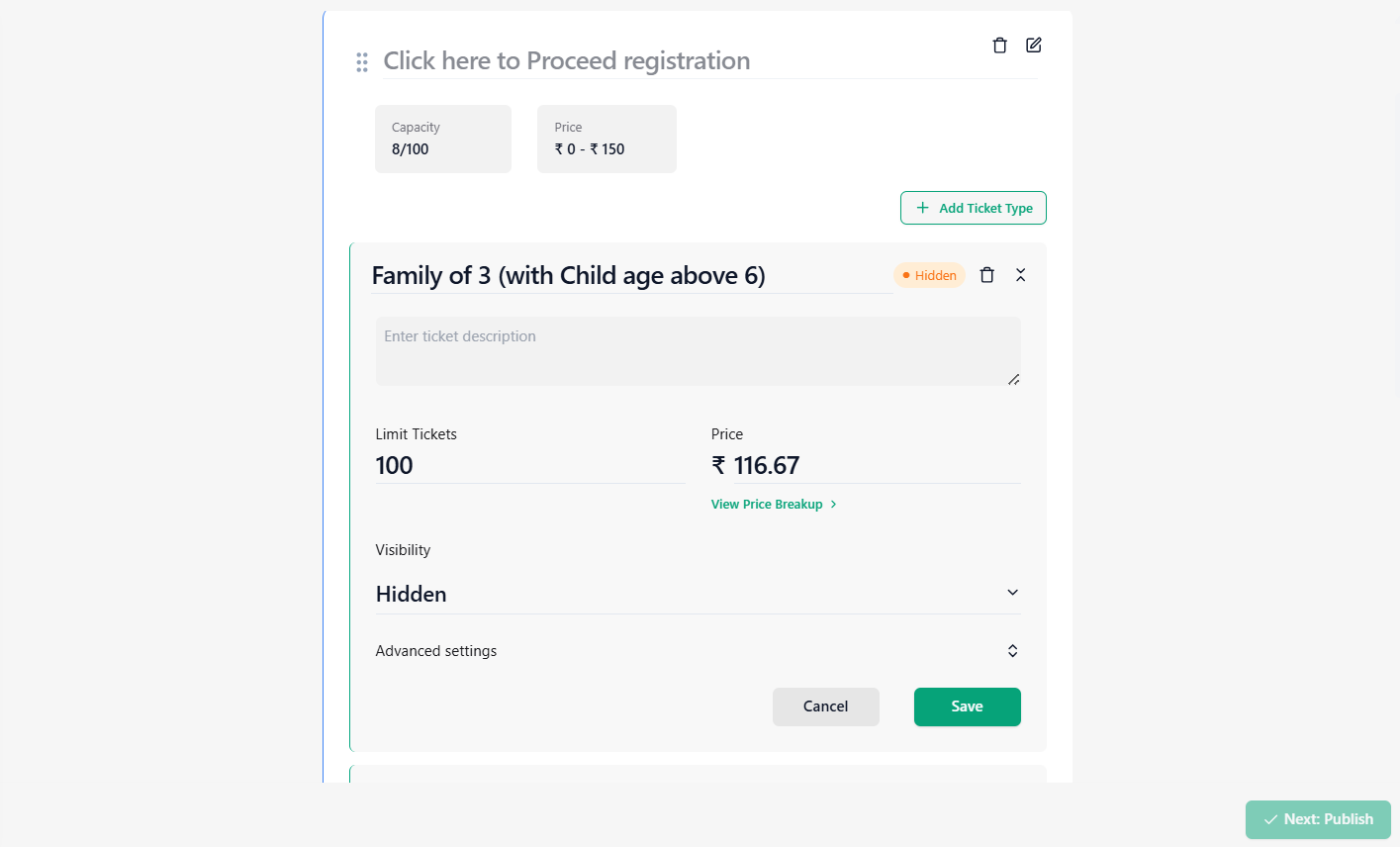
Edit Sections
Navigate to the Sections & Tickets area.
Click Edit on an existing section.
Update:
Section name
Section capacity
Section image (optional)
Edit Ticket Types
Under a section, click Edit on the ticket type.
Update:
Ticket name
Limit Tickets
Price
Visibility (Visible / Hidden)
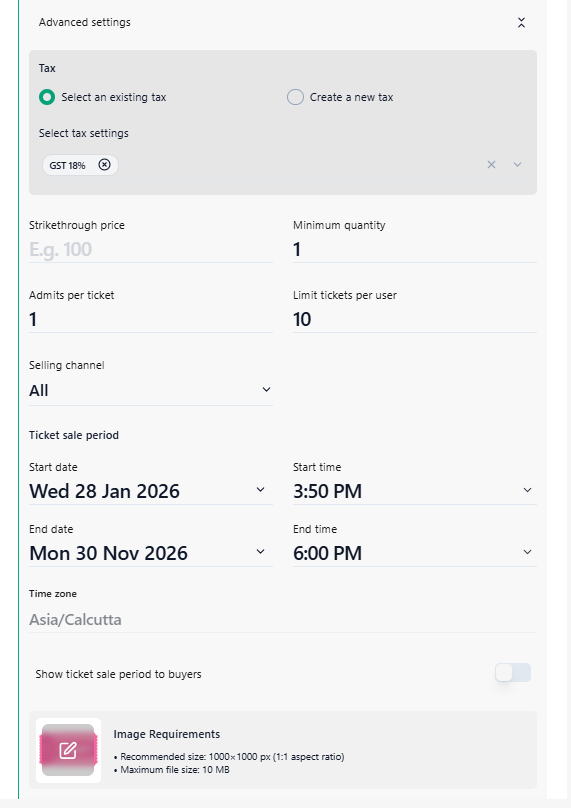
Advanced Ticket Settings
Inside the ticket editor, expand Advanced Settings to configure deeper controls.
Tax Configuration
Select an existing tax (e.g., GST 18%)
Or choose Create a new tax if required
Pricing Controls
Strikethrough Price: Show original price for discount perception
Minimum Quantity: Minimum tickets per order
Admits per Ticket: Number of people allowed per ticket
Limit Tickets per User: Max tickets one buyer can purchase
Selling Channels
Choose where the ticket is available:
All channels
Selected channels only
Ticket Sale Period
Set Start Date & Time and End Date & Time for ticket sales
Select the correct Timezone
Optional: Enable the Show ticket sale period to buyers
Step 9: Ticket Banner Image Requirements
Each ticket type can have its own banner image.
Recommended Image Specifications:
Size: 1000 × 1000 px
Aspect Ratio: 1:1
Maximum file size: 10 MB
Using the correct resolution ensures:
Faster image loading
Better visual quality on event pages
Consistent display across devices
Step 9: Save Ticket Changes
Click Save after editing each ticket or section.
Use Cancel to discard changes. ⚠️ Always save before navigating away.
Ticket Actions
Edit – Modify ticket details
Delete – Remove ticket type
Copy – Duplicate ticket configuration
⚠️ Note: The total ticket capacity across ticket types cannot exceed the section capacity.
Step 10: Review & Save Changes
Click Save or Update after editing each section.
Ensure all changes are saved before exiting the editor.
Step 11: Publish or Republish Event
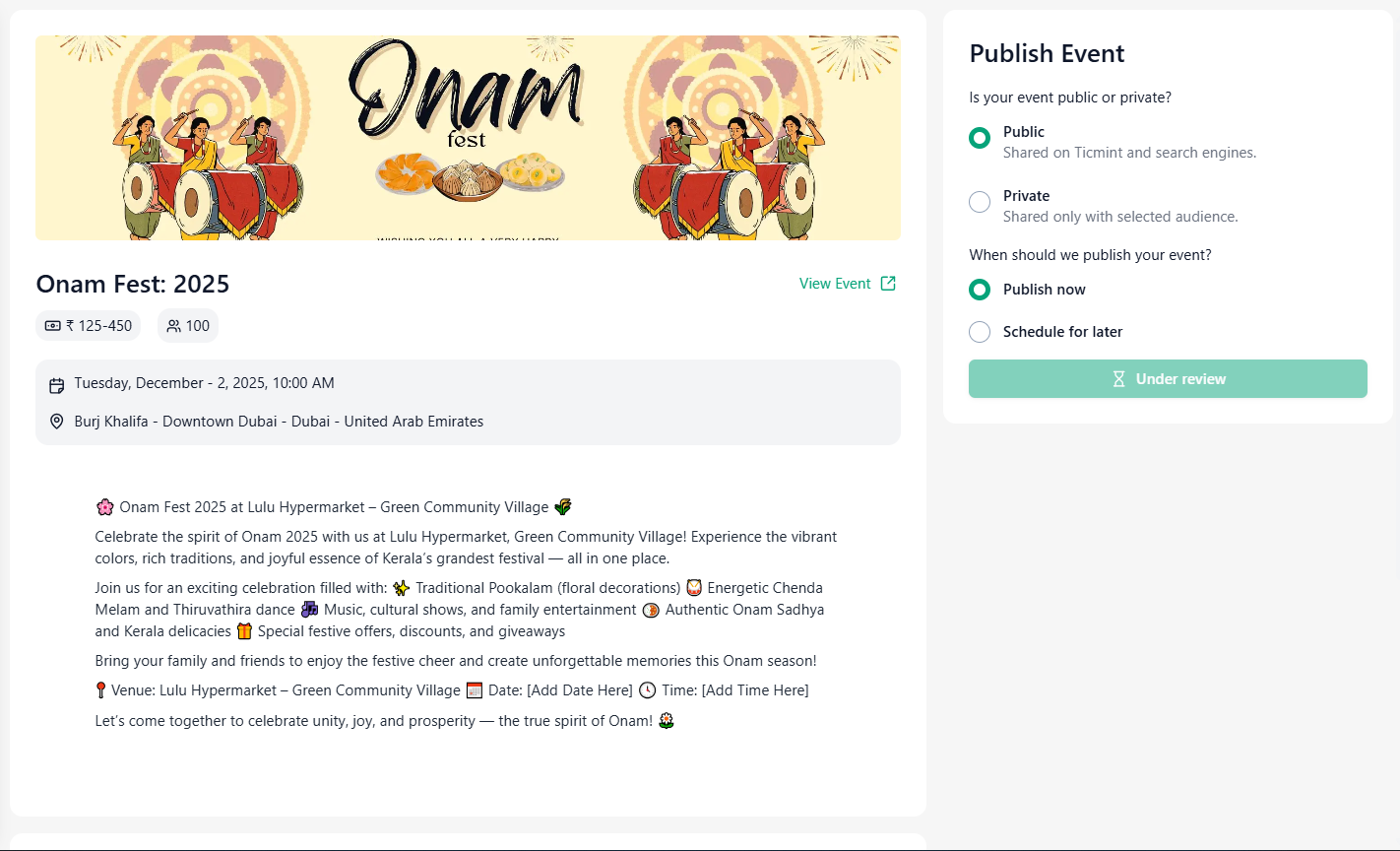
If the event was in Draft, click Publish to make it live.
If the event is already published, changes will update the live event automatically.
Step 12: Promote Updated Event
After editing, you can promote your event using:
Social sharing links (WhatsApp, Instagram, LinkedIn, Facebook, X)
Email invitations
WhatsApp Marketing
Promo codes and add-ons
Ticket upgrades
Best Practices
Notify attendees if there are major changes to date, time, or location
Double-check ticket capacities after edits
Preview the event page before promotion
Avoid editing critical details close to the event start time
Need Help?
If you face any issues while editing your event:
Refresh the page and retry
Ensure all mandatory fields are completed
Contact Ticmint Support with the event name and screenshots
Was this article helpful?
That’s Great!
Thank you for your feedback
Sorry! We couldn't be helpful
Thank you for your feedback
Feedback sent
We appreciate your effort and will try to fix the article