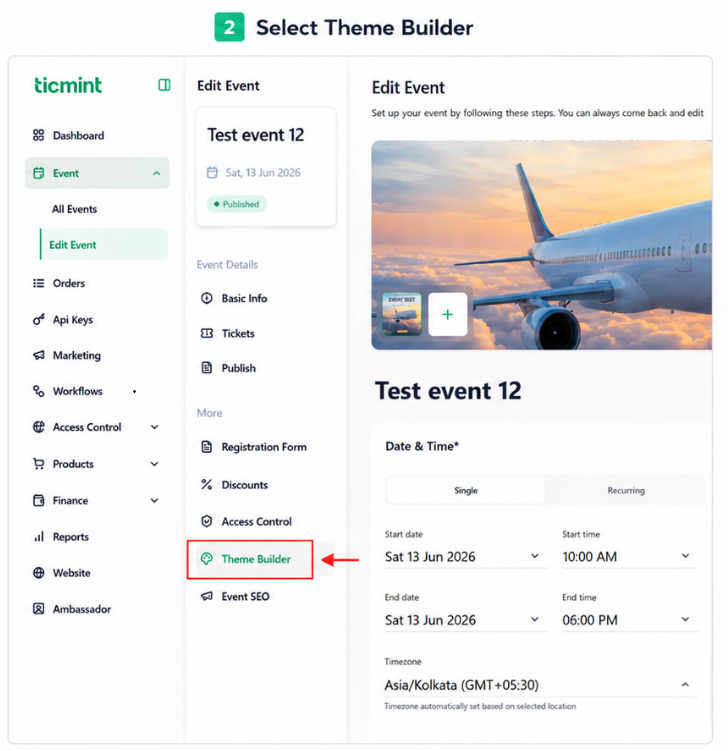
The Theme Builder in Ticmint allows you to customize the look and feel of your event page. You can personalize the header, background, title section, event details, buttons, fonts, colors, images, and footer to match your event branding.
Navigate to Add-Ons
Navigate to Add-Ons.
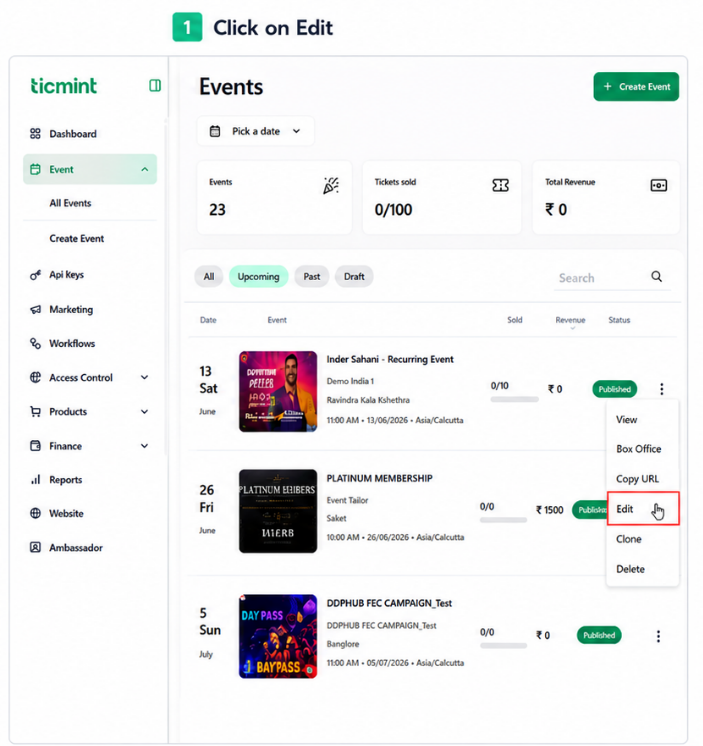
Select the required event.
Click Edit.
○ If the event is already created, select Edit Event & click on Add-ons.
○ If creating a new event, complete the Basic Information section, then navigate to the Theme Builder tab.
Customize Event Layout
Click Change to customize the event page layout.
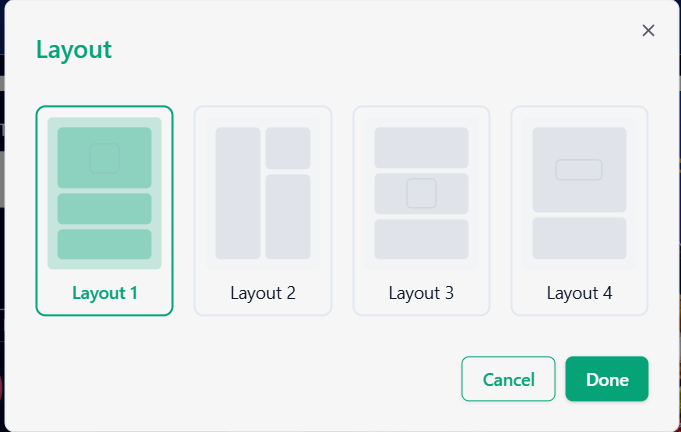
You can modify the header, background, title section, details section, buttons, and footer.
Header
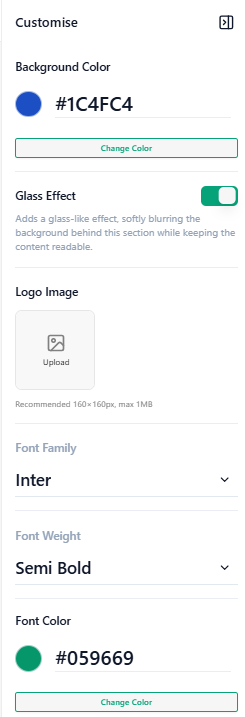
Customize the appearance of the event page header:
Background Color: Sets the color displayed behind the text or element.
Glass Effect: Adds a glass-like effect, softly blurring the background behind this section while keeping the content readable.
Logo Image – Recommended size: 160 × 160 px, maximum file size: 1 MB
Font Family : Selects the typeface used for displaying text.
Font Weight : Controls the thickness or boldness of the text.
Font Color : Sets the color in which the text is displayed.
Background
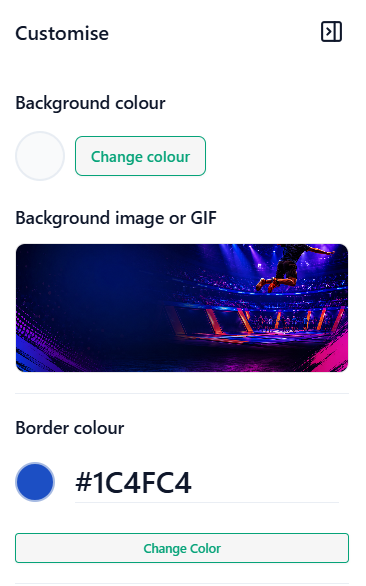
Customize the main event page background:
Background Color: Sets the color displayed behind the text or element.
Border Color : Sets the color of the border surrounding the element.
Background Image or GIF: Allows you to upload an image or GIF to use as the background of the element.
Title Section
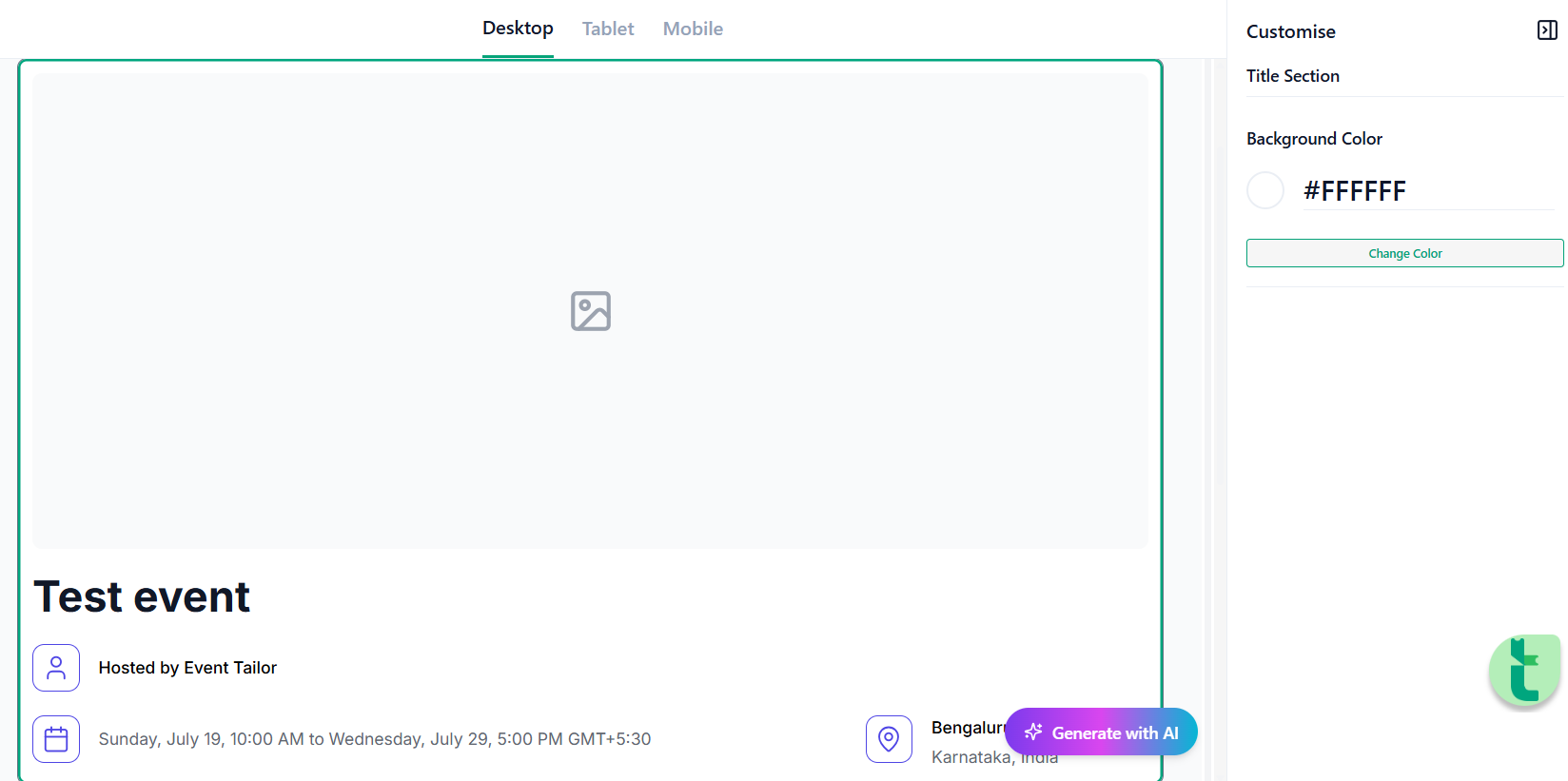
The Title Section includes:
Container: The main section that holds and organizes all the content and design elements.
Event Title: Displays the name of the event within the selected component.
Icon Box: Displays an icon inside a customizable box to highlight or represent content visually.
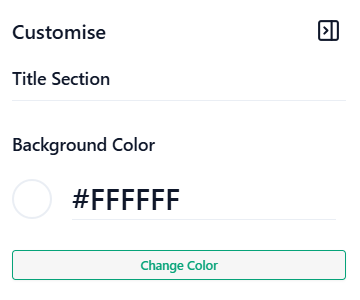
Container
Change the Background Color
Event Title
- Font Family: Selects the typeface used for displaying the title.
- Font Weight: Controls the thickness or boldness of the title text.
- Title Color: Sets the color of the title text.
- Font Size: Adjusts the size of the title text.
Icon Box
- Icon Title Font: Selects the font family used for the icon title.
- Icon Title Font Weight: Controls the thickness or boldness of the icon title text.
- Icon Title Color: Sets the color of the icon title text.
- Icon Text Font: Selects the font family used for the icon description text.
- Icon Text Font Weight: Controls the thickness or boldness of the icon description text.
- Icon Text Color: Sets the color of the icon description text.
- Icon Color: Sets the color of the icon displayed in the icon box.
Details Section
The Details Section includes:
- Container: The main section that holds and organizes all the content and design elements.
- Section Title: Displays the heading of the section.
- Section Text: Displays the descriptive text or content within the section.
- Button: Displays a customizable button for user interaction or navigation.
Container
Change the Background Color
Show or hide the Event Date and Time
Show or hide the Host Name on the event page
Section Title
- Font Family: Selects the typeface used for displaying text.
- Font Weight: Controls the thickness or boldness of the text.
- Font Color: Sets the color of the text.
- Font Size: Adjusts the size of the displayed text.
Section Text
- Font Family: Selects the typeface used for displaying text.
- Font Weight: Controls the thickness or boldness of the text.
- Font Color: Sets the color of the text.
- Font Size: Adjusts the size of the displayed text.
Button
- Button Color: Sets the background color of the button.
- Button Text Color: Sets the color of the text displayed on the button.
- Button Text: Specifies the label or text displayed on the button.
Footer
Customize the event page footer:
Background Color
Logo Image – Recommended size: 160 × 160 px, maximum file size: 1 MB
Font Family
Font Weight
Font Color
Social Icons Color
Once the customization is complete, review the event page layout to ensure the design is consistent with your event branding.
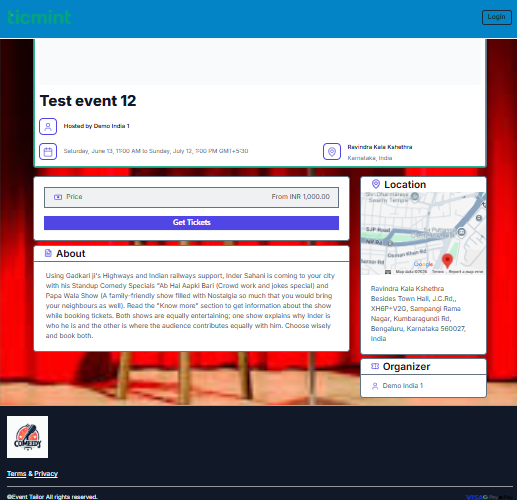
Click Exit to leave the Theme module and return to the Event Editor screen.
Was this article helpful?
That’s Great!
Thank you for your feedback
Sorry! We couldn't be helpful
Thank you for your feedback
Feedback sent
We appreciate your effort and will try to fix the article