Finance Module Guide
This document provides a step-by-step guide to configuring and managing the Finance module in the Ticmint Partner Dashboard. The Finance module enables organizers to manage bank account information, configure tax settings, and create finance attributes required for settlements and financial reporting.
1. Accessing the Finance Module
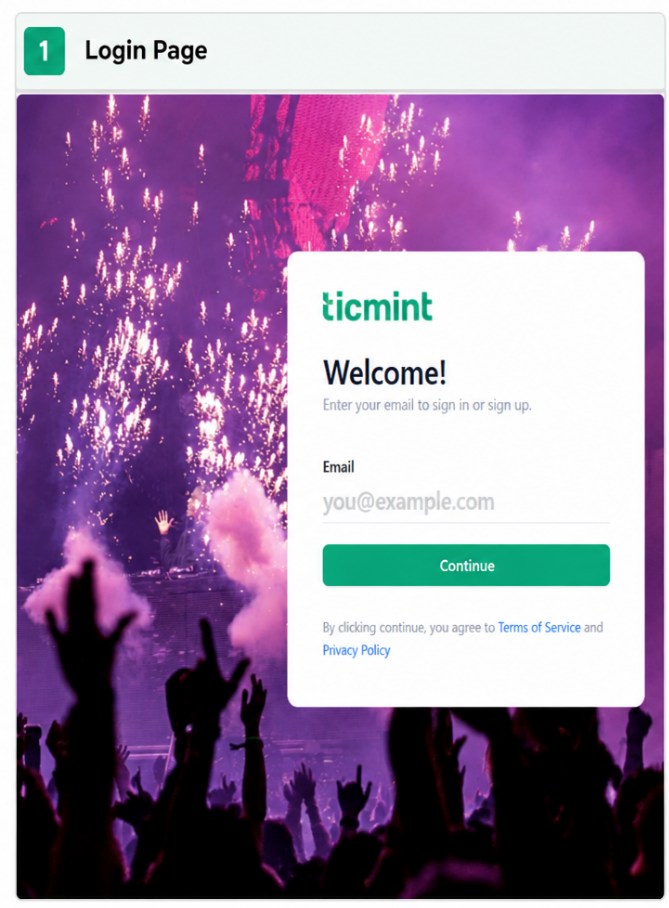
Log in to your Ticmint Partner Dashboard.
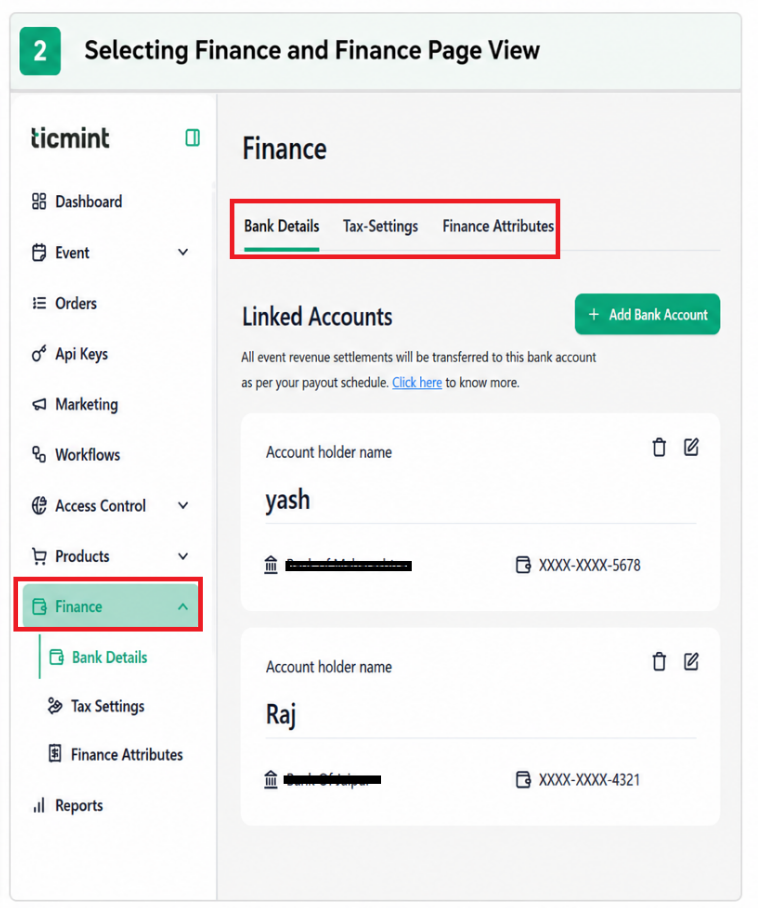
From the left-hand navigation menu, click Finance.
The Finance page contains the following sections:
Bank Details
Tax Settings
Finance Attributes
2. Bank Details
The Bank Details section is used to add and manage the bank account where ticket sales settlements will be transferred.
Steps to Add a Bank Account
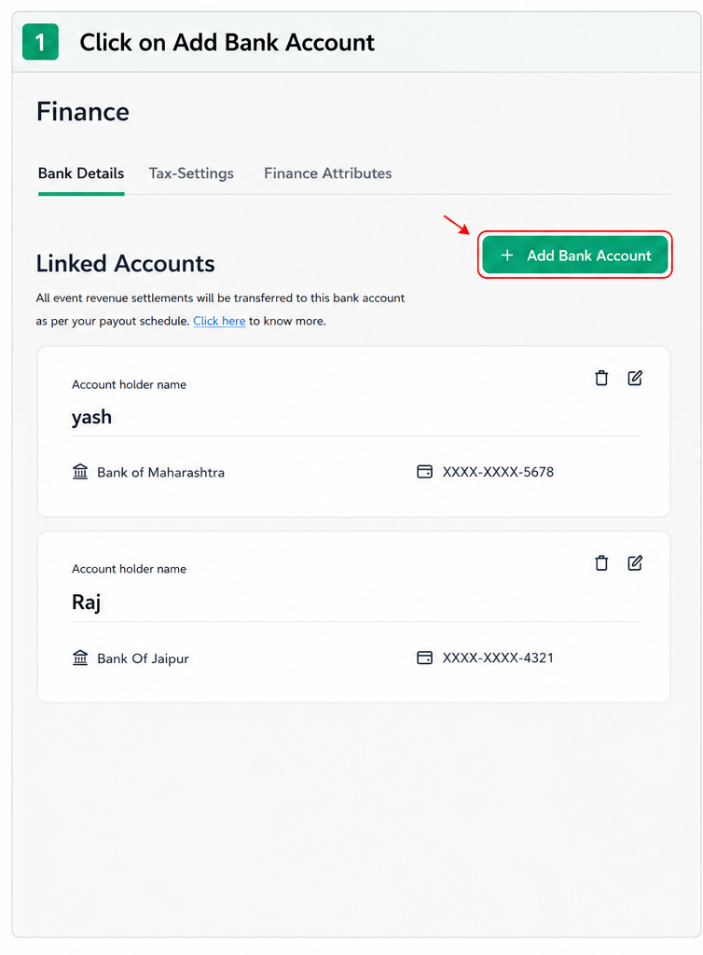
Navigate to Finance → Bank Details.
Click + Add Bank Account.
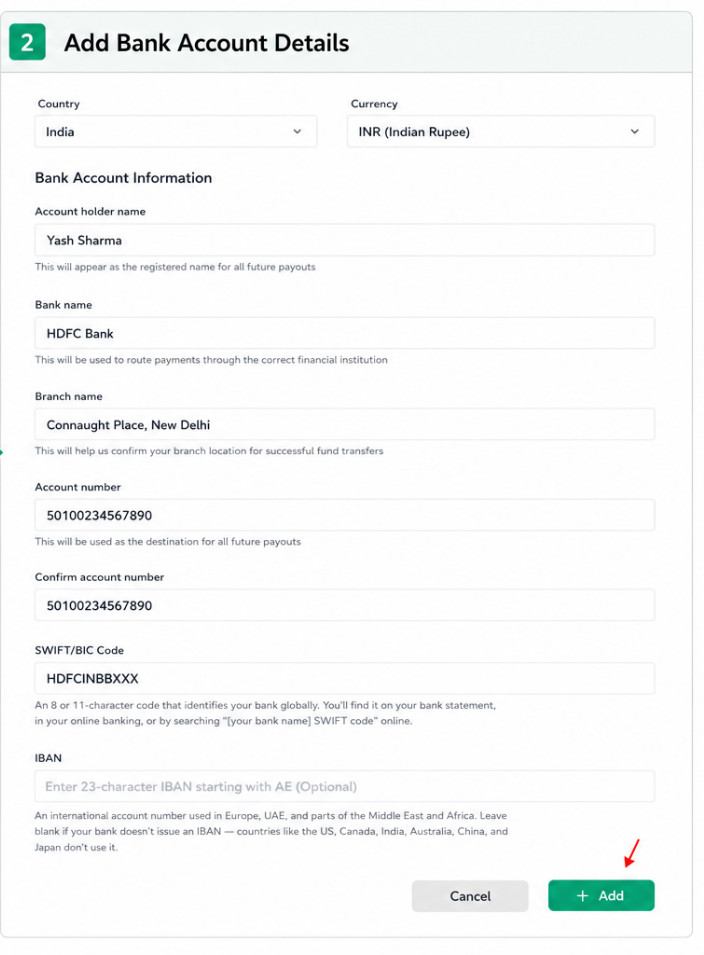
Enter the required bank account information.
Field Name | Description |
|---|
Country | Select the country where the bank account is registered. This determines the supported banking format and payout rules. |
Currency | Choose the currency in which payouts will be processed. Ensure it matches your bank account's supported currency. |
Account Holder Name | Enter the full legal name of the bank account holder. This name will appear as the registered name for all future payouts. |
Bank Name | Enter the official name of your bank. This ensures payouts are routed to the correct financial institution. |
Branch Name | Enter the name of the bank branch where the account is maintained. This helps verify the branch location for successful fund transfers. |
Account Number | Enter the bank account number that will receive all future payouts. Ensure the number is accurate. |
Confirm Account Number | Re-enter the account number to verify that it matches the original entry and prevent payment errors. |
SWIFT/BIC Code | Enter the 8- or 11-character SWIFT/BIC code used to identify your bank internationally. This code is required for international bank transfers. |
IBAN | Enter the International Bank Account Number (IBAN) if your country uses the IBAN system (e.g., Europe, UAE, Middle East, and Africa). Leave this field blank if your country does not use IBAN (e.g., India, USA, Australia, China, and Japan). |
Cancel | Closes the form without saving the entered bank account details. |
+ Add | Validates the entered information and saves the bank account for future payouts. |
Note: Ensure all bank details are accurate to avoid settlement failures.
3. Tax Settings
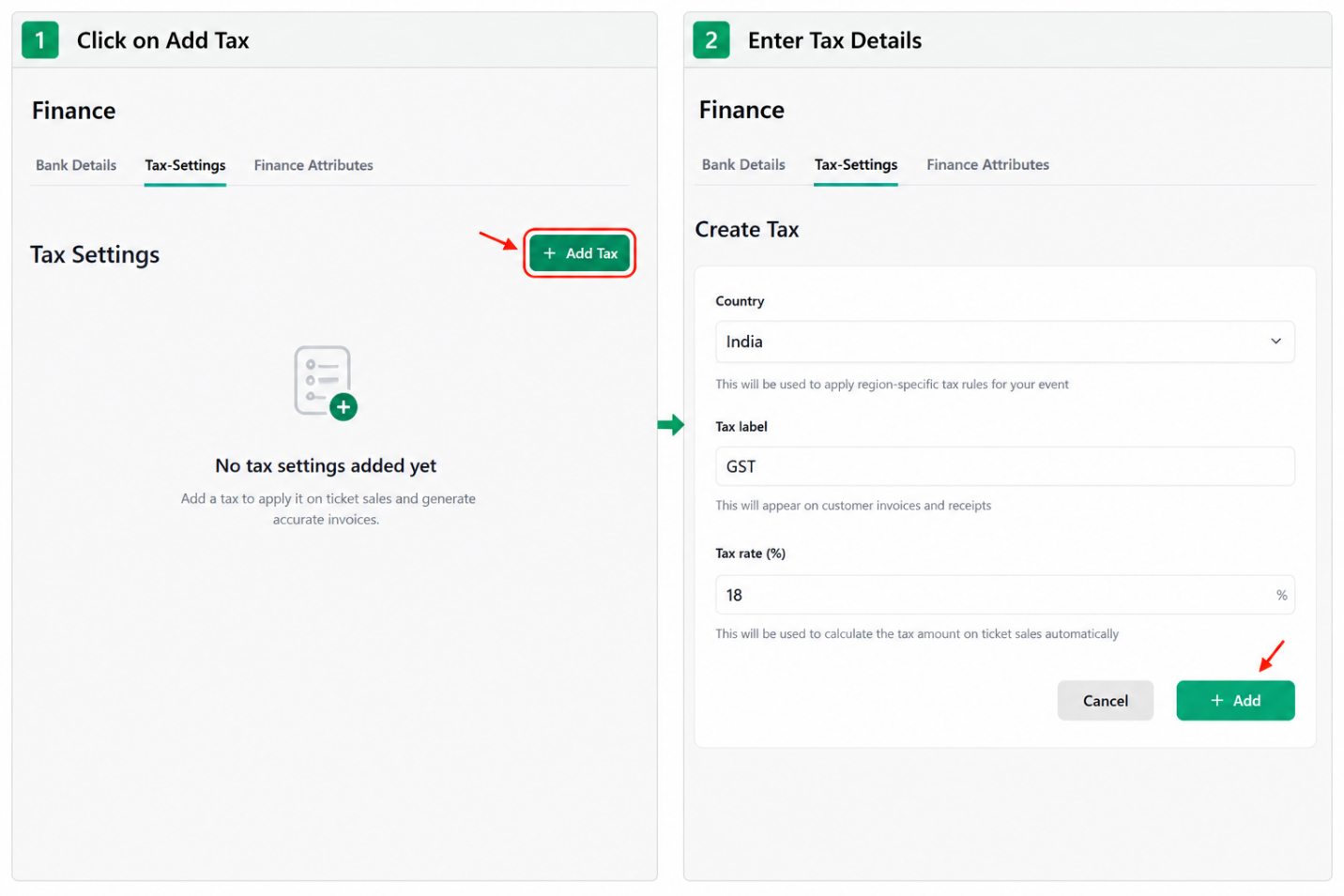
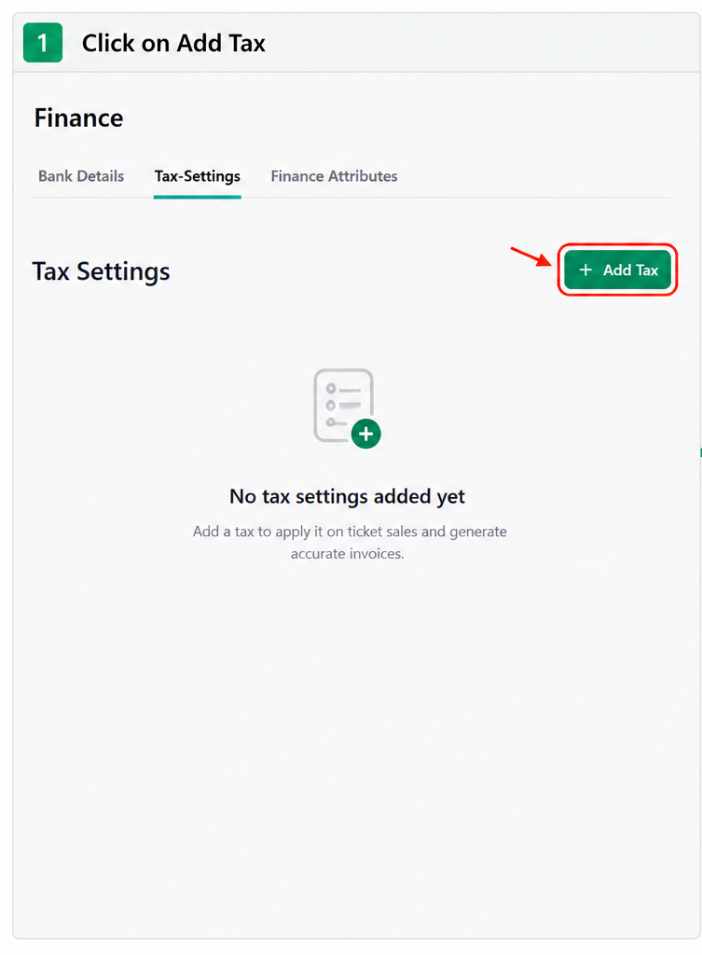
The Tax Settings section allows organisers to configure taxes that will be applied to ticket purchases.
Steps to Add a Tax
Navigate to Finance → Tax Settings.
Click + Add Tax.
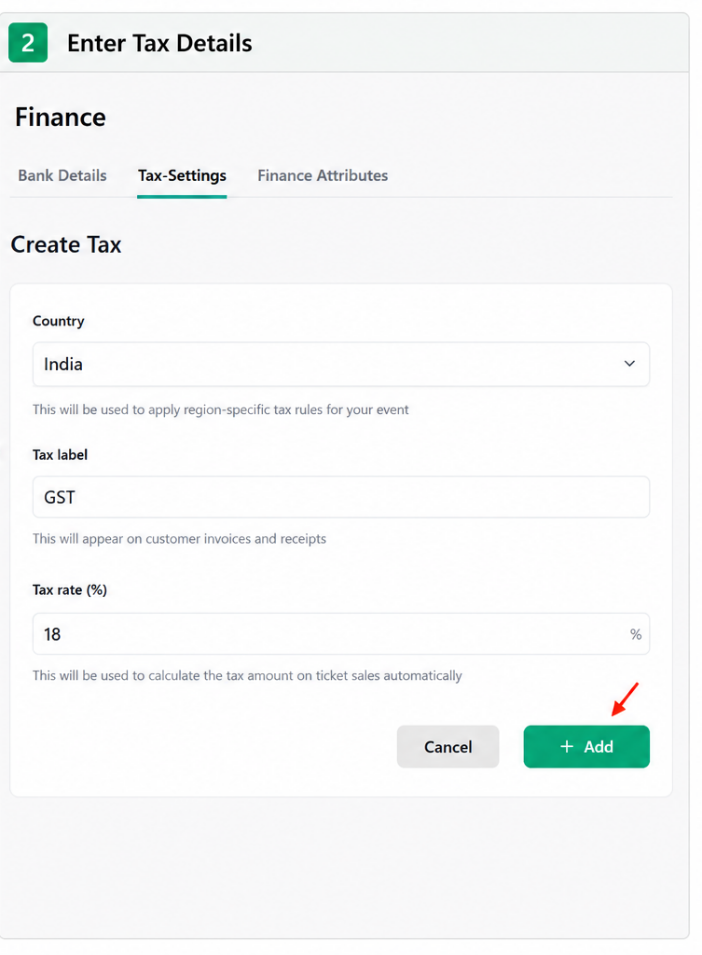
Enter the required tax information.
Field Name | Description |
|---|
Country | Select the country where the tax will be applied. The selected country determines the region-specific tax rules for your event. |
Tax Label | Enter the name of the tax (e.g., GST, VAT, Sales Tax). This label will appear on customer invoices, receipts, and ticket summaries. |
Tax Rate (%) | Enter the applicable tax percentage. Ticmint automatically uses this value to calculate the tax amount on ticket sales. |
Cancel | Closes the Create Tax form without saving any changes. |
+ Add | Saves the tax configuration and makes it available for use in your event's financial settings. |
Note: Verify tax percentages according to your local tax regulations before saving.
4. Finance Attributes
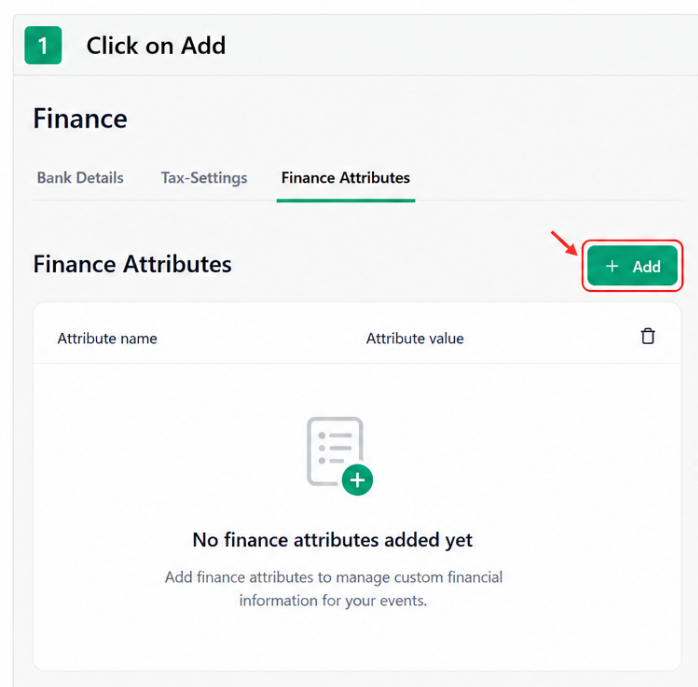
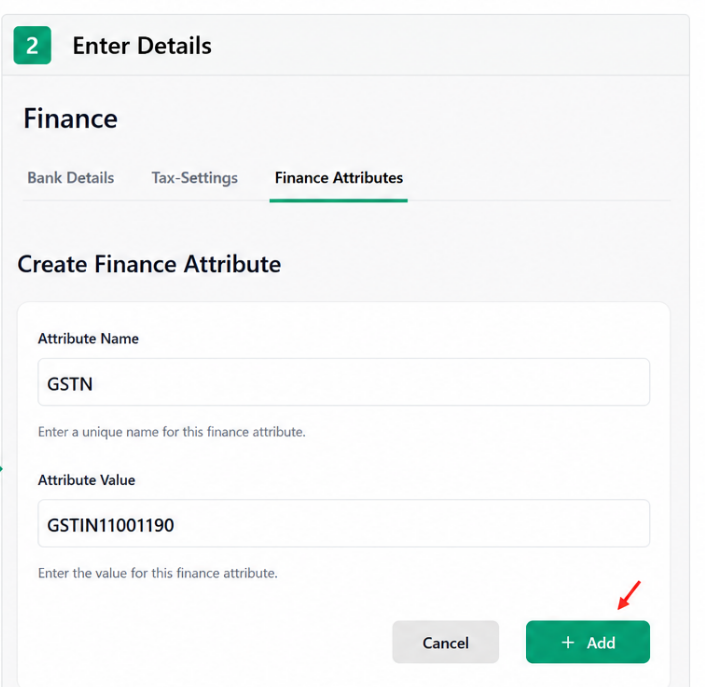
Finance Attributes allow organisers to create custom fields used for settlements, reporting, and financial workflows.
Steps to Add a Finance Attribute
Navigate to Finance → Finance Attributes.
Click + Add.
Enter the required attribute information.
Field Name | Description |
|---|
Attribute Name | Enter the name of the finance attribute (e.g., GSTIN, PAN, VAT Number, Tax Registration Number). This identifies the type of financial information being stored. |
Attribute Value | Enter the corresponding value for the selected finance attribute (e.g., GSTIN number or tax registration number). This information is used for financial records, invoices, and compliance purposes. |
Cancel | Closes the Create Finance Attribute form without saving the entered details. |
+ Add | Saves the finance attribute and adds it to your organization's finance settings for future use. |
Note: Use clear and meaningful attribute names to improve reporting and financial data management.
Summary: The Finance module helps organisers securely manage settlement bank accounts, configure tax rules, and define custom finance attributes. Proper configuration ensures smooth payment settlements, accurate tax calculations, and consistent financial reporting across events.
7. Need Help?
If you face any issues while setting up Finance details:
Recheck the entered information
Clear browser cache and retry
Contact Ticmint Support with screenshots and details
Learn more about Ticmint pricing on the Ticmint website.