This document explains how to set up and manage Finance settings on the Ticmint Partner Dashboard. Follow the steps below to configure bank details, tax settings, and finance attributes correctly.
1. Accessing the Finance Module
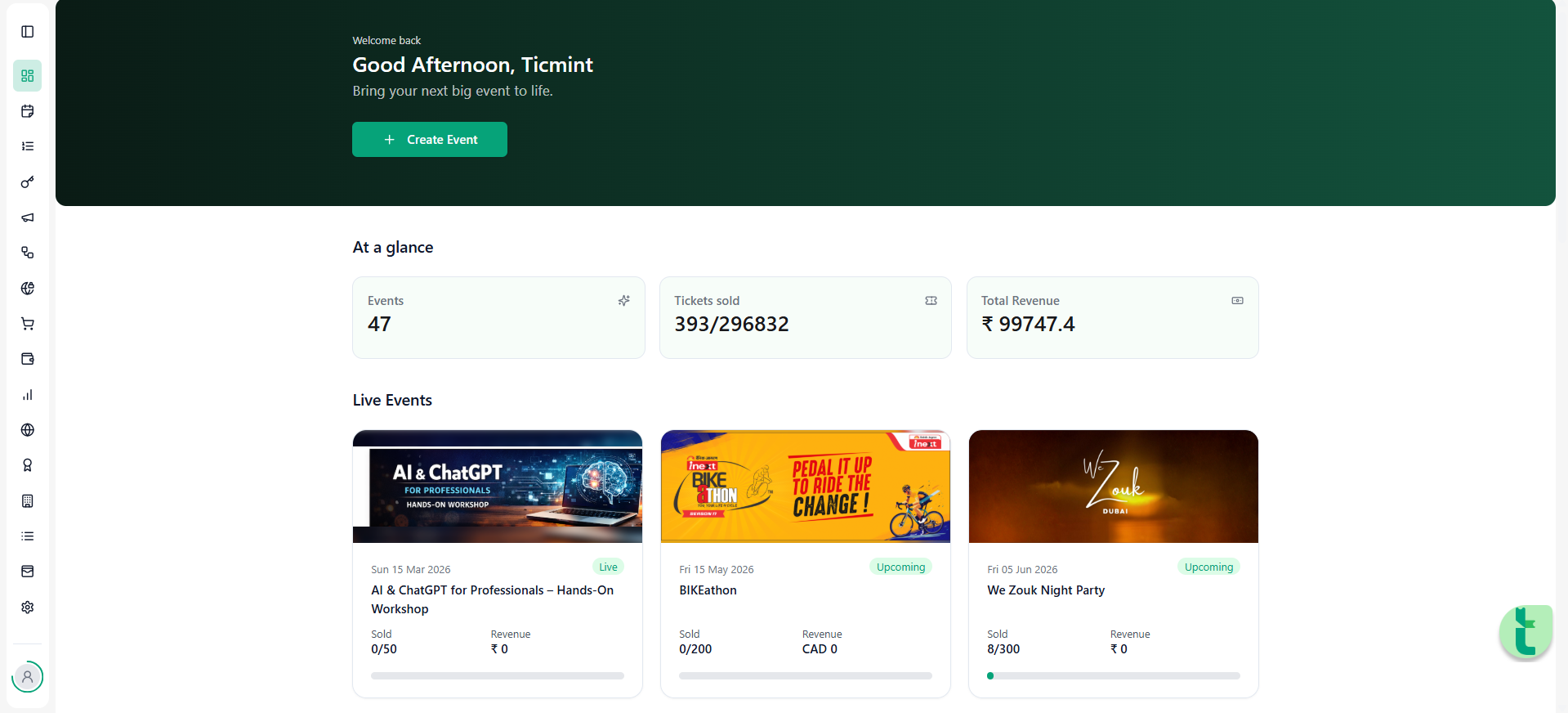
Log in to your Ticmint Partner Dashboard.
From the left-side navigation menu, click on Finance.
You will see three tabs:
Bank Details
Tax Settings
Finance Attributes
2. Bank Details
Purpose
Bank details are required to enable successful payouts for ticket sales made on Ticmint. Without valid bank information, organisers will not be able to receive settlement amounts for their events.
Providing accurate bank information ensures:
Smooth and timely payouts
Reduced chances of payment failure or delays
Compliance with financial regulations
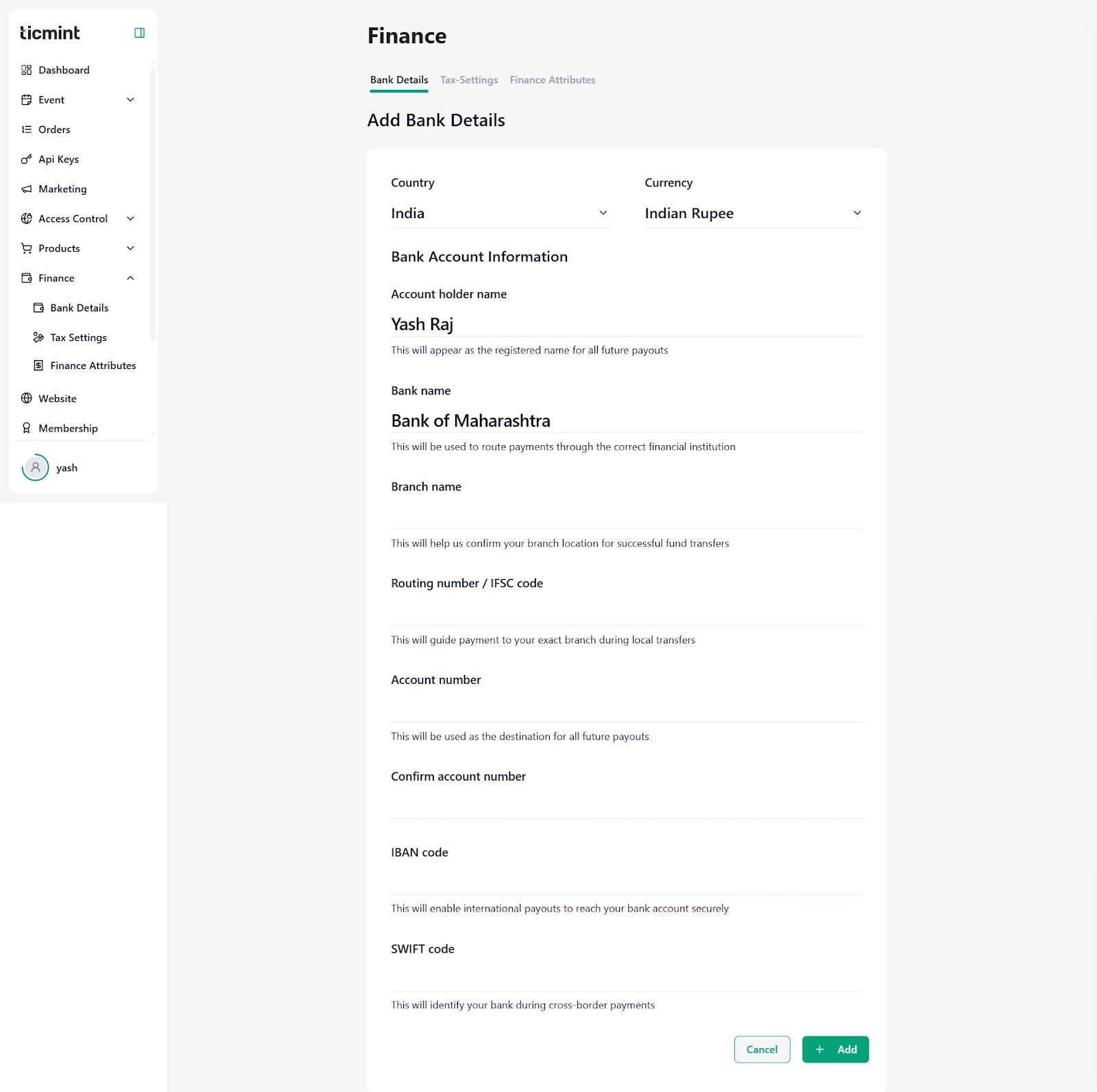
Steps to Add Bank Details
Navigate to Finance → Bank Details from the left-hand menu.
Click on Add Bank Account.
Select the Country where your bank account is registered.
Supported Countries & Account Types
Ticmint now supports country-based dynamic bank detail forms for:
India
United States (Savings & Checking Accounts)
United Kingdom
United Arab Emirates
Cross-Border Accounts
Based on the selected country, the required banking fields will automatically update.
Fill in the Required Details
Country
Select the country where your bank account is registered. This helps Ticmint apply the correct banking and payout rules.
Currency
Choose the currency in which you wish to receive payouts. Payouts will be processed only in the selected currency.
Account Holder Name
Enter the name exactly as it appears in your bank records. This name will be used for payout verification and settlements.
Bank Name
Enter the full name of your bank. This helps route payments through the correct financial institution.
Branch Name
Specify the branch where your account is held, if applicable.
Account Number
Enter your bank account number carefully. This is the destination account for all payouts.
Confirm Account Number
Re-enter the account number to avoid typing errors. Both account numbers must match.
Dynamic Banking Fields (Based on Country)
Depending on the selected country, different banking fields will appear automatically.
IFSC Code (India)
The IFSC (Indian Financial System Code) is an 11-character code used to identify a specific bank branch in India. It is required for NEFT, RTGS, and IMPS transfers.
ACH Routing Number (United States)
The ACH Routing Number is a 9-digit code used for domestic bank transfers in the United States. It helps identify the bank responsible for processing payments.
Sort Code (United Kingdom)
The Sort Code is a 6-digit banking code used in the United Kingdom to identify banks and branches for domestic transfers.
SWIFT / BIC Code
The SWIFT/BIC code is an international bank identifier used for secure cross-border transactions.
IBAN Code
The IBAN (International Bank Account Number) is used for international bank transfers and helps uniquely identify accounts across countries.
Save Bank Account
After entering all required details, click Add to save your bank account.
3. Tax Settings
Purpose
Tax Settings allow organisers to apply region-specific taxes to ticket prices. These taxes are automatically calculated and added to the final ticket amount during checkout and reflected on invoices and receipts.
Configuring taxes correctly ensures:
Legal compliance with government tax regulations
Accurate invoicing for customers
Transparent tax reporting
Steps to Add a Tax
Go to Finance → Tax Settings.
Click on Add Tax.
Enter the following details:
Country
Select the country where the event is being conducted (e.g., India). Tax rules are applied based on this selection.
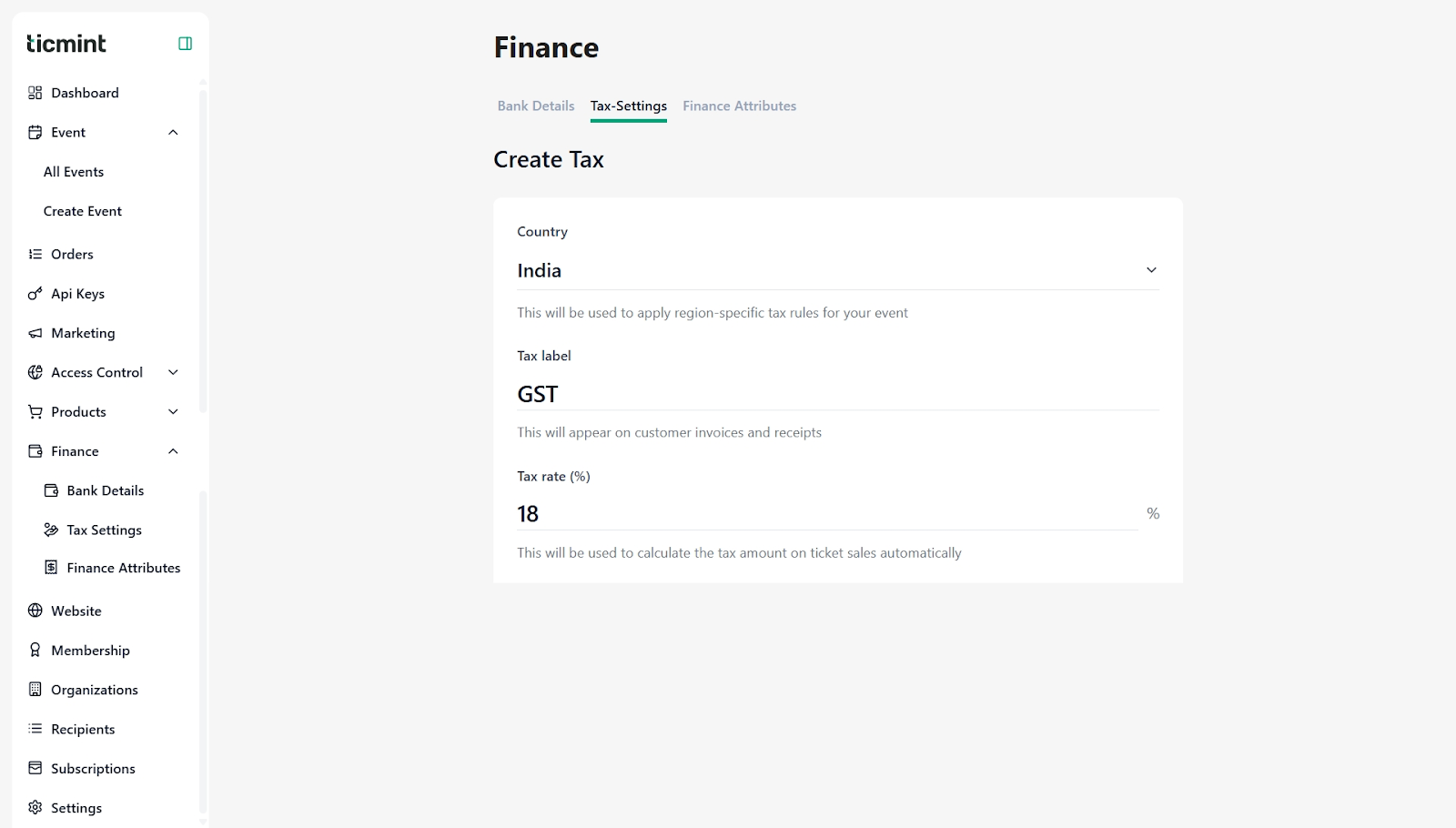
Tax Label
Enter the name of the tax (e.g., GST). This label will appear on customer invoices and payment receipts.
Tax Rate (%)
Specify the tax percentage to be applied (e.g., 18%). The system will automatically calculate the tax amount on ticket sales.
Click Save to apply the tax.
Managing Taxes
All configured taxes will be listed on the Tax Settings page.
You can:
Edit a tax to update its rate or label
Delete a tax if it is no longer applicable
Note: Once applied, taxes are automatically included in ticket pricing and customer invoices.
4. Edit Tax
Steps to Edit an Existing Tax
Go to Finance → Tax Settings.
Click on the Edit (✏️) icon next to the tax you want to modify.
Update the required fields:
Country
Tax Label
Tax Rate (%)
Click Save to apply the changes.
5. Finance Attributes
Purpose
Finance Attributes are used to store financial and compliance-related identifiers required for invoicing, taxation, and regulatory reporting.
Common use cases include:
GSTIN or VAT numbers
PAN or business registration numbers
Other government-mandated financial identifiers
Steps to Create a Finance Attribute
Navigate to Finance → Finance Attributes.
Click on Create Finance Attribute.
Enter the following details:
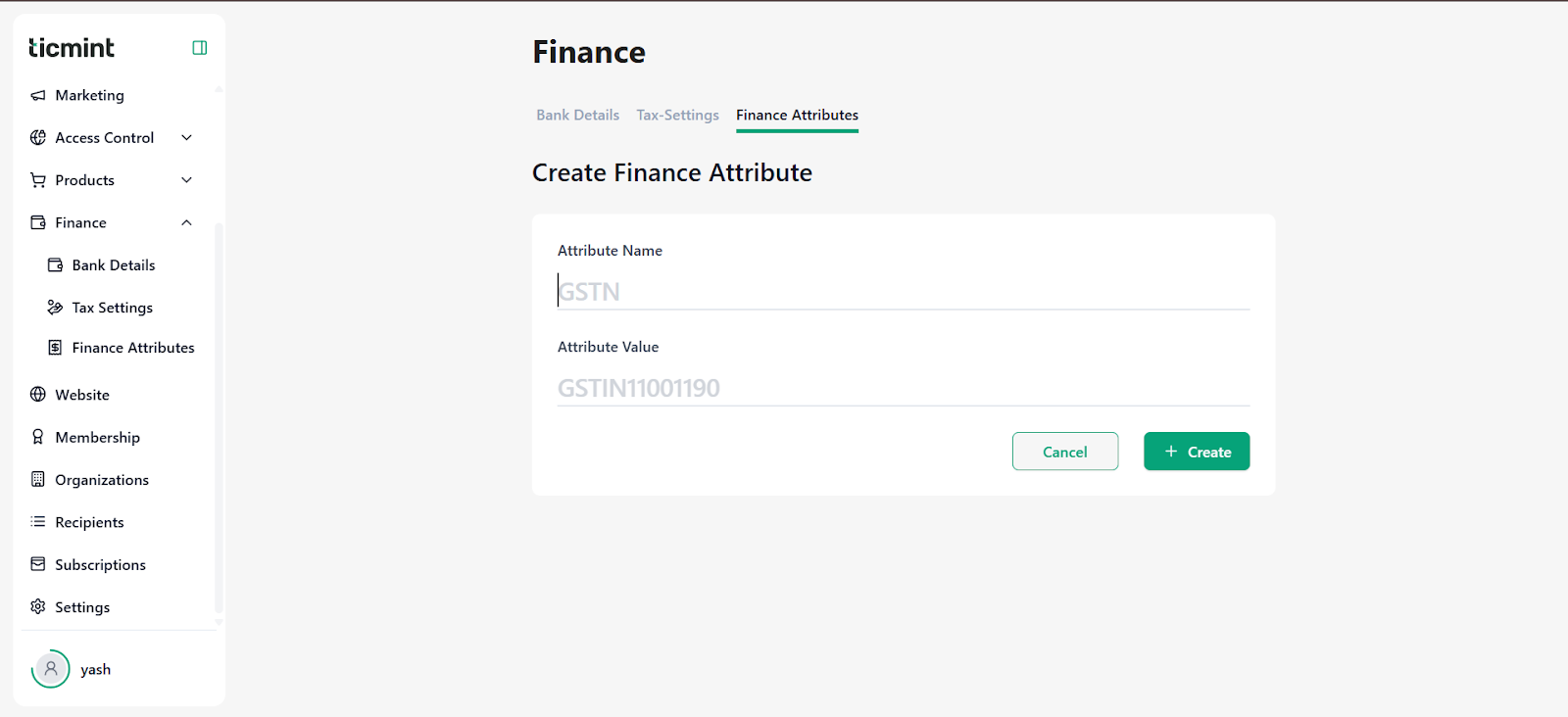
Attribute Name
Provide a clear name for the attribute (e.g., GSTIN).
Attribute Value
Enter the corresponding value exactly as mentioned on official documents.
Click Create to save the attribute.
Usage
Finance Attributes may be used for:
Displaying legal information on invoices
Internal finance and audit processes
Ensuring compliance with local tax authorities
Ensure all attribute values are accurate and up to date.
6. Important Notes & Best Practices
Ensure bank details are accurate to avoid payout failures.
Taxes should comply with local government regulations.
Finance attributes should match official documents.
Any changes in financial details may take time to reflect in payouts.
7. Need Help?
If you face any issues while setting up Finance details:
Recheck the entered information
Clear browser cache and retry
Contact Ticmint Support with screenshots and details
Learn more about Ticmint plans and fees on the Ticmint website.
Was this article helpful?
That’s Great!
Thank you for your feedback
Sorry! We couldn't be helpful
Thank you for your feedback
Feedback sent
We appreciate your effort and will try to fix the article