This document provides a step-by-step guide on how to edit ticket sections and ticket types for an existing event on the Ticmint Support Portal. Editing sections and tickets allows organisers to update pricing, capacity, visibility, and selling rules even after an event has been created.
Step 1: Log in to the Ticmint Dashboard
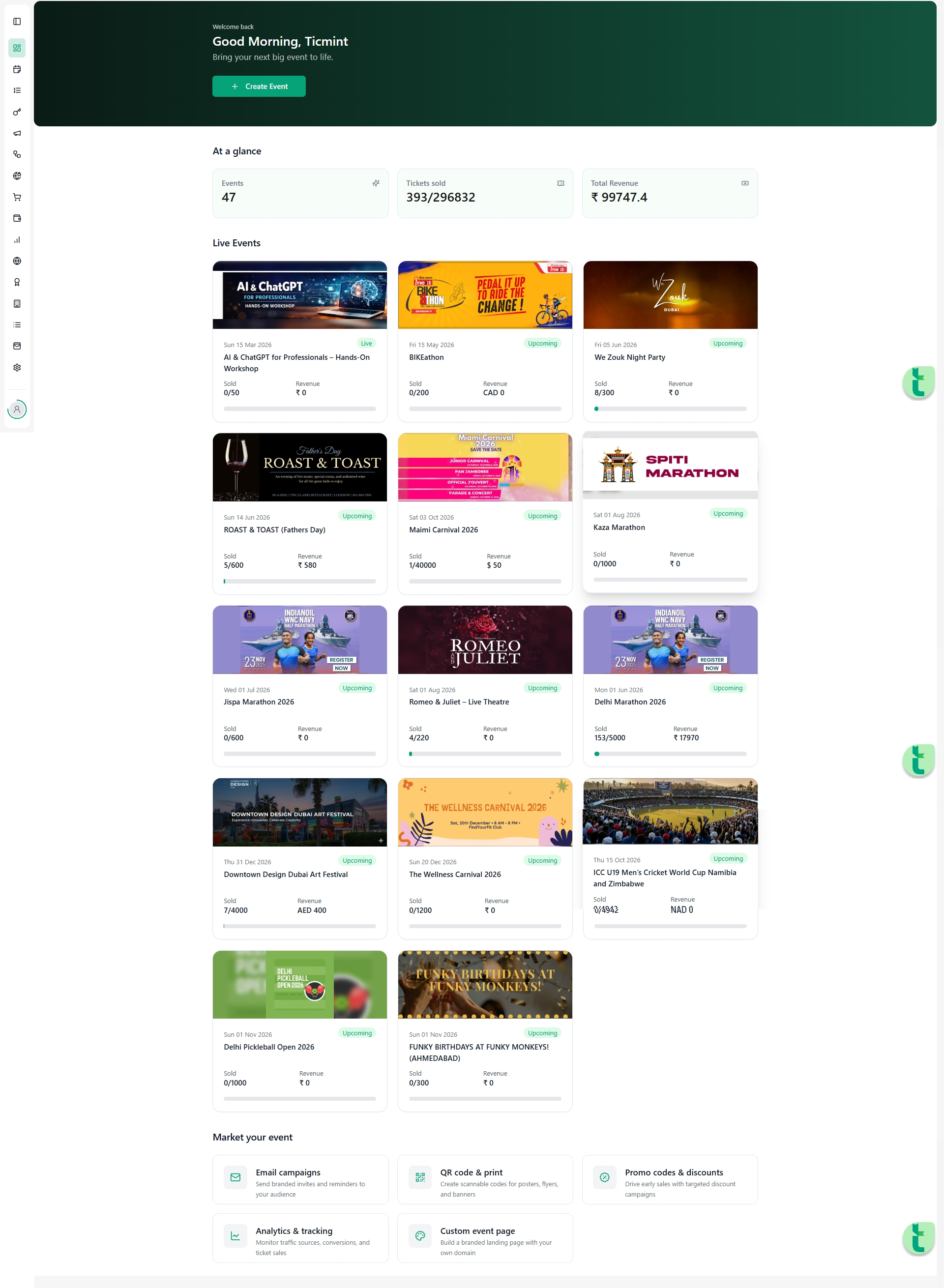
Sign in to the Ticmint Dashboard using your registered email.
From the dashboard home screen, open Events.
Select the event you want to update.
Step 2: Navigate to Tickets
Inside the selected event, locate the left-side navigation panel.
Click on Tickets.
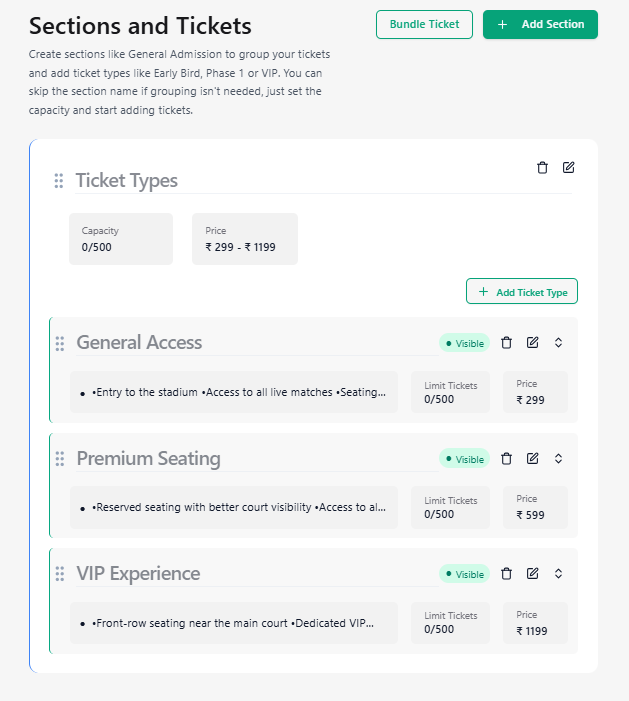
You will see all configured Sections (e.g., VVIP, VIP, General) along with their ticket types.
From this page, you can manage:
Sections
Ticket types
Prices
Capacity
Visibility
Selling rules
Step 3: Editing a Ticket Section
Purpose
Editing a section allows you to control how many tickets can be sold under that section and how they are displayed to buyers.
Steps to Edit a Section
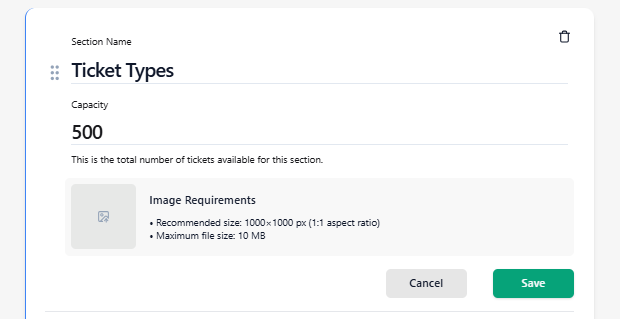
Locate the section you want to update.
Click the Edit (✏️) icon next to the section name.
Update the following details as required:
Ticket Price (if applicable)
Maximum Capacity for the section
Visibility (Visible / Hidden)
Selling Channels (online, partners, affiliates, etc.)
Ticket Sale Period (start and end date & time)
Click Save to apply the changes.
⚠️ Note: Section capacity acts as a hard limit. The total capacity of all ticket types inside a section cannot exceed the section capacity.
Step 4: Adding or Editing Ticket Types
Purpose
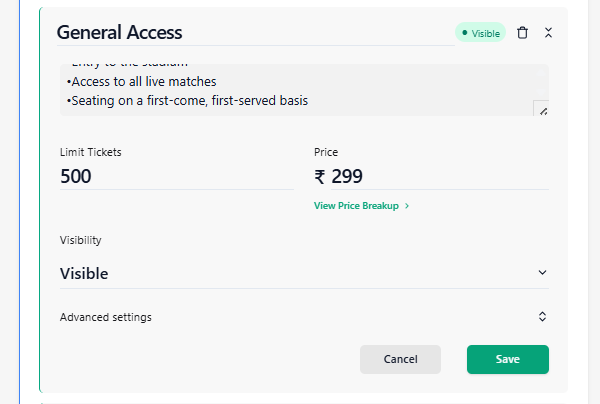
Ticket types define individual ticket options under a section (e.g., Early Bird, Regular, Student Pass).
Add a New Ticket Type
Inside the desired section, click Add Ticket Type.
Enter the following details:
Ticket Name
Price
Limit Tickets
Visibility status
Configure advanced settings if required (sale dates, channels, restrictions).
Click Save to create the ticket type.
Advanced Ticket Settings
Inside the ticket editor, expand Advanced Settings to configure deeper controls.
Tax Configuration
Select an existing tax (e.g., GST 18%)
Or choose Create a new tax if required
Pricing Controls
Strikethrough Price: Show original price for discount perception
Minimum Quantity: Minimum tickets per order
Admits per Ticket: Number of people allowed per ticket
Limit Tickets per User: Max tickets one buyer can purchase
Selling Channels
Choose where the ticket is available:
All channels
Selected channels only
Ticket Sale Period
Set Start Date & Time and End Date & Time for ticket sales
Select the correct Timezone
Optional: Enable the Show ticket sale period to buyers
Step 5: Ticket Banner Image Requirements
Each ticket type can have its own banner image.
Recommended Image Specifications:
Size: 1000 × 1000 px
Aspect Ratio: 1:1
Maximum file size: 10 MB
Using the correct resolution ensures:
Faster image loading
Better visual quality on event pages
Consistent display across devices
Edit an Existing Ticket Type
Click the Edit (✏️) icon next to the ticket type.
Update pricing, capacity, visibility, or advanced settings.
Click Save to apply changes.
Step 6: Adding a New Section
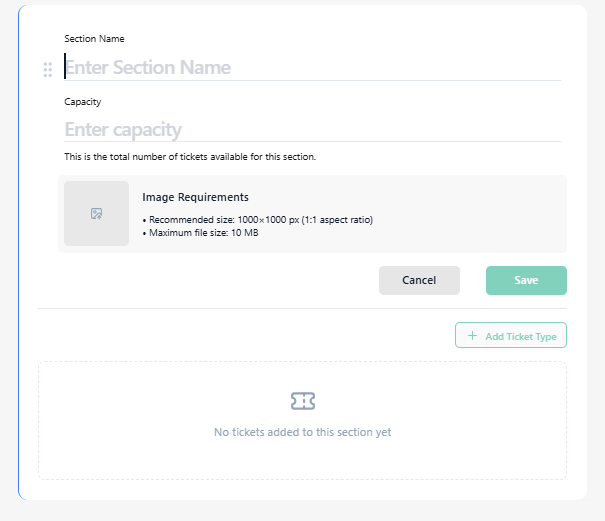
Purpose
Creating a new section allows you to introduce new ticket categories such as VIP, Balcony, or Backstage.
Steps to Add a Section
Click Add Section at the top-right corner of the Tickets page.
Enter the Section Name (e.g., VIP, General Admission).
Set the Section Capacity.
Click Save.
Add ticket types inside the new section using Add Ticket Type.
Step 7: Review & Publish Changes
Review all sections and ticket updates carefully.
Ensure capacities and prices are correct.
Once saved, changes reflect immediately on the event page (unless tickets are hidden or sale dates restrict visibility).
Best Practices
Always double-check capacities to avoid overselling
Use visibility controls to manage phased ticket releases
Set ticket sale periods to control early-bird and last-minute sales
Avoid deleting ticket types that already have confirmed orders
Need Help?
If you face any issues while editing sections or tickets:
Refresh the page and try again
Check for capacity conflicts
Contact Ticmint Support with your event name and screenshots for faster assistance
Was this article helpful?
That’s Great!
Thank you for your feedback
Sorry! We couldn't be helpful
Thank you for your feedback
Feedback sent
We appreciate your effort and will try to fix the article