This document provides a step-by-step guide on how to edit, update, or remove Agenda items and FAQs for an existing event on the Ticmint Support Portal. Keeping your Agenda and FAQs updated ensures attendees always have accurate information and reduces support queries.
Step 1: Log in to the Ticmint Dashboard
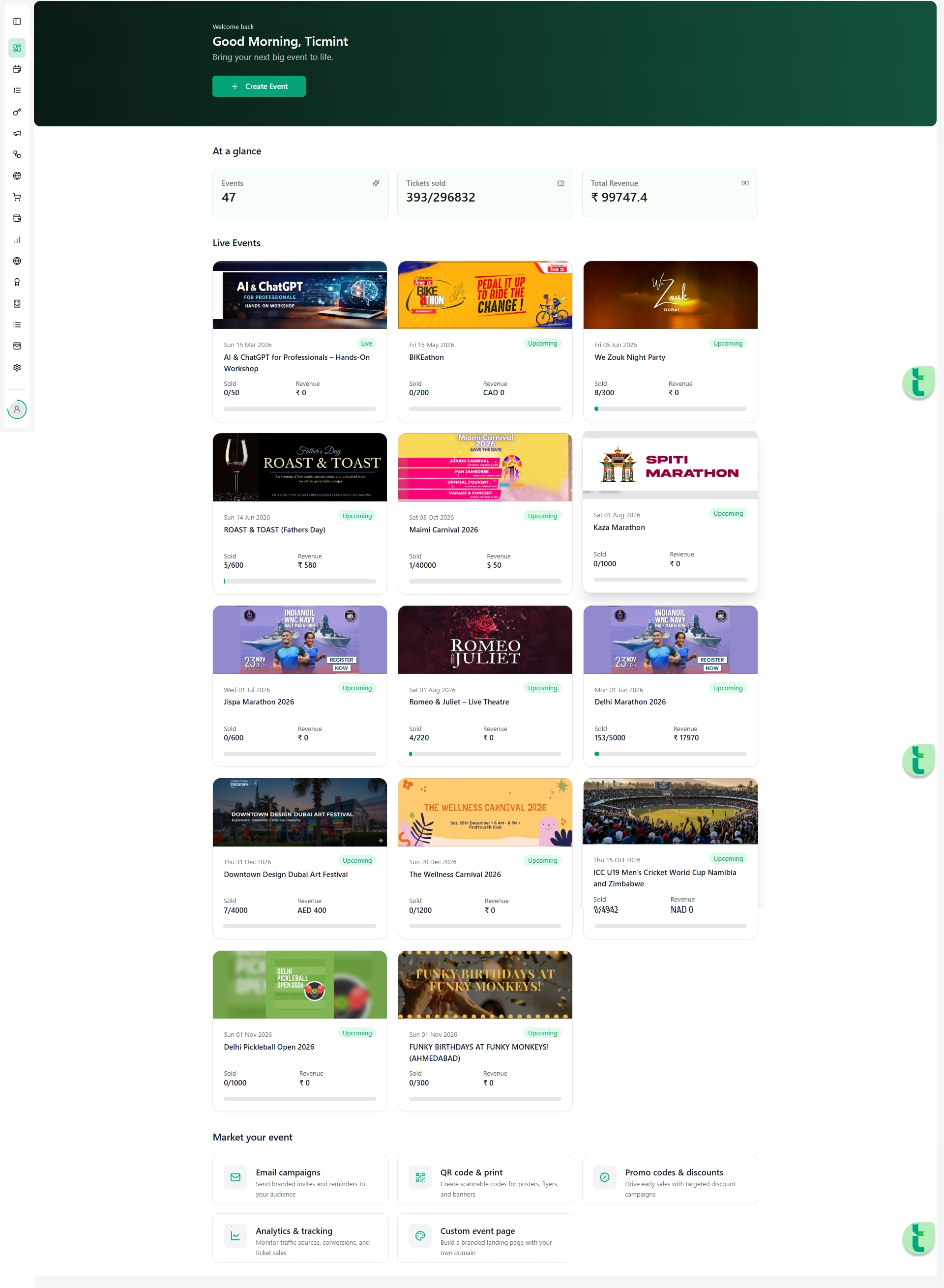
Sign in to the Ticmint Dashboard using your registered business email.
After login, you will land on the dashboard home screen.
From the left-side navigation menu, locate and open the event you want to manage.
Step 2: Navigate to Agenda & FAQs
Inside the selected event, scroll through the left sidebar.
Click on Agenda & FAQs.
You will see two tabs at the top:
Agenda
FAQs
You can switch between these tabs at any time.
Step 3: Edit Agenda Items
Purpose
The Agenda section displays your event schedule, sessions, speakers, and key activities. Editing the agenda helps keep attendees informed about changes in timing or content.
Steps to Edit an Agenda Item
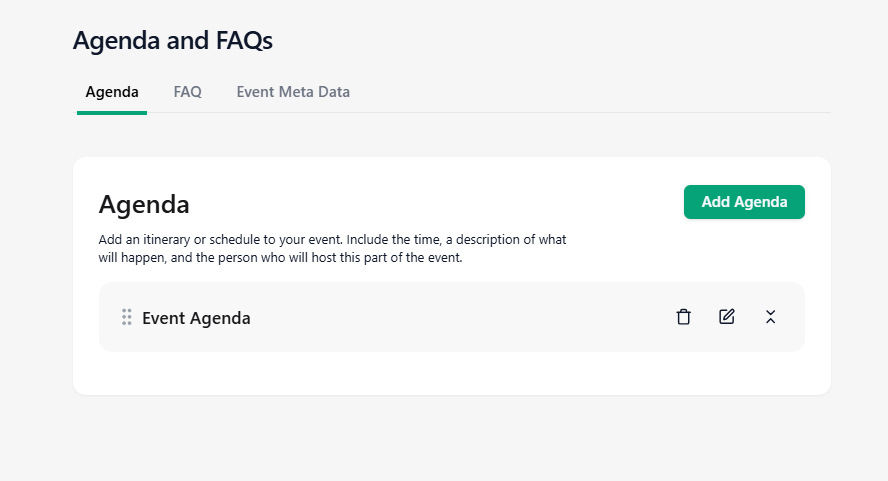
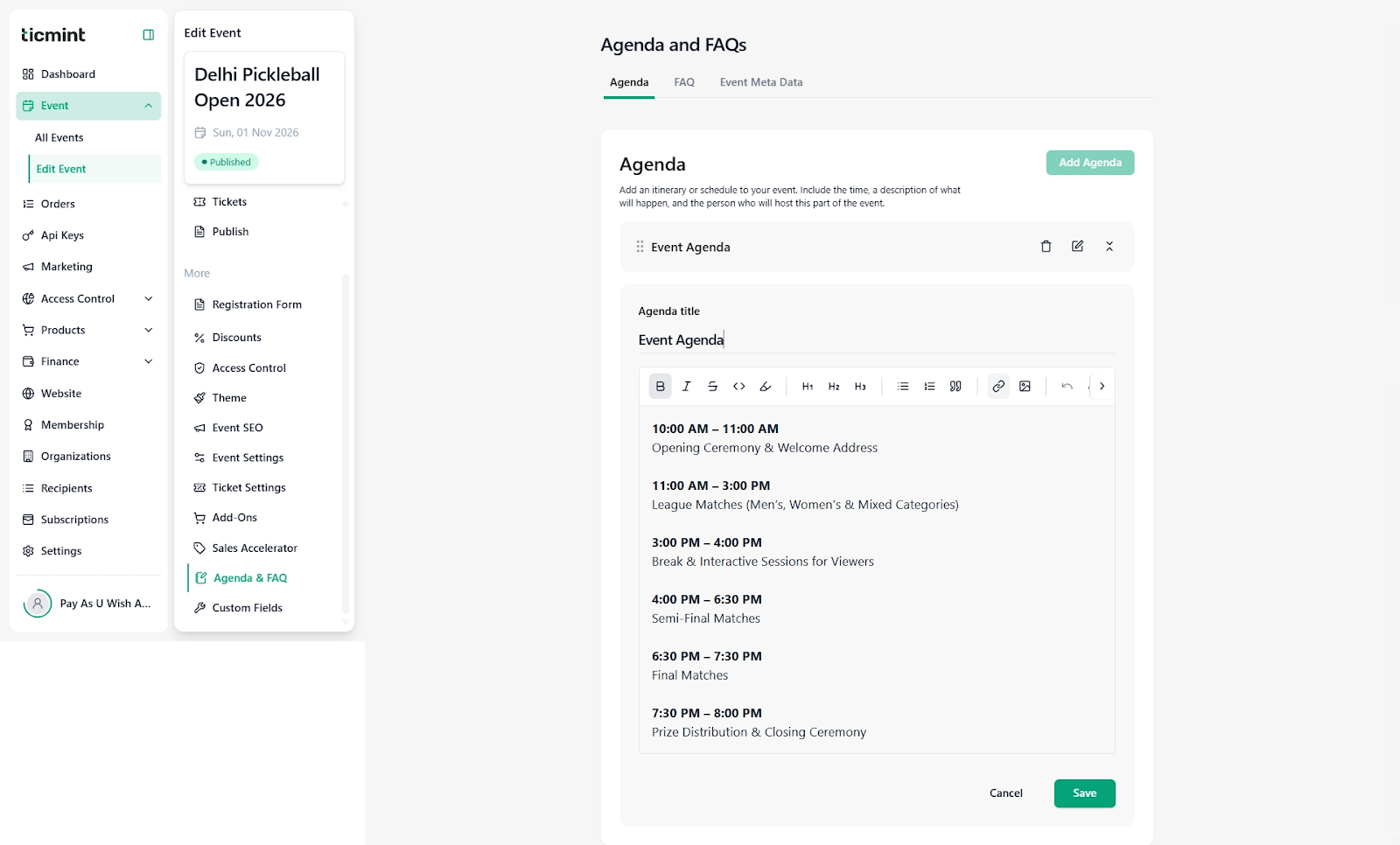
Click on the Agenda tab.
Locate the agenda item you want to edit.
Click the Edit (✏️) icon next to the agenda item.
Update the following fields as needed:
Agenda Title (e.g., Opening Ceremony, Panel Discussion)
Description (time, speakers, details)
You may add or update images, links, emojis, tables, audio, video, CSV, or PDF files
Click Save to apply the changes.
Delete an Agenda Item
Click the Delete (?️) icon next to the agenda item.
Confirm deletion when prompted.
⚠️ Deleted agenda items cannot be recovered.
Step 4: Edit FAQs
Purpose
FAQs help answer common attendee questions. Editing FAQs ensures the information remains accurate and relevant.
Steps to Edit an FAQ
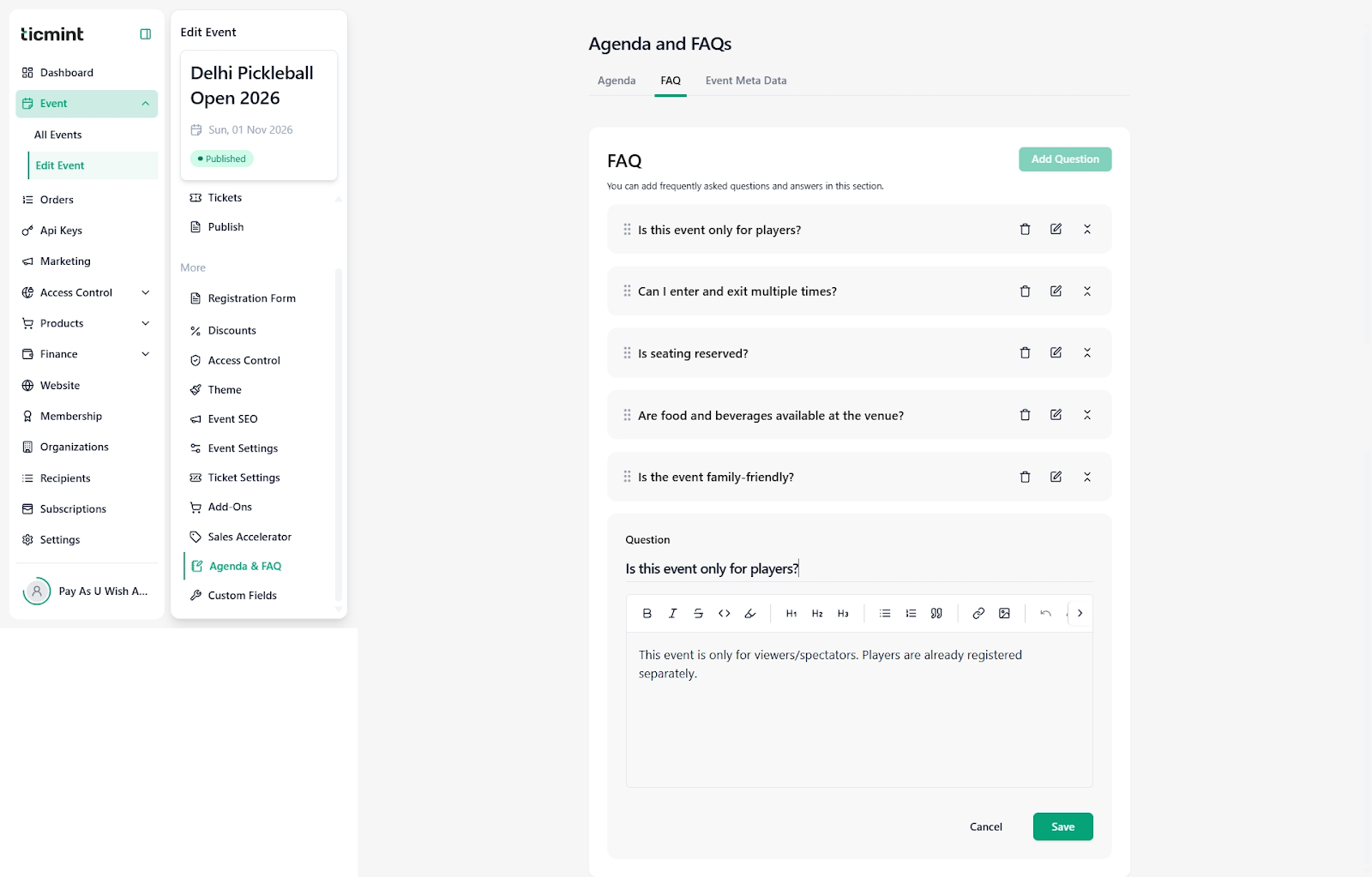
Click on the FAQs tab.
Locate the question you want to update.
Click the Edit (✏️) icon.
Update:
Question (e.g., Is parking available?)
Answer (you can include links, images, videos, PDFs, emojis, and tables)
Click Save to publish the updated FAQ.
Delete an FAQ
Click the Delete (?️) icon next to the FAQ.
Confirm to remove it permanently.
Step 5: Review Changes on Event Page
After saving edits, open your event's public page.
Verify that:
Agenda items appear in the correct order
FAQ answers display properly
Links and media load correctly
Best Practices
Update agendas immediately if session times or speakers change
Keep FAQ answers short, clear, and practical
Add the most common questions at the top
Review Agenda & FAQs before publishing or promoting your event
Remove outdated information after the event ends
Need Help?
If you face any issues while editing the Agenda or FAQs:
Refresh the page and try again
Ensure all mandatory fields are filled
Contact Ticmint Support with your event name and screenshots for faster assistance
Was this article helpful?
That’s Great!
Thank you for your feedback
Sorry! We couldn't be helpful
Thank you for your feedback
Feedback sent
We appreciate your effort and will try to fix the article