This document provides a step-by-step guide to editing, updating, and managing Add-Ons for an existing event on the Ticmint Support Portal. Editing add-ons allows organisers to update pricing, availability, descriptions, variants, and visibility without creating a new product.
Overview
The Add-Ons feature lets organisers sell additional products or services along with event tickets, such as:
Merchandise
Food & beverage packages
VIP upgrades
Parking passes
Editing add-ons helps you keep offers accurate, relevant, and aligned with event updates.
Step 1: Access the Add-Ons Section
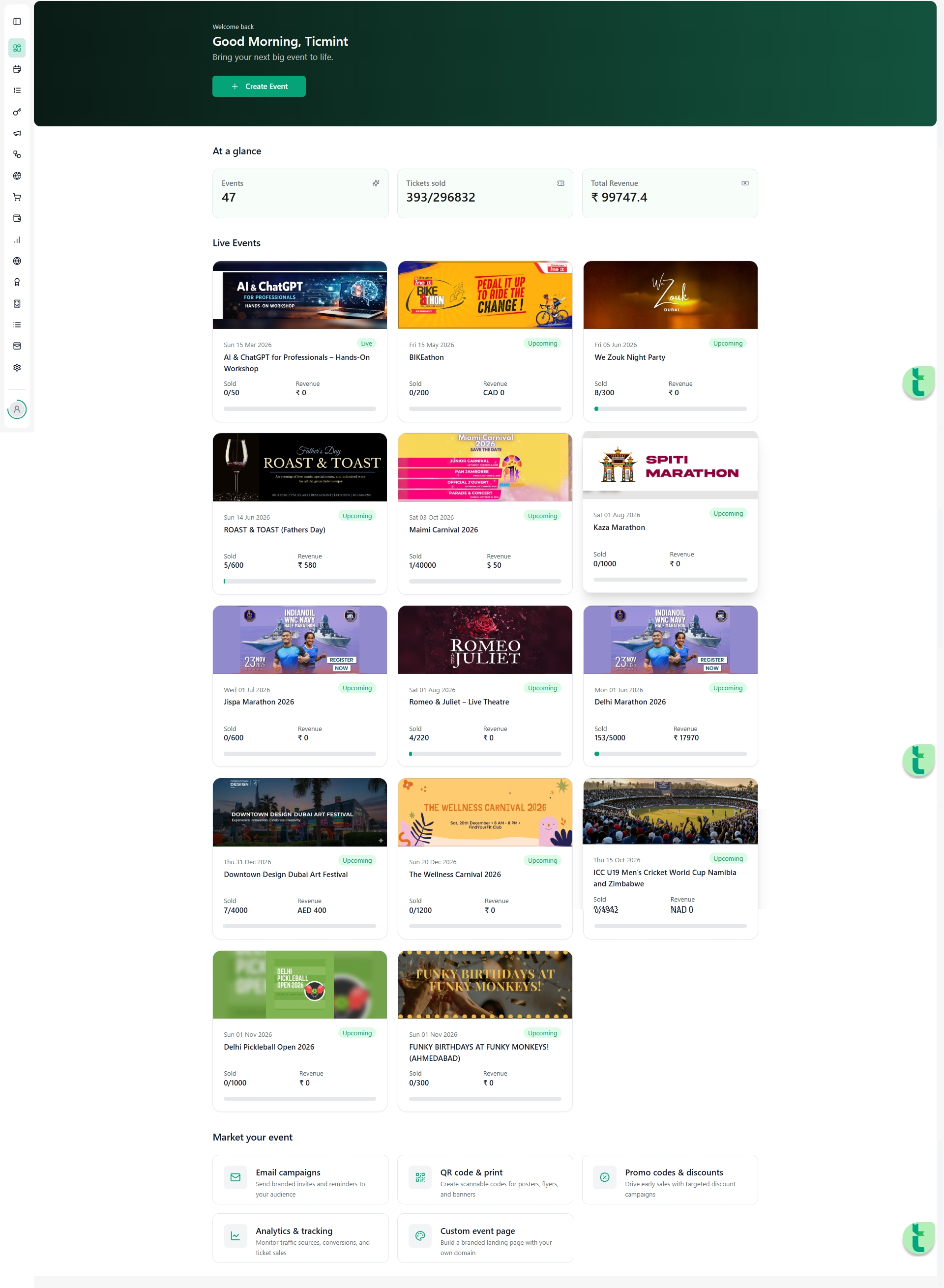
Log in to your Ticmint Dashboard.
Open Events and select the event you want to manage.
Navigate to Tickets from the left-hand panel.
Click on Add-Ons.
You will see a list of all add-ons created for the selected event.
Step 2: Edit an Existing Add-On
Purpose
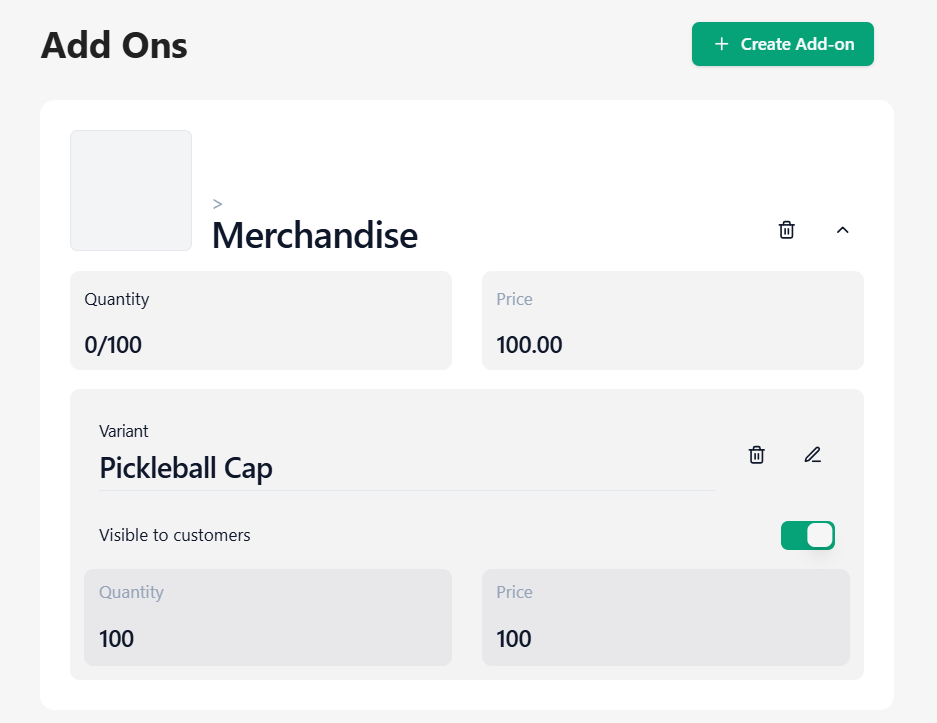
Editing an add-on allows you to update its price, quantity, visibility, description, and selling rules.
Steps to Edit
Locate the add-on you want to update.
Click the Edit (✏️) icon next to the product.
The Edit Add-On window will open with all existing details pre-filled.
Step 3: Update Category and Subcategory
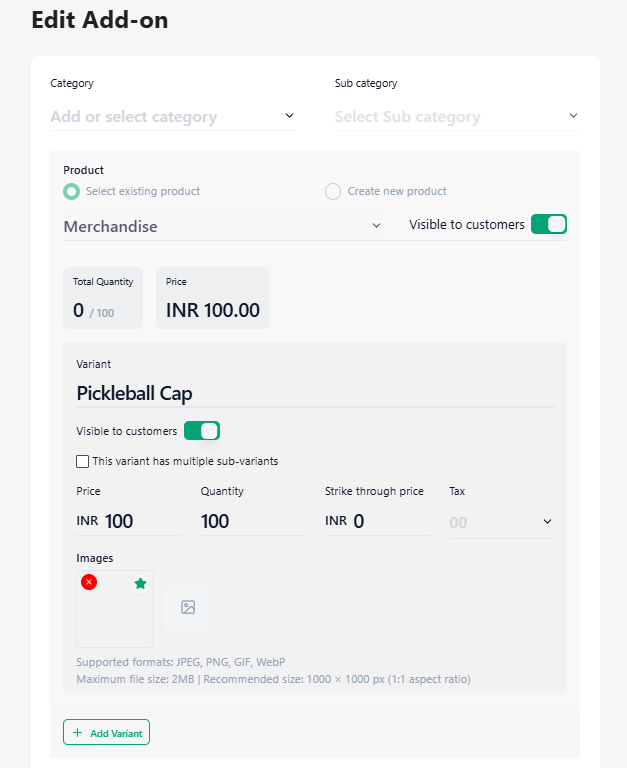
Category: Update the main classification (e.g., Merchandise, Food, Services, Parking).
Subcategory: Update the specific grouping (e.g., T-shirt, Snack Combo, VIP Parking).
This ensures correct organisation and reporting.
Step 4: Update Product Details
Modify the following fields as needed:
Product Name: Update the display name of the add-on.
Total Quantity: Adjust the total units available for sale.
Price: Update the selling price.
Visible to Customers: Toggle ON or OFF to control visibility on the checkout page.
Step 5: Edit Product Variants (Optional)
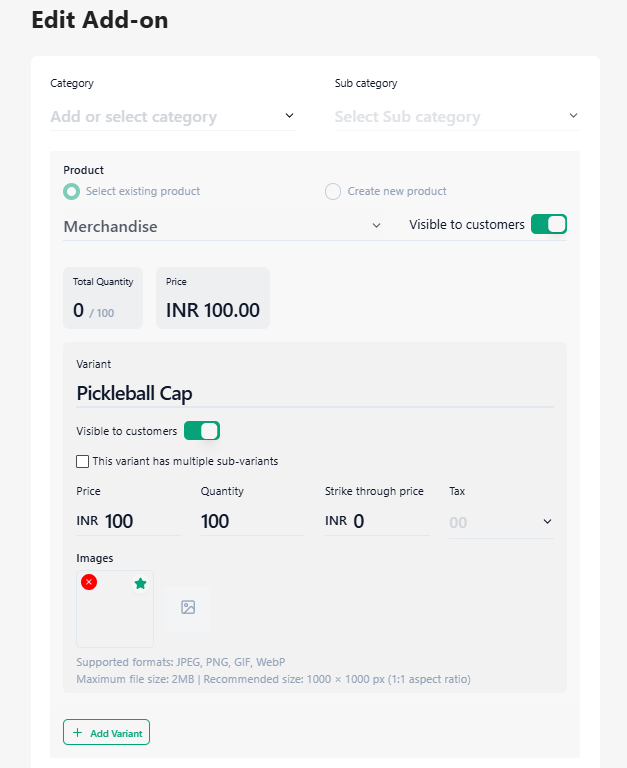
If your add-on has multiple options (such as sizes or meal types):
Enable This variant has multiple sub-variants.
Update or add variant details:
Variant name
Price
Quantity
Strike-through price (optional, for discounts)
Variant image
Use Add Variant to include additional options.
Step 6: Update Description
Use the Description field to revise details about the add-on.
Example:
“This combo includes a snack and beverage redeemable during the event. Valid only on the event date and non-transferable.”
Clear descriptions help buyers understand exactly what they are purchasing.
Step 7: Configure Advanced Settings
Update advanced rules for the add-on:
Minimum Quantity: Minimum number a customer must buy per order.
Maximum Quantity: The maximum number a customer can buy per order.
Start Date & Time: When the add-on becomes available.
End Date & Time: When add-on sales stop.
Visibility Toggle: Control whether the add-on appears during checkout.
Step 8: Save and Publish Changes
Review all updated details carefully.
Click Save to apply the changes.
If visibility is enabled, the updated add-on will appear immediately at checkout (subject to sale dates).
Step 9: Verify on the Checkout Page
Open the event’s public booking page.
Add a ticket to the cart.
Confirm the edited add-on appears correctly under ticket options.
Verify pricing, quantity limits, and descriptions.
Best Practices
Avoid editing quantities below already sold units
Use visibility toggles instead of deleting active add-ons
Clearly mention redemption rules in the description
Schedule start and end times for limited-time offers
Use high-quality images for better conversions
Need Help?
If you face any issues while editing add-ons:
Refresh the page and retry
Check quantity conflicts or sale date restrictions
Contact Ticmint Support with event name and screenshots for faster assistance
Was this article helpful?
That’s Great!
Thank you for your feedback
Sorry! We couldn't be helpful
Thank you for your feedback
Feedback sent
We appreciate your effort and will try to fix the article