How to Create, Edit & Send WhatsApp Campaigns
Overview
WhatsApp Marketing enables organizers to send promotional messages, event updates, discount offers, and important announcements directly to attendees using Meta-approved templates.
Step 1: Access WhatsApp Marketing
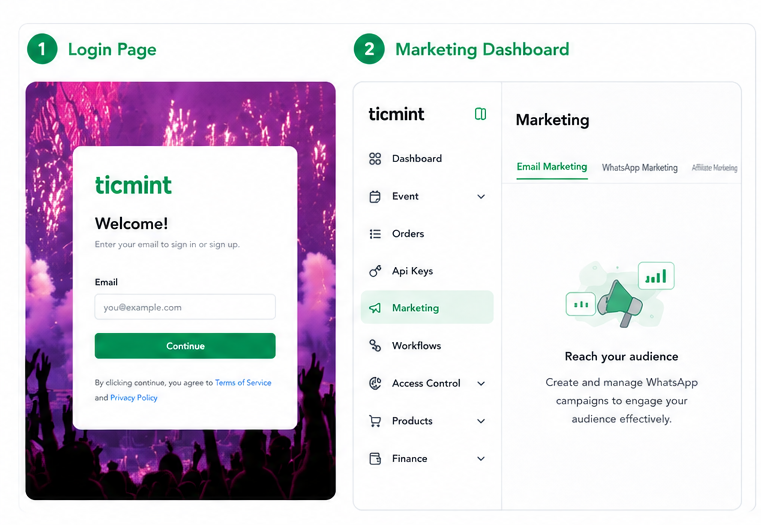
Log in to the Organizer Dashboard.
Navigate to Marketing from the left menu.
Click WhatsApp Marketing.
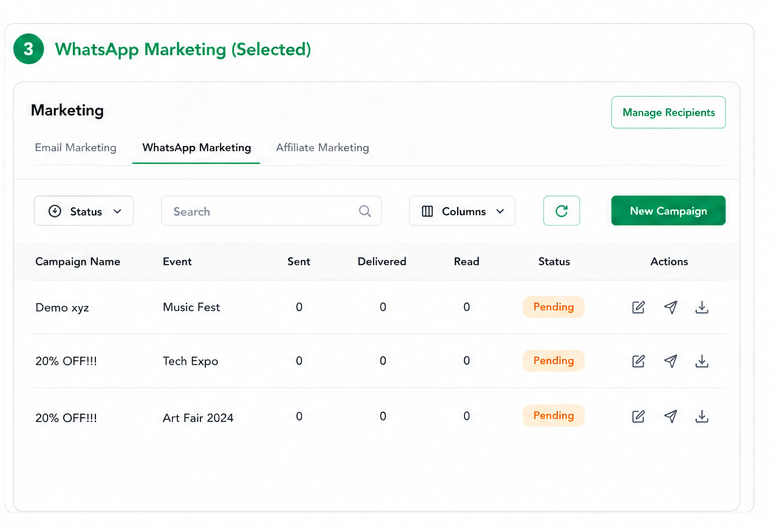
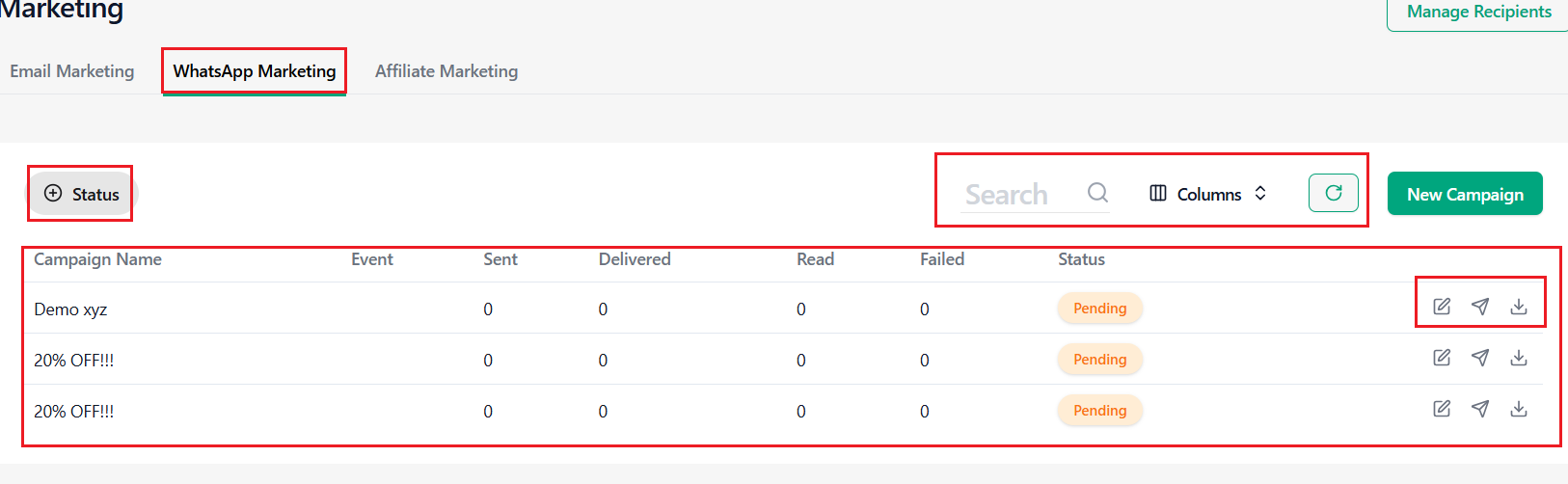
You will be redirected to the WhatsApp Marketing Dashboard where all campaigns can be viewed and managed.
Dashboard Information
• Campaign Name
• Event Name
• Sent Count
• Delivered Count
• Read Count
• Campaign Status
• Edit/View Actions
Step 2: Create a New WhatsApp Campaign
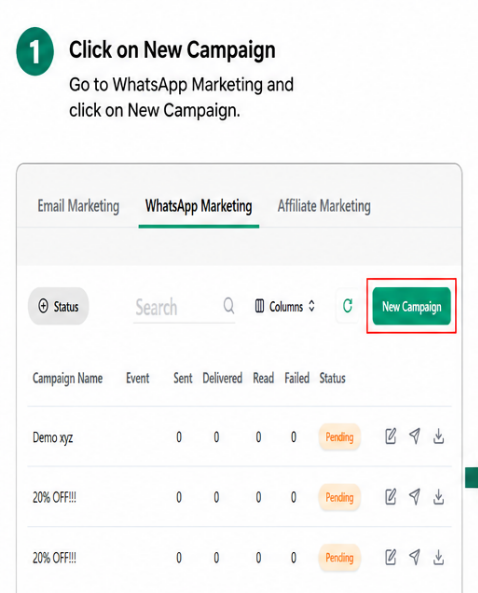
Click New Campaign.
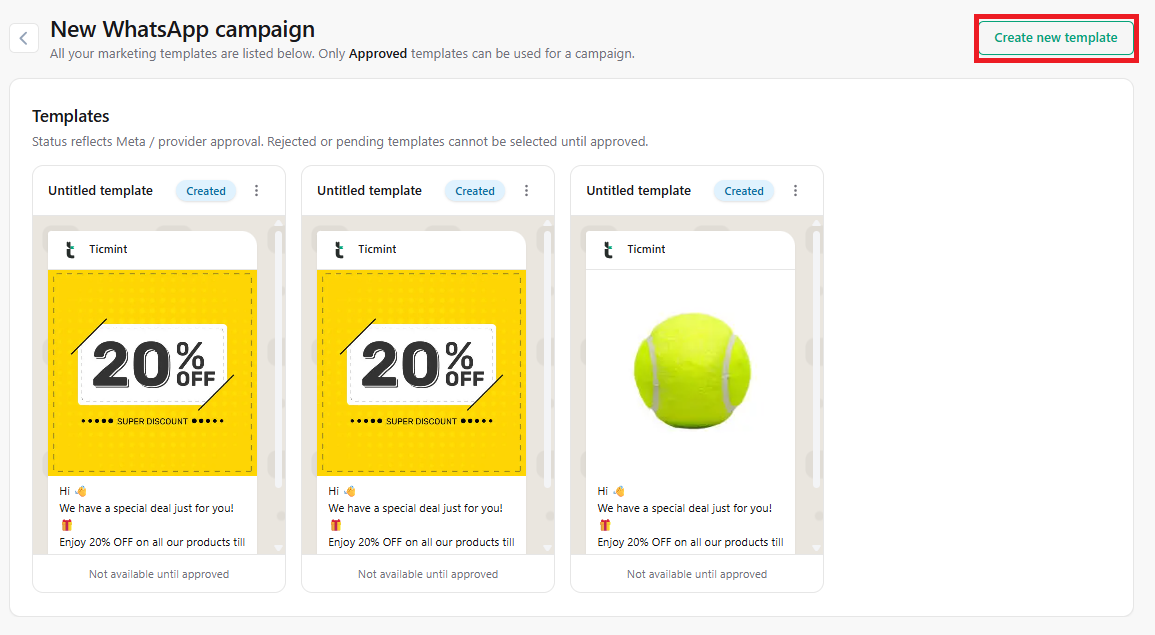
Click Create New Template.
Enter the required details.
Campaign Information
☐ Template Name
☐ Button Text and Button Link
☐ Upload Campaign Image
Click Add Variable to insert dynamic values such as user name or event details.
Message Content
Create the message that attendees will receive.
Example:
Hello {{Username}},
Your event starts tomorrow.
Click Submit.
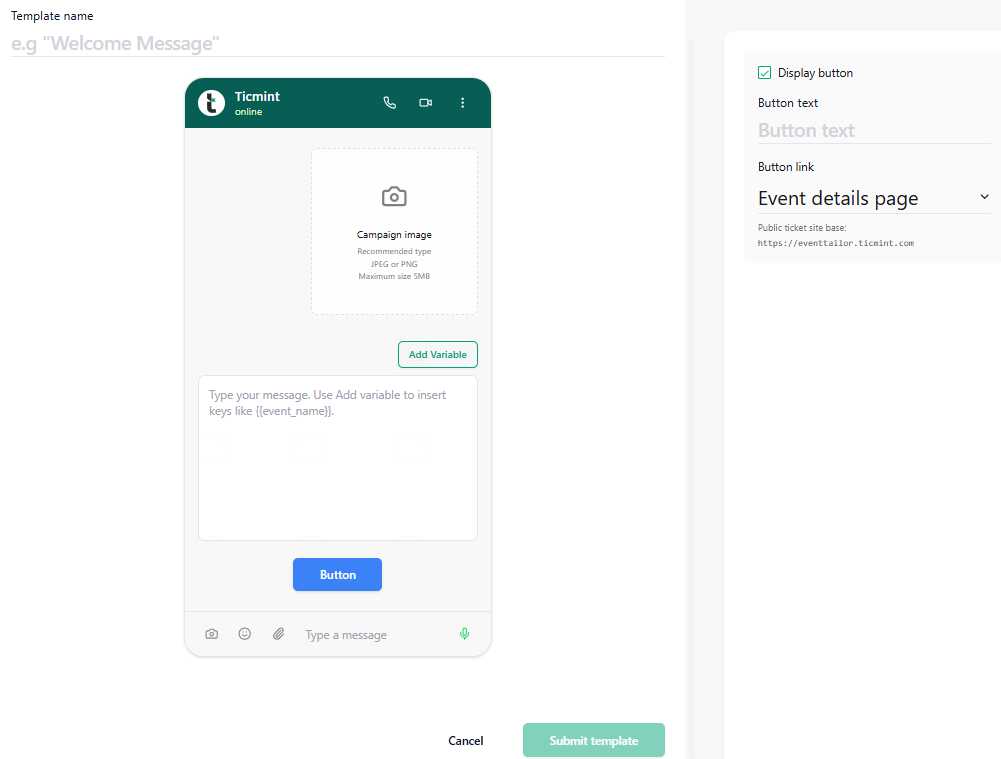
Enter the details and click on Submit
Step 3: Submit Template for Meta Approval
All WhatsApp campaigns require Meta-approved templates before sending.
Approval Status
☐ Pending Approval
Awaiting Meta review
☐ Approved
Ready to send
☐ Rejected
Requires modification
Important:
Campaigns cannot be sent until the template is approved.
Typical Approval Time:
A few minutes to 24 hours.
Step 4: Manage Recipients
After template creation and approval:
Click Manage Recipients.
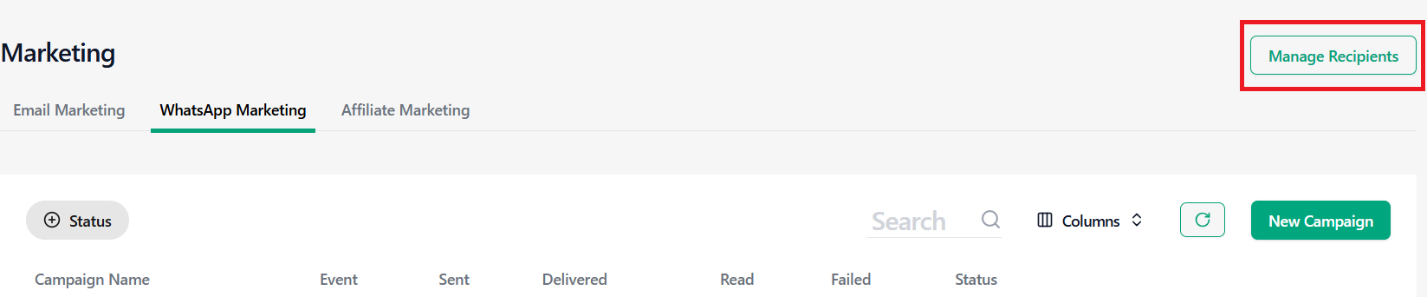
Click on + Create New list and enter create list details.
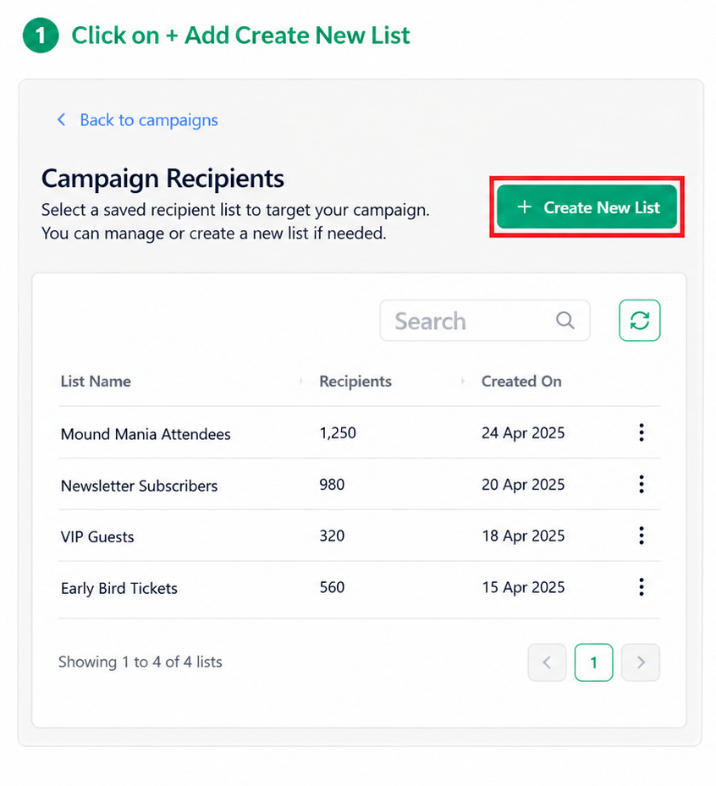
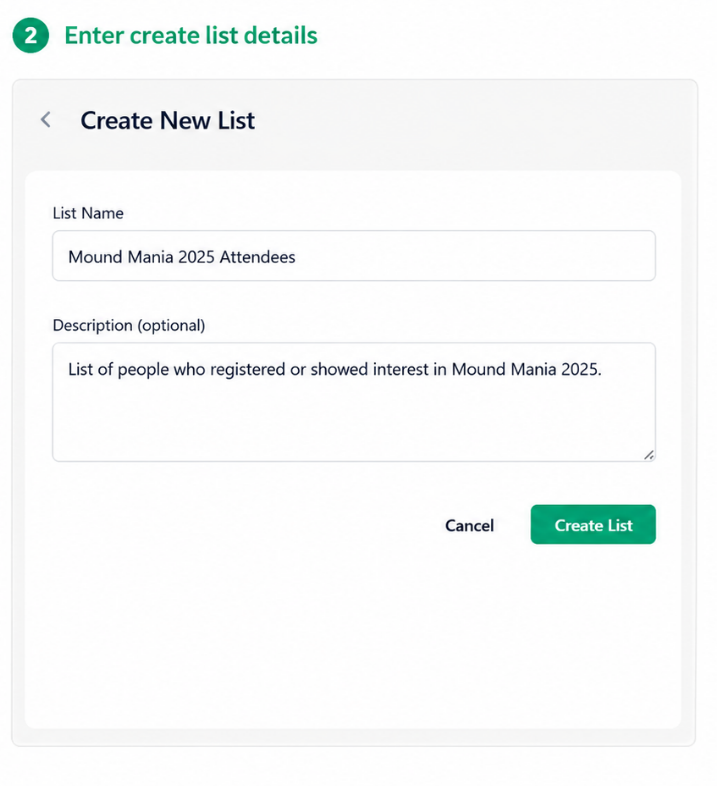
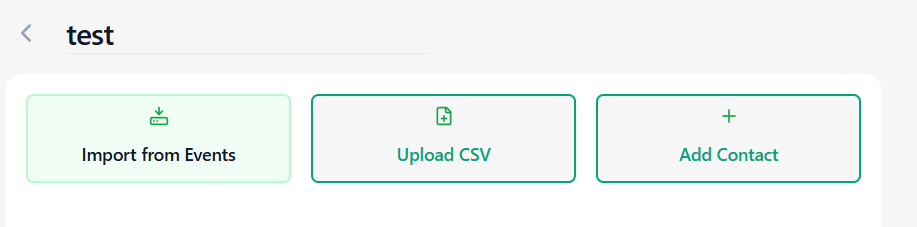
Choose one of the following methods:
Option A: Import Event Attendees
Use attendee data from previous events.
Click Create List.
Enter:
List Name
Description (Optional)
Click Create List.
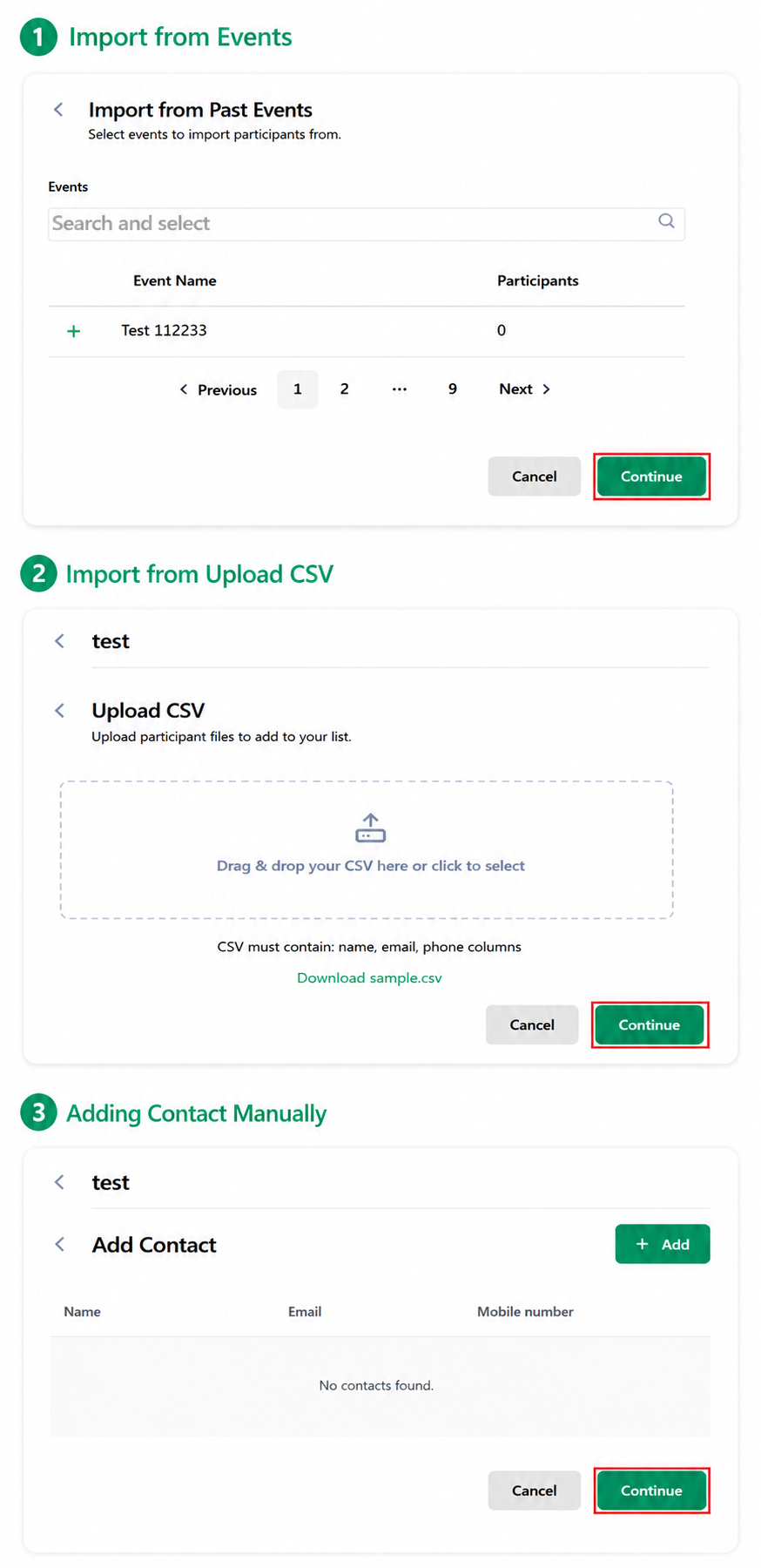
Select Import from Events.
Choose the required event.
Click Continue.
Option B: Upload CSV File
Download the sample CSV template.
Populate attendee details.
Upload the CSV file.
Click Continue.
Required Fields
Validation Checklist
☐ CSV file validated
☐ No duplicate email addresses
☐ Email format verified
Option C: Add Contacts Manually
Click Add Contact.
Enter:
Click Add.
Click Continue.
Step 5: Review Campaign
Before sending, verify all campaign details.
Campaign Checklist
☐ Campaign Name is correct
☐ Approved Template is selected
☐ Message Content is verified
☐ Buttons are working properly
☐ Media is uploaded correctly
☐ Recipient list is verified
☐ Preview is checked
Step 6: Send Campaign
Once everything is verified:
Click Send Campaign.
Confirm the action.
The system will begin delivering WhatsApp messages to all selected recipients.
Step 7: Monitor Campaign Performance
Open the WhatsApp Marketing Dashboard to track performance.
Metrics to Track
• Total Sent • Delivered Messages • Read Messages • Failed Messages • Delivery Percentage • Read Percentage
Step 8: View Recipient-Level Analytics
Open the campaign details to view individual recipient data.
Recipient Details
• Recipient Name • Mobile Number • Delivery Status • Read Status • Failed Status • Failure Reason • Sent Date & Time
Step 9: Edit Existing Campaign
Open the WhatsApp Marketing Dashboard.
Locate the campaign.
Click Edit.
Editable Items
☐ Message Content
☐ Media Files
☐ Buttons
☐ Recipients
Note:
If significant changes are made to the template, Meta approval may be required again.
Use Case:
Identify failed messages and reasons
Track engagement at user level
Re-target users if needed
Analyze campaign performance deeply
9. Best Practices for WhatsApp Marketing
Use short, clear, and compliant messages
Add images to improve engagement
Always include a CTA button
Avoid sending too many messages to prevent spam issues
Send reminders closer to event dates
Use coupon codes and limited-time offers for better conversions
Create templates early to allow time for Meta approval
Learn more about event marketing software on the Ticmint website.
Was this article helpful?
That’s Great!
Thank you for your feedback
Sorry! We couldn't be helpful
Thank you for your feedback
Feedback sent
We appreciate your effort and will try to fix the article