Overview
The Recipients Module in the Ticmint Dashboard allows organisers to create, import, and manage recipient lists for marketing and event communications. Recipient lists act as a centralized contact database and can be reused across Email Marketing and WhatsApp Marketing campaigns, eliminating the need to upload contacts repeatedly.
Organisers can add recipients manually, import attendees from existing events, or upload contacts in bulk using a CSV file. The module also provides tools to search, edit, and organize contacts, making it easier to target specific audiences and manage communication efficiently.
Maintaining accurate recipient lists improves campaign delivery, increases audience engagement, and ensures important event updates and promotional messages reach the right audience.
Manage Recipients Page Features
Access the Recipients Module
Log in to the Ticmint Dashboard using your organiser credentials.
From the left-hand navigation menu, click Recipients.
The Manage Recipients page displays all recipient lists where you can create, search, edit, delete, and manage contacts.
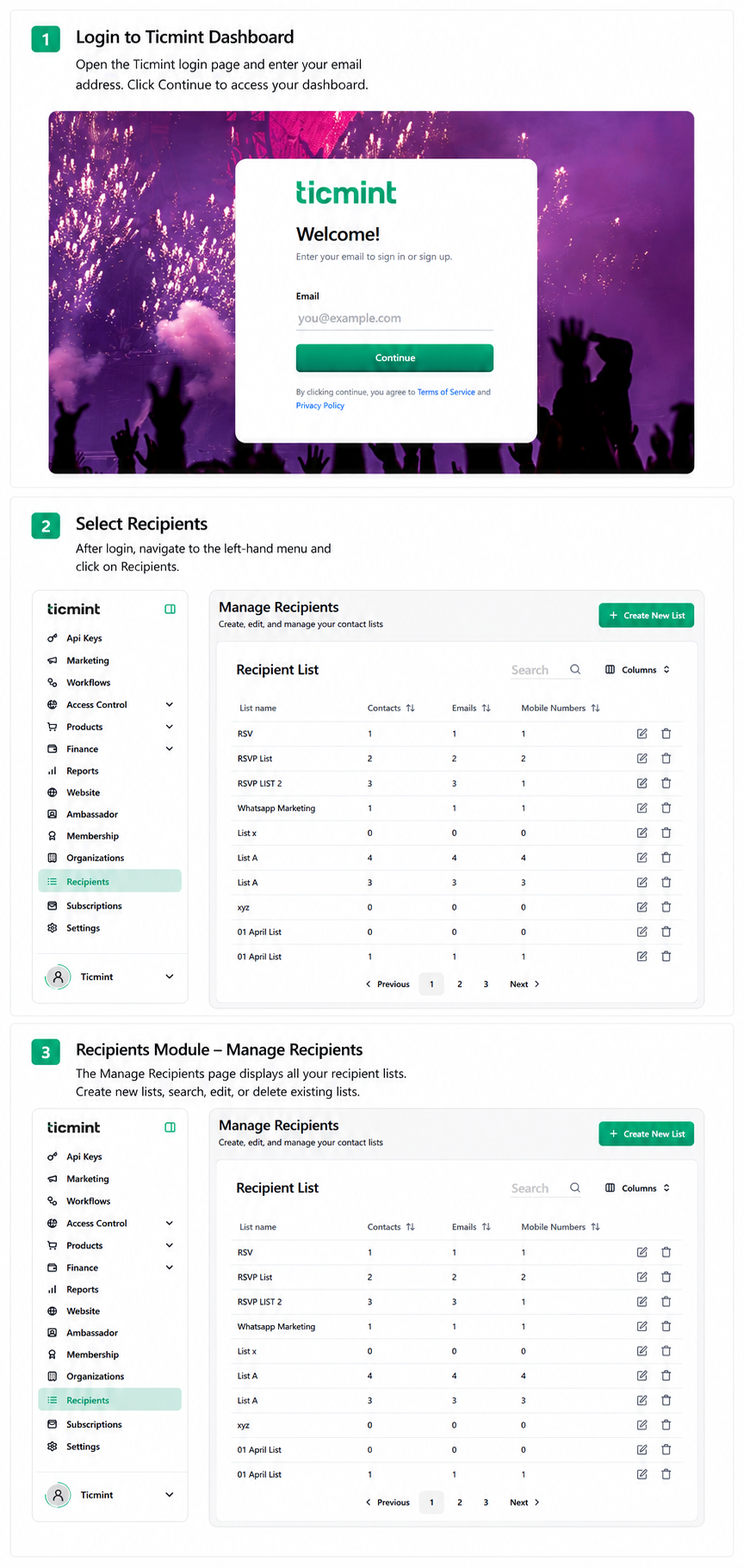
Note: Before sending an Email or WhatsApp campaign, ensure that your recipient list contains valid email addresses and/or mobile numbers to improve campaign delivery.
Add Recipients
Click on + Create New list and enter create list details.
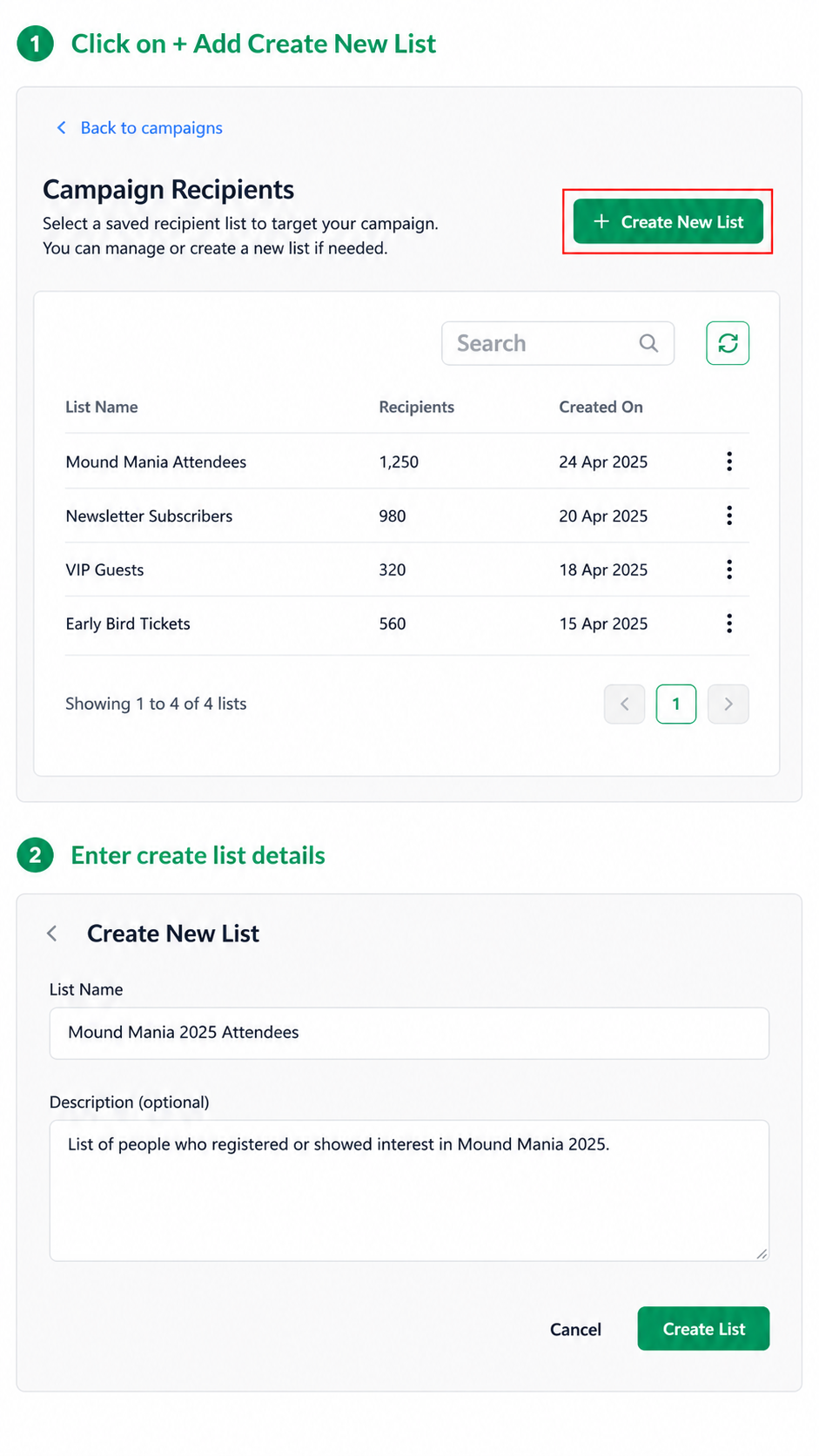
Choose one of the following methods:
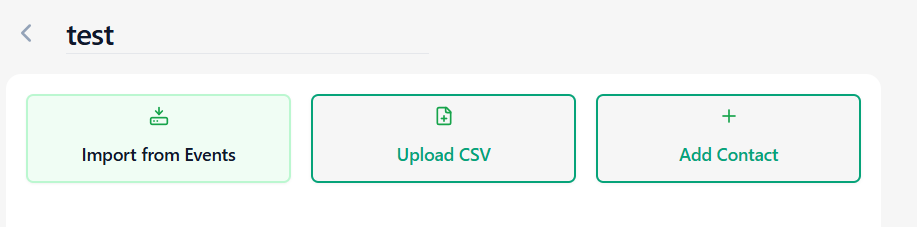
Option A: Import Event Attendees
Use attendee data from previous events.
Click Create List.
Enter:
List Name
Description (Optional)
Click Create List.
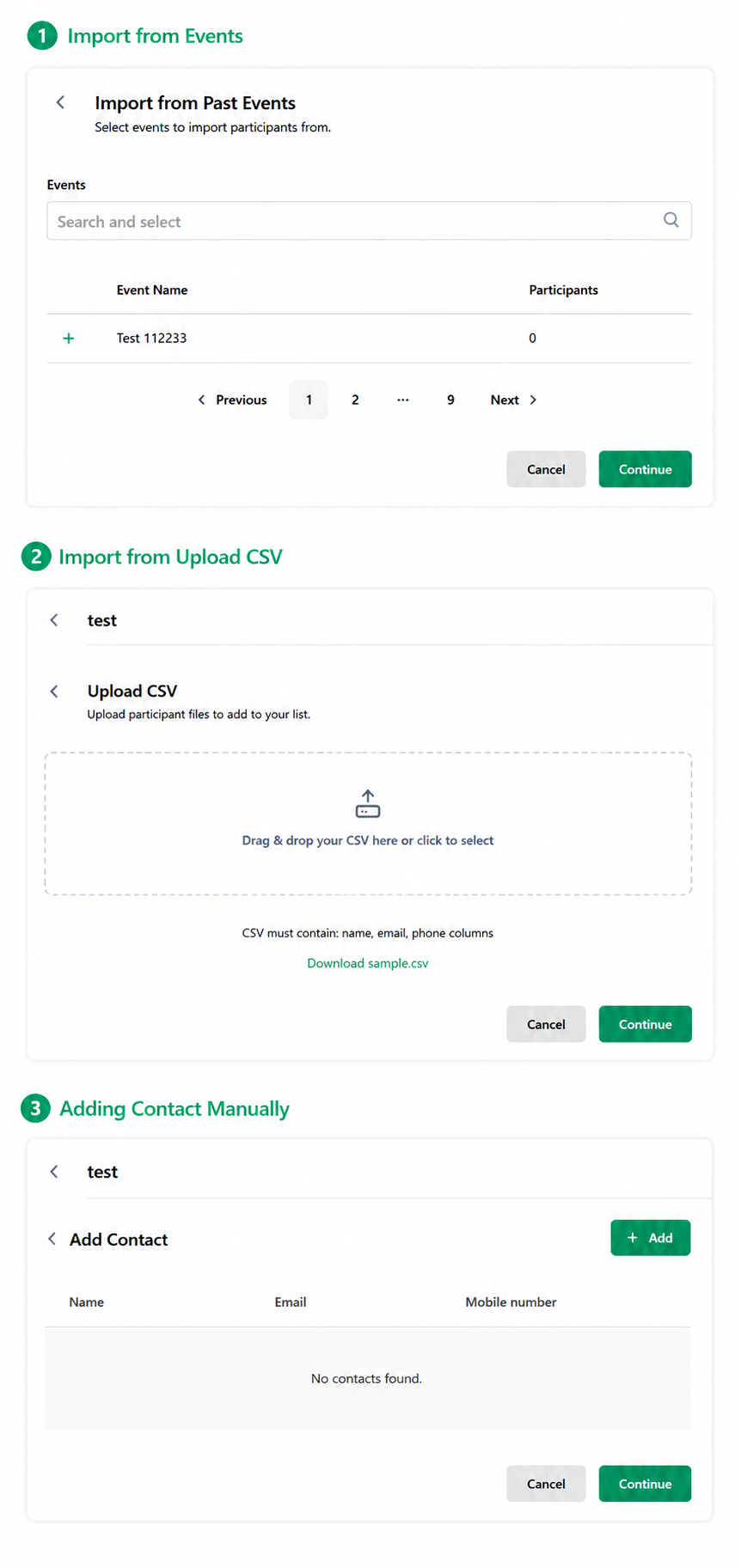
Select Import from Events.
Choose the required event.
Click Continue.
Option B: Upload CSV File
Download the sample CSV template.
Populate attendee details.
Upload the CSV file.
Click Continue.
Required Fields
Validation Checklist
☐ CSV file validated
☐ No duplicate email addresses
☐ Email format verified
Option C: Add Contacts Manually
Click Add Contact.
Enter:
Click Add.
Click Continue.
Best Practices for Adding Recipients
Use clear and meaningful list names
Avoid duplicate contacts
Regularly remove invalid or inactive contacts
Verify CSV data before uploading
Test campaigns with a small list before bulk sending
Common Issues & Solutions
CSV upload failed?
→ Check file format, column headers, and data accuracy.
Recipients not receiving messages?
→ Verify email and mobile number formats.
Wrong recipients added?
→ Review the selected list before importing or uploading.
Need Help?
If you face any issues while adding recipients:
Refresh the page and try again
Recheck contact details
Contact Ticmint Support via the support portal
Share your recipient list name or campaign name for faster assistance
Learn more about built-in event marketing on the Ticmint website.
Was this article helpful?
That’s Great!
Thank you for your feedback
Sorry! We couldn't be helpful
Thank you for your feedback
Feedback sent
We appreciate your effort and will try to fix the article