This document provides a detailed, step-by-step guide to setting up and managing the Website module on the Ticmint Partner Dashboard. The Website module allows organisers to create, customise, and optimise their event listing website for branding, discovery, marketing, and analytics.
1. Accessing the Website Module
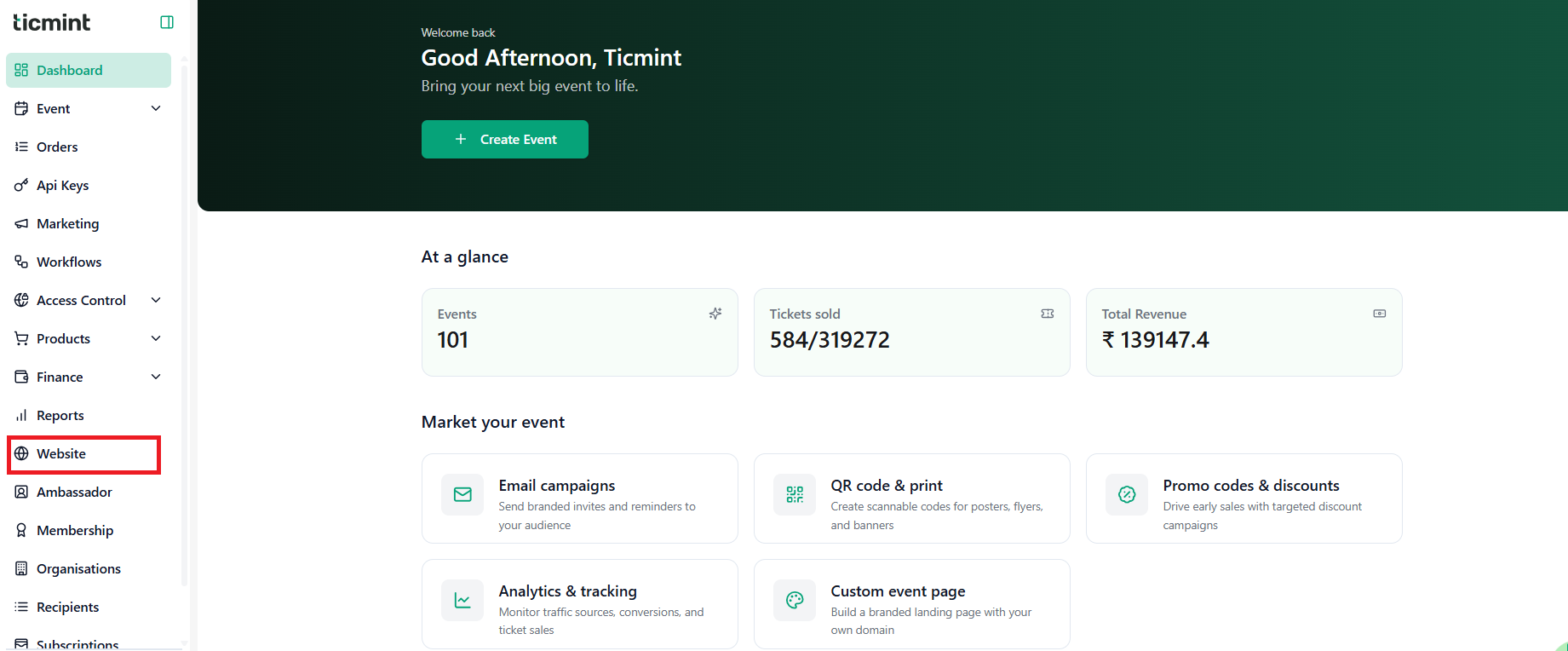
Log in to your Ticmint Partner Dashboard.
From the left-hand navigation menu, click on Website.
You will land on the website's overview page, where all created websites are listed.
From here, you can:
Add a new website
Edit an existing website
Configure website-level settings
2. Adding a Website
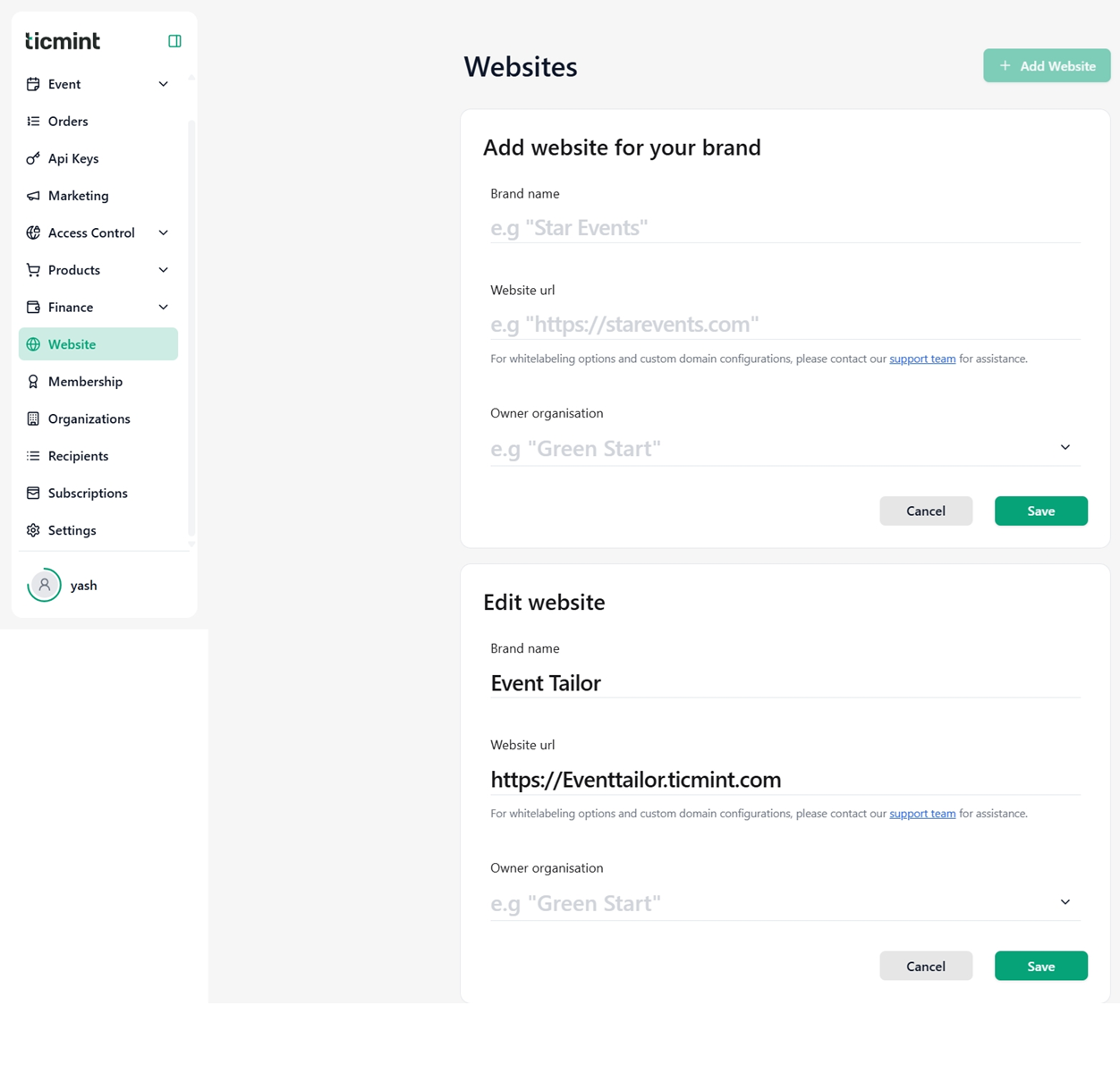
Purpose
Adding a website allows you to create a branded event listing page where all your events are displayed and sold.
Steps to Add a Website
Navigate to Website → Websites.
Click on Add Website.
Fill in the following details:
Brand Name
Enter the name of your brand or event series (e.g., Event Tailor). This name will be visible on your website.
Website URL
Enter the website URL provided by Ticmint (e.g., https://eventtailor.ticmint.com). This will be the public-facing link for your event listings.
Note: For white-labeling or custom domain configurations, please contact the Ticmint support team.
Owner Organisation
Select the organization that owns and manages this website. This links the website to the correct organizer account.
Click Save to create the website.
3. Editing a Website
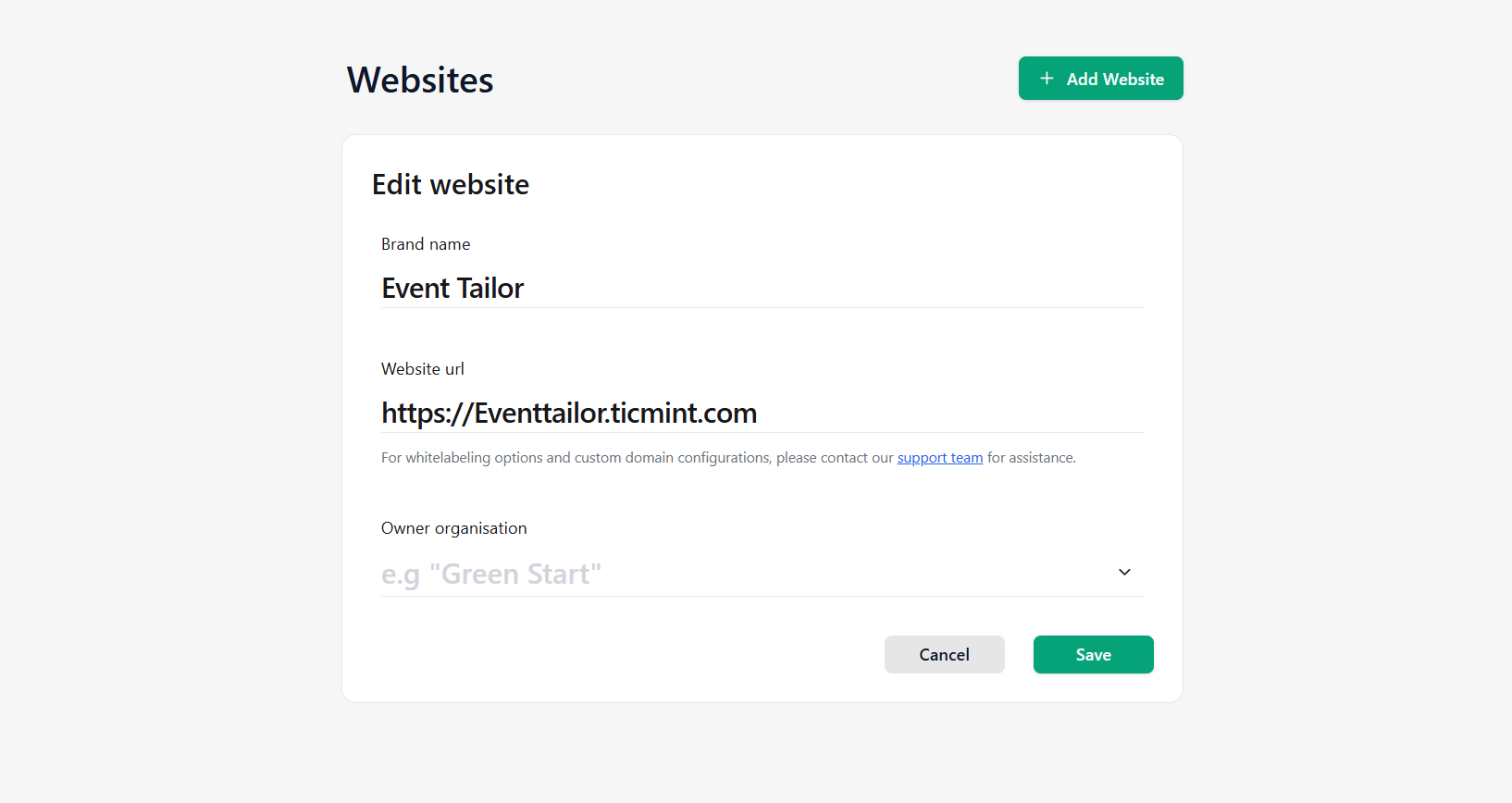
Purpose
Editing a website allows you to update branding details, URLs, and organisational ownership.
Steps to Edit a Website
On the Websites page, locate the website you want to modify.
Click the Edit (✏️) icon.
Update the required fields, such as:
Brand Name
Website URL
Owner Organisation
Click Save to apply the changes.
4. Configuring Website (Event Tailor)
Click on Configure Website to access advanced customisation options. These options are organised into multiple tabs.
5. Listing Page
Purpose
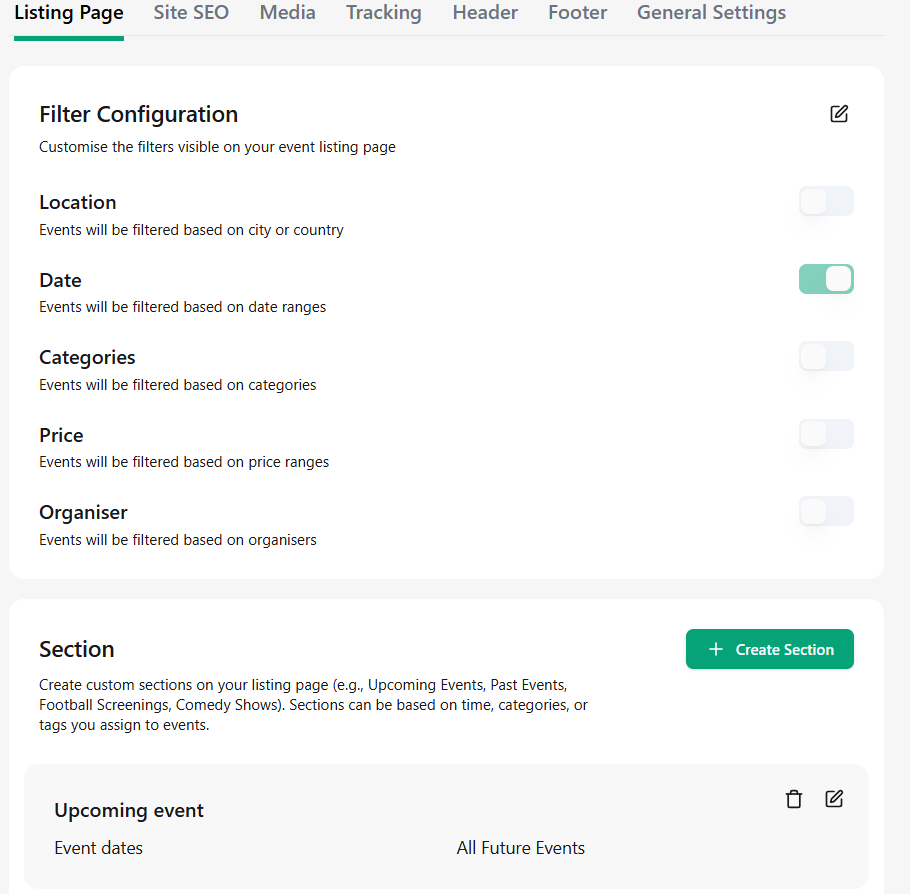
The Listing Page controls how events are displayed and filtered on your website.
Filter Configuration
You can enable or disable filters to help users find events easily.
Available filters include:
Location – Filters events by city or country
Date – Filters events by date range
Categories – Filters events by category
Price – Filters events by price range
Organiser – Filters events by organiser
Toggle the switches to show or hide these filters on the listing page.
Sections
Sections allow you to group events into meaningful collections.
Examples include:
Upcoming Events
Past Events
Things to Do in Dubai
To create a section:
Click Create Section.
Define the section criteria (time, category, or tags).
Save the section. The section will appear on the listing page.
6. Site SEO
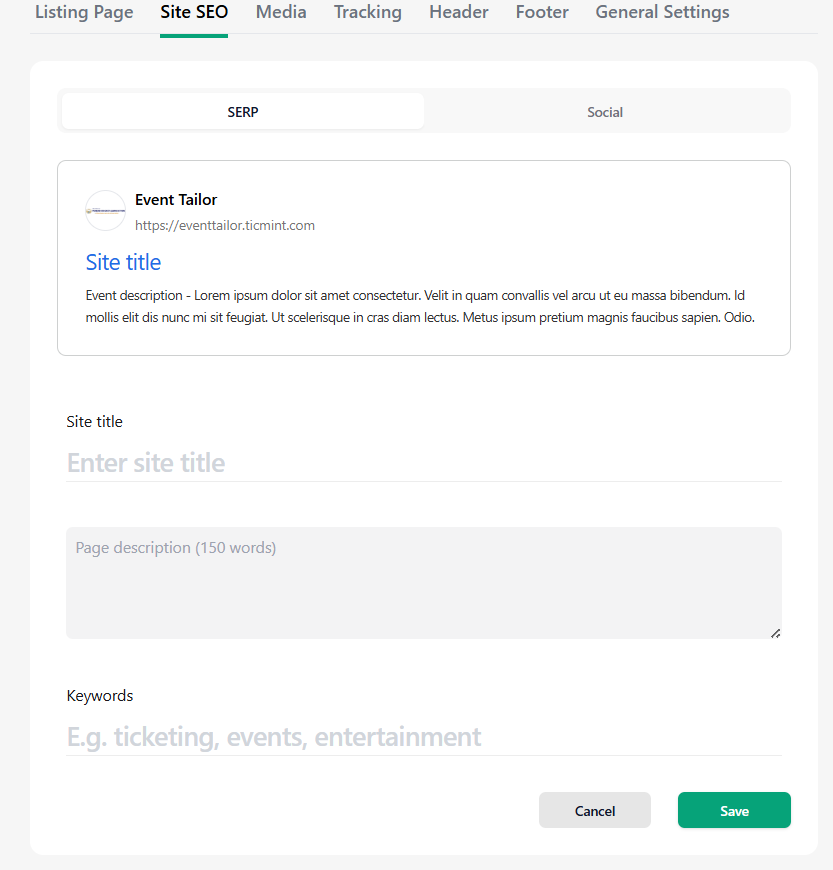
Purpose
Site SEO settings help improve your website’s visibility on search engines like Google.
SERP Preview
You will see a preview of how your website may appear in search engine results.
SEO Fields
Site Title
Enter a clear and descriptive title for your website. This is displayed as the clickable headline in search results.
Page Description
Add a brief description (up to 150 words) explaining what your website or events are about.
Keywords
Enter relevant keywords (e.g., ticketing, events, entertainment) to help search engines understand your content.
Click Save after updating SEO details.
7. Media
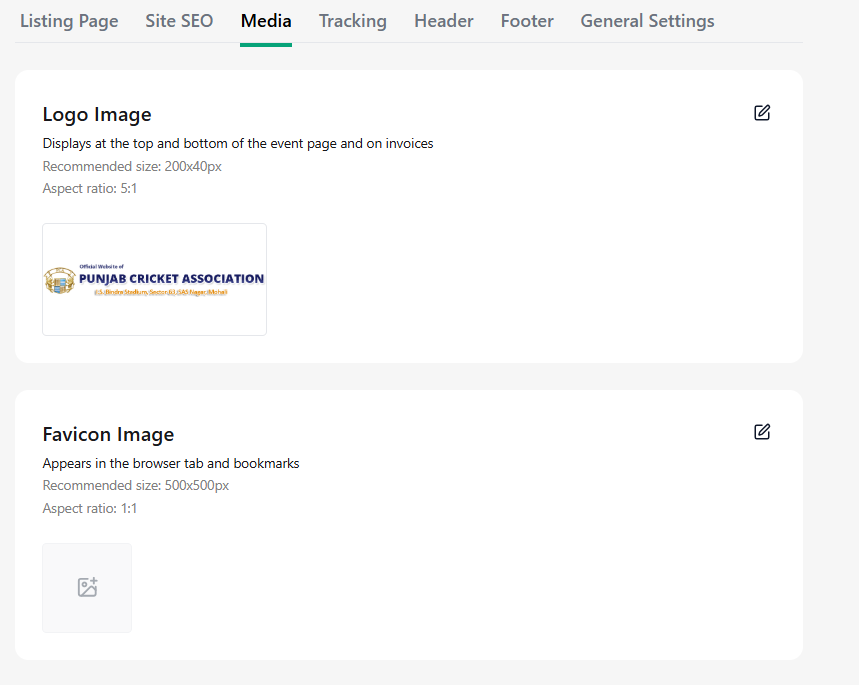
Purpose
Media settings control the visual branding of your website.
Logo Image
Displayed at the top and bottom of event pages and on invoices
Recommended size: 200 × 40 px
Aspect ratio: 5:1
Favicon Image
Appears in the browser tab and bookmarks
Recommended size: 500 × 500 px
Aspect ratio: 1:1
Banner Images
Displayed at the top of the event listing page
Recommended size: 1920 × 738 px
Aspect ratio: 2.6:1
Mobile Banner Images
Displayed on mobile devices
Recommended size: 500 × 500 px
Aspect ratio: 1:1
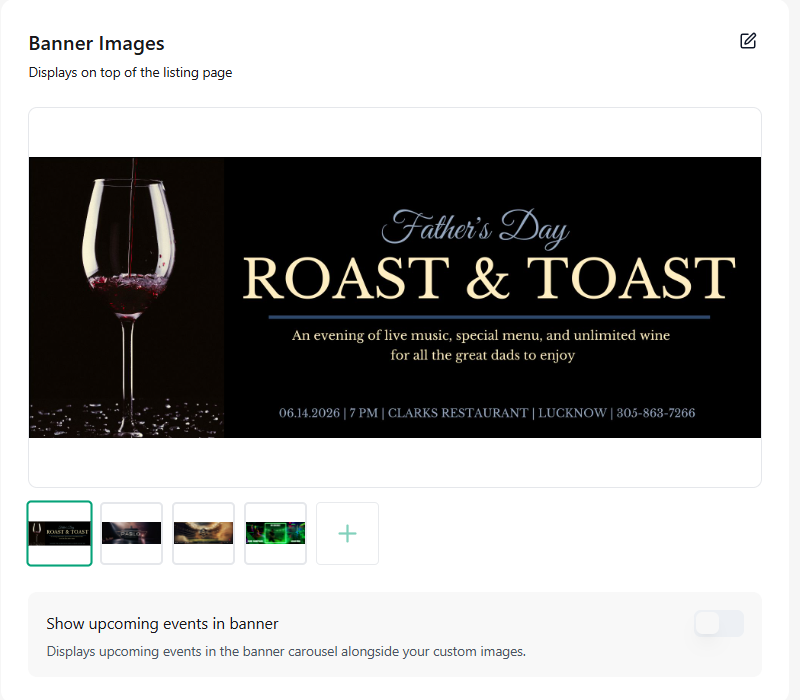
Upload images using the edit (✏️) icons and save changes.
8. Tracking
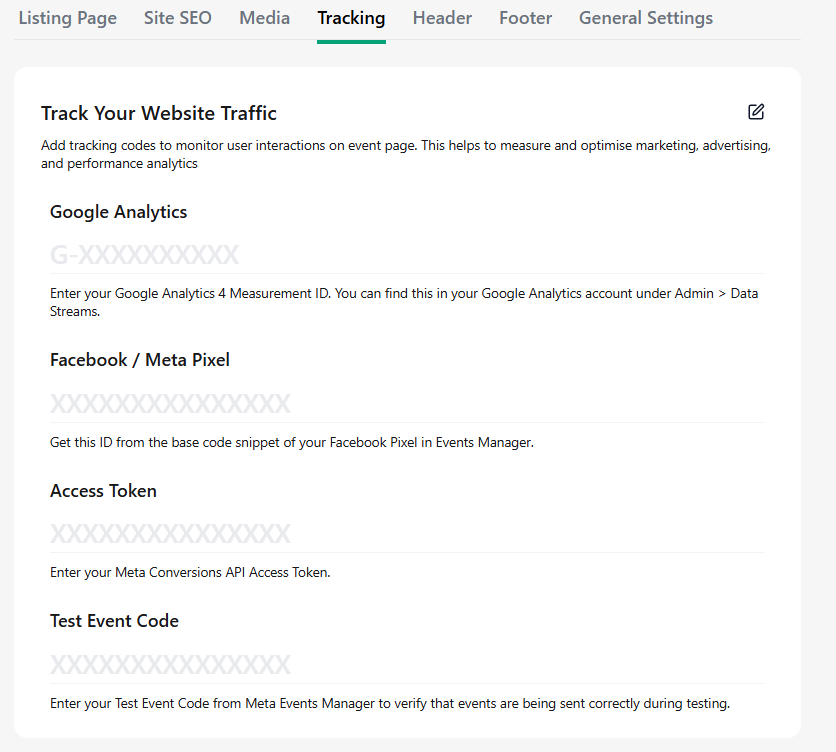
Purpose
Tracking allows you to measure user behavior, traffic sources, and campaign performance.
Google Analytics
Enter your Google Analytics 4 Measurement ID (e.g., G-XXXXXXXXXX)
This can be found in your Google Analytics account under Admin → Data Streams
Facebook / Meta Pixel
Enter your Meta Pixel ID from Facebook Events Manager
This helps track conversions and run targeted ads
Click Save after adding tracking codes.
9. Header
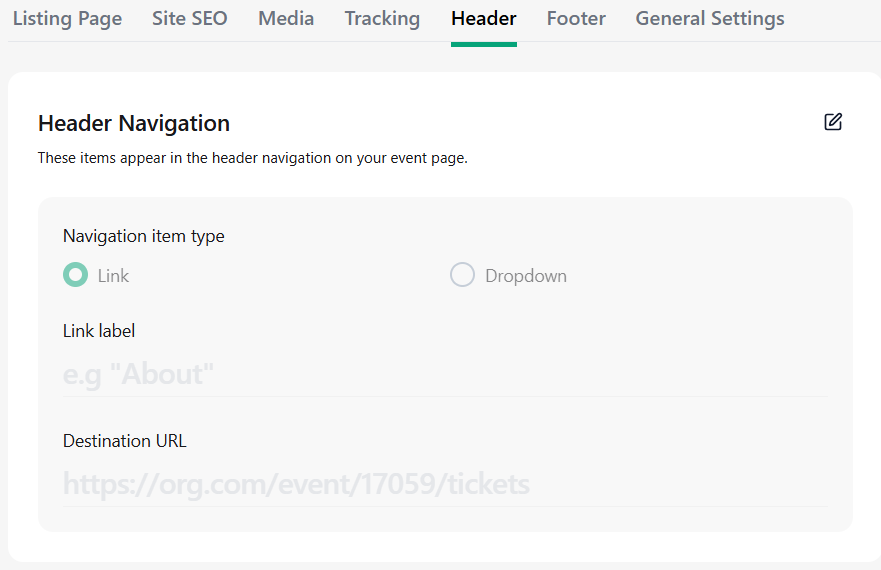
These items appear in the header navigation on your event page.
Add or Edit Navigation
- Click Edit.
- Select the Navigation Item Type:
- Link
- Dropdown
Link
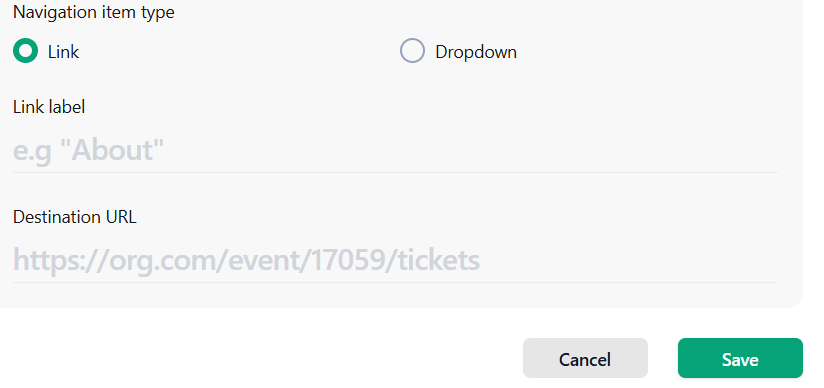
For a Link navigation item:
- Enter the Link Label.
- Enter the Destination URL.
- Save the navigation item.
Dropdown
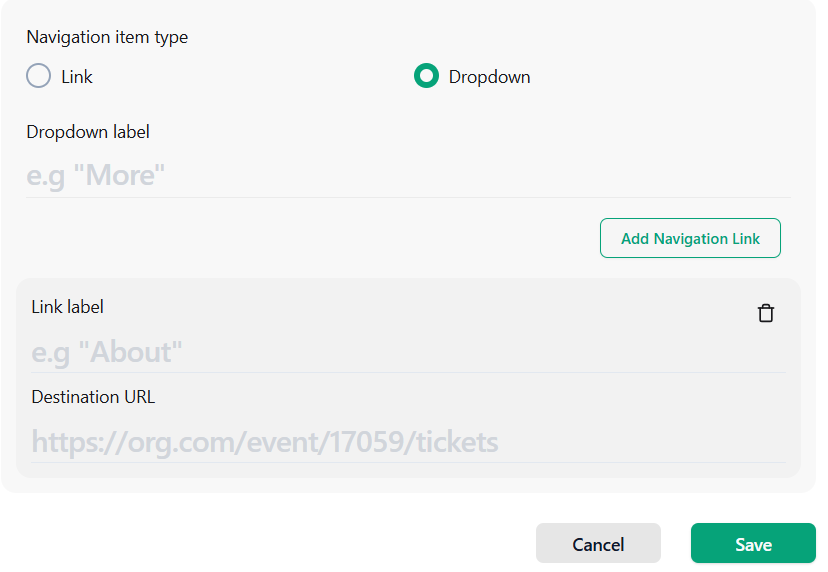
For a Dropdown navigation item:
- Enter the Dropdown Label.
- If needed, add navigation links within the dropdown:
- Enter the Link Label.
- Enter the Destination URL.
- Save the navigation item.
10. Footer
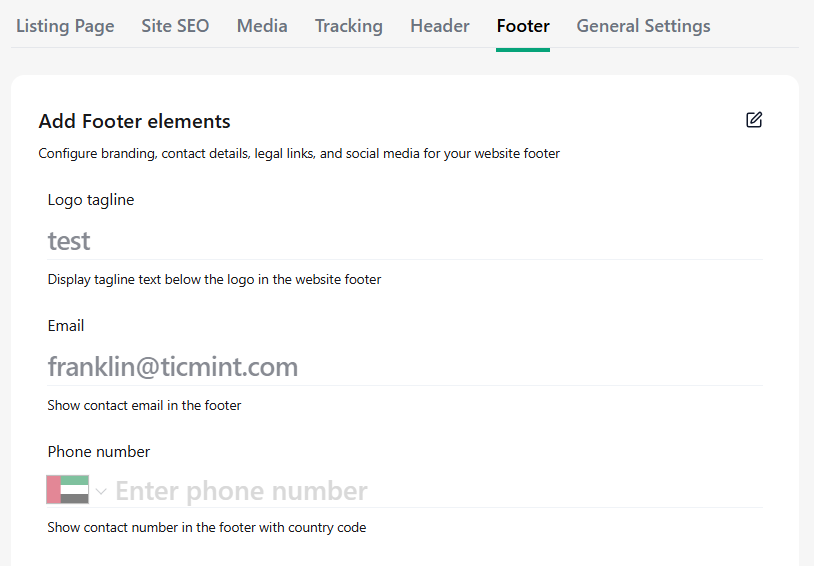
Footer settings allow you to configure branding, contact details, legal links, and social media visibility for your platform or event website. These settings help organisers maintain a professional brand presence while ensuring attendees can easily access important legal and contact information.
Footer Elements
You can configure the following footer settings:
Logo Tagline – Text displayed below the logo
Email – Contact email shown in the footer
Phone Number – Contact number with country code
Terms & Conditions – Upload or link to your Terms & Conditions document
Privacy Policy – Upload or link to your Privacy Policy document
Refund Policy – Upload or link to your Refund Policy document
Powered by Ticmint – Toggle visibility of the Ticmint label
Show T&C on Login Page – Enable agreement checkbox on login
Template-Based Legal Document Generation
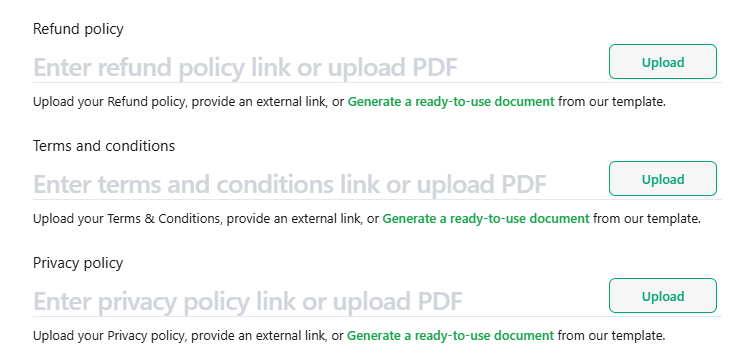
Partners can now quickly generate legal documents directly from predefined templates, without having to create them manually.
For:
Terms & Conditions
Privacy Policy
Refund Policy
Partners can:
Upload a PDF document
Add an external link
Or generate a ready-to-use document using built-in templates
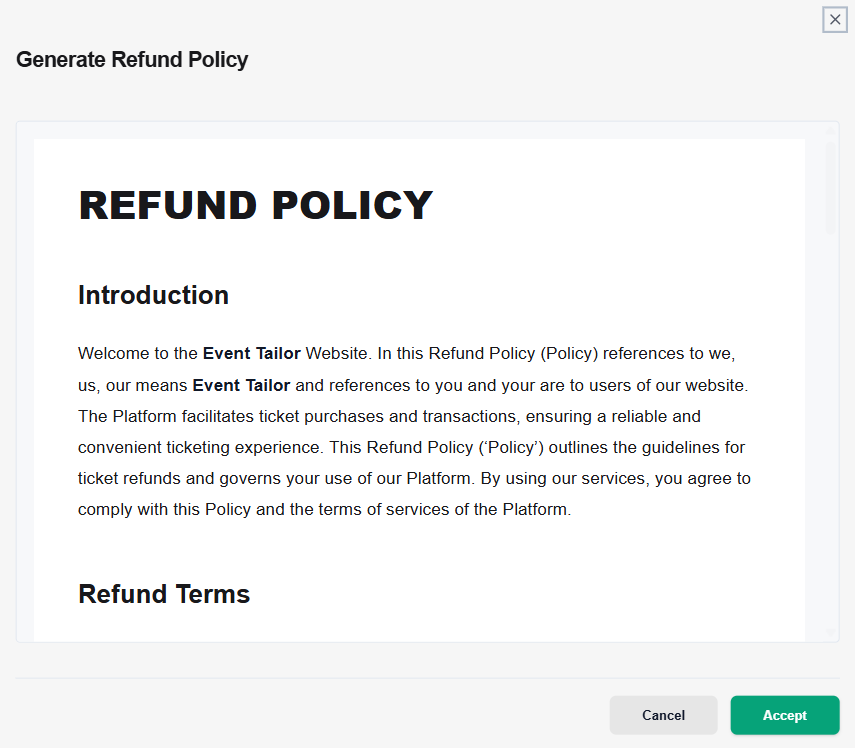
The template generation system automatically creates professional legal documents by using the partner’s provided business and contact details.
This feature simplifies setup, saves time, and ensures that organisers can quickly publish legally required policies on their platform.
How It Works
Navigate to the Footer section
Select the legal document type:
Refund Policy
Terms & Conditions
Privacy Policy
Click “Generate a ready-to-use document”
Enter the required business and contact details
Review the generated template
Click Accept to apply the document
The generated policy will then automatically appear as the active legal document for your platform or event page.
Social Media Links
You can also link your official social media profiles directly in the footer:
Facebook
Instagram
LinkedIn
YouTube
X (formerly Twitter)
Final Step
After updating the footer details and legal documents, click Save to apply the changes.
11. General Settings
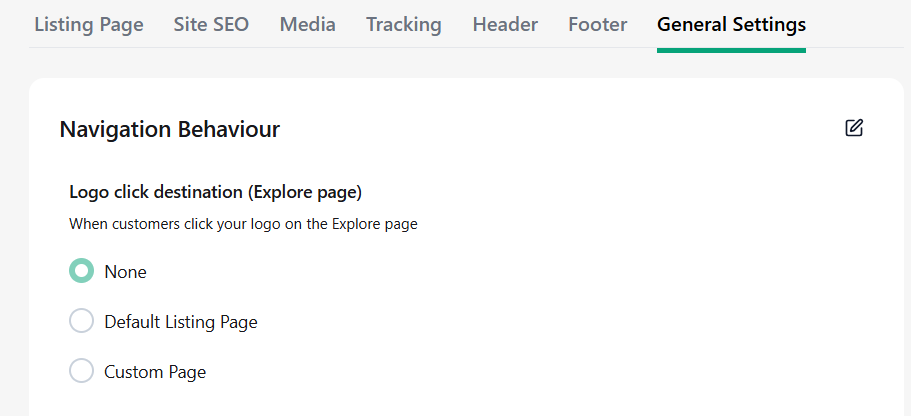
Click Edit to configure the Navigation Behaviour and other event settings.
Navigation Behaviour
Logo Click Destination – Explore Page
When customers click the logo on the Explore page, select the required option:
- None
- Default Listing Page
- Custom Page
If Custom Page is selected, enter the Page URL.
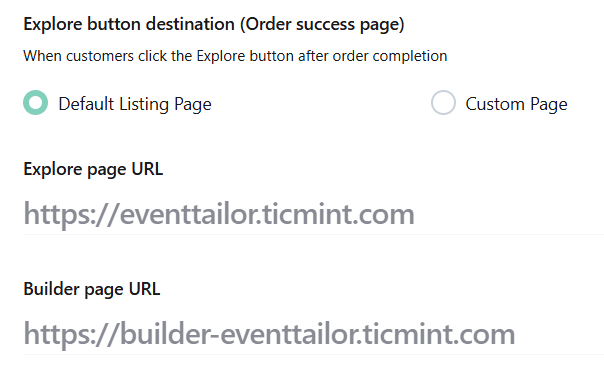
Explore Button Destination – Order Success Page
When customers click the Explore button after completing an order, choose:
- Default Listing Page
- Custom Page
If Custom Page is selected, enter the required Explore Page URL and Builder Page URL.
Post-Checkout Behavior
Automatically redirect customers to your website after checkout.
When enabled, customers will be redirected to your website after completing the checkout process.

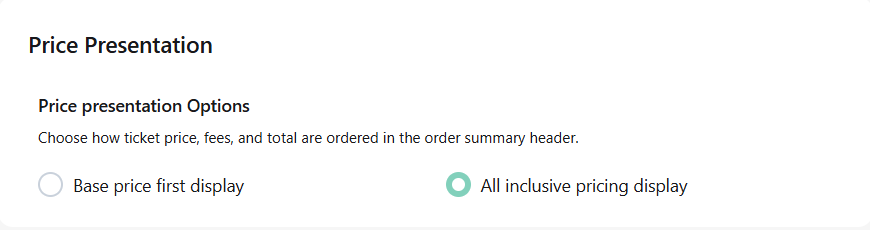
Price Presentation
Choose how the ticket price, fees, and total amount are displayed in the order summary.
Available options:
- Base Price First – Displays the base ticket price first, followed by applicable fees and the total.
- All-Inclusive Pricing – Displays the total price including applicable fees.
Lock Critical Fields After First Sale
Enable this option to prevent changes to the following ticket settings once tickets have been sold:
- Ticket Name
- Price
- Selling Channel
- Admission Count
- Stock Settings

Enable WhatsApp Ticket Delivery
Enable this option to send tickets to customers through WhatsApp.
If a WhatsApp number is not collected during registration, a WhatsApp Number field will automatically be added to the registration form.

Enable Ticket Sequence Number
Enable this option to generate a unique ticket sequence number for each ticket.
The sequence number will also be printed on paper tickets.

Enable Ticket Link Delivery
When enabled, emails and WhatsApp messages will contain a secure ticket access link instead of attaching the ticket as a PDF file.

Mask Email & Mobile Number on E-Tickets
Enable this option to display only a portion of the attendee’s email address and mobile number on the e-ticket.
This helps protect attendee information.

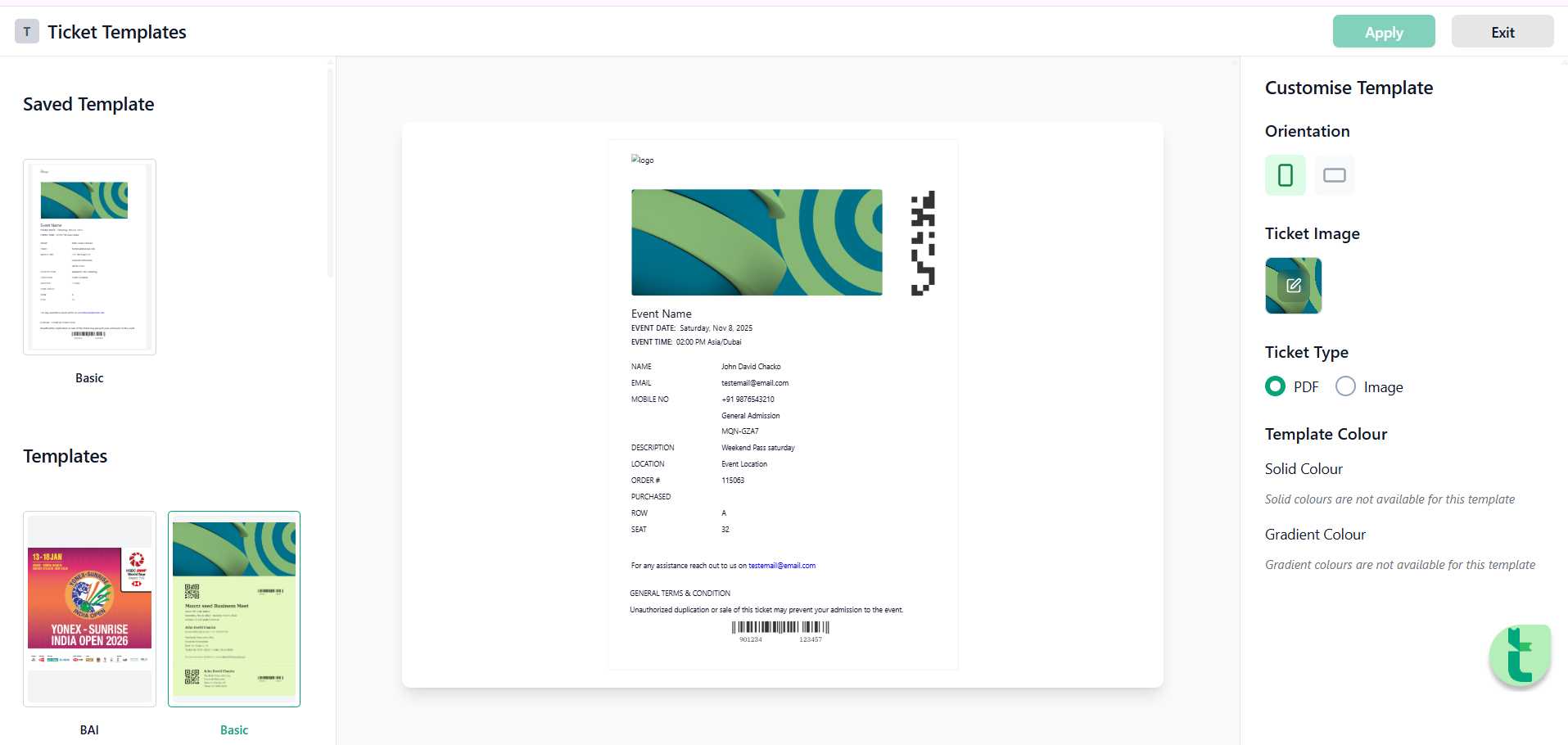
Ticket Template
Click Ticket Template if you want to edit or customise the ticket template.

Slug Manager
Use Slug Manager to create branded links that are easier to recognise, share, and remember.
To create a new slug:
- Click Slug Manager.
- Click Create Slug.
- Enter the slug.
- Select the required Type from the dropdown.
- Click Create.


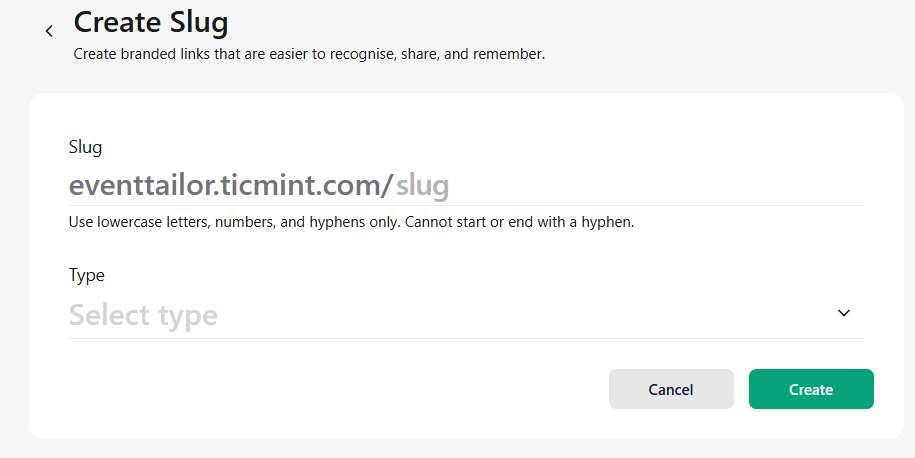
Slug Format: Use lowercase letters, numbers, and hyphens only. A slug cannot start or end with a hyphen.

Note: You can also edit or delete previously created slugs.
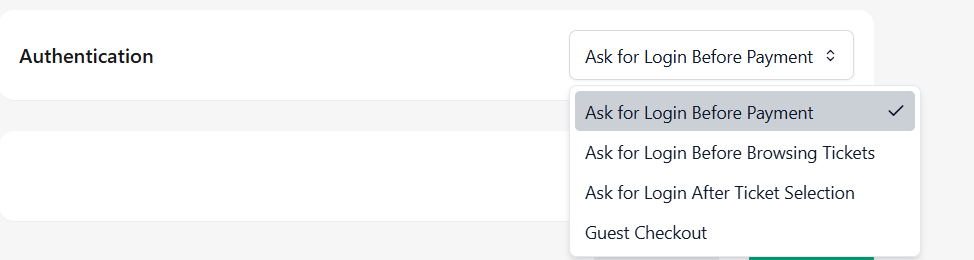
Authentication
Select the required authentication option from the dropdown based on your requirements.
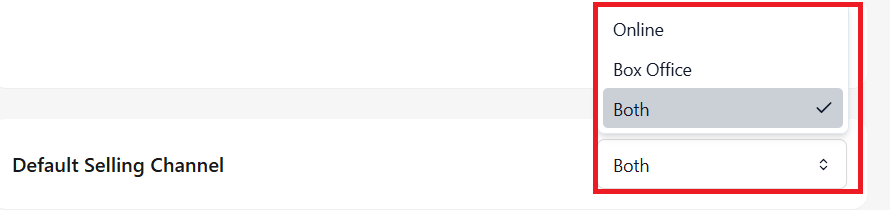
Default Selling Channel
Select the required Selling Channel from the dropdown.
After all Changes Click on Save
Best Practices & Notes
Use high-quality images for banners and logos for better branding
Keep SEO titles and descriptions concise and relevant
Ensure tracking IDs are correct to avoid data loss
Regularly review footer details for compliance and accuracy
Was this article helpful?
That’s Great!
Thank you for your feedback
Sorry! We couldn't be helpful
Thank you for your feedback
Feedback sent
We appreciate your effort and will try to fix the article