No coding required.
This document provides a clear, step-by-step guide to editing and managing Tracking settings on your Ticmint-powered website. Tracking helps you measure traffic, user behaviour, and marketing campaign performance across your event pages.
Overview: What is Tracking?
Tracking uses IDs provided by analytics and advertising platforms such as Google Analytics and Meta (Facebook) Pixel. Once added to your Ticmint website, they help you:
Monitor website traffic
Track user actions (page views, registrations, purchases)
Measure marketing and ad campaign performance
Optimise targeting and conversions
Supported Tracking Platforms
Google Analytics 4 (GA4)
Facebook / Meta Pixel
Step 1: Access the Ticmint Dashboard
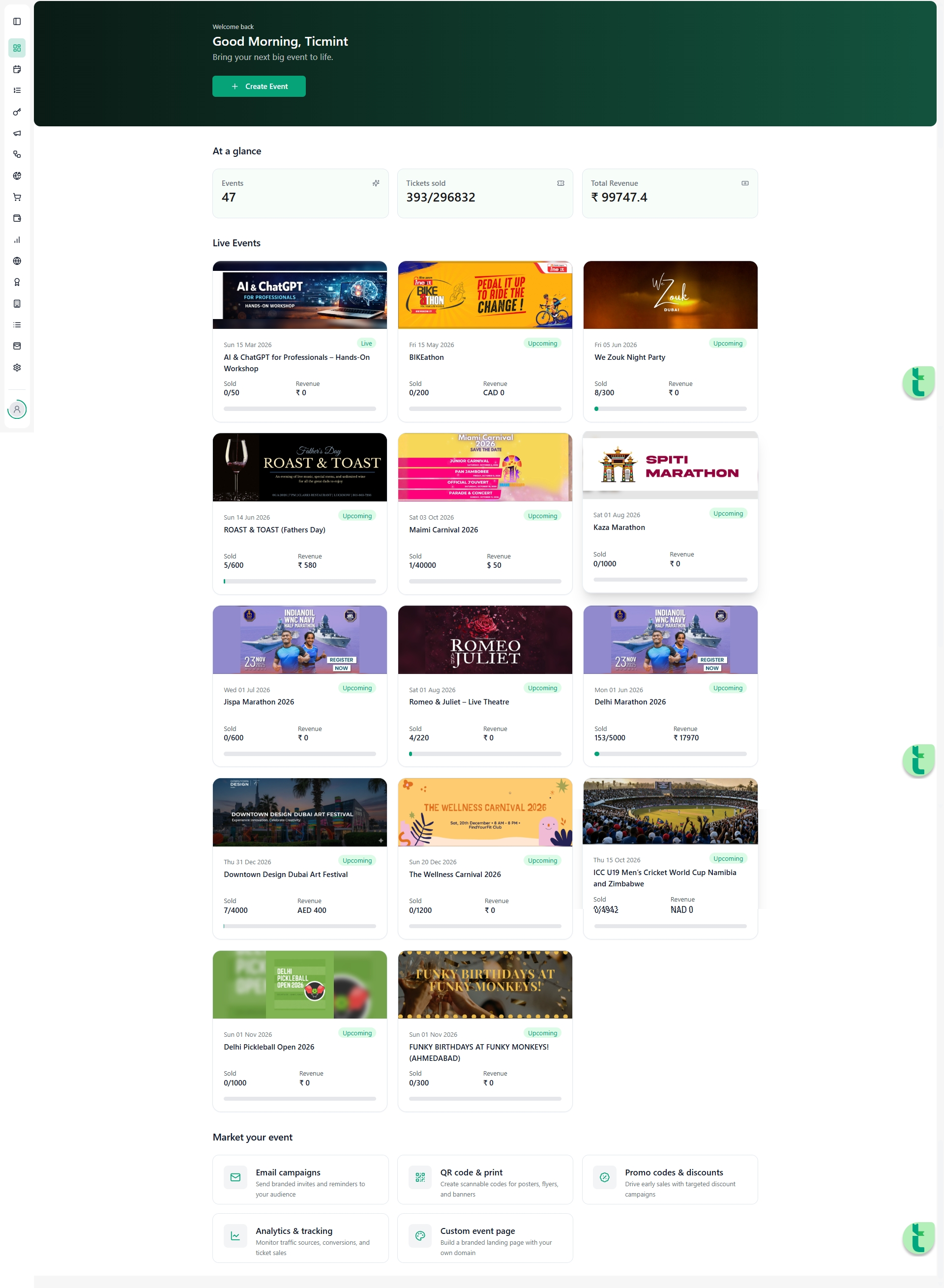
Log in to the Ticmint Dashboard using your registered business email.
After login, you will land on the dashboard home screen.
From the left-hand navigation menu, click Website.
Step 2: Open Website Configuration
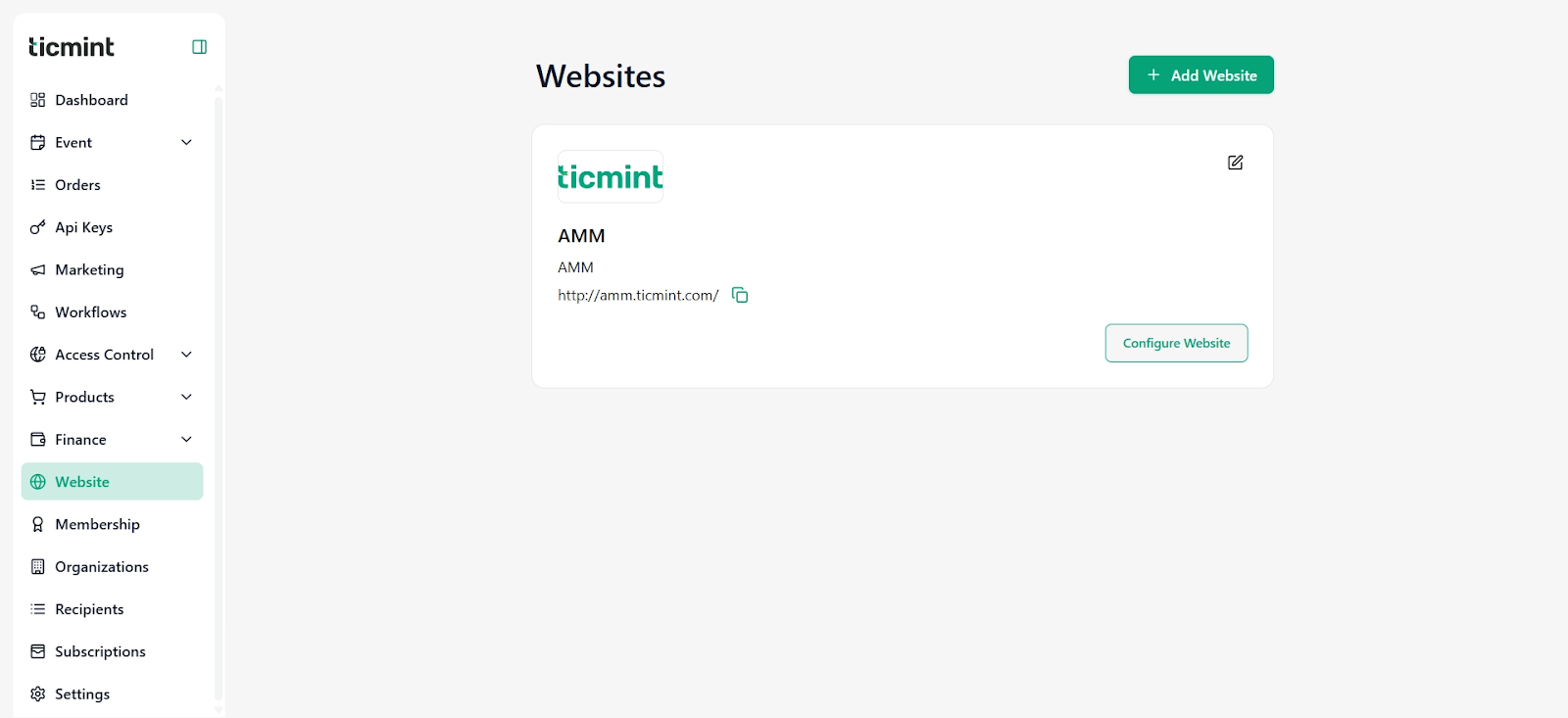
Under the Website module, locate the website you want to update.
Click Configure Website.
The website configuration panel will open.
Step 3: Navigate to the Tracking Tab
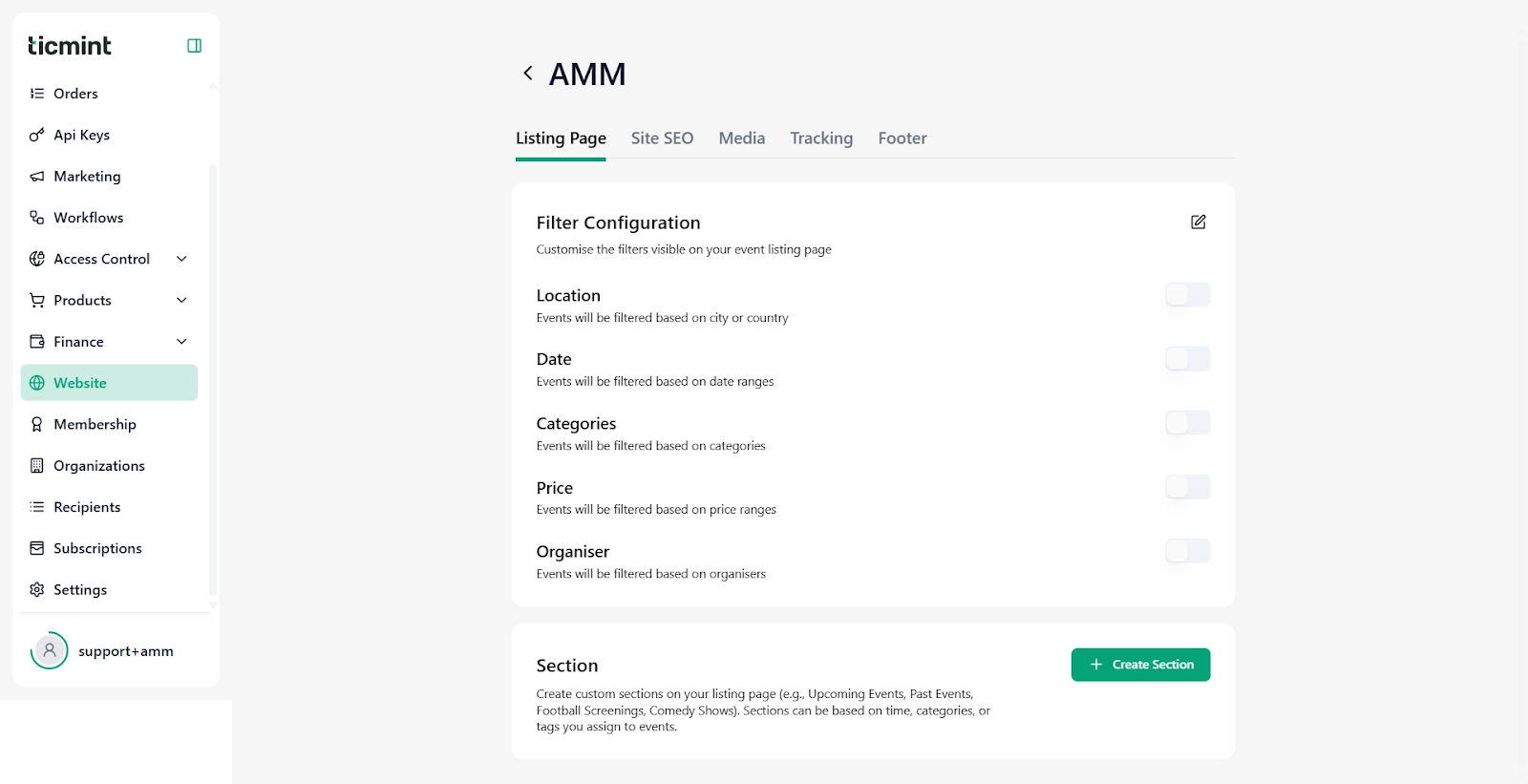
Inside the website configuration screen, you will see multiple tabs:
Listing Page
Site SEO
Media
Tracking
Footer
Click on the Tracking tab.
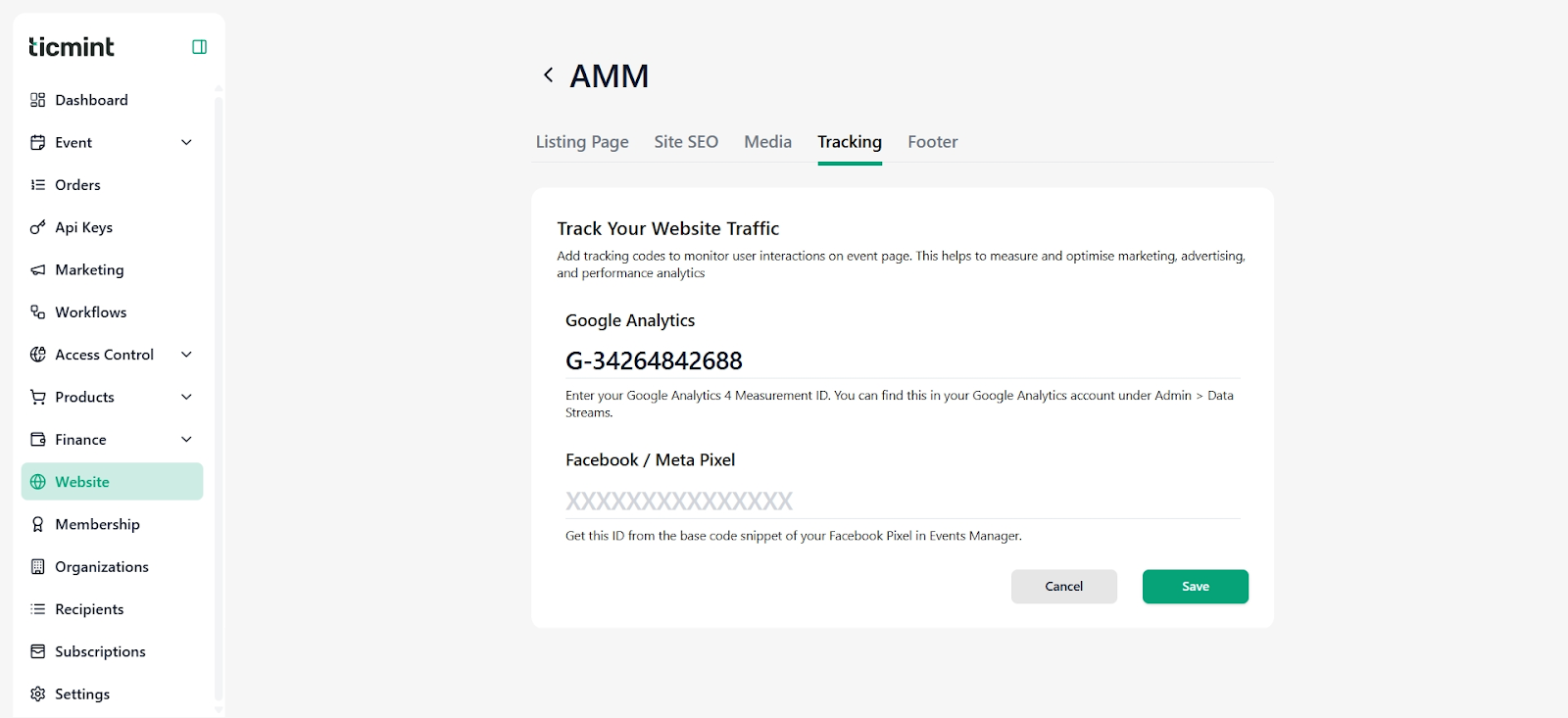
You will see the Track Your Website Traffic section.
Step 4: Edit Google Analytics (GA4)
Purpose
Google Analytics tracks visitor behaviour, traffic sources, and conversions.
Steps to Edit GA4
In the Google Analytics field, enter or update your GA4 Measurement ID.
Format: G-XXXXXXXXXX
You can find this ID in your Google Analytics account:
Admin → Data Streams → Web → Measurement ID
Ensure the ID is entered correctly without spaces.
Save Changes
Click Save to apply the updated GA4 tracking.
Step 5: Edit Facebook / Meta Pixel
Purpose
Meta Pixel tracks conversions and helps optimise Facebook and Instagram ad campaigns.
Steps to Edit Meta Pixel
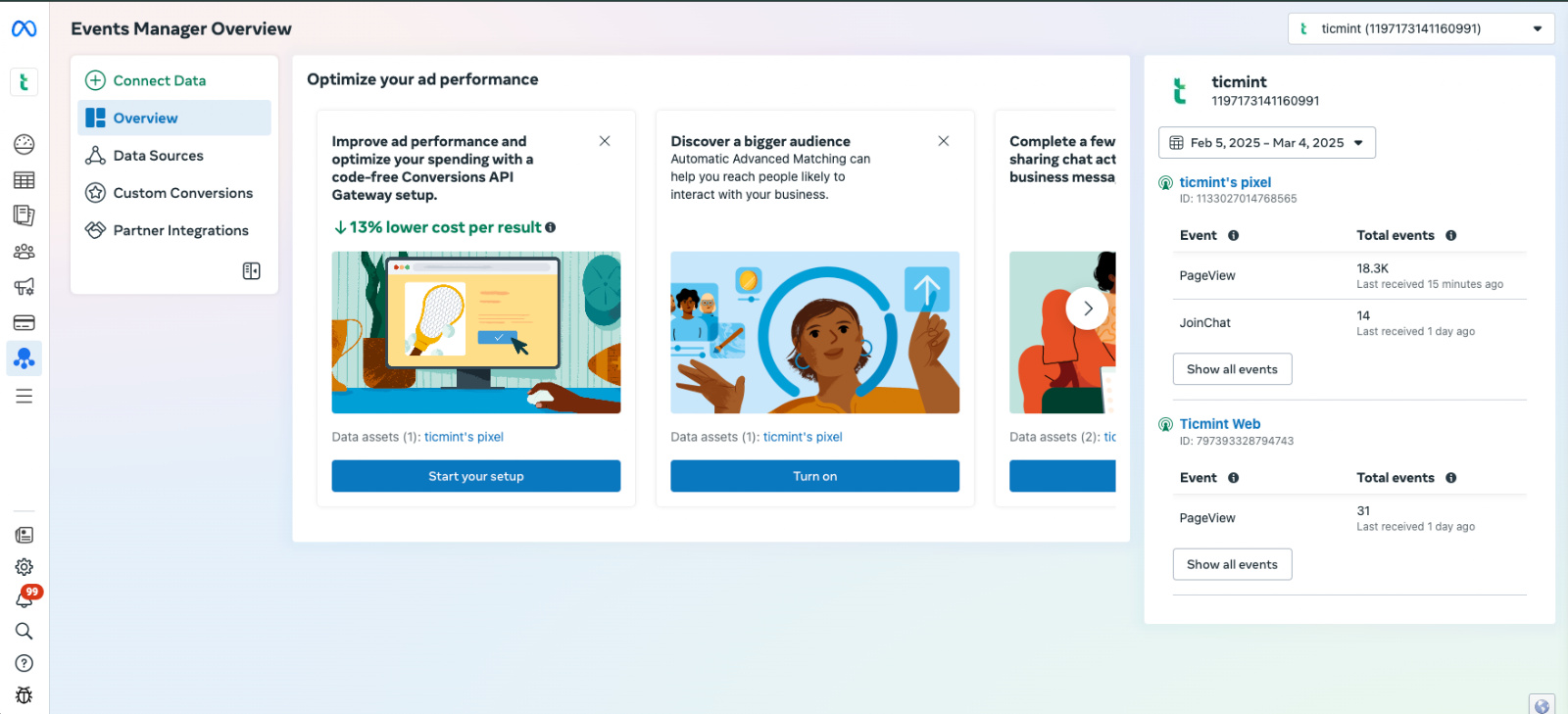
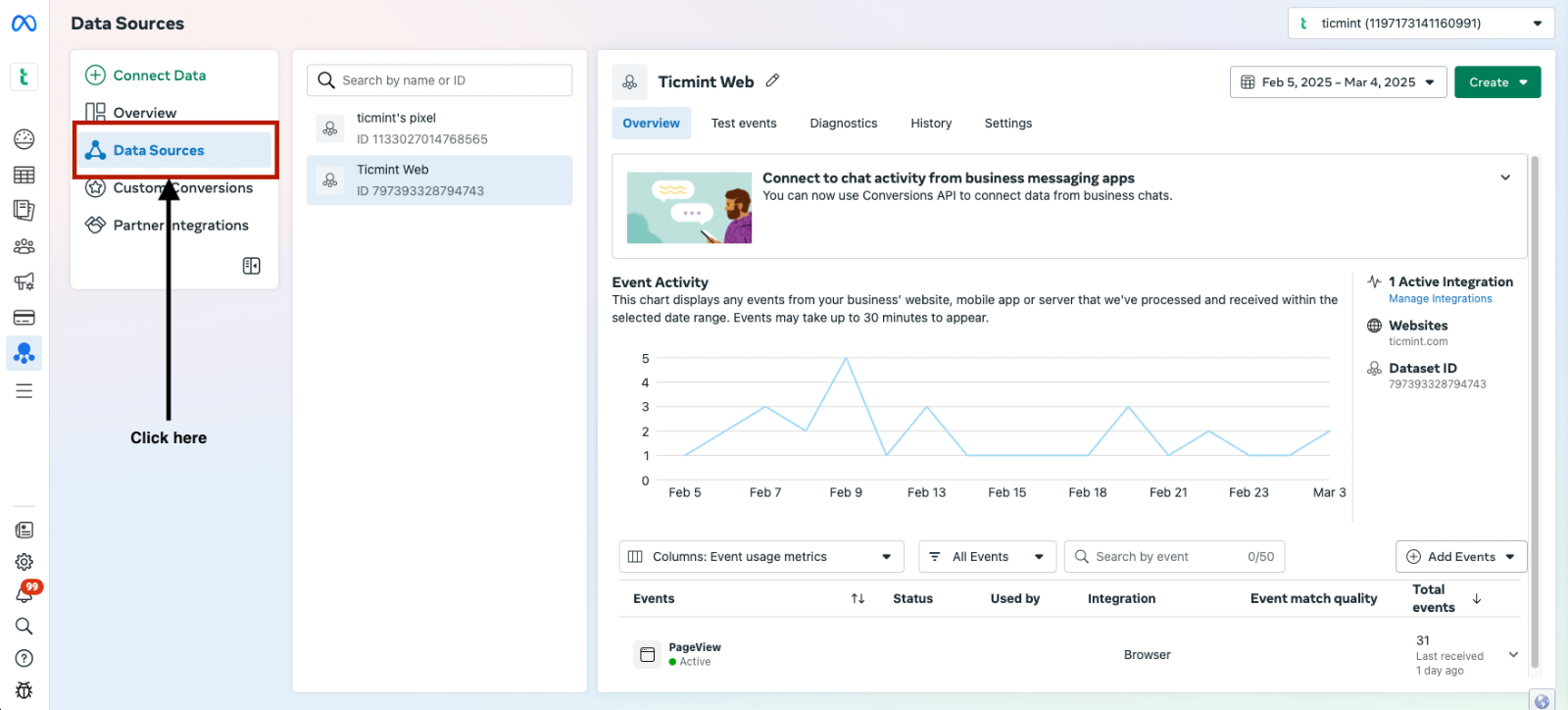
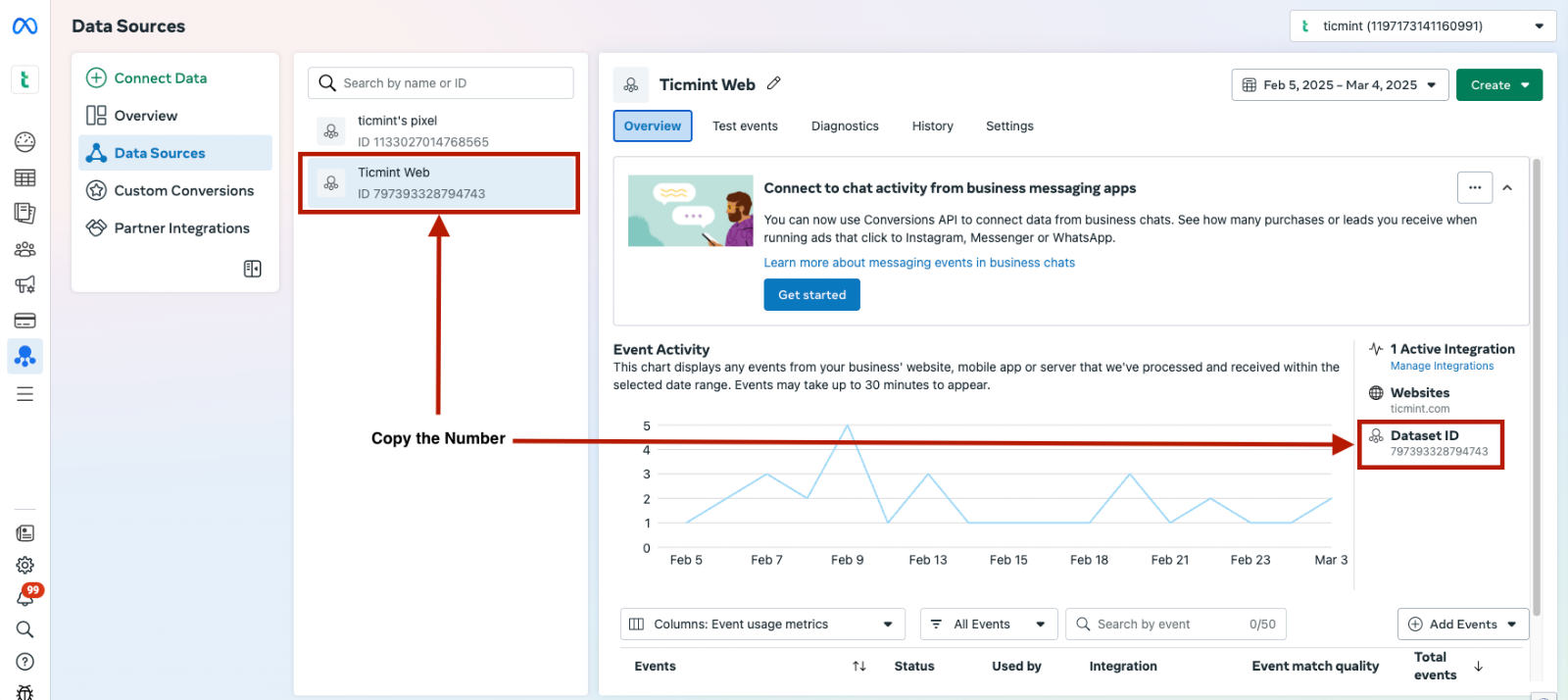
In the Facebook / Meta Pixel field, enter or update your Pixel ID.
You can find the Pixel ID from:
Meta Business Manager → Events Manager → Pixel Settings
Paste the Pixel ID carefully.
Click Save to apply changes.
⚠️ Only enter the Pixel ID, not the full pixel code.
Step 6: Verifying Tracking Setup
After saving your changes, verify that tracking is working correctly.
Google Analytics Verification
Check Realtime data inside your GA4 dashboard
Meta Pixel Verification
Install Meta Pixel Helper browser extension
Open your event website and confirm pixel firing
Important Notes & Best Practices
Allow 24–48 hours for analytics platforms to start showing data
Always use GA4 Measurement IDs, not Universal Analytics IDs
Do not enter multiple tracking IDs in a single field
Ensure your website is published and live
Avoid using old or test pixel IDs for live events
Common Issues & Troubleshooting
Tracking Data Not Visible?
Double-check the Measurement ID / Pixel ID
Confirm the website is live
Wait for initial data processing time
Incorrect or Unexpected Data?
Ensure the tracking ID belongs to the correct account
Avoid duplicating pixels across multiple tools
Support Assistance
If you face any issues while editing Tracking settings:
Contact Ticmint Support via the support portal
Share your website name and tracking ID details for faster resolution
Was this article helpful?
That’s Great!
Thank you for your feedback
Sorry! We couldn't be helpful
Thank you for your feedback
Feedback sent
We appreciate your effort and will try to fix the article