This document provides a step-by-step guide to help partners complete the onboarding process on the Ticmint Support Portal. The onboarding flow is designed to be simple, secure, and guided, ensuring that your organisation is set up correctly before you start creating and managing events.
Step 1: Sign In Using Your Business / Organisational Email
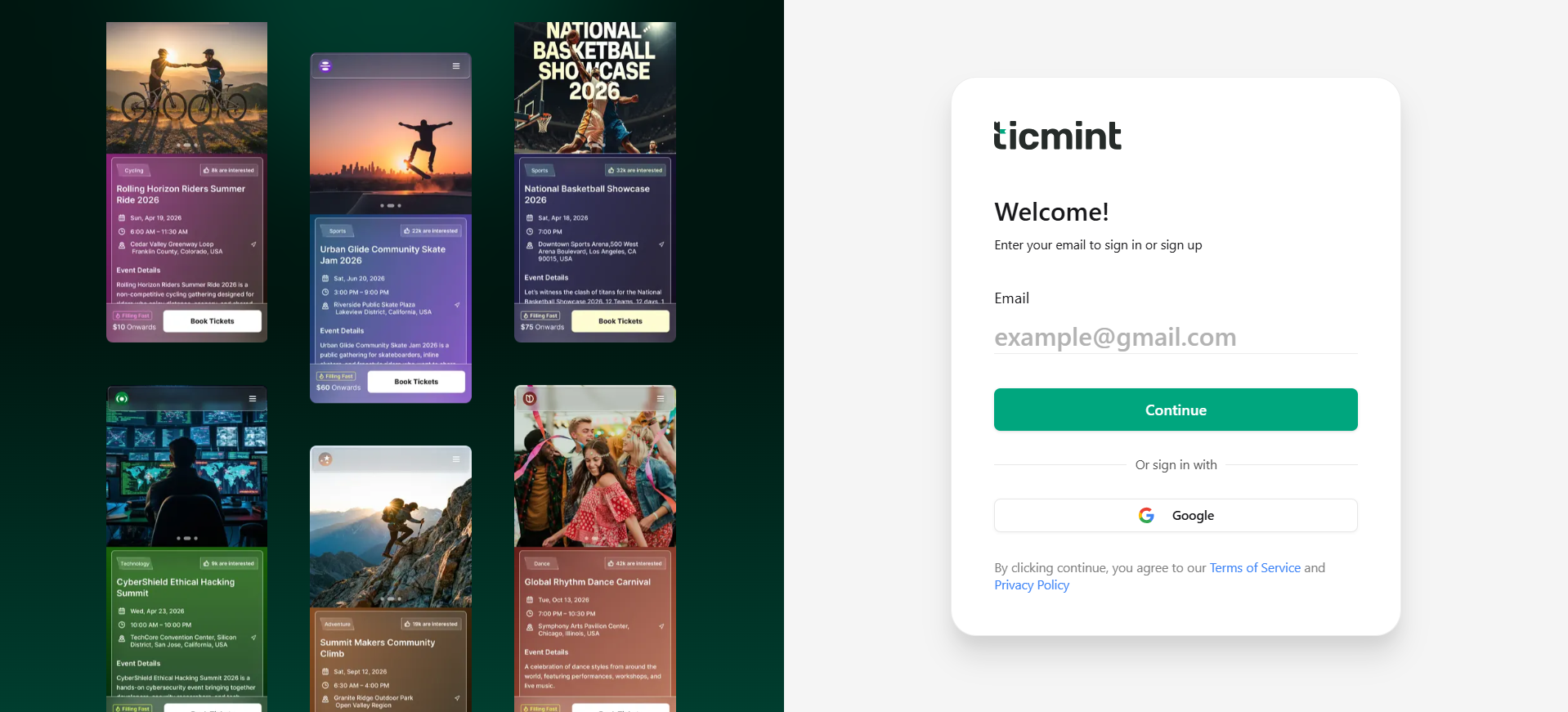
To begin the partner onboarding process:
Open the Ticmint Site.
On the login screen, enter your official business or personal email address.
This should be an email associated with your company or brand.
Personal emails are not recommended for partner onboarding.
Click Continue.
This email will act as your primary identifier across the Ticmint platform.
Step 2: OTP Verification
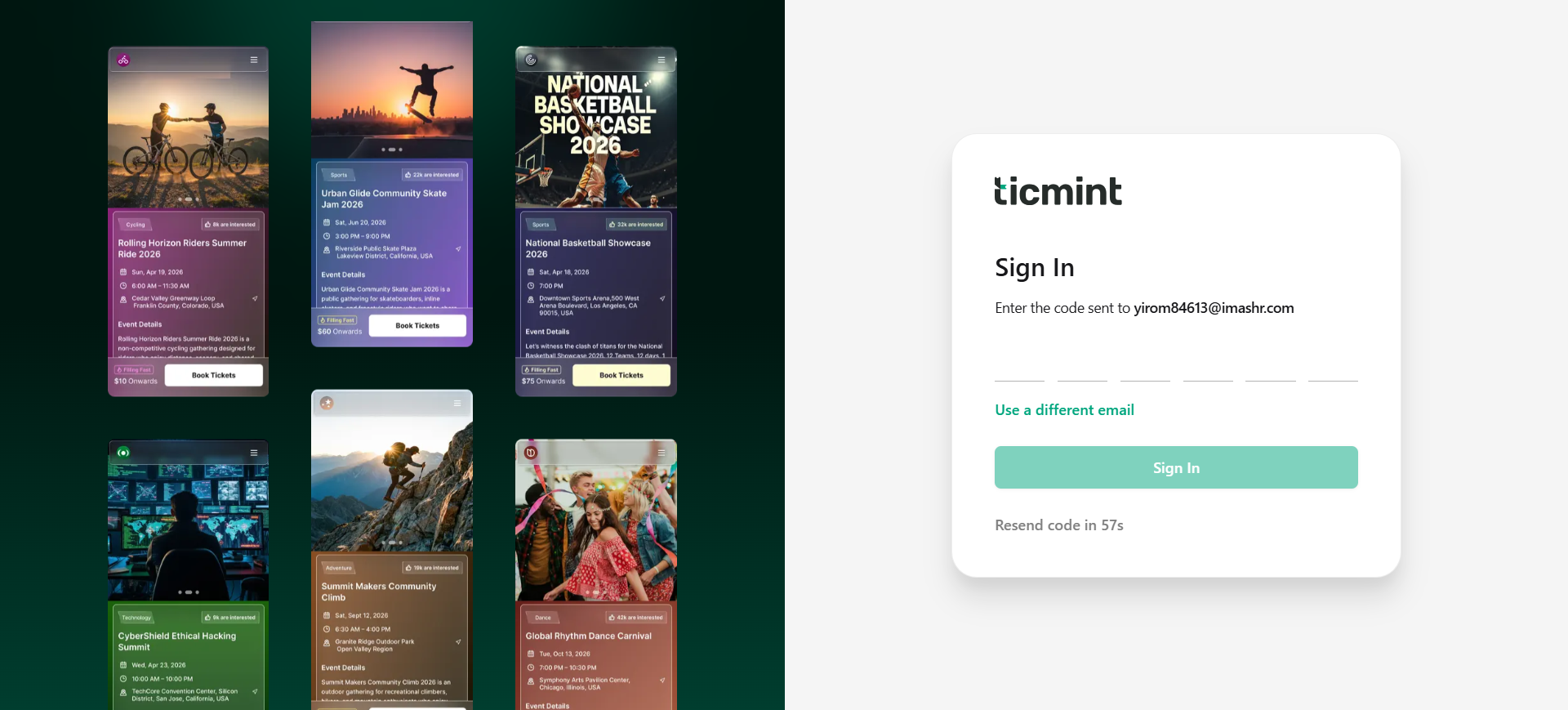
After submitting your business email:
A One-Time Password (OTP) is sent to the entered email address.
Check your inbox (and spam/junk folder if required).
Enter the OTP you received on the verification screen.
Click Verify to proceed.
? Security Note: OTP verification ensures that only authorised representatives of an organisation can onboard and access the partner dashboard.
Step 3: Brand & Organisation Setup
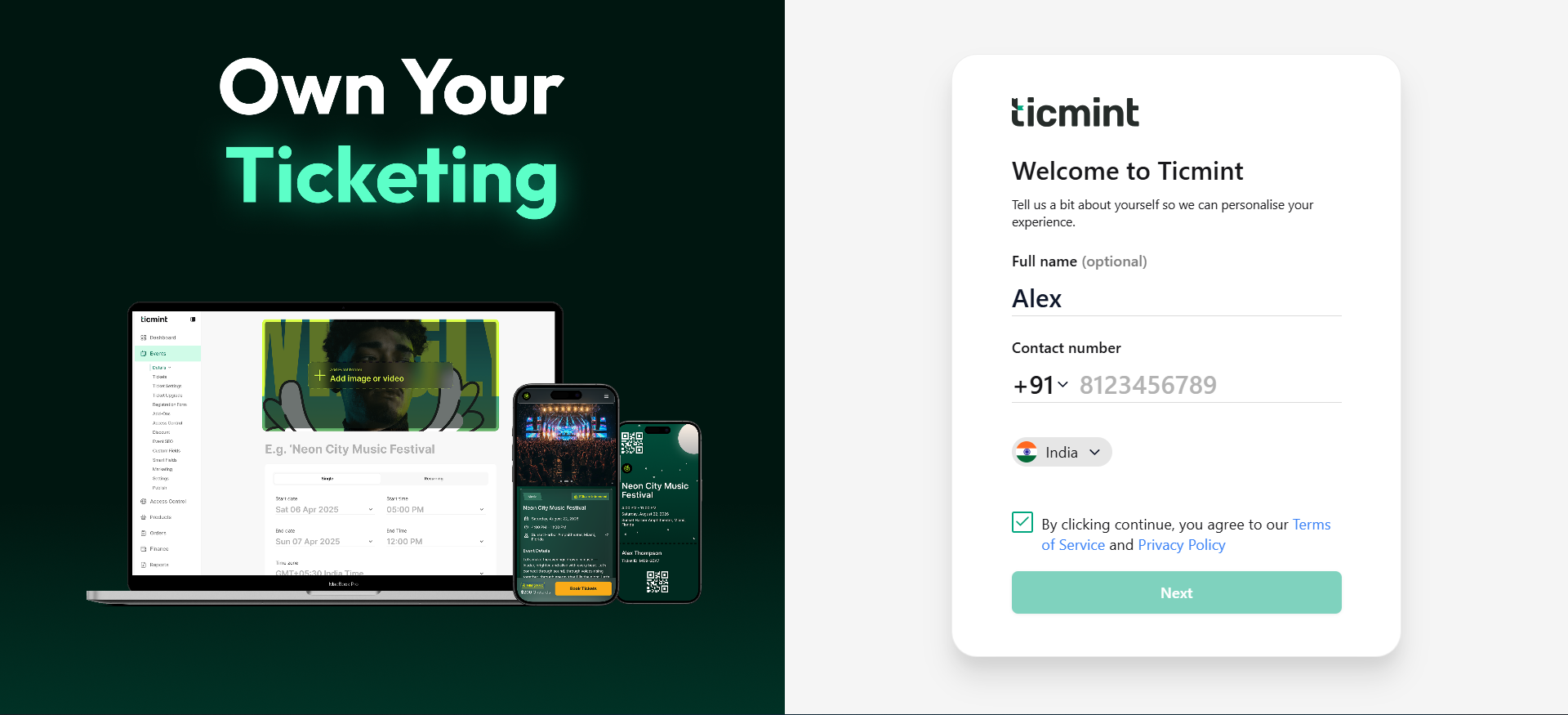
Once verified, you will be prompted to fill in your Full Name and Phone Number.
3.1 Enter Brand / Organisation Name
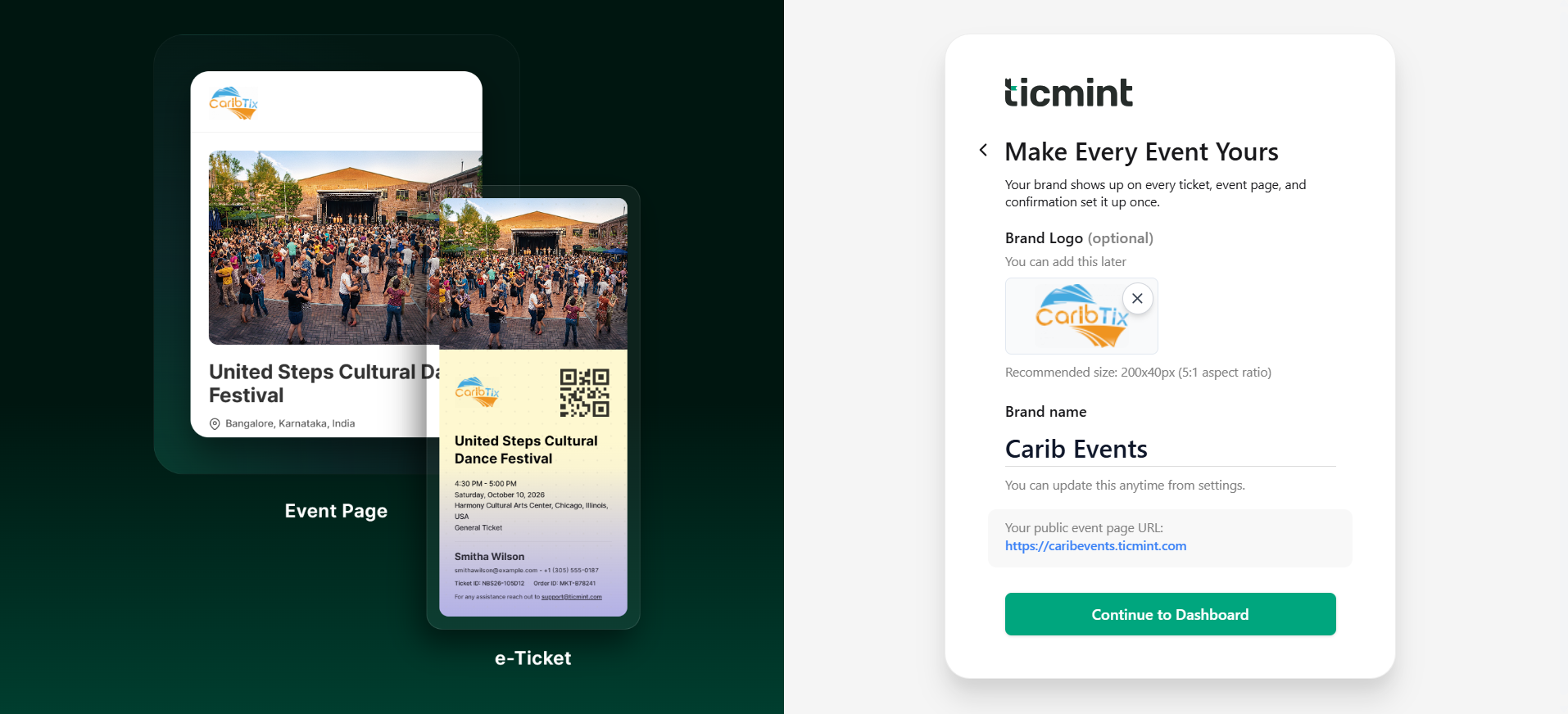
Provide your brand or organisation name (e.g., Pulse Events).
This name will be visible on:
Event pages
Public listings
Dashboard references
3.2 Platform URLs
Based on your brand name, Ticmint automatically generates:
Event Page URL – Used for public event listings
Dashboard URL – Used for managing your events internally
These URLs help establish your unique presence on the Ticmint platform.
Step 4: Upload Brand Logo
Upload your organisation’s official logo.
Recommended size: 200x40px (5:1 aspect ratio)Ensure the logo:
Is clear and properly aligned
Matches your brand identity
The logo will appear on:
Event pages
Dashboards
Communication emails (where applicable)
Step 5: Select Country
Select your operating country from the dropdown menu.
This setting helps configure:
Currency defaults
Tax and compliance settings
Regional payment gateways
Step 6: Accept Terms & Privacy Policy
Before proceeding:
Review Ticmint’s Terms of Service and Privacy Policy.
Confirm your acceptance by clicking Continue.
This step is mandatory to complete partner onboarding.
Step 7: Access Partner Dashboard
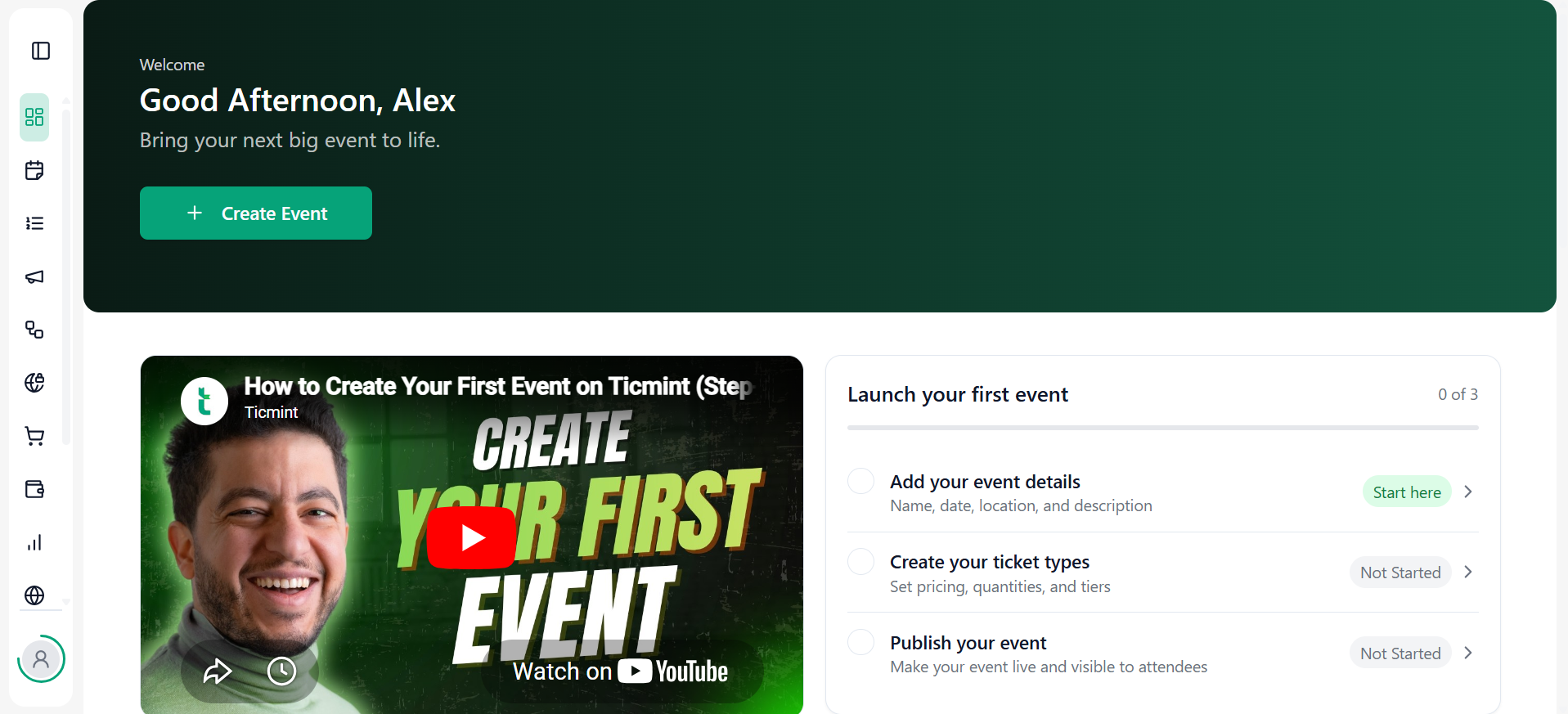
After successful onboarding:
You are redirected to the Dashboard.
From here, you can:
Create and manage events
Configure tickets and pricing
Set up categories, amenities, and service fees
Manage payments, orders, and reports
Your account is now fully active.
Step 8: Set Your Password
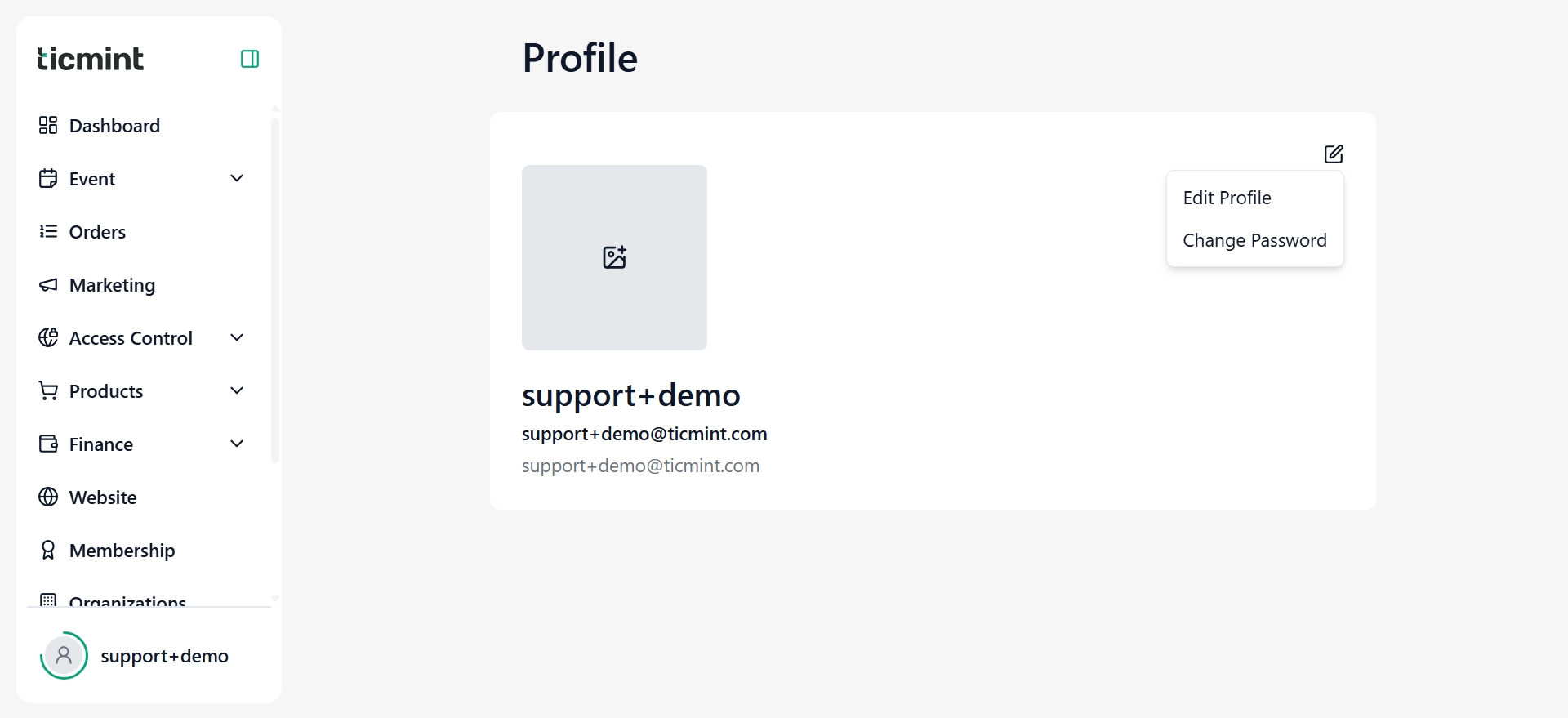
After completing the onboarding details, go to the Profile icon.
You will see an Edit icon in the top-right corner—click on it.
From there, you can set or update your password. You will be prompted to create a password for your account.
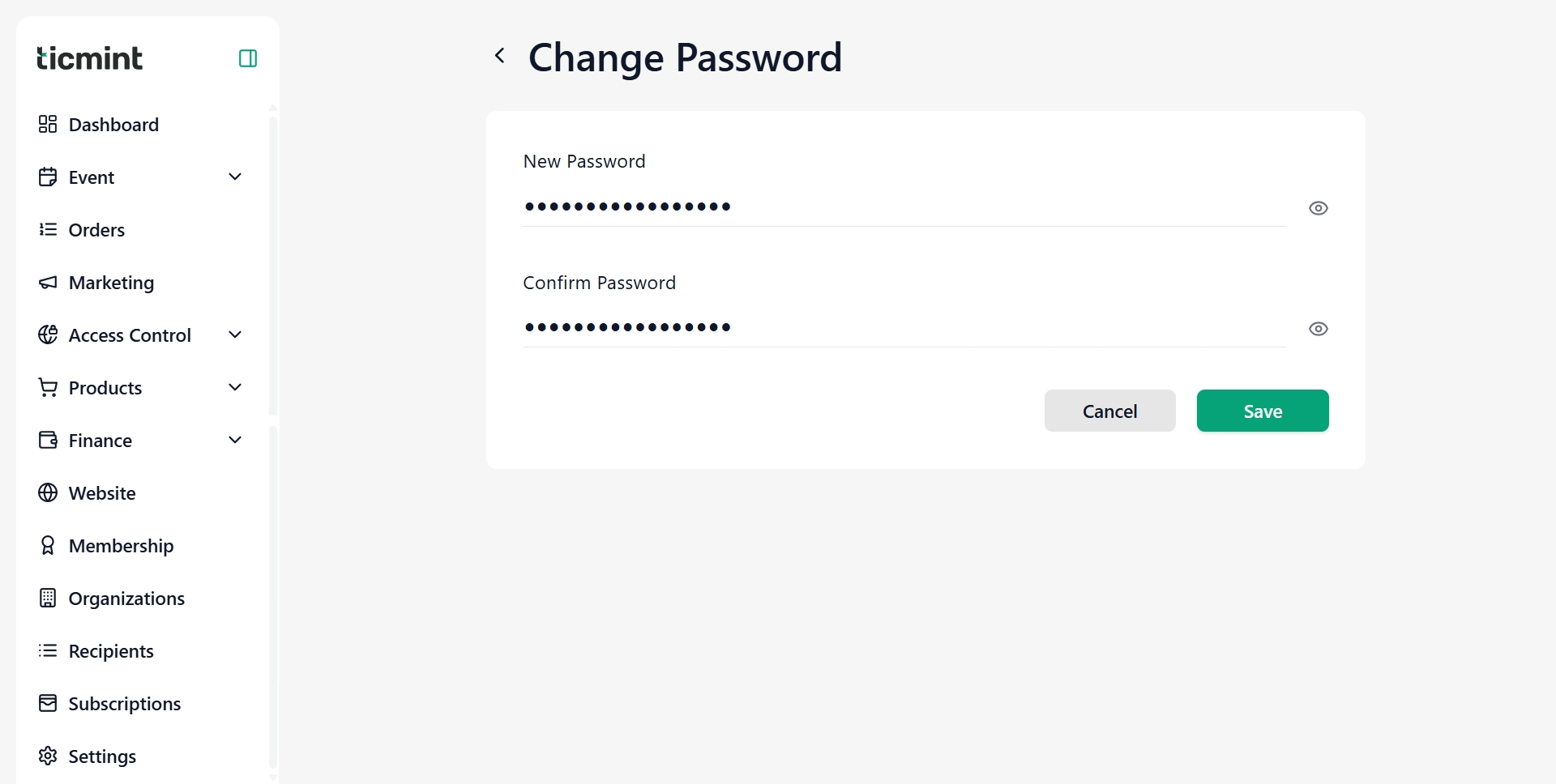
Follow these steps:
Enter a new password in accordance with the security guidelines displayed on the screen.
Re-enter the same password in the Confirm Password field to ensure accuracy.
Click Save to proceed.
Your password will be successfully updated.
Common Issues & Tips
Didn’t receive OTP?
Check spam/junk folder
Ensure correct email spelling
Retry after a short interval
Wrong brand name entered?
Brand details can be edited later from the Settings module
Logo upload issues?
Use supported formats and recommended file sizes
Support Assistance
If you face any issues during partner onboarding:
Contact Ticmint Support at support@ticmint.com
Share your registered business email for faster resolution
Was this article helpful?
That’s Great!
Thank you for your feedback
Sorry! We couldn't be helpful
Thank you for your feedback
Feedback sent
We appreciate your effort and will try to fix the article