Overview
Tag Settings allow organizers to display promotional labels on event pages based on inventory levels, sales timelines, or manually configured schedules. These tags help create urgency, highlight important information, and improve ticket conversion rates.
Navigation
Accessing Tag Settings
For Existing Events Fig. (a)
Select Edit Event.
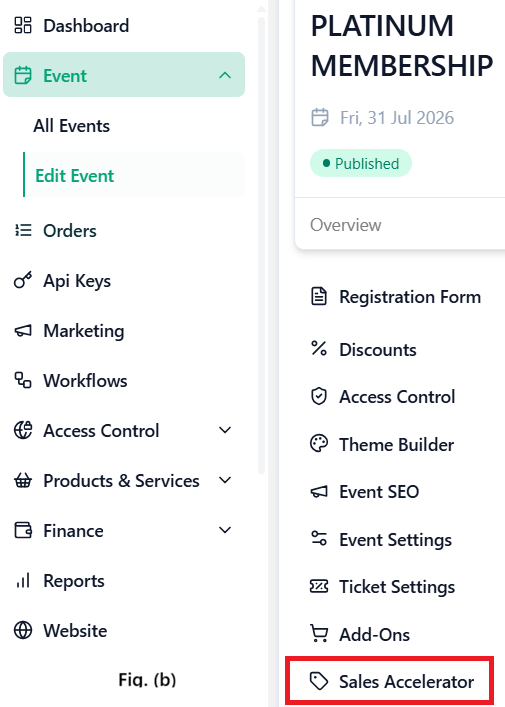
Navigate to the Sales Accelerator tab.
For New Events Fig. (b)
Complete the Basic Information section.
Navigate to the Sales Accelerator tab.
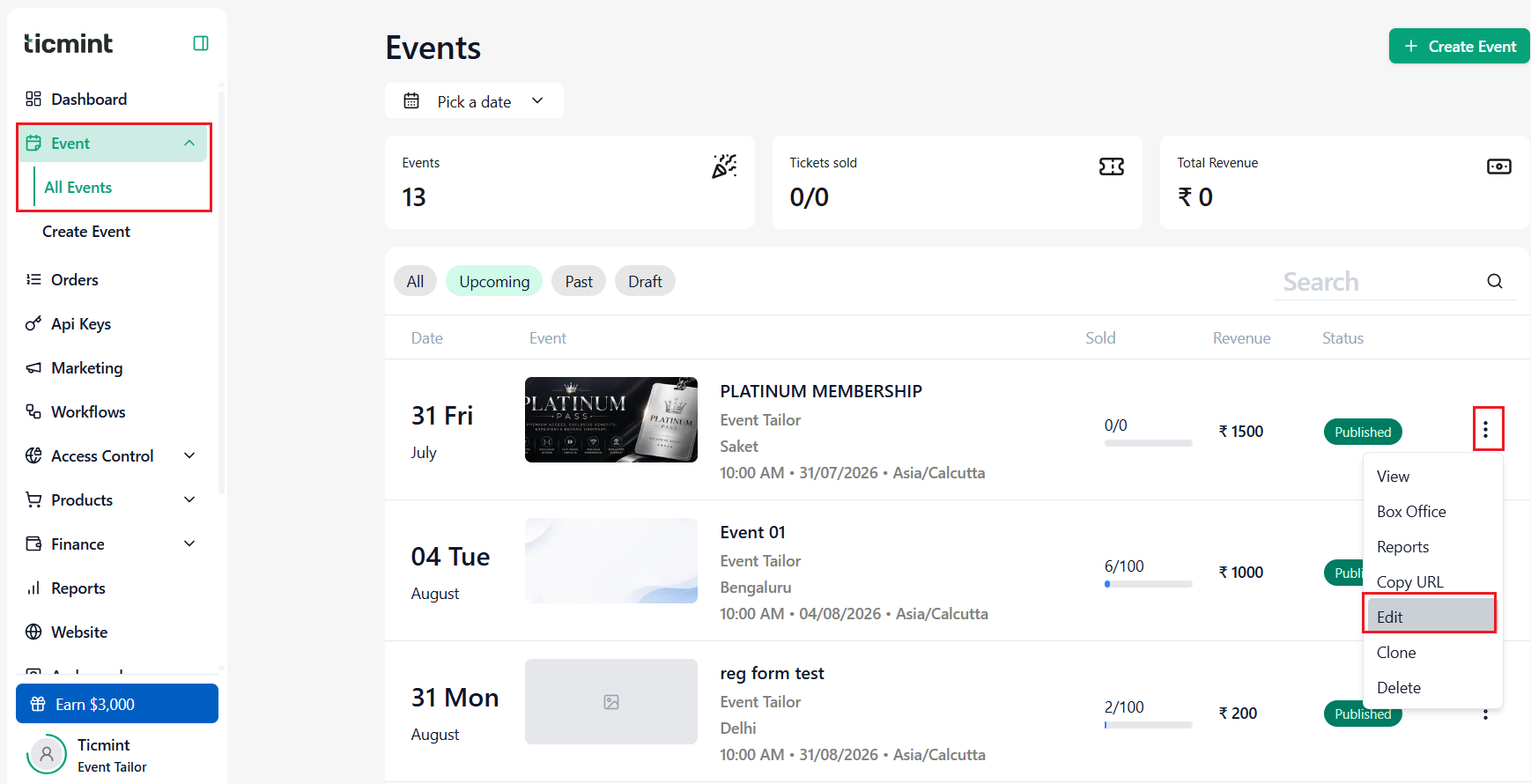
Fig. (a)
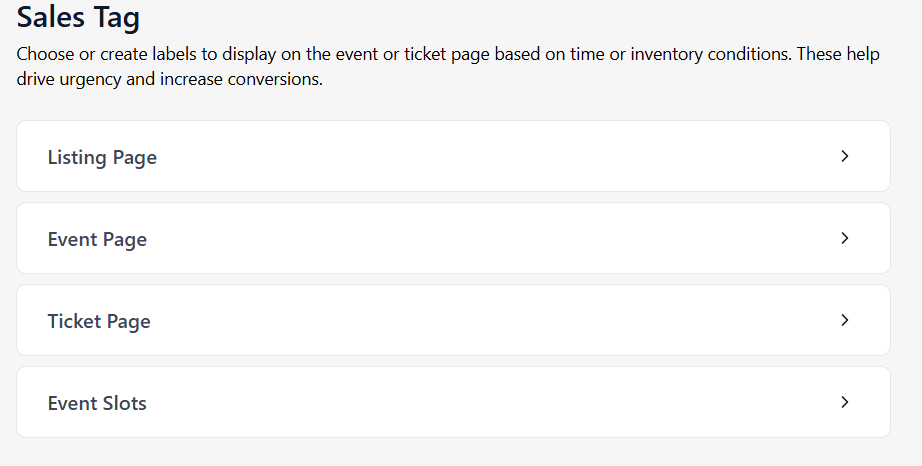
Display Locations
Tags can be displayed in the following locations:
Tag Configuration
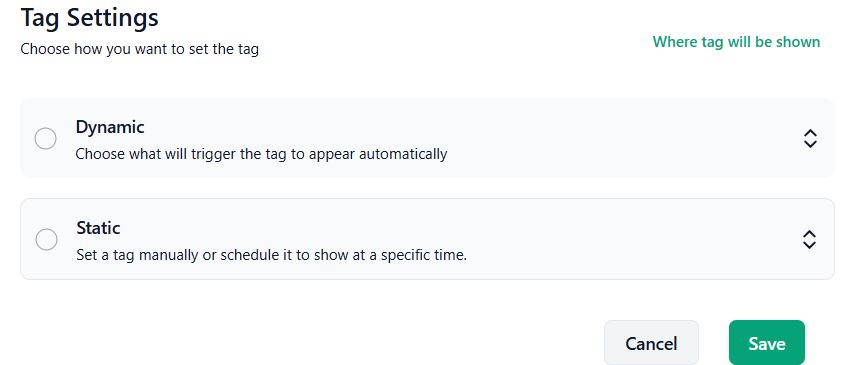
Two types of tag configurations are available:
☐ Dynamic Tags
☐ Static Tags
Dynamic Tags
Dynamic tags are automatically displayed based on inventory availability or time-based conditions.
Configure Dynamic Tags
Select Dynamic.
Enable Show Sales Tag if required.
Select an existing tag or enter custom text.
Choose one of the following trigger methods:
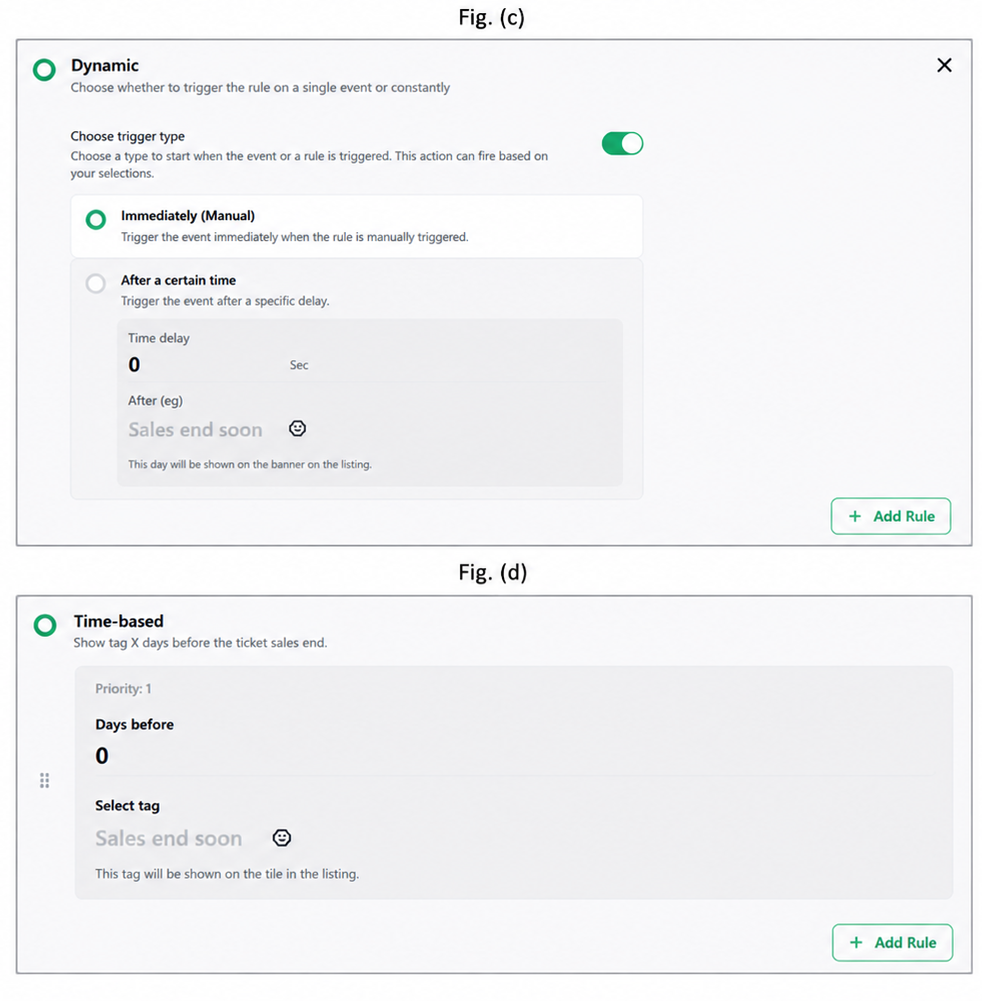
Inventory-Based Tags Fig. (c)
Inventory-based tags appear when ticket inventory reaches a specified threshold.
Steps
Select Inventory Based.
Enter the Threshold Percentage.
Enter or select the tag text.
Click + Add Rule to create additional inventory conditions.
Example
Time-Based Tags Fig. (d)
Time-based tags appear a specified number of days before ticket sales end.
Steps
Select Time Based.
Enter the number of days before ticket sales close.
Select or enter the tag text.
Click + Add Rule to add additional time-based conditions.
Example
Note
The configured tag will be displayed on the event tile in the event listing.
Static Tags
Static tags can be displayed immediately or scheduled to appear at a future date and time.
Configure Static Tags
Select Static.
Enable Show Sales Tag if required.
Select an existing tag or enter custom text.
Choose one of the following options:
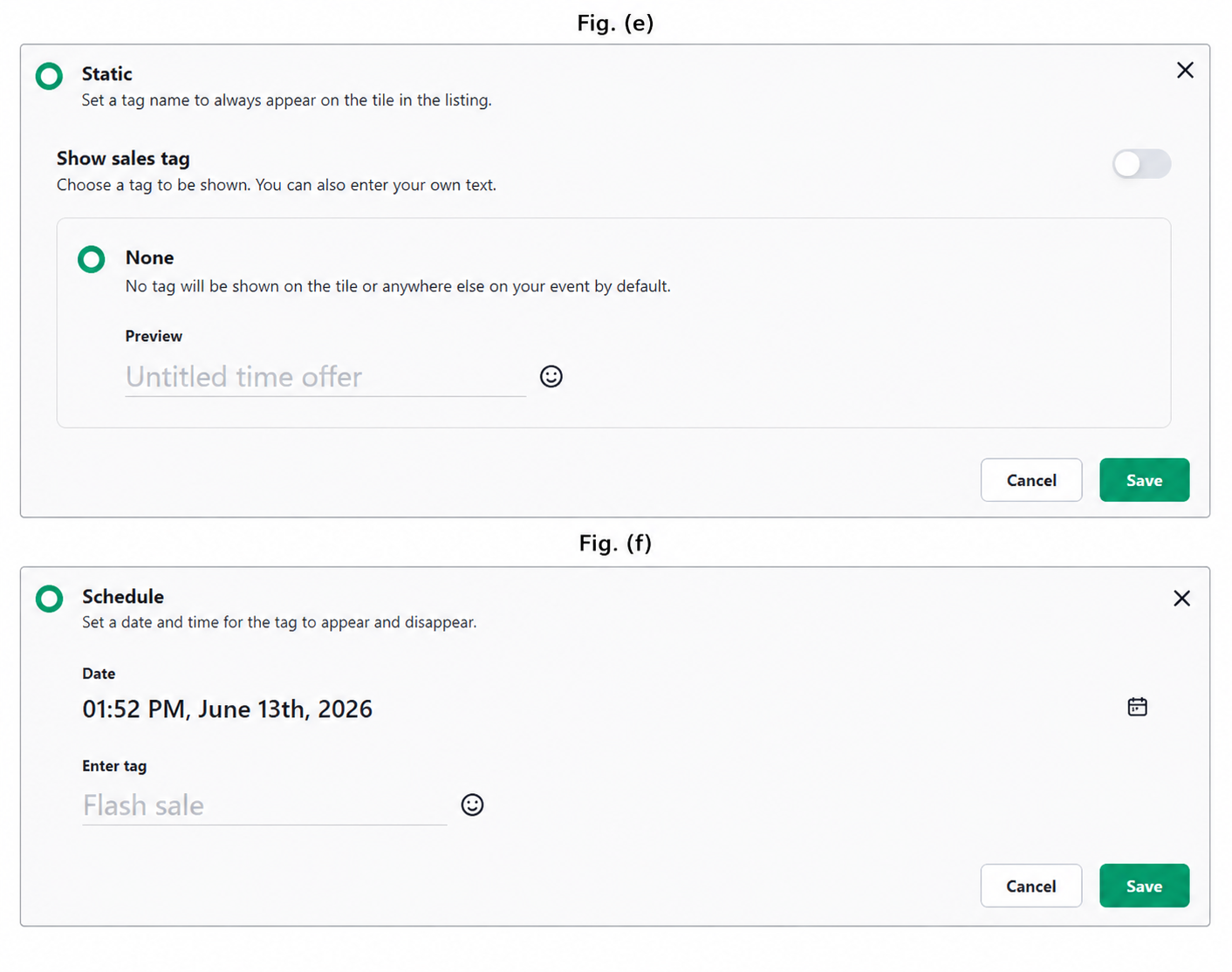
Show Now Fig. (e)
Displays the selected tag immediately after the event is published.
Steps
Select Now.
Enter or choose the required tag text.
Result
The tag becomes visible immediately once the event is published.
Scheduled Tags Fig. (f)
Displays the selected tag at a future date and time.
Steps
Select Scheduled.
Choose the date and time when the tag should appear.
Enter or select the required tag text.
Result
The tag will automatically appear on the event listing according to the scheduled date and time.
Save Changes
After completing the required configuration:
☐ Review all tag settings.
☐ Verify display locations.
☐ Confirm tag text and rules.
☐ Click Save.
Result
The configured sales tags will be displayed according to the selected rules and conditions, helping create urgency and increase ticket sales conversions.
Need Help?
If you face any issues while configuring Sales Accelerator:
Review tag conditions and schedules
Refresh the page and retry
Contact Ticmint Support with event details and screenshots
Your Sales Accelerator is now ready to drive faster and smarter ticket sales.
Was this article helpful?
That’s Great!
Thank you for your feedback
Sorry! We couldn't be helpful
Thank you for your feedback
Feedback sent
We appreciate your effort and will try to fix the article