This document provides a step-by-step guide to editing and managing existing discounts for an event on the Ticmint Support Portal. You can edit both Promo Codes and Membership Discounts to update pricing, validity, usage limits, and eligibility rules.
Overview
The Discounts module allows organisers to:
Update existing promo codes or membership discounts
Adjust discount values and limits
Change validity periods
Enable, disable, or remove discounts
Editing discounts helps you respond quickly to sales performance, marketing campaigns, or event changes.
Step 1: Access the Discounts Module
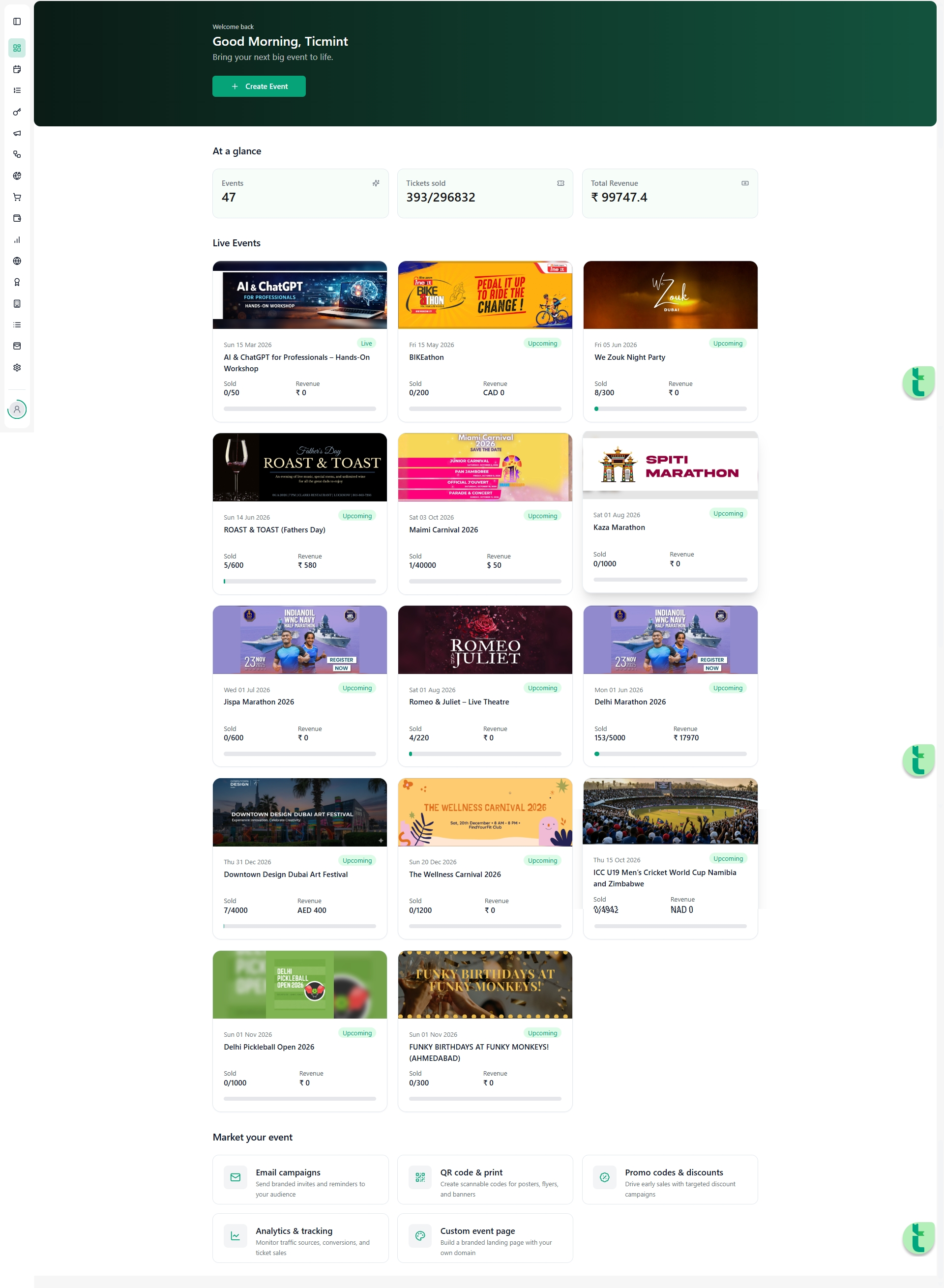
Log in to your Ticmint Dashboard.
Navigate to Events and select the event you want to manage.
From the left-side event menu, click Discounts.
You will see a list of all active and inactive discounts for the selected event.
Step 2: Identify the Discount to Edit
Each discount card or row displays:
Discount name or code
Discount type (Promo Code or Membership Discount)
Value (percentage or fixed amount)
Status (Active / Inactive)
Validity period
Locate the discount you want to update.
Step 3: Edit a Promo Code
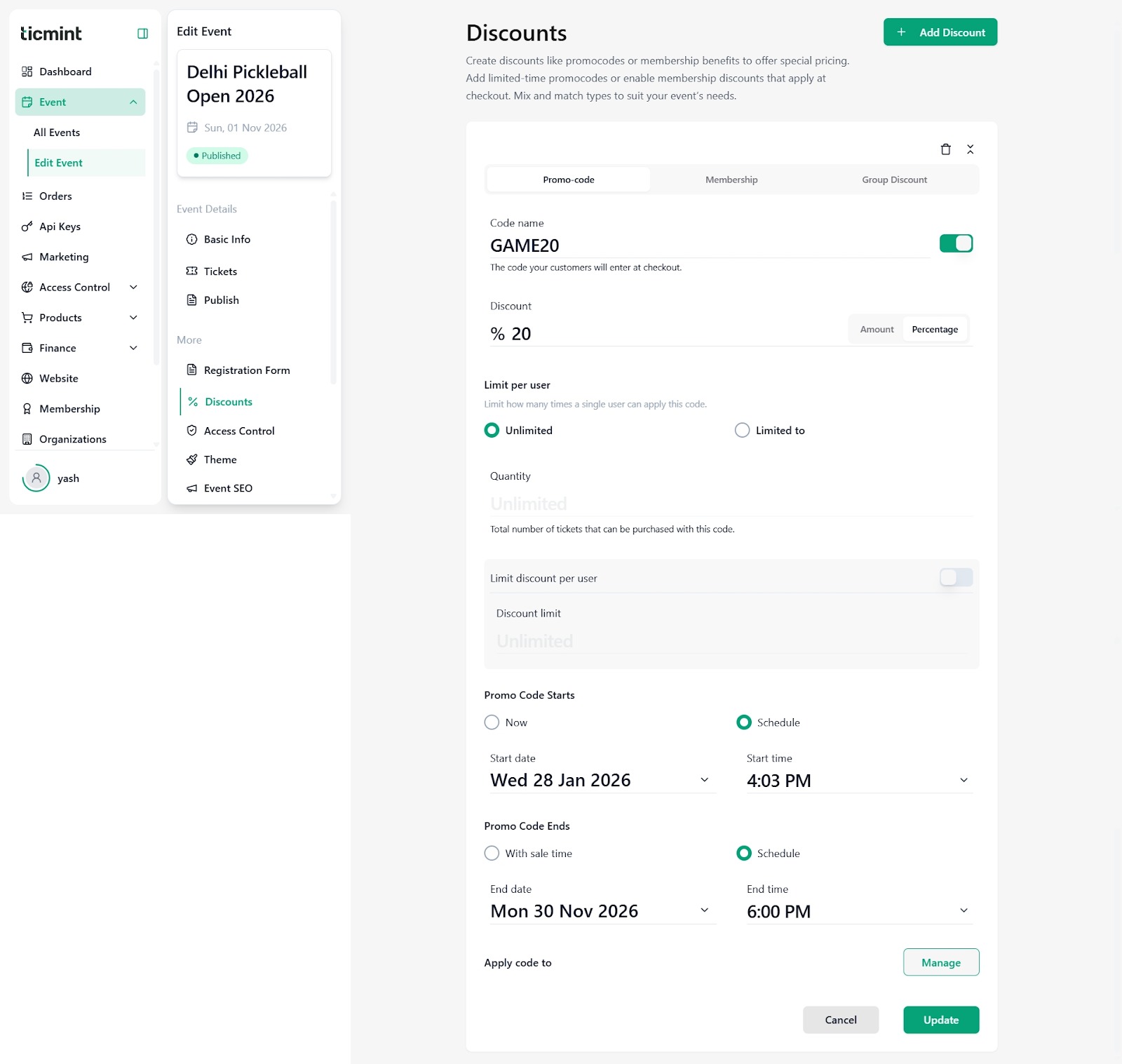
Purpose
Editing a promo code allows you to update its value, usage limits, or validity without creating a new code.
Steps to Edit a Promo Code
Click the Edit (✏️) icon next to the promo code.
Update the following fields as required:
Discount Value (fixed amount or percentage)
Usage Limit per Buyer (unlimited or limited)
Total Quantity Limit (maximum redemptions)
Start Date & Time
End Date & Time
Review the changes carefully.
Click Save to apply updates.
⚠️ Note: Promo codes that have already been shared publicly should be edited cautiously to avoid buyer confusion.
Step 4: Edit a Membership Discount
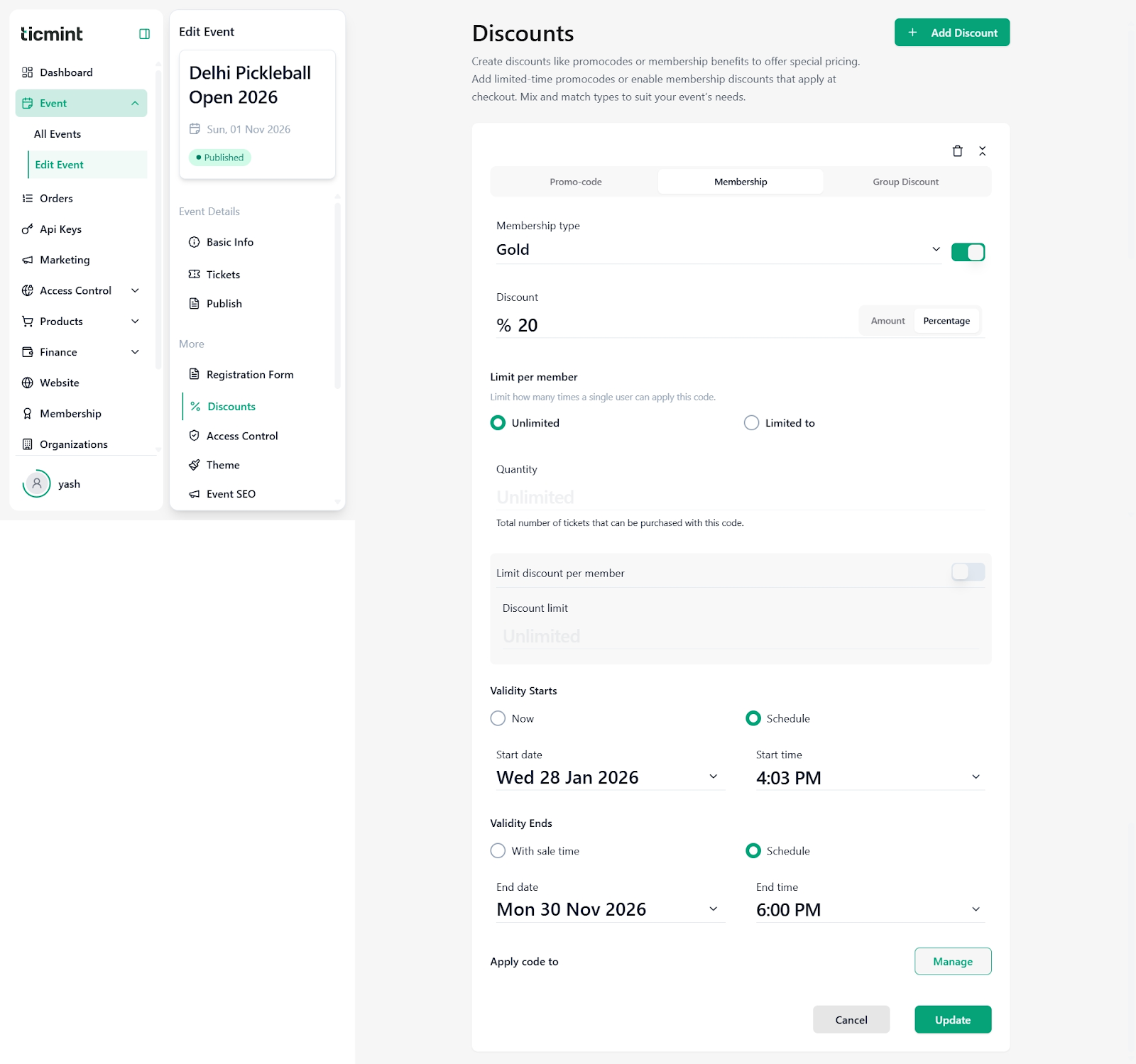
Purpose
Editing a membership discount allows you to update benefits for eligible users without requiring them to enter a code.
Steps to Edit a Membership Discount
Click the Edit (✏️) icon next to the membership discount.
Update one or more of the following:
Discount Type (percentage or fixed amount)
Discount Value
Eligible Ticket Types
Maximum Uses per Member
Verification Method (email domain, login, member list)
Validity Period (start and end date/time)
Click Save to apply changes.
Eligible members will automatically receive the updated discount during checkout.
Step 5: Enable, Disable, or Delete Discounts
Disable Discount: Temporarily stop a discount without deleting it.
Enable Discount: Reactivate a previously disabled discount.
Delete Discount: Permanently remove a discount that is no longer required.
⚠️ Deleting a discount cannot be undone and may affect ongoing promotions.
Step 6: Review Discount Behaviour at Checkout
After editing:
Open the event’s public booking page
Add a ticket to the cart
Verify that:
Promo codes apply correctly
Membership discounts trigger automatically for eligible users
Best Practices
Avoid editing discounts during peak sales hours
Clearly communicate changes to attendees if a public promo code is updated
Use validity dates instead of deletion for temporary offers
Monitor discount usage through sales reports
Ensure membership verification rules remain accurate
Need Help?
If you face any issues while editing discounts:
Refresh the page and retry
Check for conflicting discount rules
Contact Ticmint Support with your event name and screenshots for faster assistance
Learn more about built-in event marketing on the Ticmint website.
Was this article helpful?
That’s Great!
Thank you for your feedback
Sorry! We couldn't be helpful
Thank you for your feedback
Feedback sent
We appreciate your effort and will try to fix the article