A recurring event allows organisers to schedule multiple event occurrences under a single event. Instead of creating separate events for each date, you can configure a recurring schedule and allow attendees to select their preferred event date during ticket purchase.
Examples:
Weekly workshops
Music nights
Fitness classes
Training sessions
Religious gatherings
Theatre performances
Step 1: Create a New Event
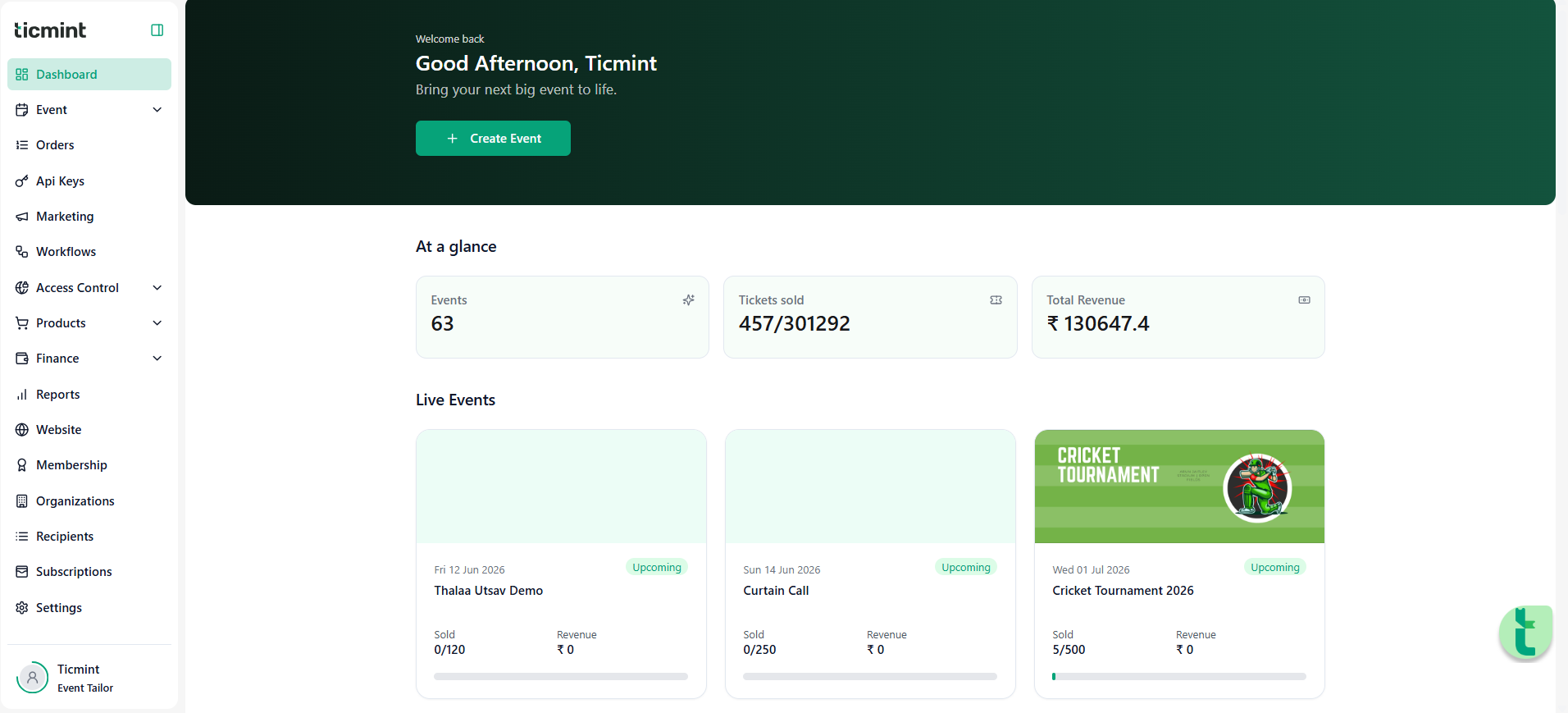
Log in to your Ticmint Dashboard.
Click on Events.
Select Create Event.
Enter the basic event details:
Event Name
Event Banner/Image
Event Description
Click Continue.
Step 2: Configure Recurring Event Dates
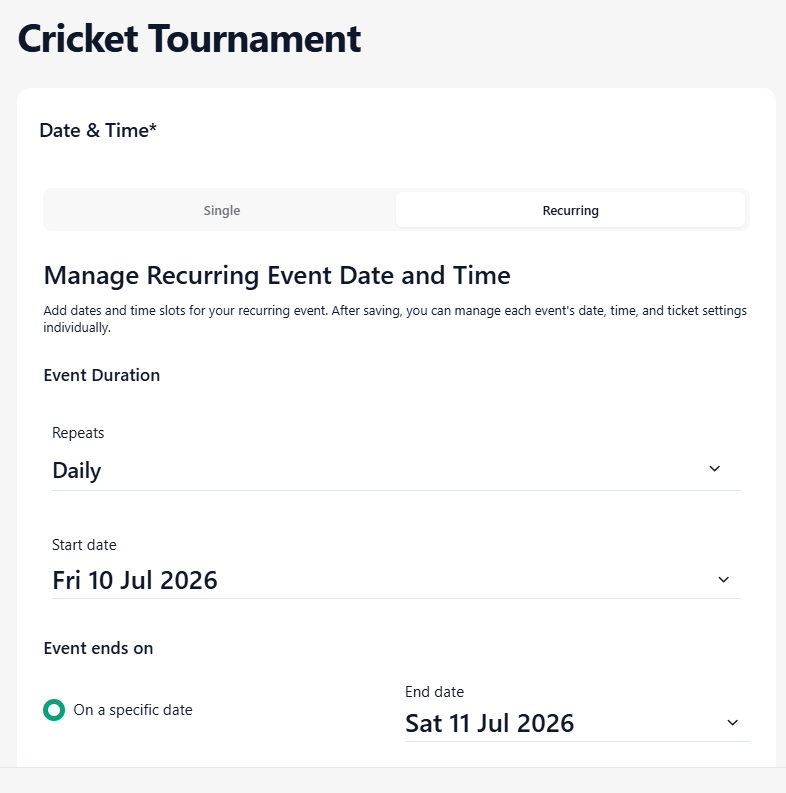
After entering the event details, you will reach the Date & Time section.
Enable the Recurring Event option.
Select the recurrence frequency.
Available options include:
Daily
Weekly
Monthly
Example: Weekly Recurring Event
Select Weekly.
Choose the day(s) of the week on which the event will occur.
Set:
Start Date
End Date
Event Start Time
Event End Time
Review the automatically generated event occurrences.
Click Continue once all recurring dates are configured.
Step 3: Review Generated Event Schedule
Ticmint automatically creates all occurrences based on your selected recurrence settings.
Before proceeding, verify:
Event dates
Event timings
Frequency settings
End date
If changes are required:
Return to the recurrence settings.
Update the schedule.
Save the changes.
Step 4: Configure Event Location
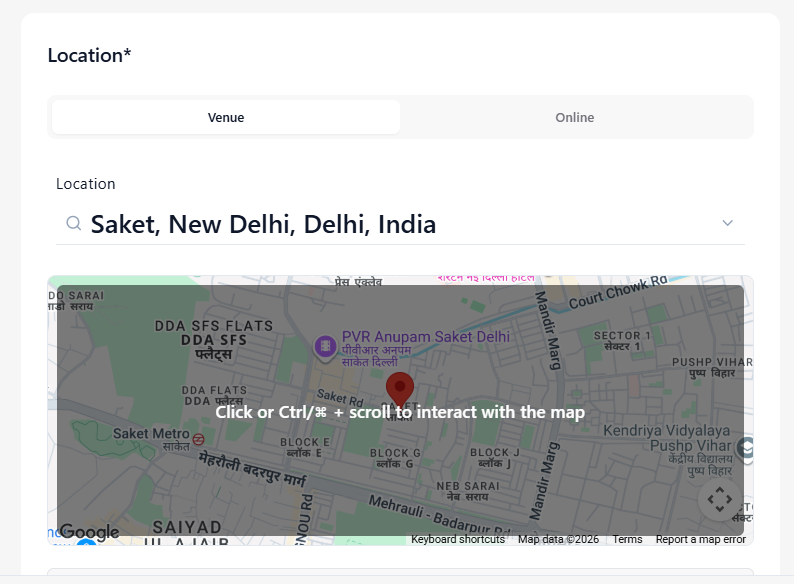
Enter the venue name.
Add the event address.
Verify the location on the map.
Save and continue.
Step 5: Create Ticket Types
Navigate to the Sections and Tickets page.
Click Add Ticket.
Create your ticket categories such as:
General Admission
VIP Pass
Early Bird
Premium Pass
Applying Tickets to Recurring Event Slots
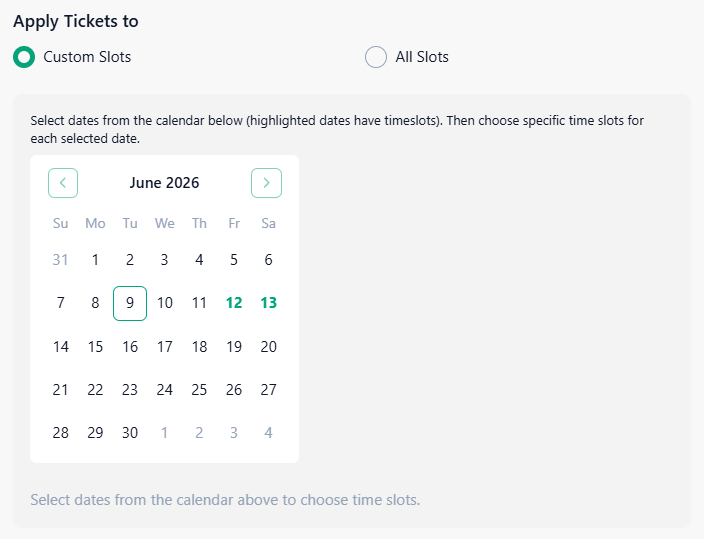
When creating a ticket for a recurring event, Ticmint allows you to control which event dates and time slots the ticket will be available for.
Apply Tickets To
You will see two options:
1. All Slots
Select All Slots if you want the ticket to be available for every date and time slot in the recurring event.
Example:
Event occurs every Friday in June.
A "General Admission" ticket should be available for all Fridays.
Select All Slots.
This saves time because the ticket is automatically assigned to every recurring occurrence.
2. Custom Slots
Select Custom Slots if you want the ticket to be available only for specific dates or time slots.
When Custom Slots is selected:
A calendar will appear showing all available recurring event dates.
Select one or more dates from the calendar.
After selecting a date, the available time slots for that date will be displayed.
Choose the specific time slot(s) where the ticket should be available.
Save the ticket settings.
Example:
A VIP ticket is available only on June 9 and June 13.
Select Custom Slots.
Choose June 9 and June 13 from the calendar.
Select the desired time slots.
Save the ticket.
Benefits of Custom Slots
Custom Slots are useful when:
Different ticket types are available on different days.
VIP access is limited to specific event dates.
Special promotions apply only to selected sessions.
Certain slots have different pricing or availability.
Important Notes
Highlighted dates in the calendar indicate dates that contain available time slots.
A ticket will only appear to attendees for the dates and slots you select.
If no custom slots are selected, attendees will not see the ticket for any event occurrence.
Review your selected dates and time slots carefully before publishing the event.
Example Scenario
Event Schedule:
June 9 – 10:00 AM
June 13 – 10:00 AM
June 20 – 10:00 AM
Ticket Types:
General Admission → All Slots
VIP Pass → Custom Slots (June 9 and June 13 only)
Result:
General Admission appears on all event dates.
VIP Pass appears only on June 9 and June 13.
Step 6: Publish the Event
After configuring all event details:
Review the event information.
Ensure recurring dates are displayed correctly.
Verify ticket settings.
Click Publish Event.
A success message will confirm that the recurring event has been published successfully.
Attendee Experience
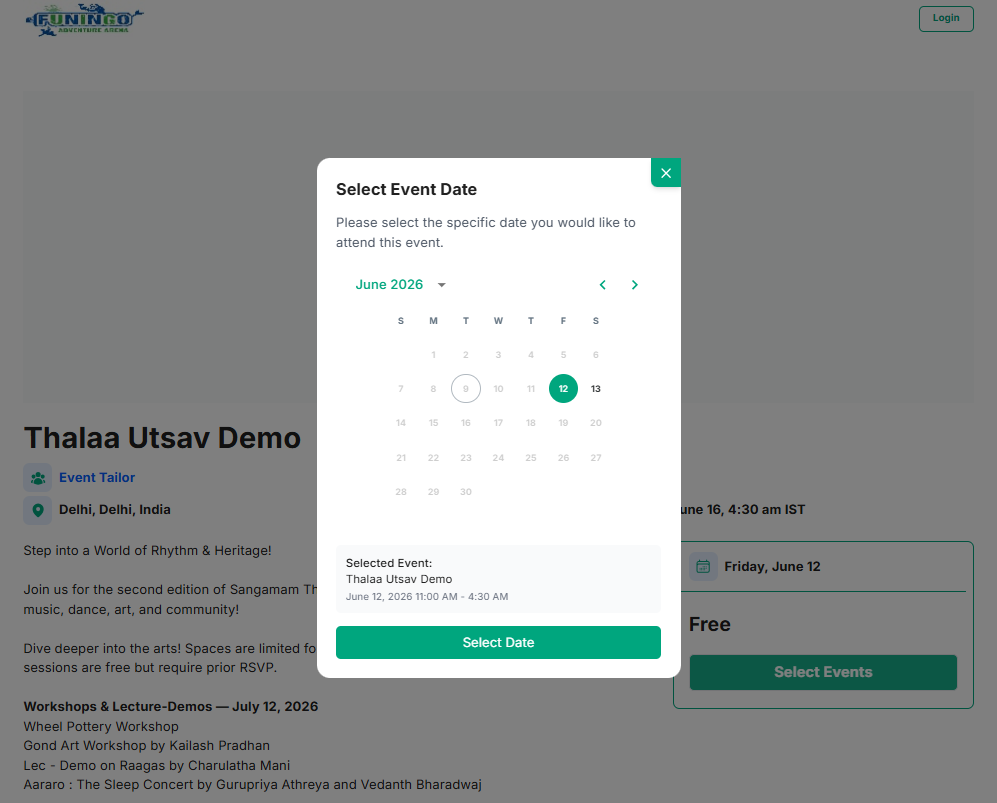
When attendees visit the event page:
They click Get Tickets.
A calendar popup appears.
They select their preferred event date.
Available tickets for that date are displayed.
They complete the checkout process.
This allows multiple event occurrences to be managed from a single event page.
Best Practices
Verify all recurring dates before publishing.
Double-check event timings and timezone settings.
Ensure ticket inventory is configured correctly.
Test the event page before sharing it publicly.
Use clear ticket names to help attendees select the correct option.
Troubleshooting
Event dates are not appearing
Check the recurrence frequency.
Verify the start and end dates.
Ensure the recurring event option is enabled.
Tickets are not visible
Verify ticket sale dates.
Confirm ticket inventory is available.
Ensure the event is published.
Incorrect recurring schedule
Edit the recurrence settings.
Regenerate the schedule.
Save and publish the updated event.
Was this article helpful?
That’s Great!
Thank you for your feedback
Sorry! We couldn't be helpful
Thank you for your feedback
Feedback sent
We appreciate your effort and will try to fix the article