Step 1: Access Event Creation
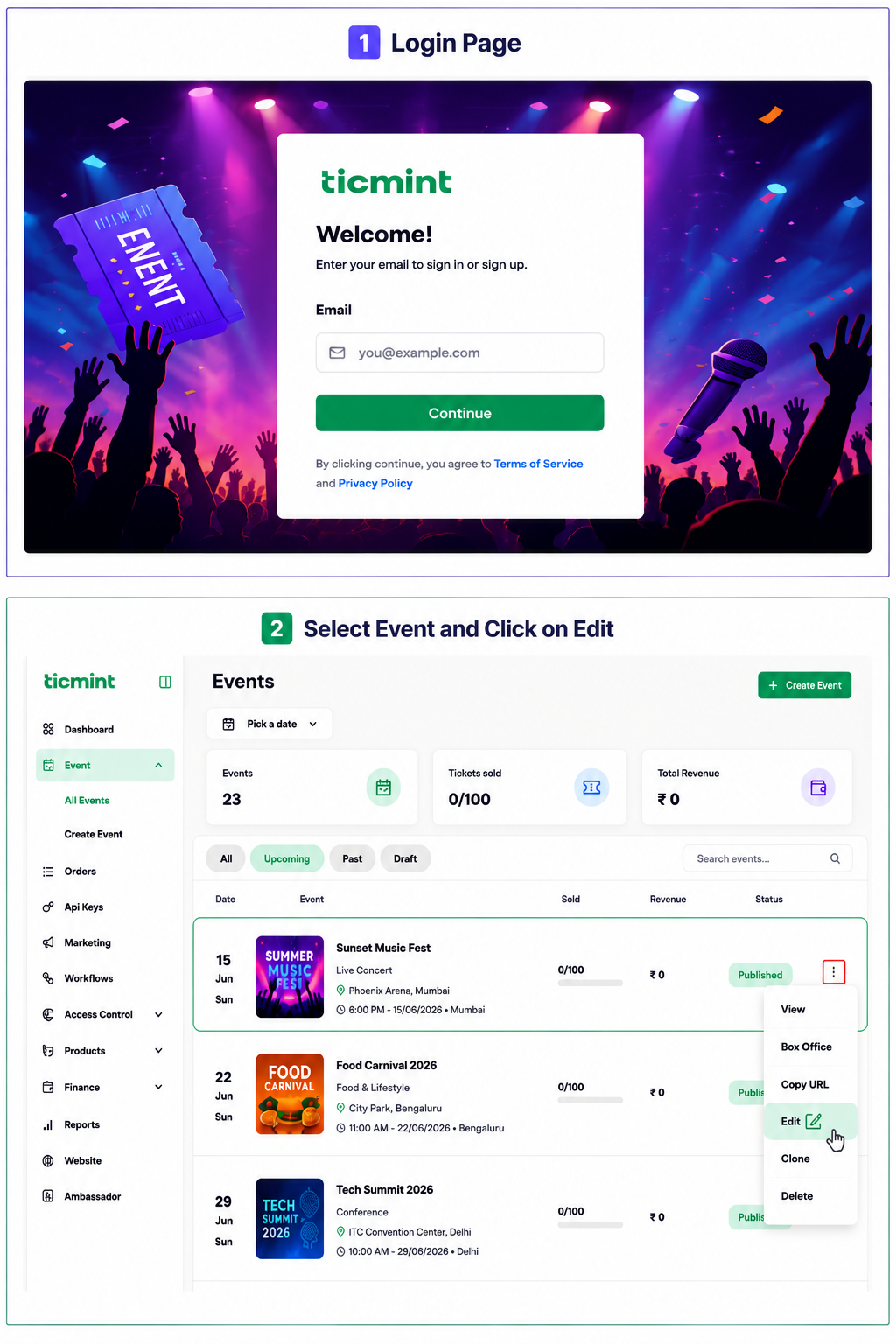
Login to the Ticmint Dashboard and select all event and click on edit.
Step 2: Single Event or Recurring Event.
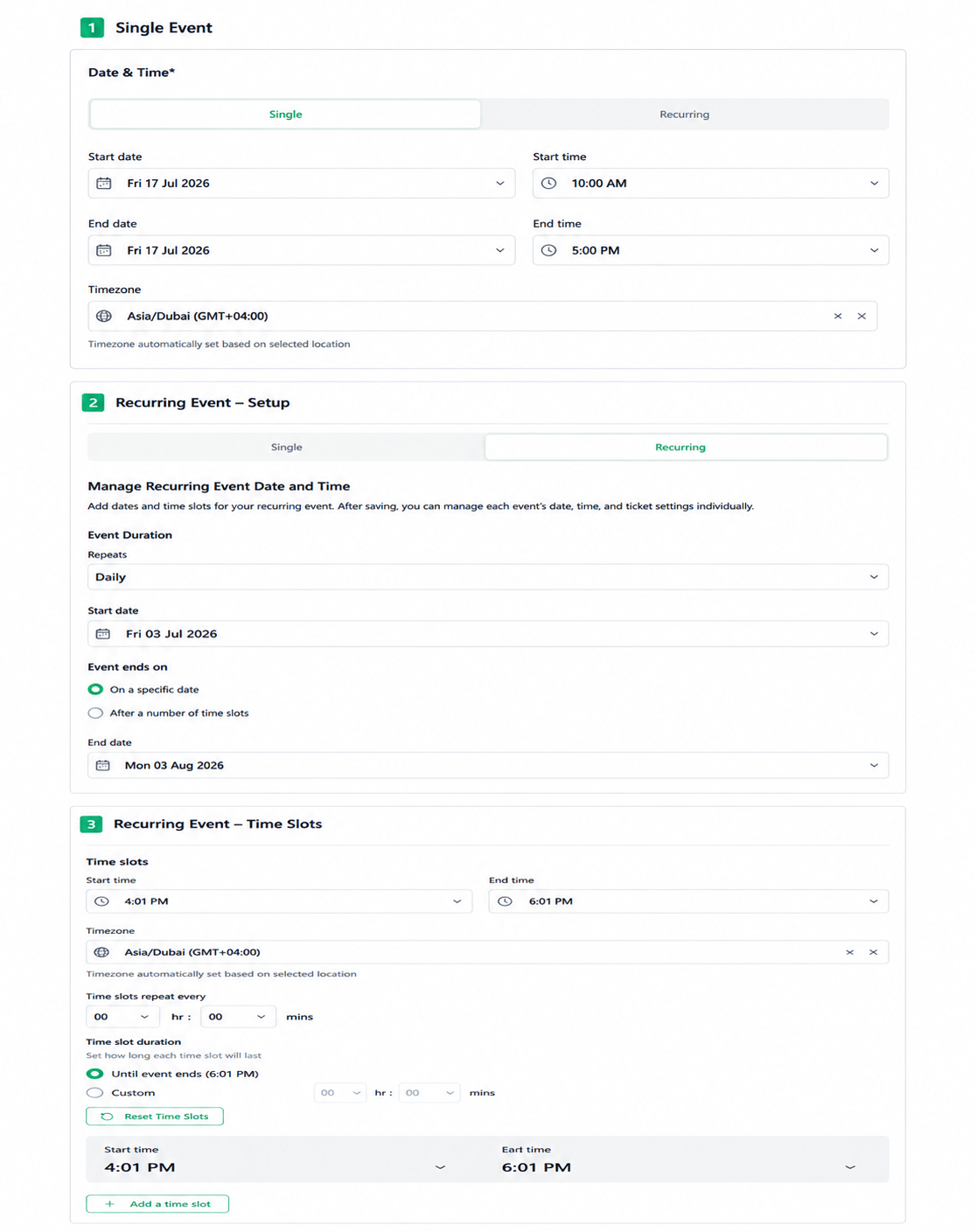
Navigate to Basic Info, scroll down to the Type of Event section, and select the required event type: Single Event or Recurring Event.
Single Event
Select Single Event when the event occurs only once on a specific date and time.
Enter the Start Date and Time and End Date and Time for the event.
Recurring Event
Select Recurring Event when the event repeats based on a defined schedule. Configure the recurring event using the following options:
Repeat Frequency – Select how often the event repeats: Daily, Weekly, Monthly, or Custom.
Start Date – Choose the date on which the recurring event begins.
Event Ends On – Select one of the following options:
On a Specific Date – Choose the date on which the recurring event ends.
After a Number of Time Slots – Enter the number of time slots after which the recurring event should end.
Time Slot Duration – Set how long each recurring time slot will last. Select Until Event Ends (for example, Until event ends – 6:01 PM) or choose Custom to manually define the duration.
Add a Time Slot – Click Add a Time Slot to create additional time slots, then select the required Start Date and Time and End Date and Time.
Reset Time Slot – Click Reset Time Slot to clear the current time-slot settings and restore the time-slot configuration.
Learn more about venue ticketing software on the Ticmint website.
Was this article helpful?
That’s Great!
Thank you for your feedback
Sorry! We couldn't be helpful
Thank you for your feedback
Feedback sent
We appreciate your effort and will try to fix the article