Overview
This document provides a complete guide to creating and configuring event tickets using the Ticmint Support Portal. Event tickets are essential for managing attendee entry, pricing, access control, ticket visibility, taxes, and ticket sales channels.
Proper ticket configuration helps organizers:
Manage attendee capacity
Create different ticket categories
Apply taxes and pricing rules
Control ticket visibility
Configure online and offline ticket sales
Improve event organization and attendee experience
Sections and Tickets
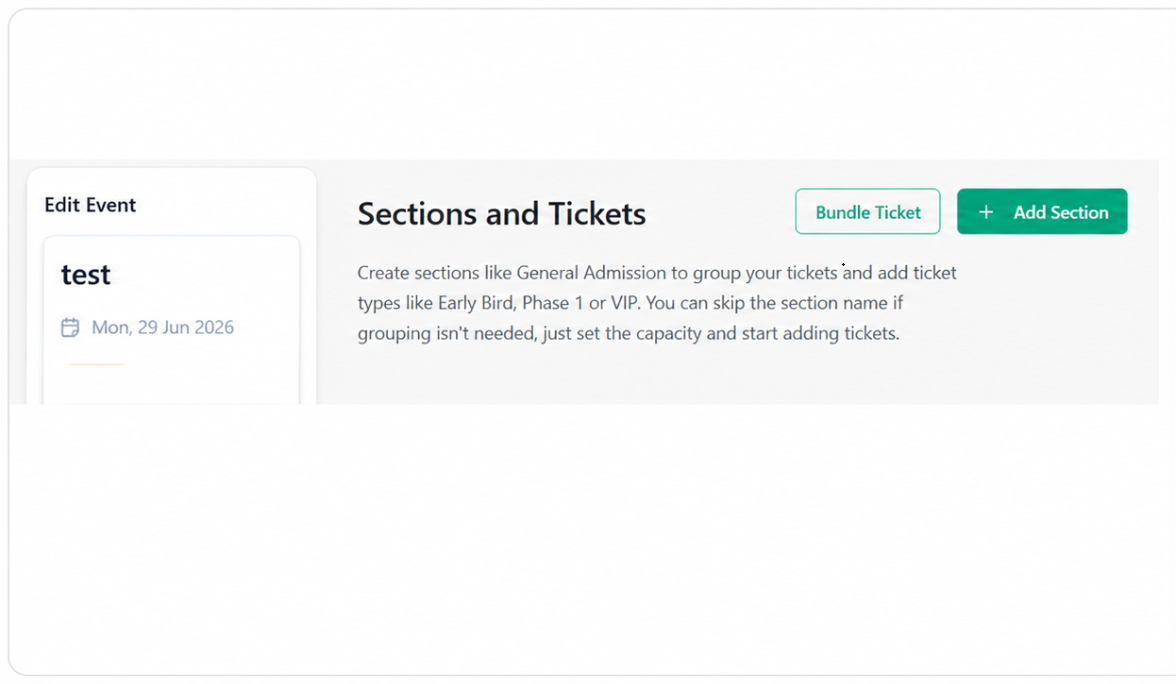
Sections help organize ticket types under a common category such as General Admission, VIP, or Early Bird. If grouping is not required, you can skip the section name and simply set the capacity before creating ticket types.
Creating a Section and Ticket Types
Step 1: Open the Ticket Settings
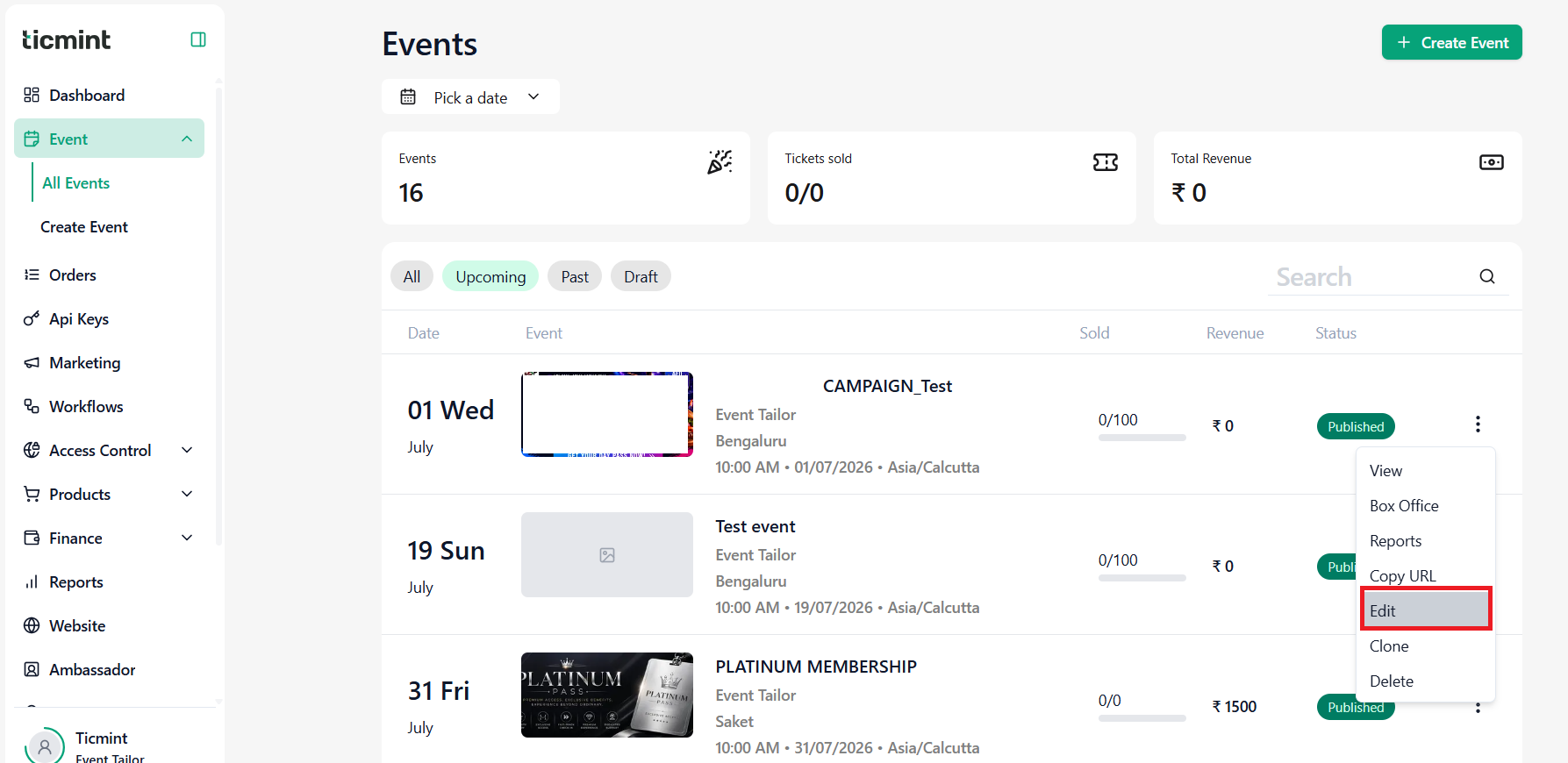
- Navigate to Events.
- Select the required event.
- Click Edit.
- If the event is already created, select Edit Event.
- If creating a new event, complete the Basic Information section first, then navigate to the Tickets tab.
Step 2: Create a Section
- Click on +Add Section
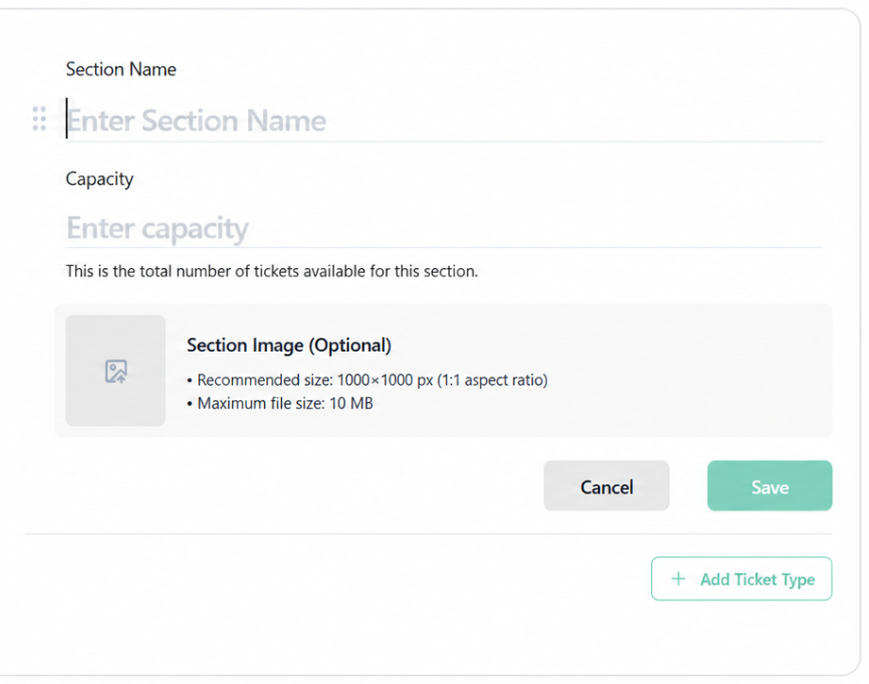
- Enter the Section Name.
- Enter the Section Capacity.
- Upload a Section Image (Optional).
- Click Save.
Step 3: Add a Ticket Type
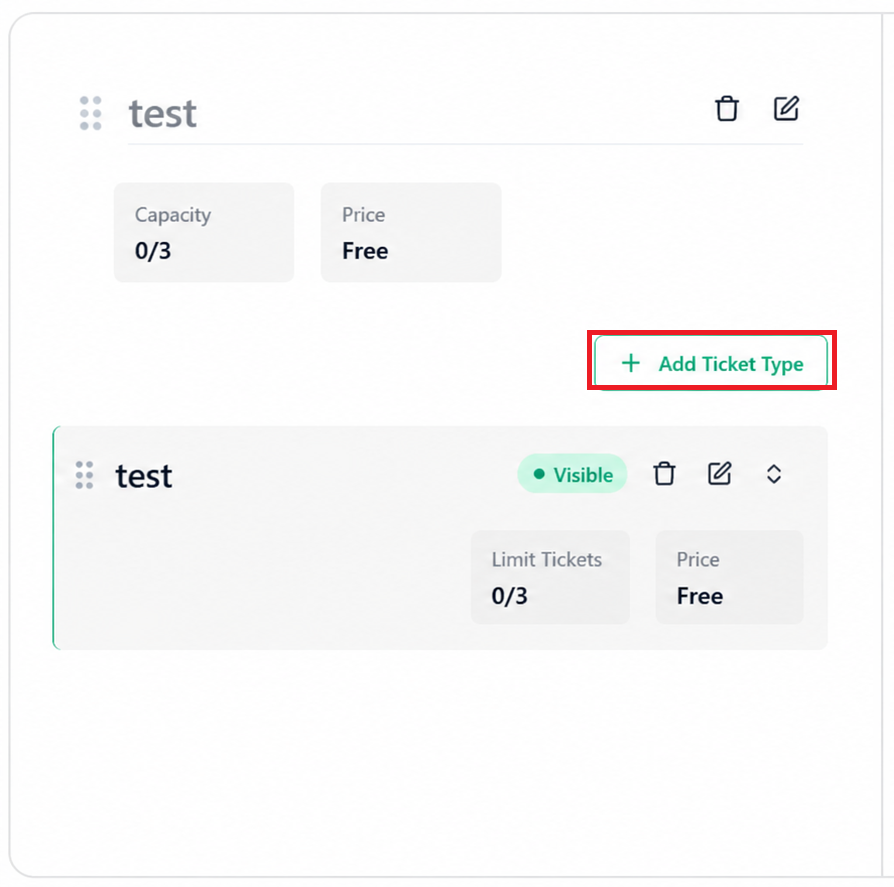
- Click Add Ticket Type.
- Enter the Ticket Name.
- Enter the Ticket Limit.
- Enter the Ticket Price.
- Click View to see the price breakdown.
- Select the required Visibility from the dropdown.
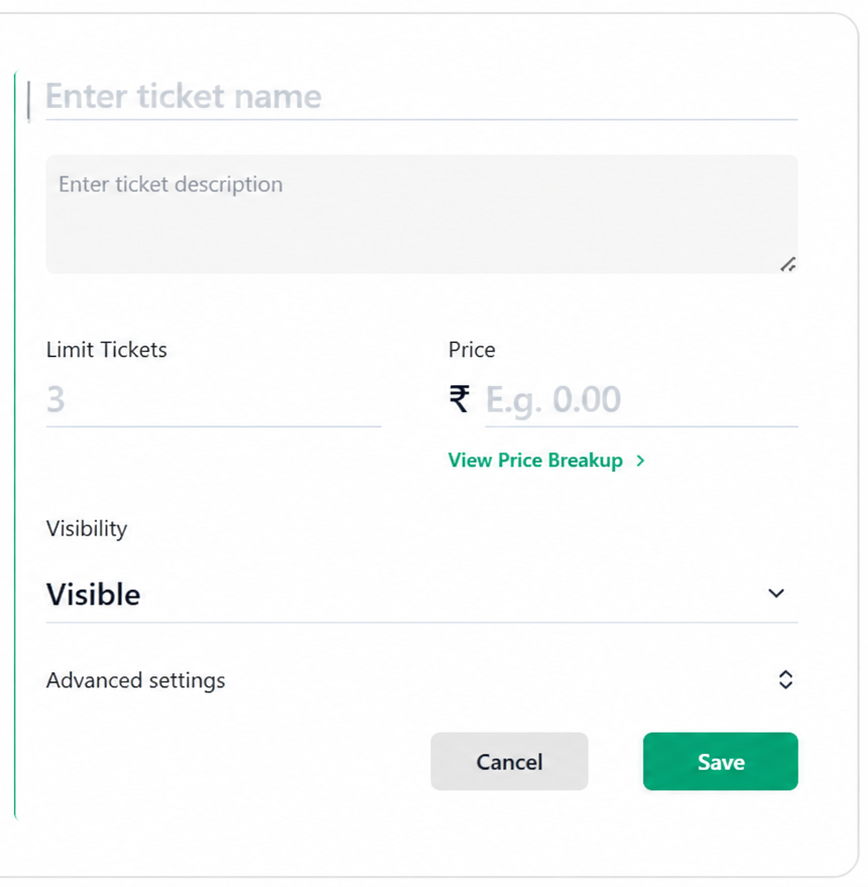
Step 4: Configure Advanced Settings
Click Advanced Settings and configure the following options.
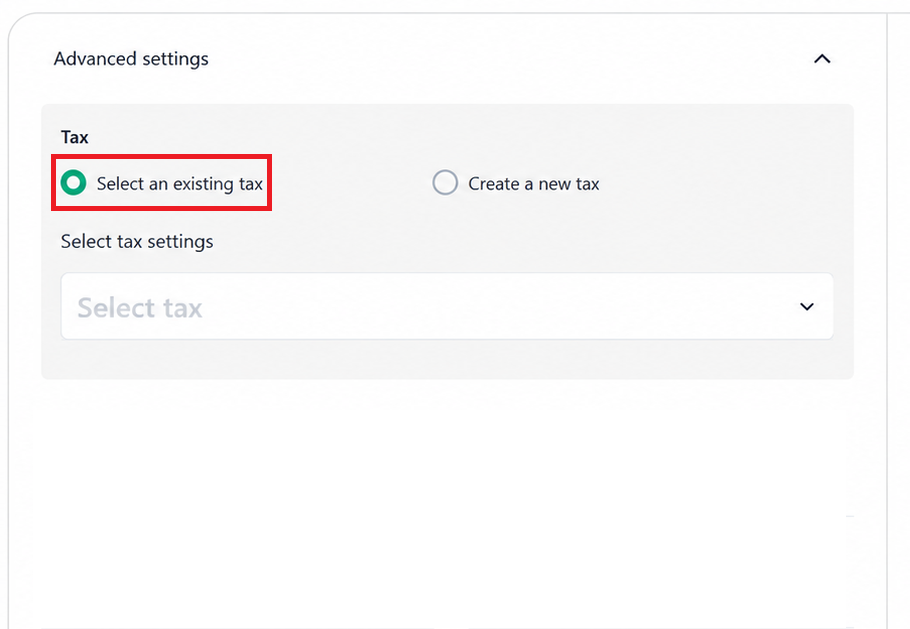
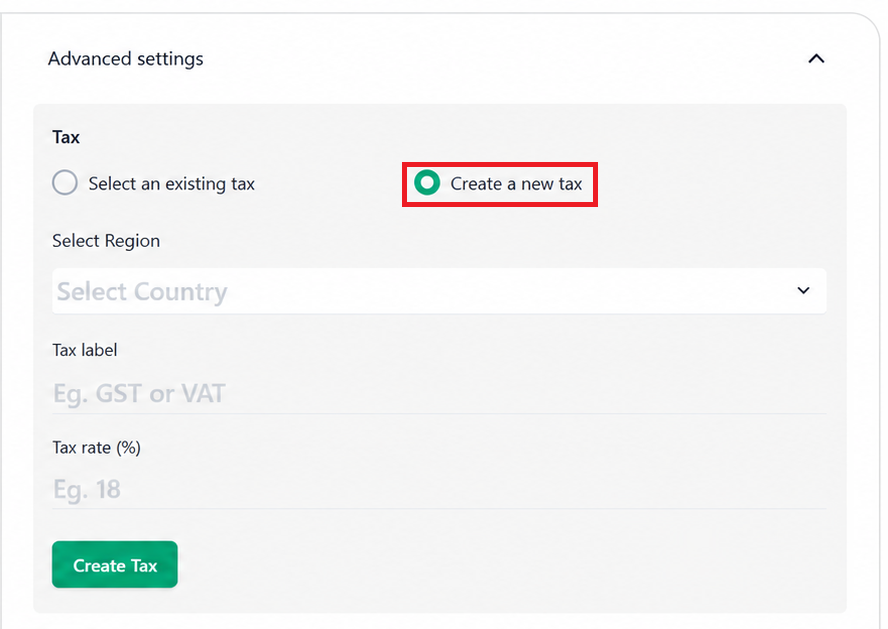
Tax Configuration
Choose one of the following options:
Use Existing Tax
- Select Existing Tax.
- Choose the required tax from the Select Tax dropdown list.
Create New Tax
- Select Create New Tax.
- Select the Region.
- Enter the Tax Label.
- Enter the Tax Rate (%).
Additional Ticket Settings
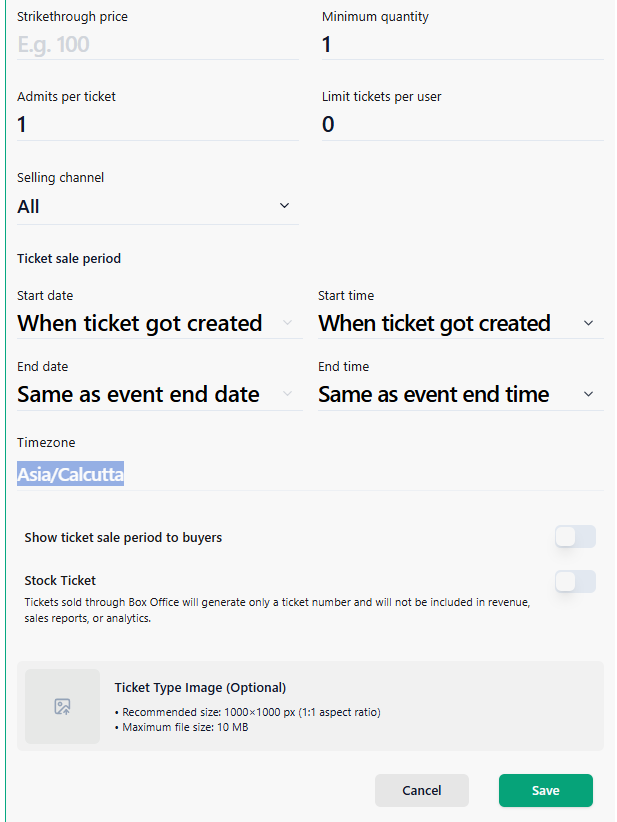
Configure the following fields as required:
- Strikethrough Price
- Minimum Quantity
- Maximum Quantity
- Admits Per Ticket
- Limit Tickets Per User
- Selling Channel
- Sale Start Date and Time
- Sale End Date and Time
- Enable Show Ticket Sale Period to Buyers to display the ticket sales period to customers.
- Enable Stock Ticket to manage and track ticket inventory separately.
Note: Stock Tickets help organizers control ticket availability and monitor the remaining ticket quantity throughout the sales period.
- Upload a Ticket Type Image(optional).
Recommended Specifications:
- Image Size: 1000 × 1000 px (1:1 aspect ratio)
- Maximum File Size: 10 MB
Click on Save
Step 5: Create Additional Sections (Optional)
If multiple sections are required:
- Click + Add Section located at the top-right corner.
Repeat the above steps to create additional sections and ticket types.
Bundle Tickets
Bundle Tickets allow organizers to combine multiple ticket types into a single package.
Note: Before creating a bundle:
- Create the individual tickets normally.
- Set those tickets to Hidden if you do not want attendees to purchase them separately.
Creating a Bundle Ticket
Step 1: Open Bundle Ticket
- Navigate to the Tickets page.
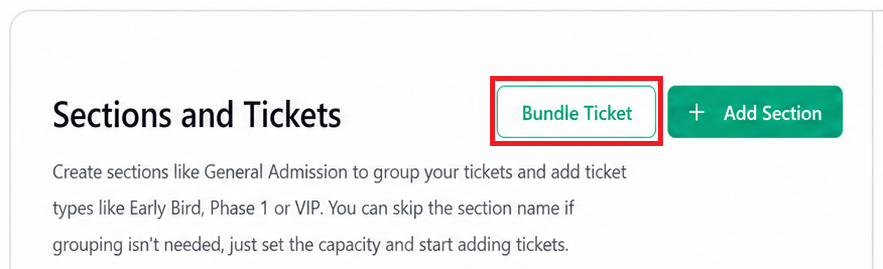
- Click Bundle Ticket from the top-right corner.
- Enter the Bundle Section Name.
- Upload a Bundle Section Image (Optional).
Recommended Specifications:
- Image Size: 1000 × 1000 px (1:1 aspect ratio)
- Maximum File Size: 10 MB
- Click Save.
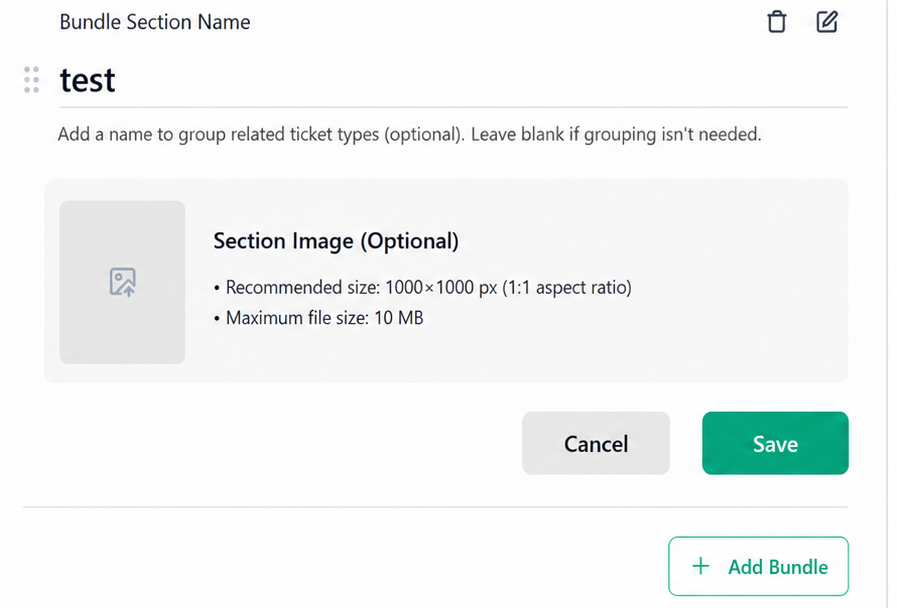 Enter Bundel Section Name
Step 2: Add a Bundle
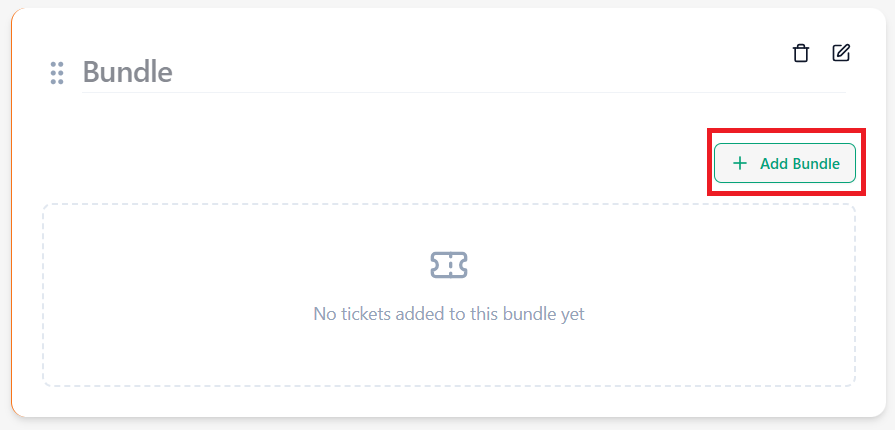
- Click + Add Bundle.
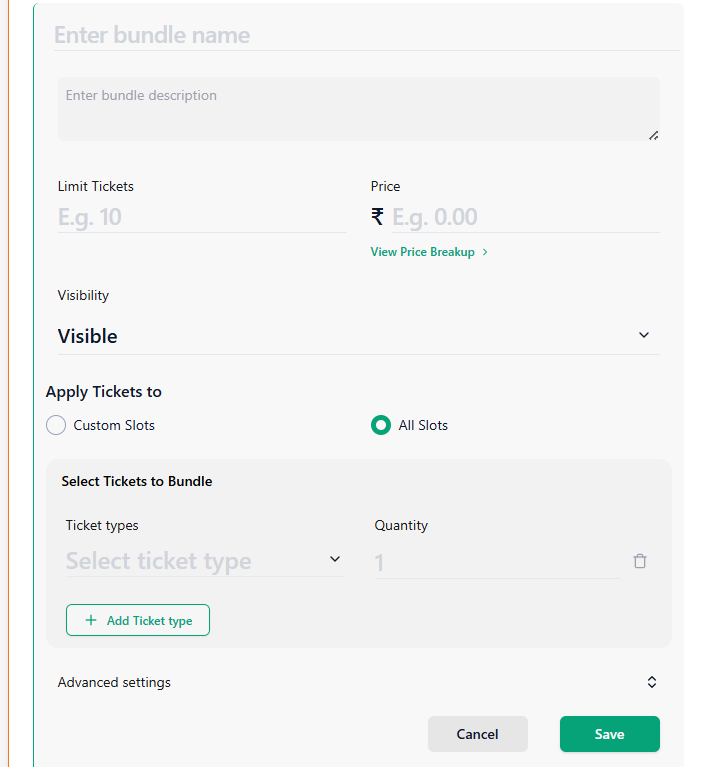
- Enter the Bundle Name.
- Enter the Bundle Ticket Limit.
- Enter the Bundle Price.
- Click View to review the price breakdown.
- Select the required Visibility from the dropdown.
- Select tickets to Custom Slots or All slots
Step 3: Add Tickets to the Bundle
- Under Select Tickets to Bundle, choose a ticket type from the dropdown.
- Enter the required Quantity.
- Click + Add Ticket Type to include additional ticket types in the bundle.
Step 4: Configure Advanced Settings
Click Advanced Settings and configure the following options.
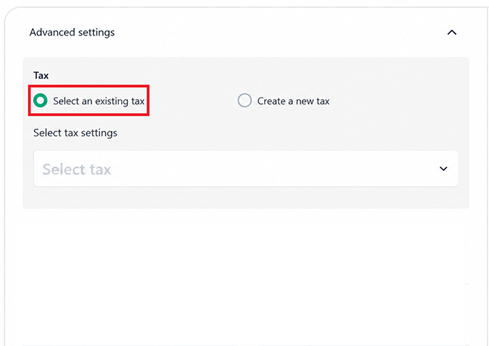
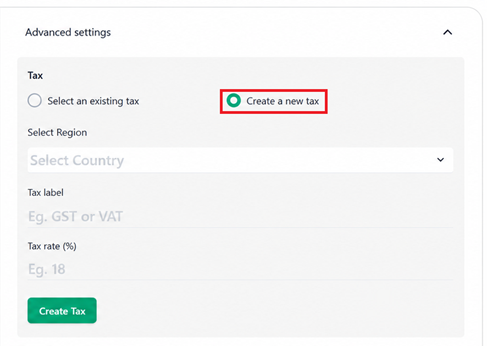
Tax Configuration
Choose one of the following options:
Use Existing Tax
- Select Existing Tax.
- Choose the required tax from the Select Tax dropdown list.
Create New Tax
- Select Create New Tax.
- Select the Region.
- Enter the Tax Label.
- Enter the Tax Rate (%).
Additional Ticket Settings
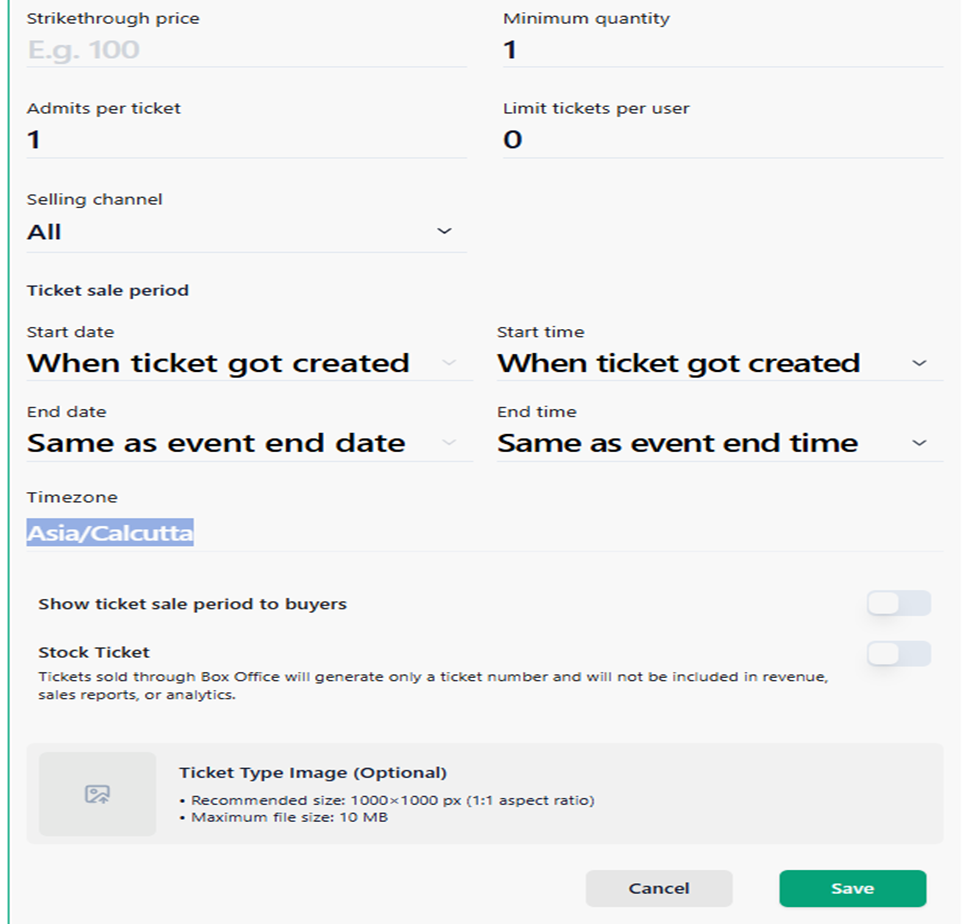
Configure the following fields as required:
● Strikethrough Price
● Minimum Quantity
● Maximum Quantity
● Admits Per Ticket
● Limit Tickets Per User
● Selling Channel
● Sale Start Date and Time
● Sale End Date and Time
● Enable Show Ticket Sale Period to Buyers to display the ticket sales period to customers.
● Enable Stock Ticket to manage and track ticket inventory separately.
Note: Stock Tickets help organizers control ticket availability and monitor the remaining ticket quantity throughout the sales period.
● Upload a Ticket Type Image(optional).
Recommended Specifications:
● Image Size: 1000 × 1000 px (1:1 aspect ratio)
● Maximum File Size: 10 MB
Review all details and click Save to create the bundle ticket.
Note:
Tickets sold through the Box Office will generate only a ticket number and will not be included in revenue, sales reports, or analytics.
The bundle ticket will now appear on the event page according to the configured visibility settings.
Learn more about tiered ticket pricing on the Ticmint blog.
Was this article helpful?
That’s Great!
Thank you for your feedback
Sorry! We couldn't be helpful
Thank you for your feedback
Feedback sent
We appreciate your effort and will try to fix the article