Orders
The Orders module allows organizers to view, filter, search, and manage orders efficiently. Using various filters, organizers can generate reports and monitor ticket sales across events and organizations.
Accessing Orders
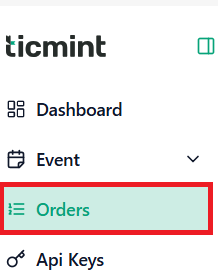
Navigate to Orders from the dashboard menu to view all order records.
Available Filters
Use the following filters to narrow down order results.
Organization
☐ Select the required organization to view orders associated with that organization.
Event
☐ Select a specific event to display orders related to that event.
Date
☐ Select a custom date range.
Or choose from the predefined durations:
Last 7 Days
Last 30 Days
Last 60 Days
Last 6 Months
Last 12 Months
After selecting the desired date range, click Apply to view the filtered results.
Channel
Filter orders based on the sales channel:
☐ Box Office • Online
Status
Filter orders by their current status:
☐ Success • Pending • Cancelled • Failed • Created • Approved • Rejected • Paid • Pending Approval • Refunded
Search Orders
You can quickly locate specific orders using the search bar.
Search by:
☐ Order ID • Customer Email Address • Customer Phone Number

Order Details
Accessing Order Details
Click View Details to open and review the selected order.

1. Order Details Section
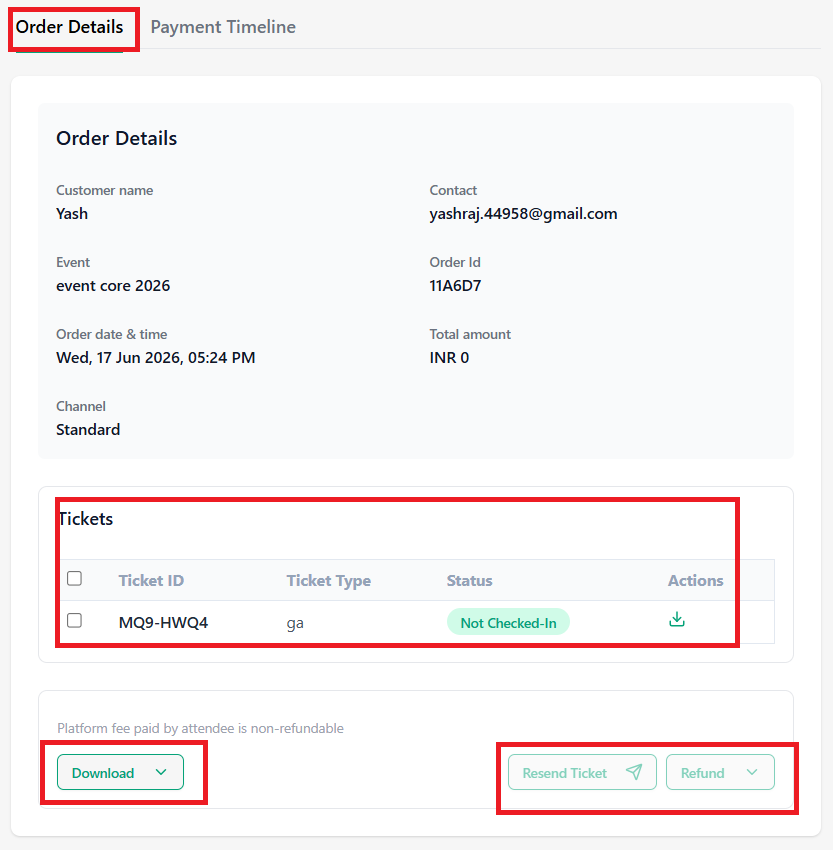
The Order Details section allows you to view order information, download tickets, resend tickets, and process refunds or cancellations.
Download Tickets and Documents
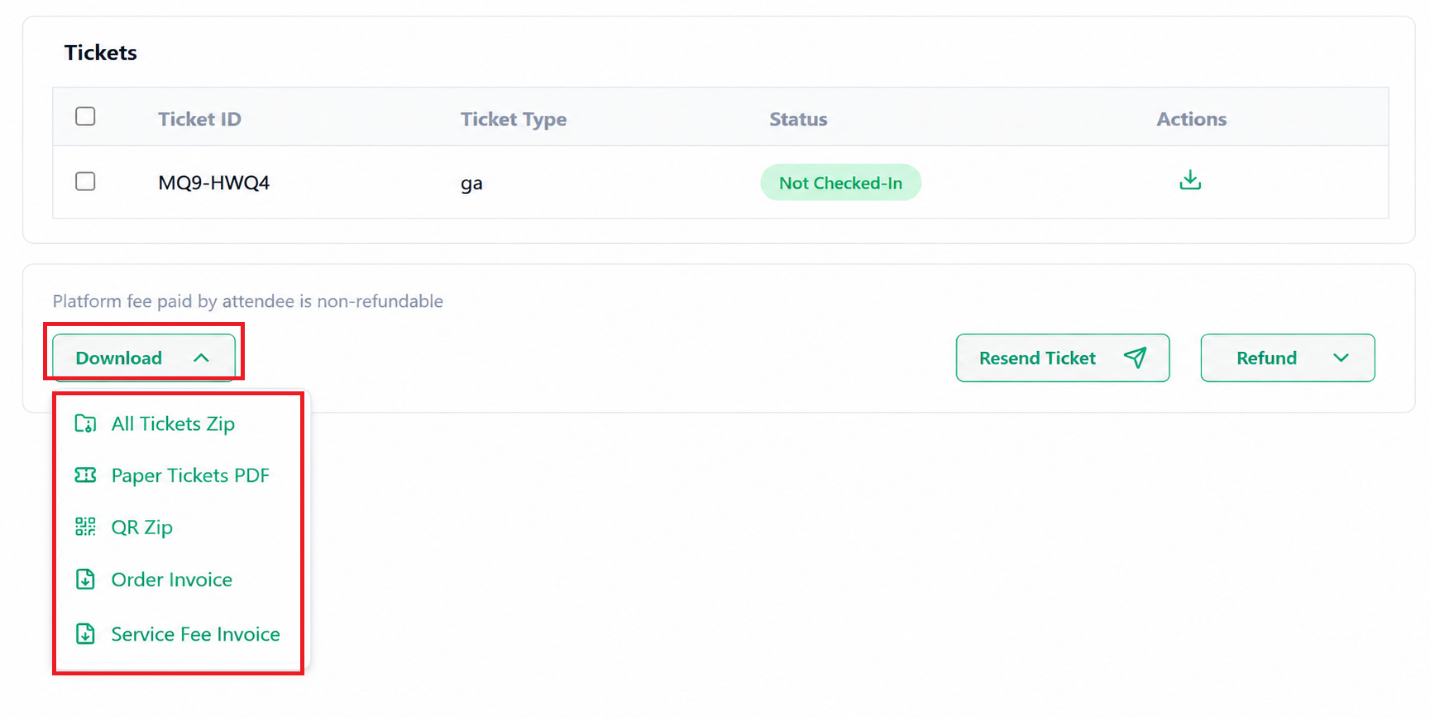
Select individual tickets if you want to download specific tickets, or click Download to download all tickets as a ZIP file.
Available download options:
☐ Paper Tickets PDF • QR Code ZIP • Order Invoice • Service Fee Invoice
Resend Tickets
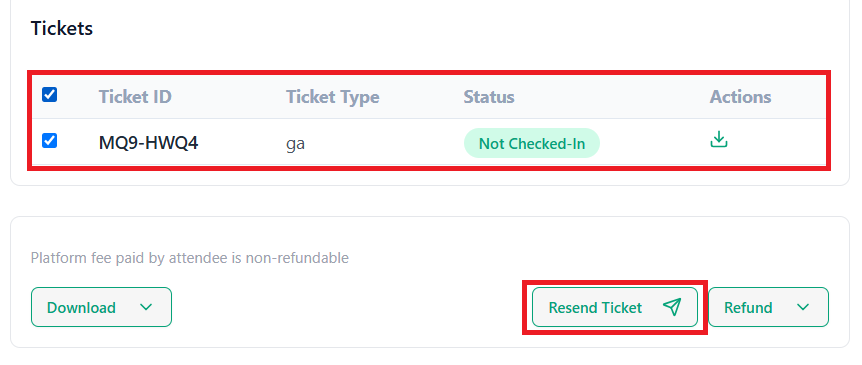
To resend tickets to the purchaser or ticket buyer:
Select the required ticket(s).
Click Resend Ticket.
The selected tickets will be sent to the purchaser’s registered email address.
Refund and Cancellation Options
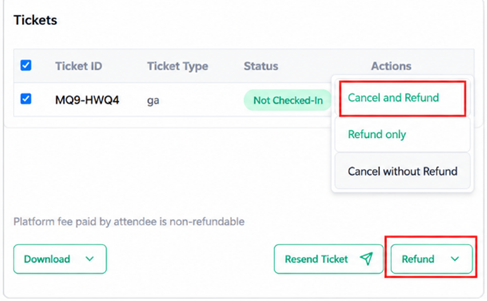
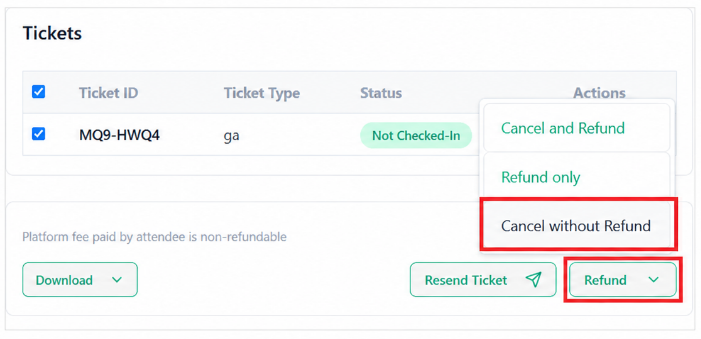
Select a Ticket ID and click Refund to access the available refund and cancellation actions.
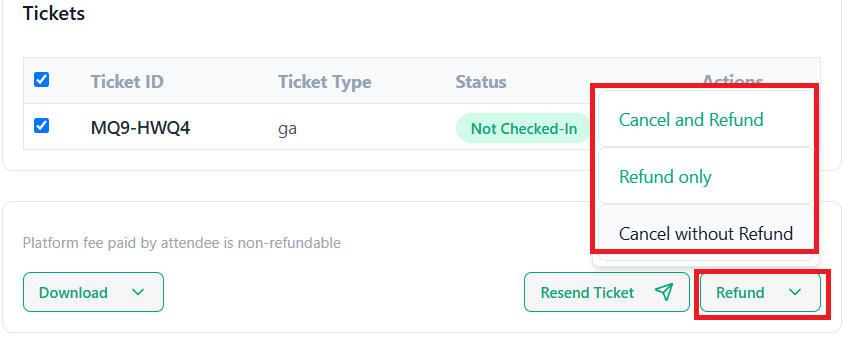
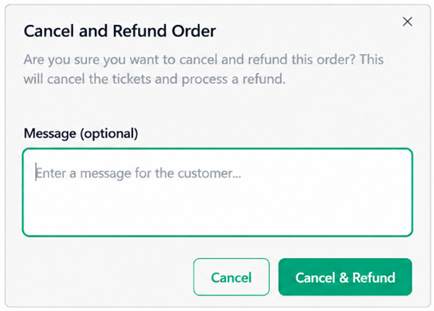
Cancel and Refund
Review the displayed instructions and enter an optional message for the purchaser.
Click Cancel and Refund and Confirm the action to proceed.
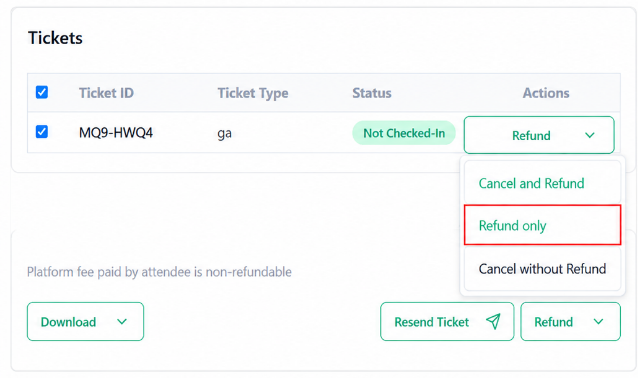
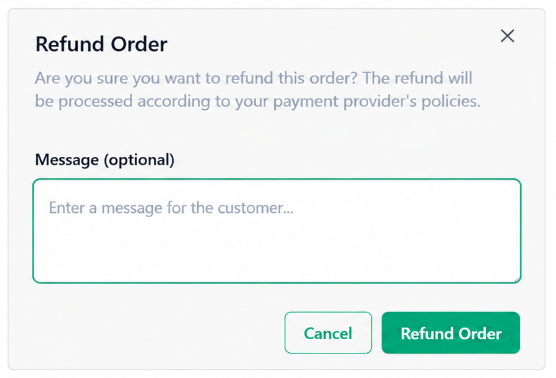
Refund Only
Review the displayed instructions and enter an optional message for the purchaser.
Click Refund Order and Confirm the refund request.
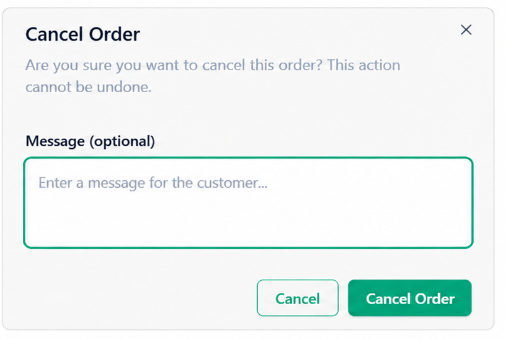
Cancel Without Refund
Review the displayed instructions and enter an optional message for the purchaser.
Click Cancel Order and Confirm the cancellation request.
2. Payment Timeline
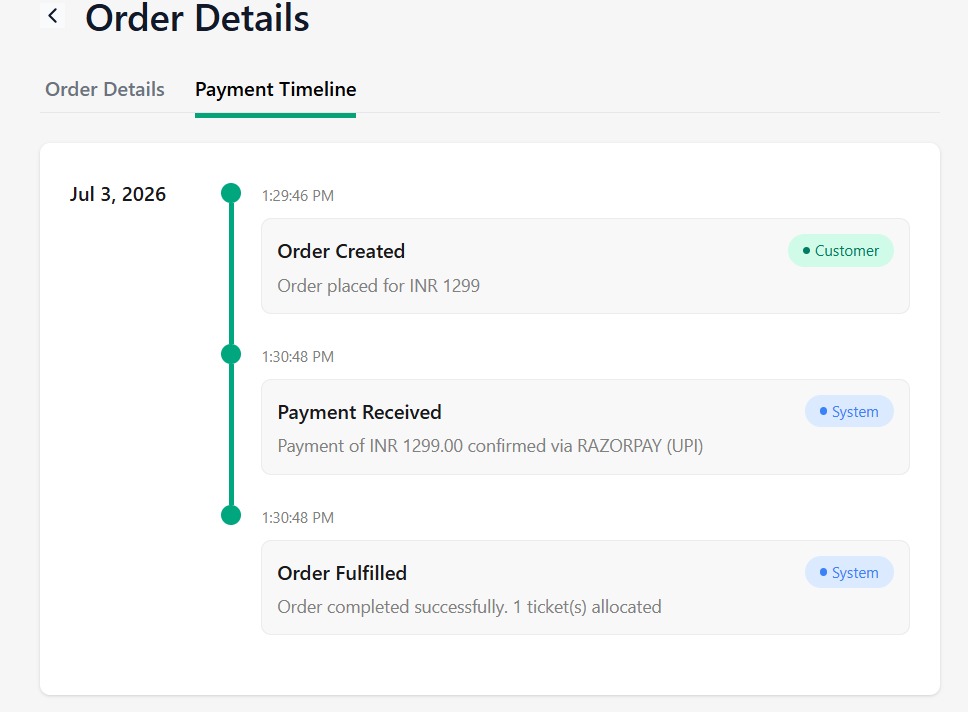
The Payment Timeline section provides a history of order processing events.
You can view:
☐ Order Created Date and Time
☐ Order Fulfilled Date and Time
This section helps track the order lifecycle from creation to fulfillment.
Benefits of Using Filters
Using filters helps organizers to:
☑ Track ticket sales effectively
☑ Monitor payment and approval statuses
☑ Identify refunded or cancelled orders
☑ Generate event-specific reports
☑ Analyze sales performance by channel
☑ Quickly locate customer orders
Notes
Multiple filters can be applied simultaneously for more precise results.
Click Apply after selecting filters to refresh the order list.
Clear filters to return to the complete order view.
Refund and cancellation actions may be subject to the event organizer’s refund policy.
Learn more about Ticmint Enterprise on the Ticmint website.
Was this article helpful?
That’s Great!
Thank you for your feedback
Sorry! We couldn't be helpful
Thank you for your feedback
Feedback sent
We appreciate your effort and will try to fix the article