This document provides a step-by-step guide to help organisers create and configure a Members Only Event using the Membership feature in the Ticmint Support Portal. This setup ensures that only users with a valid membership can access and purchase event tickets.
Step 1: Log in to the Dashboard
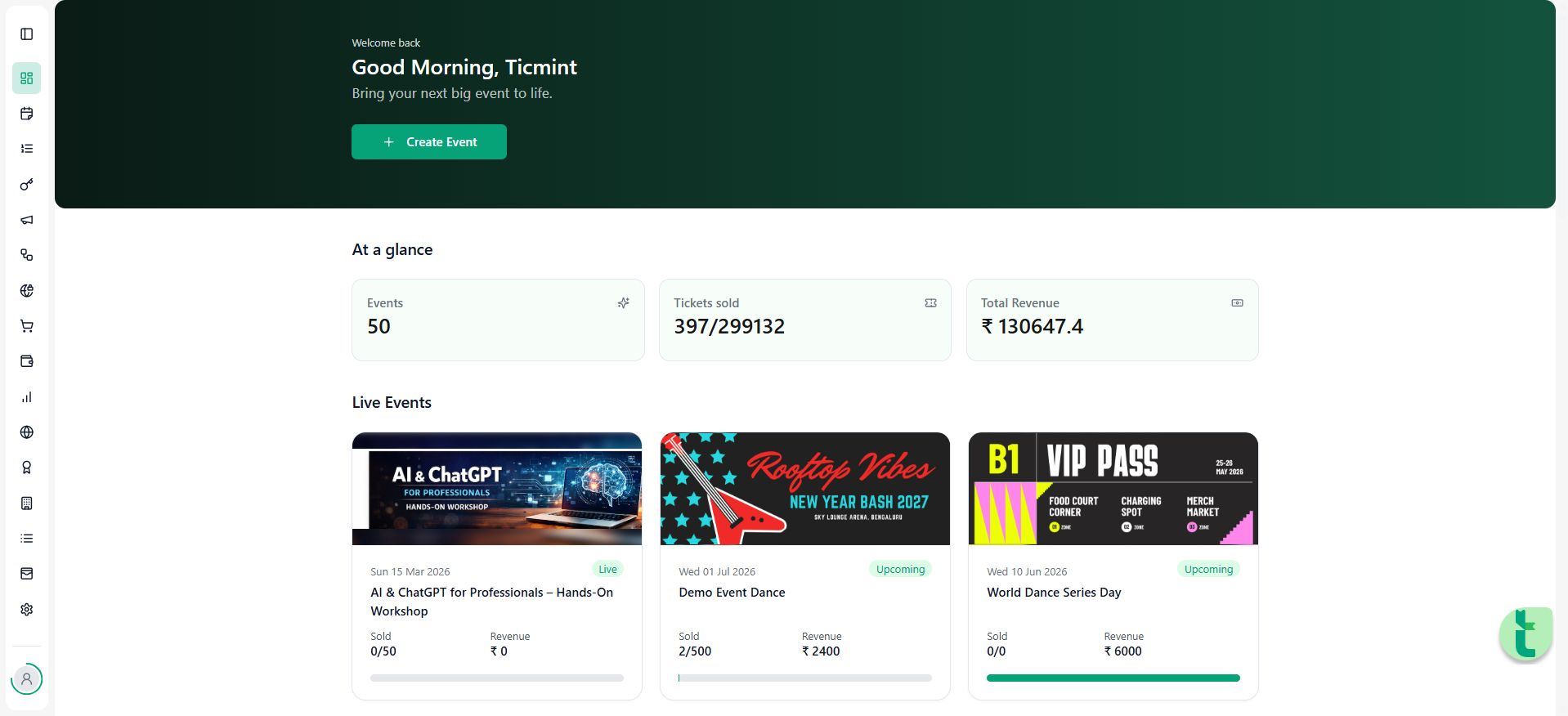
Sign in to the Ticmint Dashboard using your registered business email and password.
After successful login, you will be redirected to the Dashboard homepage.
From the left-hand side feature bar, you can access all modules, including:
Events
Membership
Orders
Finance
Theme
Step 2: Create a Membership
From the left-hand side menu, click on Membership.
Click on Create Membership.
Enter the Membership Details carefully.
Membership Information
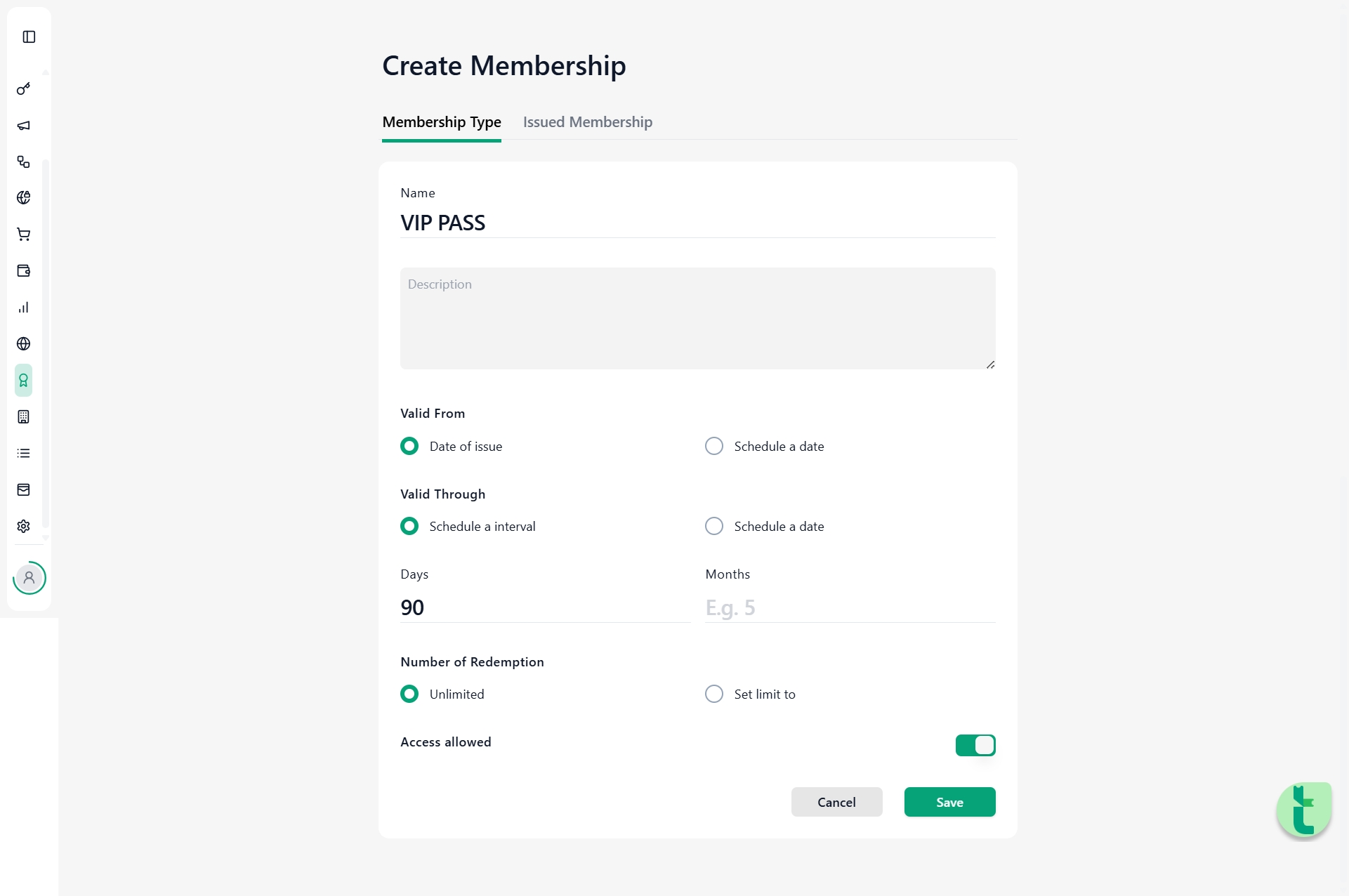
Membership Name
Enter the name of the membership type.
Example:
VIP Pass
Gold Membership
Premium Access
Description
Add a short description explaining the benefits of the membership.
Example:
This membership allows access to exclusive members-only events and ticket purchases.
Valid From
Select the start date from which the membership becomes active.
Valid Through
Select the expiry date of the membership.
Organisers can configure validity based on:
Days
Months
This helps control how long the membership remains active.
Number of Redemptions
Enter the number of times the membership can be used.
This controls how many times a member can access or redeem benefits using the membership.
Access Allowed
Enable the Access Allowed option.
When this setting is enabled:
Attendees who purchase the membership receive a QR code.
The QR code can be scanned for entry or validation at future members-only events.
This helps organisers verify valid memberships during event access.
Step 3: Create the Membership Landing Page Event
Before creating the members-only event, organisers must first create a Membership Purchase Event where attendees can buy the membership.
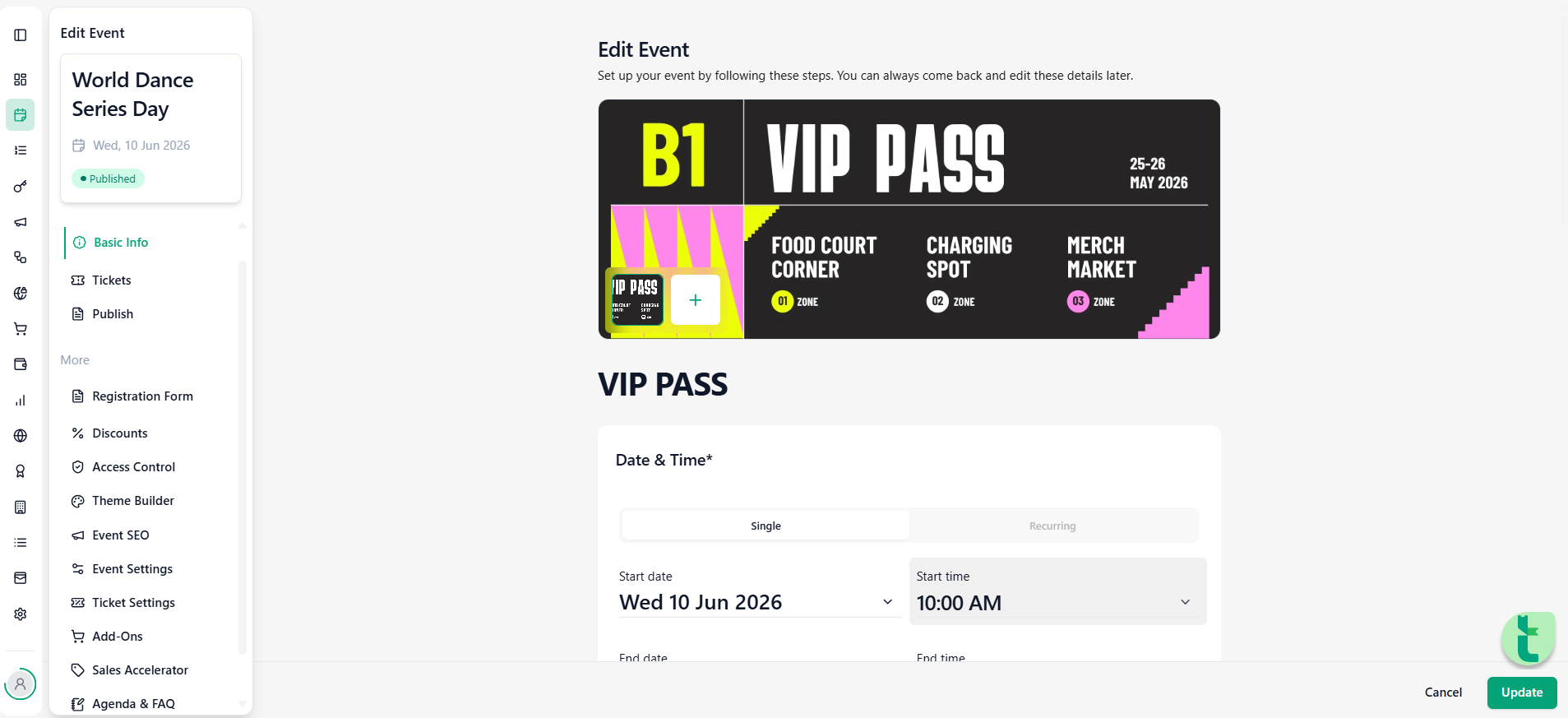
Create Membership Event
Go to the Events section.
Click on Create Event.
Enter:
Event Name
Date & Time
Description
Banner and event details
Example:
VIP Membership Pass
This event acts as the landing page where attendees purchase the membership before accessing members-only tickets.
Add Membership from Add-ons
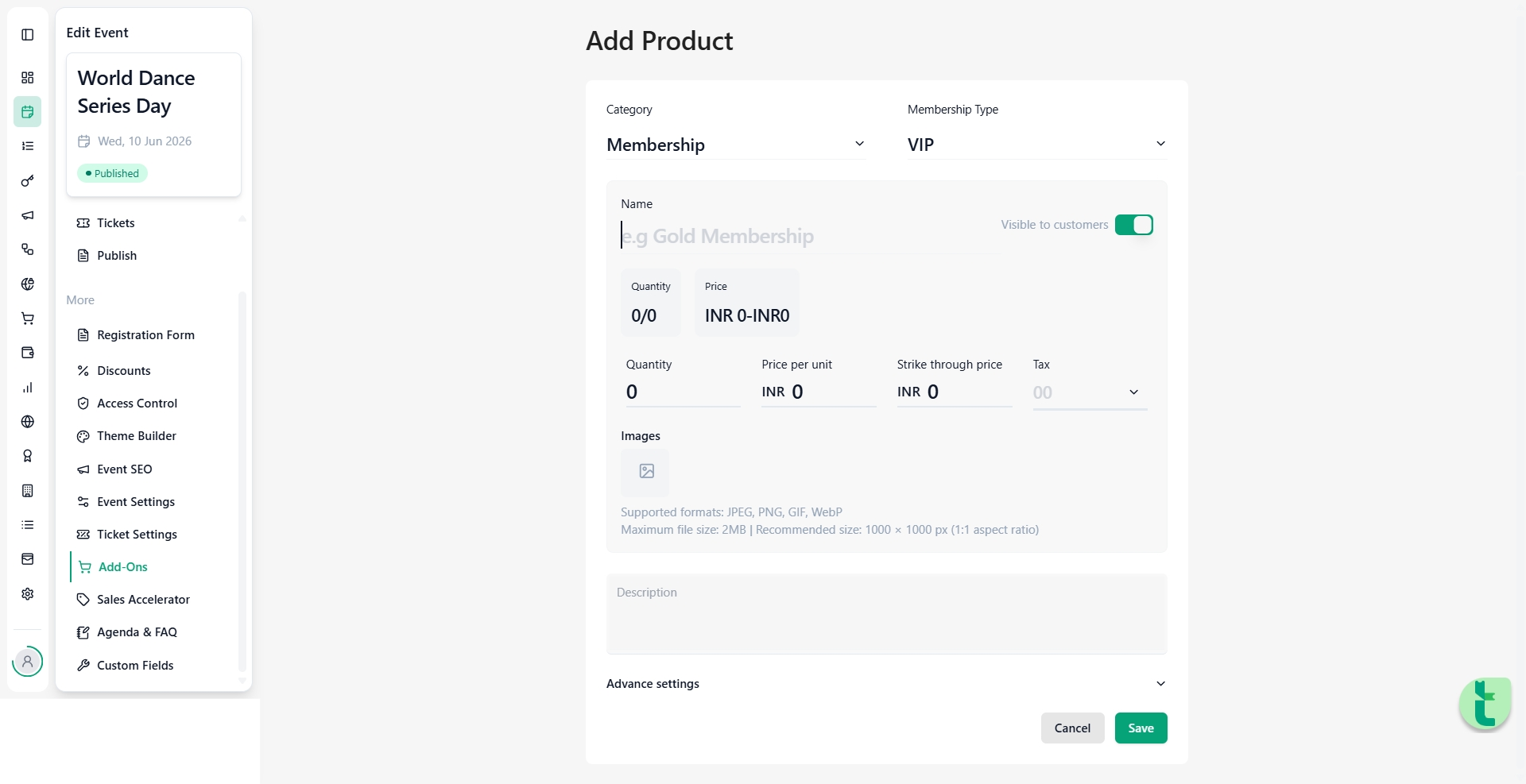
Open the created Membership Event.
Go to the Add-ons section.
Attach the membership created earlier.
This connects the membership purchase flow to the event.
Step 4: Create the Members Only Event
Now, create the actual event that should only be accessible to members.
Event Setup
Go to Events.
Click Create Event.
Enter:
Event Name
Event Date & Time
Event Location
Event Description
Create Tickets
Open the Tickets section.
Create the required ticket type.
Set:
Ticket Name
Price
Quantity
Save the ticket configuration.
Step 5: Enable Members Only Authentication
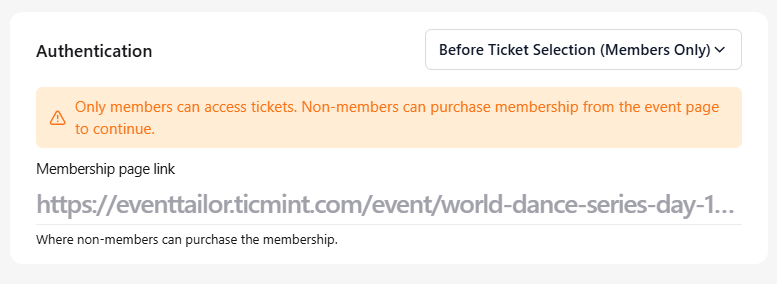
Open the event settings for the members-only event.
Navigate to the Authentication section.
Select:
“Before Ticket Selection (Members Only)”
This setting ensures:
Only members can access ticket selection.
Non-members must purchase a membership before proceeding.
Members Only Purchase Flow

When a non-member attempts to purchase a ticket, the system displays the following message:
“You're not a member yet. This event is for members only. Become a member to access the ticket.”
The attendee is then redirected to the Membership Event page to purchase the membership first.
Example:
https://eventtailor.ticmint.com/event/world-dance-series-day-18236
Once the membership purchase is completed:
The attendee becomes an active member.
They can return to the event page.
Ticket purchase access will then be enabled automatically.
Was this article helpful?
That’s Great!
Thank you for your feedback
Sorry! We couldn't be helpful
Thank you for your feedback
Feedback sent
We appreciate your effort and will try to fix the article