After creating your event and adding tickets, you can publish the event by following the steps below.
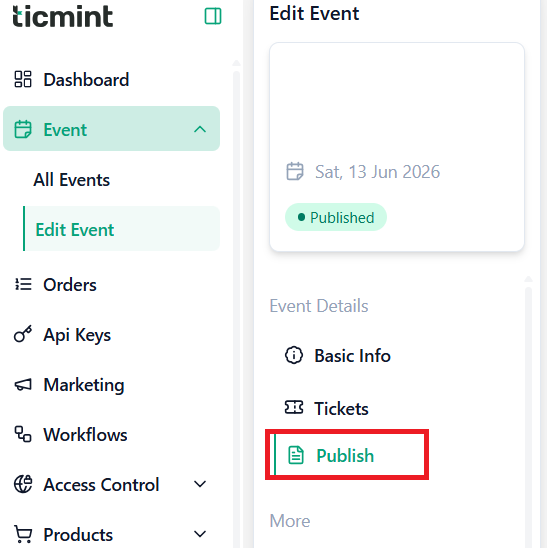
Accessing Event Publishing
You can publish an event in either of the following ways:
During event creation, click Publish.
After the event is created, select the event, click the three-dot menu (⋮), and choose Edit, then click Publish.
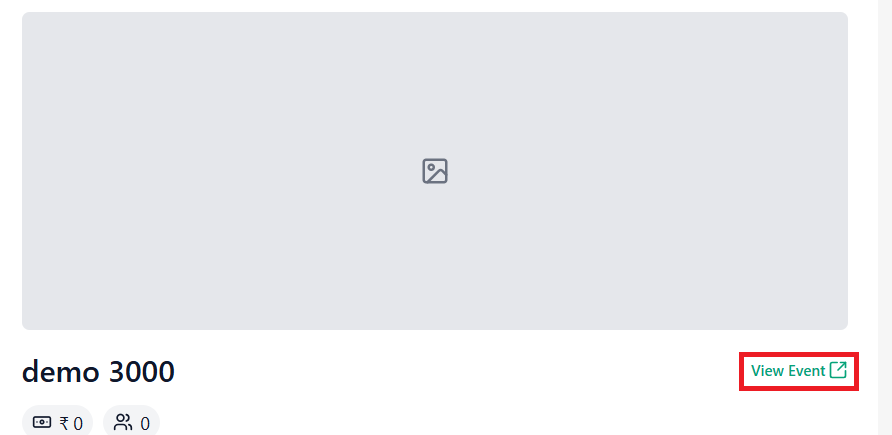
Preview Your Event
Before publishing, click View Event to preview how your event will appear to attendees.
Make sure the following are configured correctly before publishing:
Promo Codes
Add-ons
Ticket Upgrades
Validators (Check-in Management)
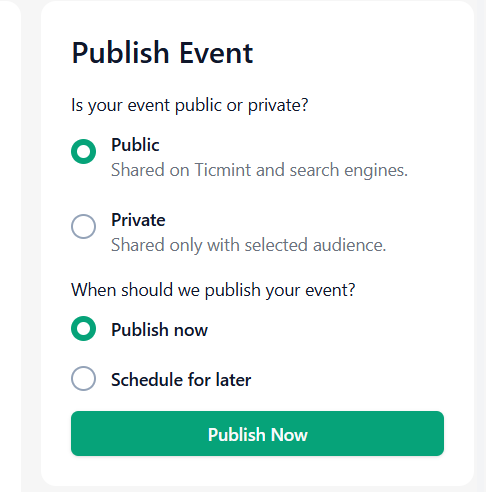
Publish Event
Choose Event Visibility
Public
Event will be listed on Ticmint.
Event can be discovered through search engines.
Private
Event will only be accessible to the selected audience.
Choose Publishing Time
Publish Now
Click Publish Now to make the event live immediately.
Schedule for Later
Click Schedule for Later and select the desired start date and time.
You can also enable Schedule Unpublish Date, which automatically unpublishes the event after the selected date and time.
Once configured, click Publish Later.
After Publishing
Your event can be shared through:
Event Link
QR Code
WhatsApp
Instagram
Facebook
X (Twitter)
You can also:
Send event invitations via email
Use the iFrame code to embed the event on your website
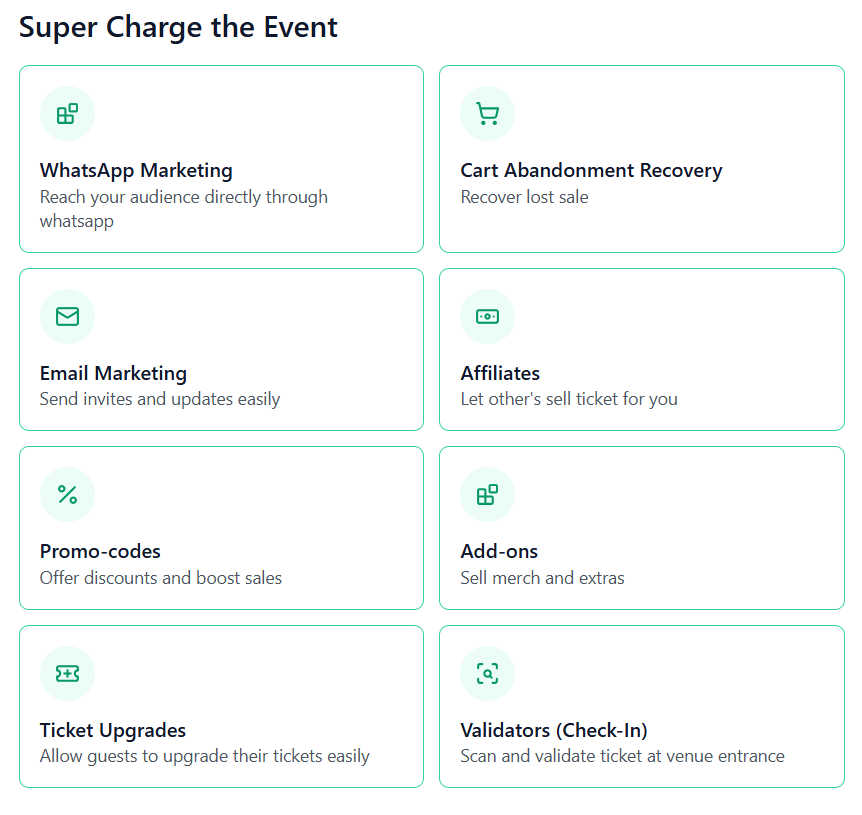
Supercharge Your Event
Enhance event performance using:
WhatsApp Marketing
Cart Abandonment Recovery
Email Marketing
Affiliate Programs
Promo Codes
Add-ons
Ticket Upgrades
Validators (Check-in Management)
Managing Published Events
You can click Publish Settings at any time to:
Unpublish the event
Modify publishing settings
Update visibility and scheduling options
Learn more about built-in event marketing on the Ticmint website.
Was this article helpful?
That’s Great!
Thank you for your feedback
Sorry! We couldn't be helpful
Thank you for your feedback
Feedback sent
We appreciate your effort and will try to fix the article