This document provides a step-by-step guide to editing and managing Access Control for an existing event on the Ticmint Support Portal. Access Control helps organisers manage ticket validation, restrict entry to authorised attendees, and assign validators to specific zones for smooth and secure event operations.
Overview
Access Control ensures that only authorised:
Ticket holders
Staff
Volunteers
can enter your event or restricted areas such as VIP zones, backstage sections, or staff-only areas.
Key components of Access Control include:
Validator Groups
Validators
Access Rules
Access Zones
Step 1: Access the Access Control Module

Log in to your Ticmint Dashboard.
Open Events and select the event you want to manage.
From the left-side menu, scroll to the More section.
Click Access Control.
You will be taken to the Access Control configuration screen.
Step 2: Edit Validator Groups
Purpose
Validator Groups help you organise validators by entry gate, zone, or responsibility.
View or Edit a Validator Group
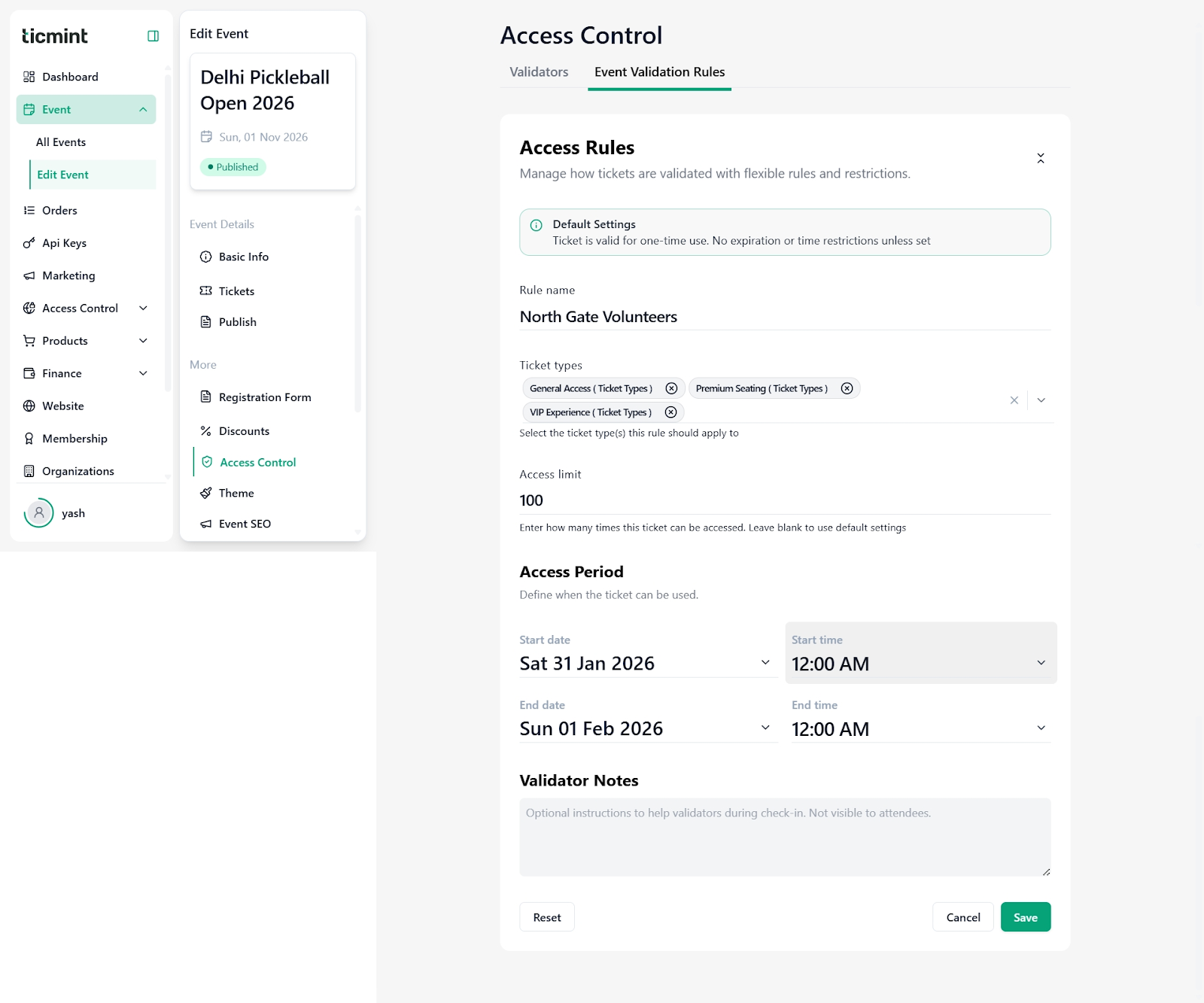
Switch to the Validator Groups tab.
Locate the group you want to edit (e.g., North Gate Volunteers).
Click the Edit (✏️) icon.
Update:
Group Name
Assigned validators
Use the search box to add or remove validators.
Click Save to apply changes.
Step 3: Add or Remove Validators from Groups
Edit Validators in a Group
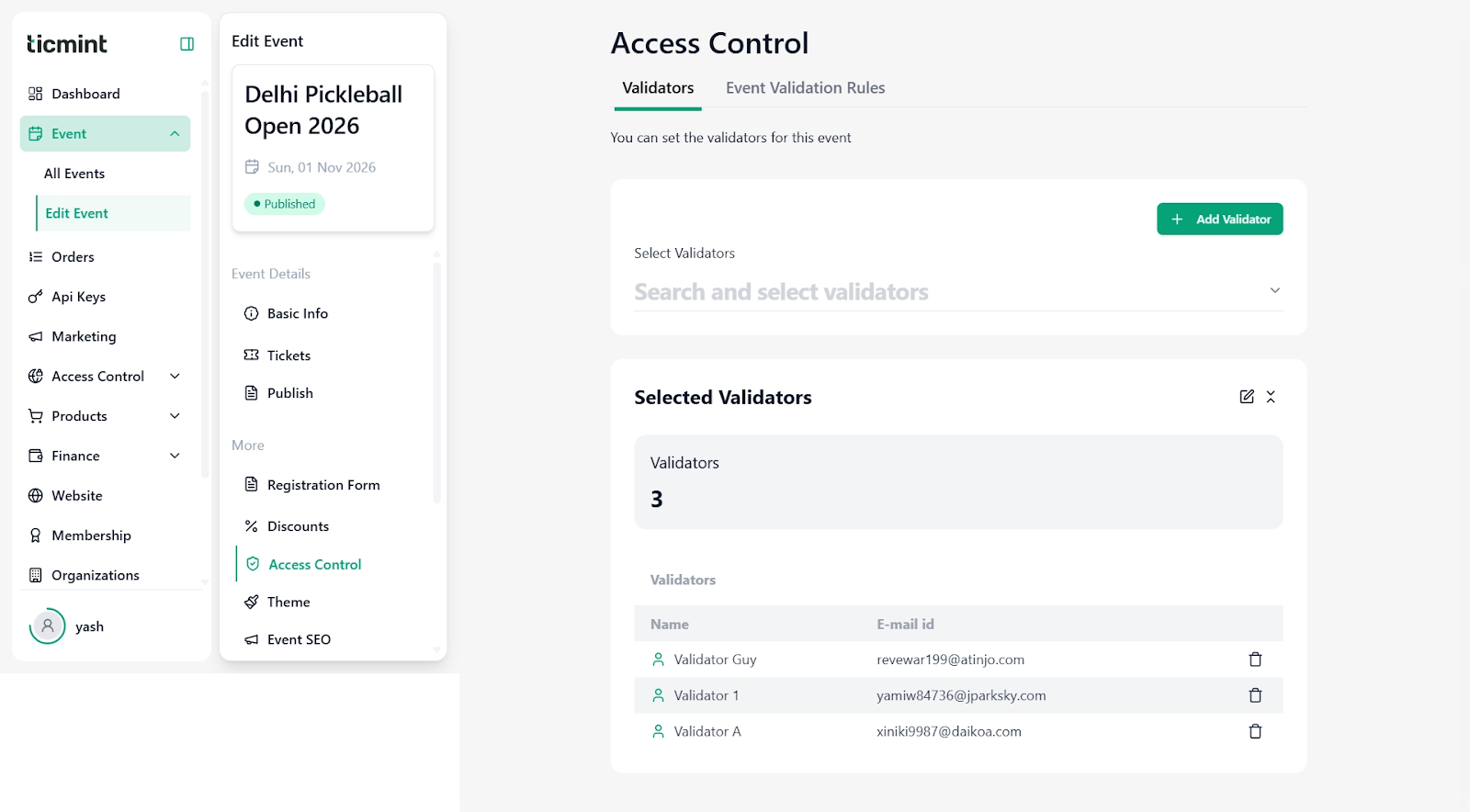
Click Select Validators.
Search validators by name or email.
Assign them to the required group.
Set their status as Active or Inactive.
Remove validators using the Delete (?️) icon if required.
⚠️ Ensure only trained staff or volunteers are assigned validator access.
Step 4: Edit Access Rules
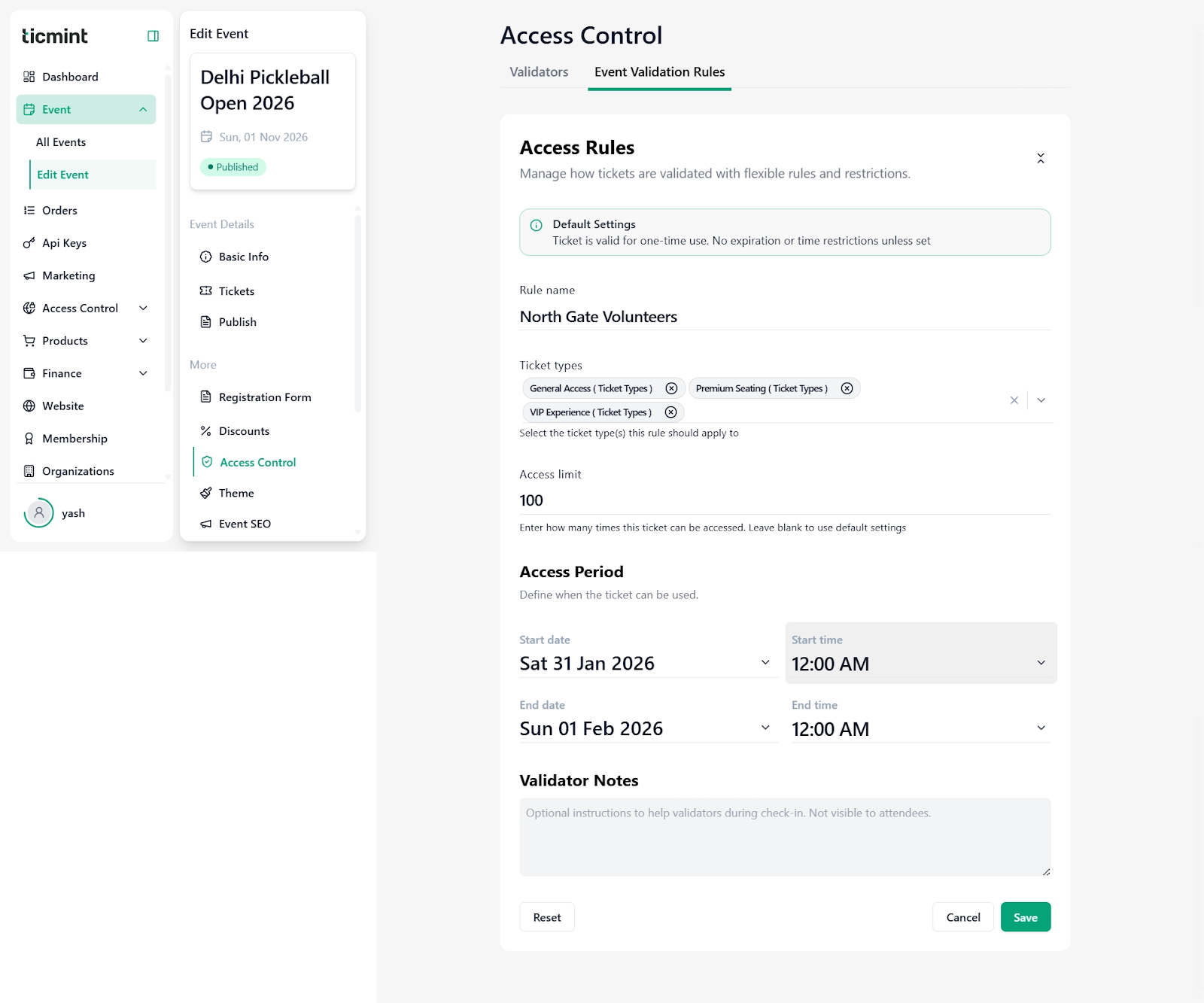
Purpose
Access Rules define how and when tickets can be validated.
Steps to Edit an Access Rule
Navigate to the Event Validation Rules tab.
Locate the rule you want to edit.
Click the Edit (✏️) icon.
Update the following as needed:
Rule Name (e.g., VIP Entry Only)
Applicable Ticket Types
Access Limit (number of scans allowed)
Access Period (start and end date/time)
Validator Notes (internal instructions)
Click Save to activate changes or Reset to discard them.
Step 5: Review Default Validation Settings
By default, tickets are valid for one-time use.
Tickets have no expiry or time limits unless custom rules are applied.
Review default settings before event day to avoid entry issues.
Step 6: Event-Day Operations
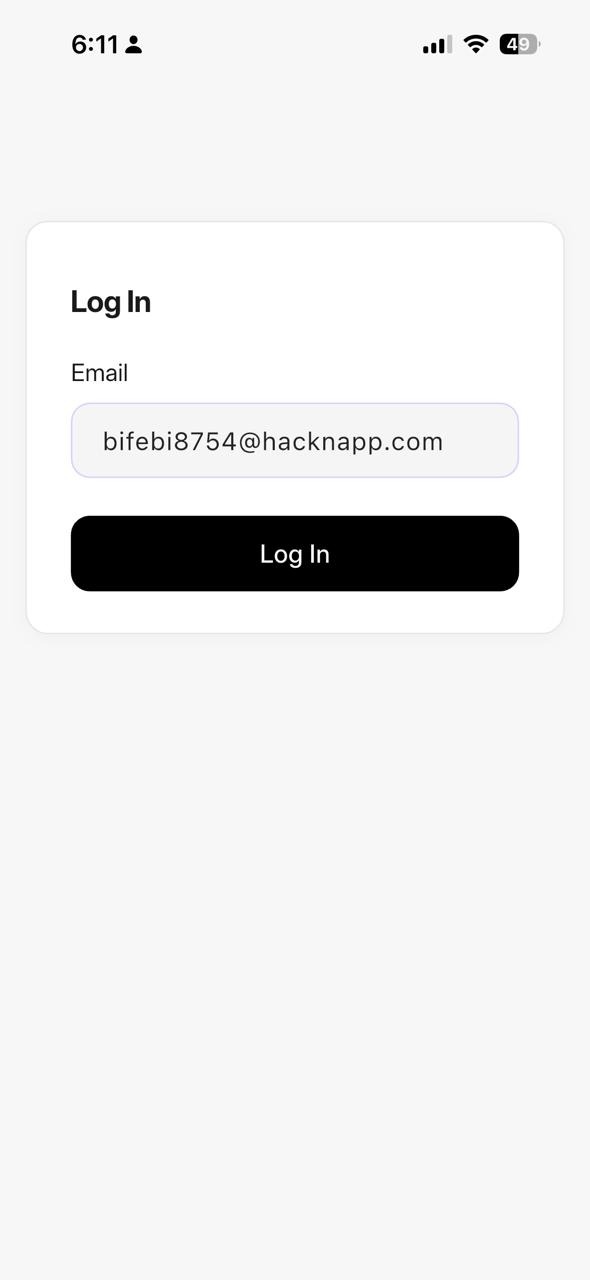
Validators log in via the Ticmint platform or mobile app.
Tickets are scanned and validated at assigned access points.
All access rules are enforced automatically in real time.
Ensure validators understand:
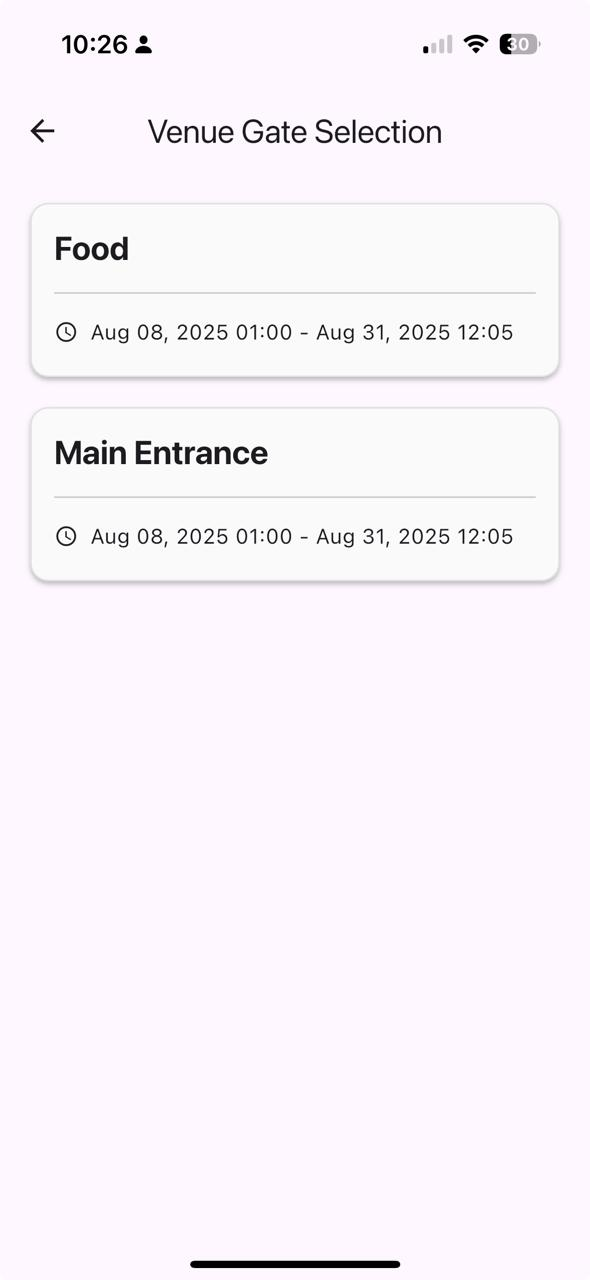
Which zone are they assigned to
Which ticket types can they validate
What to do in case of scan errors
Best Practices & Tips
Assign validators by zone or gate for clarity
Use stricter rules for standard tickets and flexible rules for VIPs
Apply time-based access rules for session-based or timed-entry events
Add clear validator notes (e.g., ID checks required)
Monitor access logs during the event to quickly spot issues
Need Help?
If you face any issues while editing Access Control:
Refresh the page and retry
Ensure validators are active and assigned correctly
Review access rules for conflicts
Contact Ticmint Support with your event name and screenshots for faster assistance
Was this article helpful?
That’s Great!
Thank you for your feedback
Sorry! We couldn't be helpful
Thank you for your feedback
Feedback sent
We appreciate your effort and will try to fix the article