The Ticmint RSVP feature enables organisers to manage invitation-only events easily. Instead of selling public tickets, organisers can send personalised invitations, create guest lists, track confirmations, and manage attendance—all from one dashboard.
This guide walks you through the entire process: enabling RSVP, creating lists, sending invitations, and monitoring guest responses.
1. Enabling RSVP for an Event
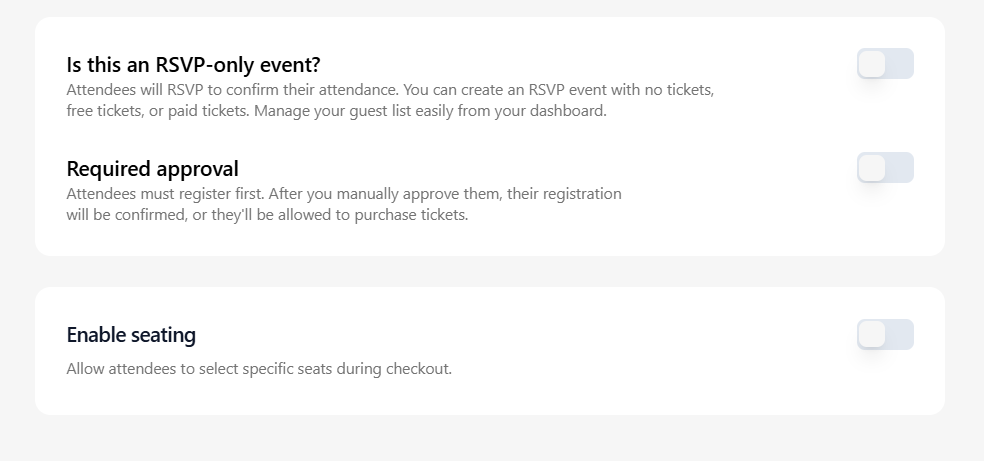
Steps:
Log in to your Ticmint Dashboard.
Navigate to All Events.
On the right side of the event, click the three dots.
Select Edit.
Scroll down until you find the option:
“Is this an RSVP-only event?”
Toggle this option ON.
What This Does:
Disables regular ticket sales.
Restricts access to guests only.
Activates RSVP features on the event’s public page.
2. Accessing the RSVP Invitation Panel
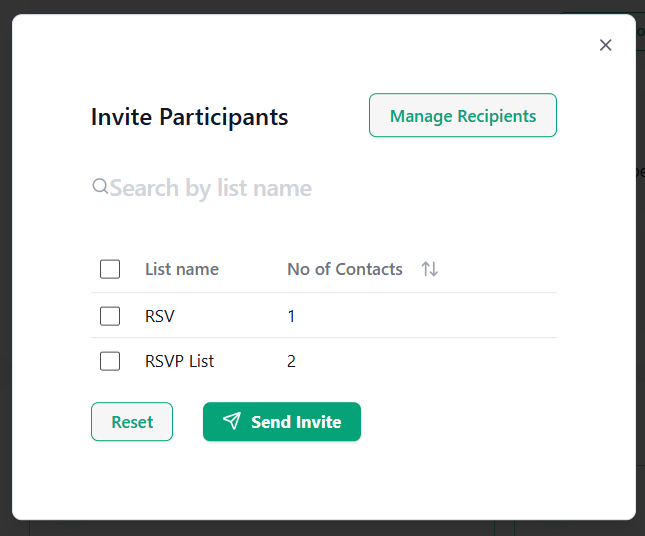
Steps:
Inside the event, click on the Publish tab.
Scroll down to find the Invite Participants section.
Click Send Invites to open the invitation popup.
This is where you’ll manage your guest lists and send emails.
3. Creating an RSVP List
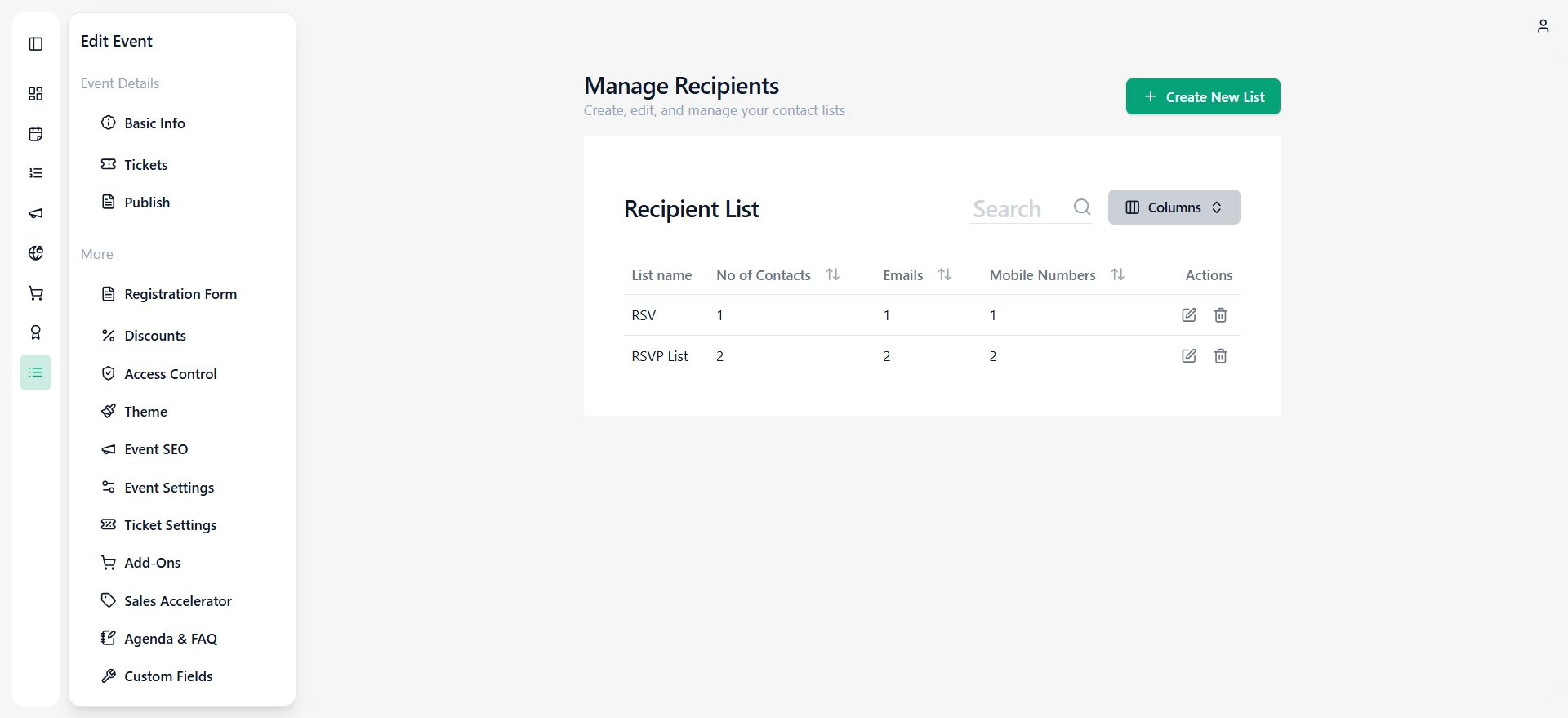
to keep your attendees organised, you can create multiple RSVP lists—for example, VIP, Sponsors, Media, or Family.
Steps:
In the invitation pop-up, click Manage Recipients.
You will be redirected to the RSVP List Management page.
Click Create List.
Give the list a clear name (e.g., “VIP Guests”, “Corporate Partners”, “Family List”).
Click Create.
Your list is now ready for contacts.
4. Adding Contacts to an RSVP List
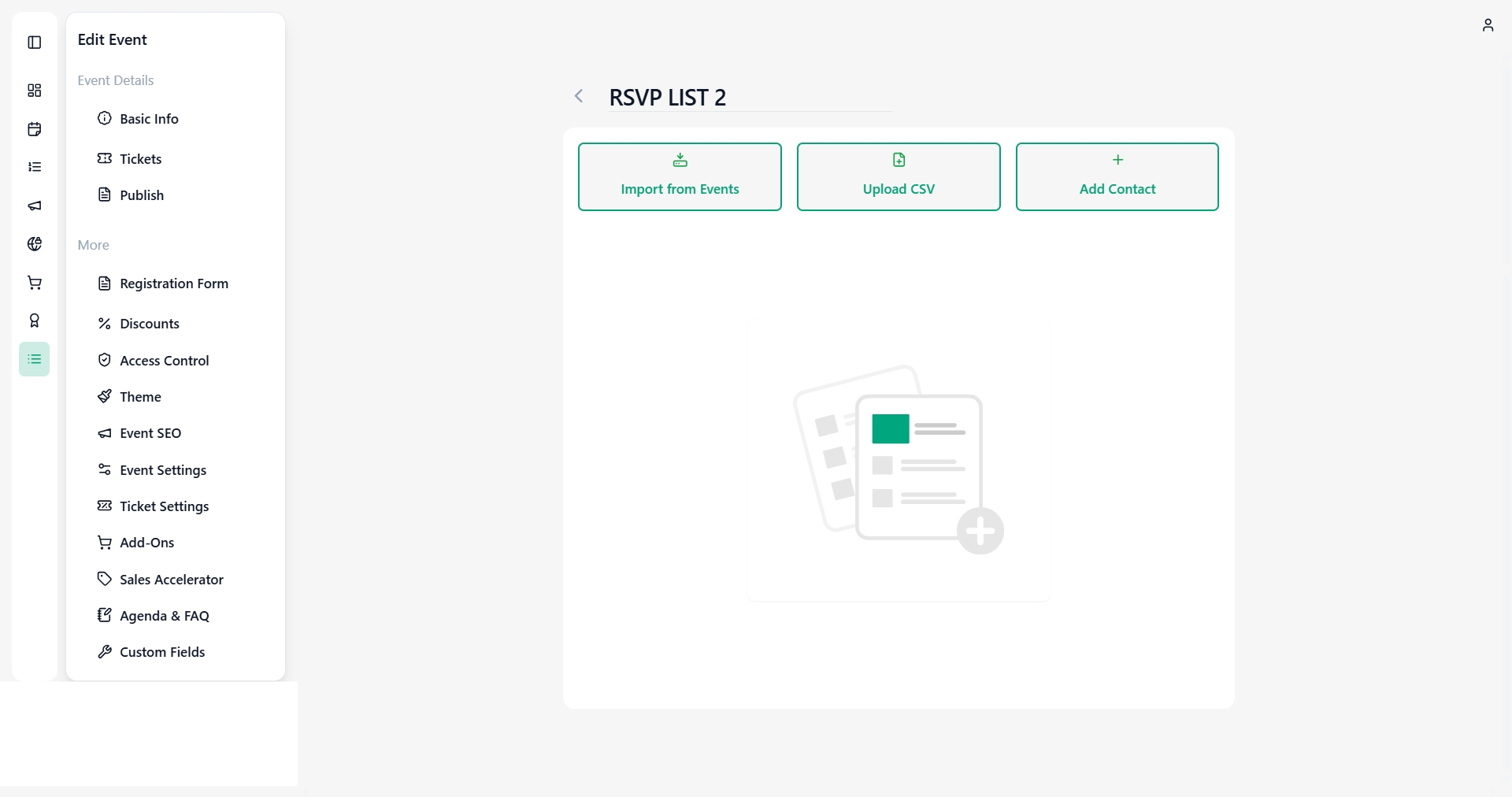
You can add recipients using three methods:
a) Add Contact Manually
Click Add Contact.
Enter the attendee details:
Name (optional)
Email address
Mobile number (optional)
Click Save Recipient.
b) Upload CSV File
Click Upload CSV.
Download and follow the sample template.
Upload your file to add multiple contacts at once.
c) Import from Past Events
Quickly reuse attendees from previous events.
5. Sending RSVP Invitations
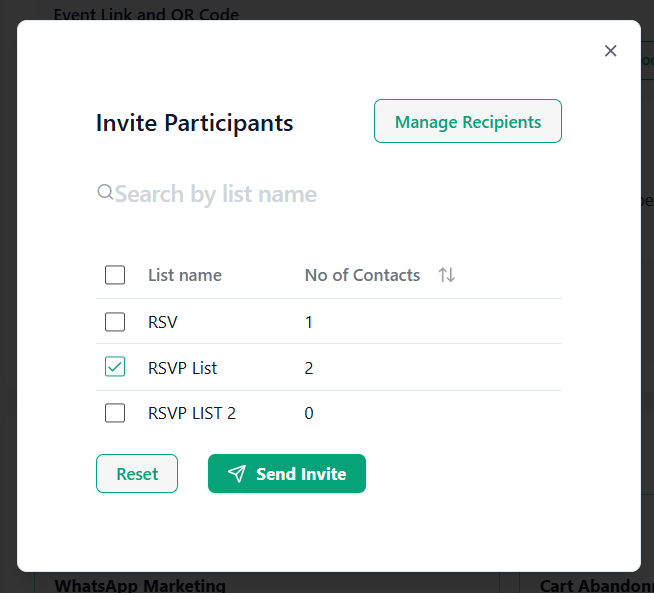
Steps:
Return to the Send Invites popup.
Select one or more RSVP lists by checking the boxes.
Click Send Invites.
What Happens Next:
Attendees receive an email with the “View Event Details” button.
The link directs them to the event page, where they can confirm attendance.
6. What Attendees See
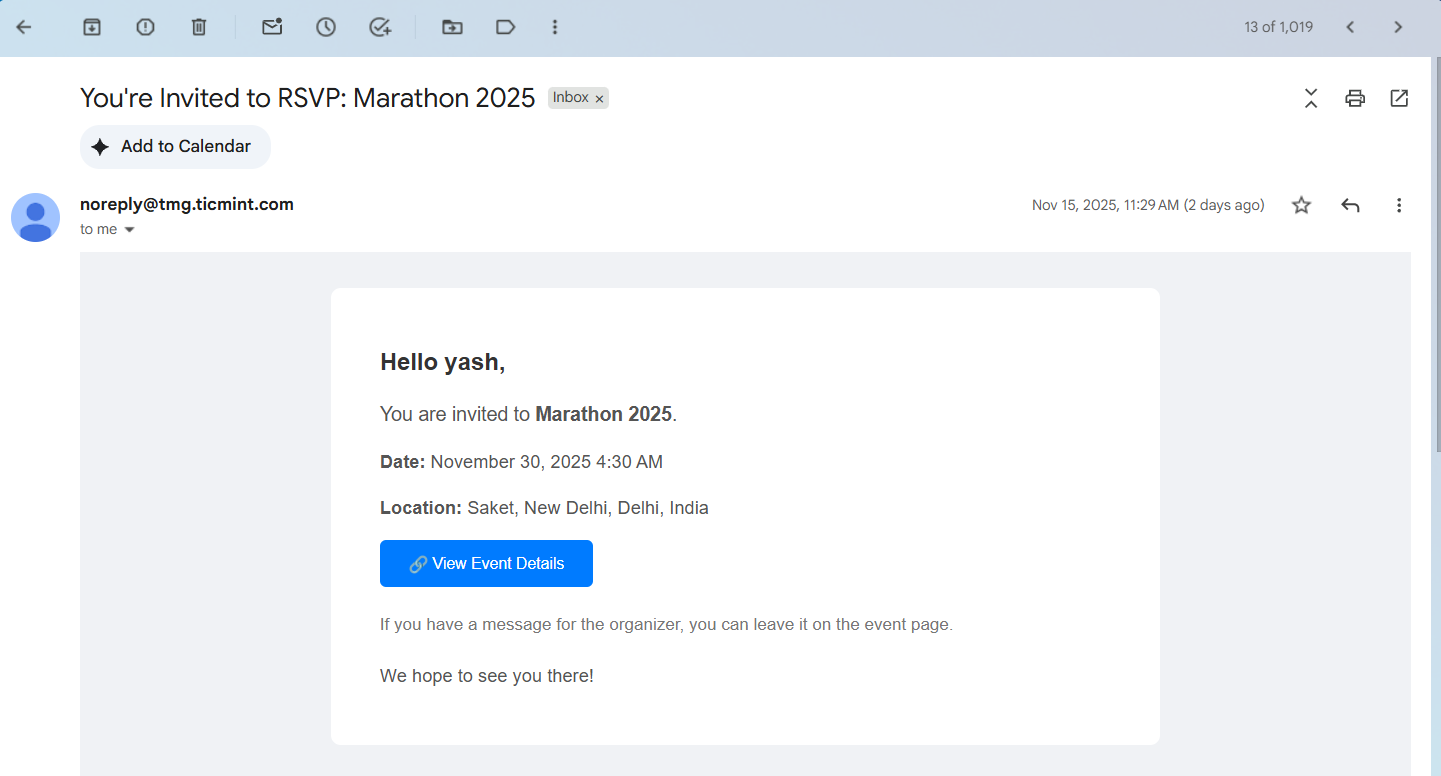
RSVP Email Includes:
Event name, date, and venue.
A button to View Event Details.
On the Event Page:
Guests see:
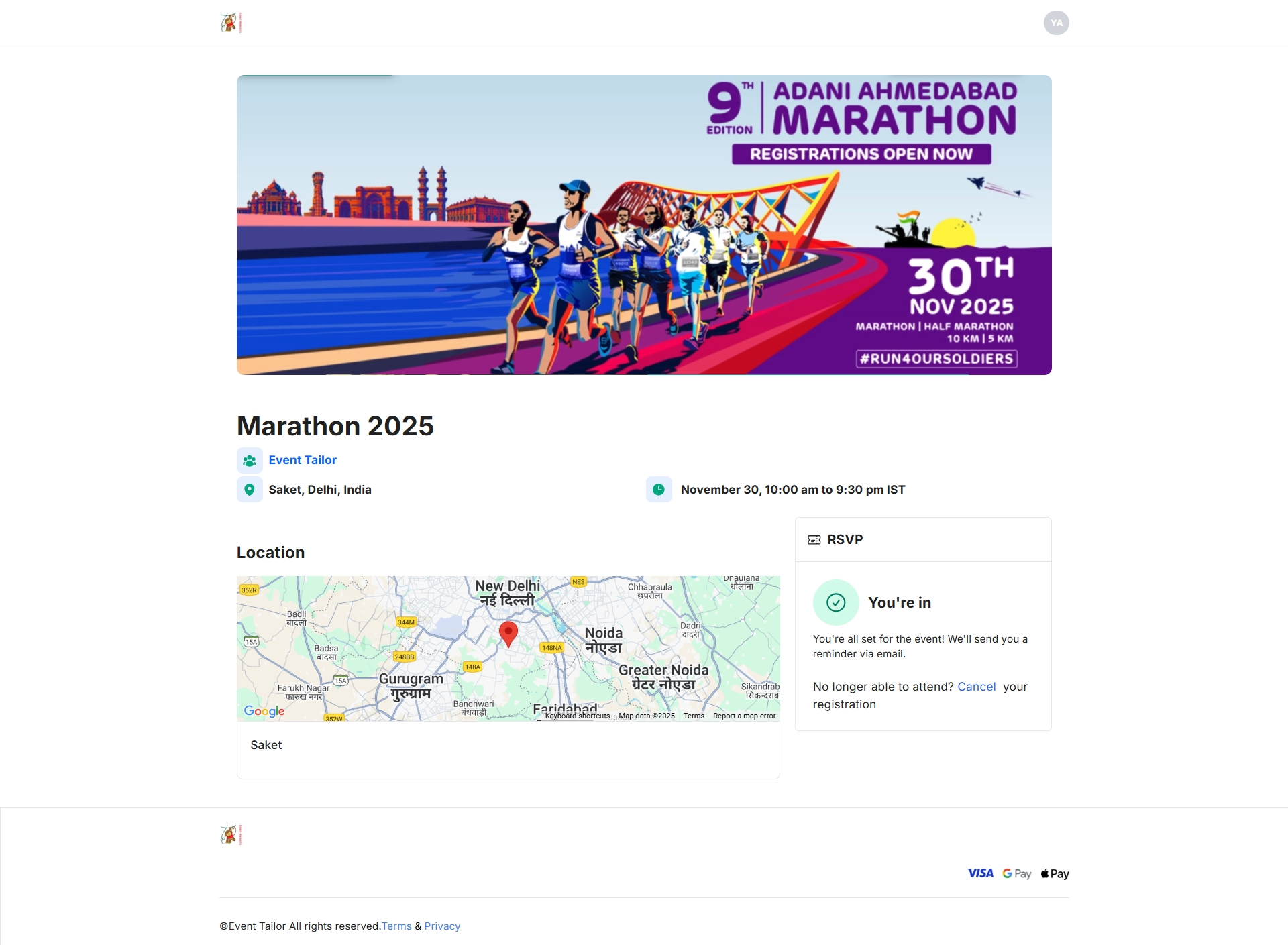
“You’re in” once their RSVP is confirmed.
Information about email reminders.
An option to cancel their registration if needed.
This keeps the experience simple and clear for attendees.
7. Tracking RSVP Responses
Steps:
Open your event dashboard.
Go to RSVP or Attendees.
You will see:
Confirmed attendees
Pending guests
Cancelled RSVPs
You can also export your guest list for onsite verification or staff use.
8. Managing RSVPs Manually
Organizers can manually update responses:
Mark a guest as confirmed.
Resend an invitation.
Add or remove contacts.
This is useful for last-minute changes or special cases.
9. Common Issues & Solutions
1. The guest did not receive the invite
Ask them to check spam, junk, or promotions folders.
Ensure the email address is correct.
Resend the invite.
2. Guest faces errors when clicking RSVP
Make sure RSVP mode is still enabled.
Confirm the event is published.
3. Guest wants to cancel their RSVP
They can cancel directly from the event page.
Or you can update their status manually.
10. Best Practices for Organisers
Use clear and descriptive list names.
Always test by sending yourself an RSVP invite.
Schedule reminder emails 24–48 hours before the event.
Use CSV upload for large guest lists.
Keep RSVP mode enabled until the event concludes.
11. Summary
The Ticmint RSVP feature streamlines private event management from start to finish. With customizable lists, easy invitations, and real-time tracking, organizers can ensure a smooth and professional experience for every guest.
For additional help, contact support@ticmint.com.
Was this article helpful?
That’s Great!
Thank you for your feedback
Sorry! We couldn't be helpful
Thank you for your feedback
Feedback sent
We appreciate your effort and will try to fix the article