Ticket Settings
The Ticket Settings section allows organizers to configure ticket templates, pricing, order restrictions, upgrades, multi-currency pricing, convenience fees, and purchase rules.
Accessing Ticket Settings
Navigate to Ticket Settings
Navigate to Events.
Select the required event.
Click Edit.
For Existing Events
Select Edit Event.
Click Ticket Settings.
For New Events
Create a new event.
Complete the Basic Information section.
Navigate to Ticket Settings.
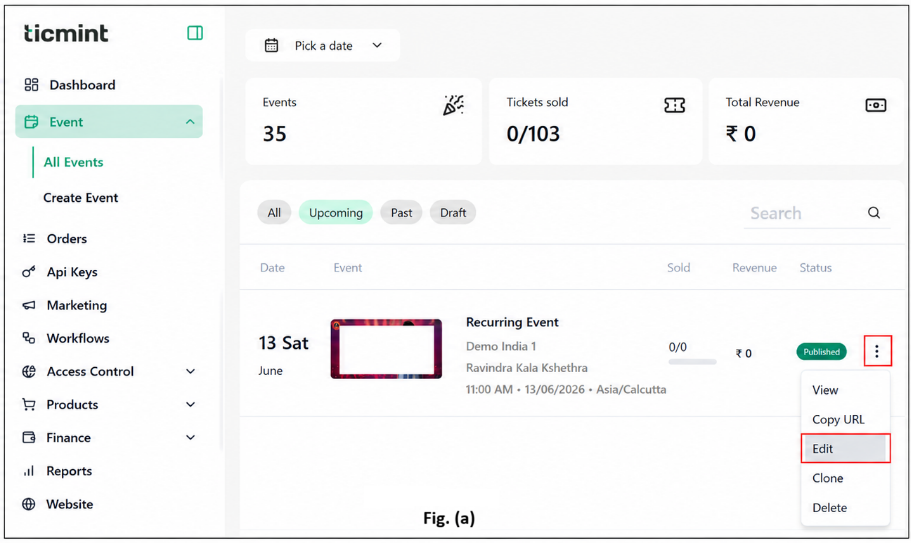
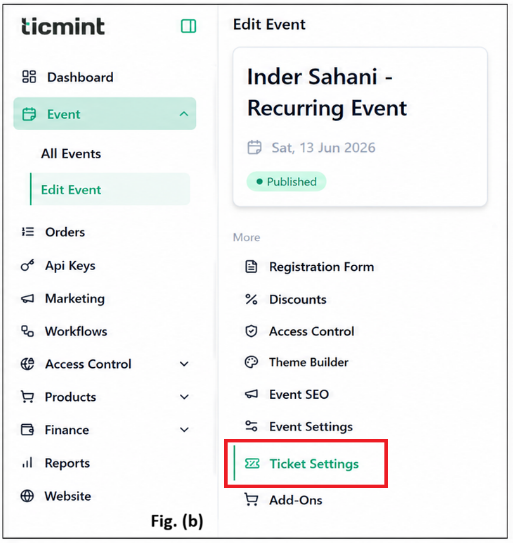
Ticket Template
The Ticket Template section allows you to customize both E-Tickets and Paper Tickets.
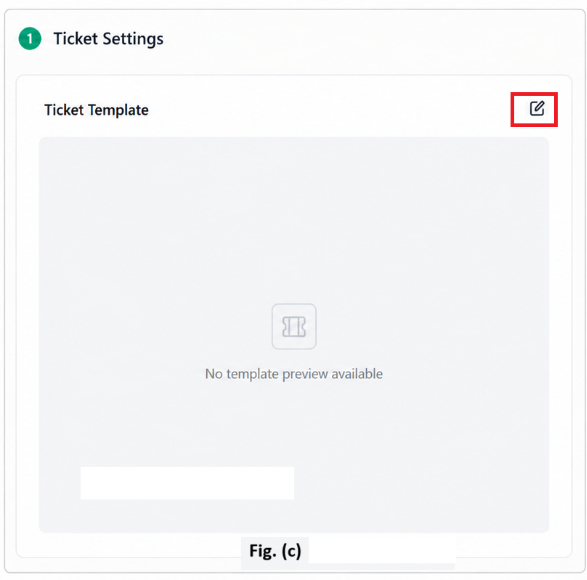
Edit E-Ticket Template
Click Edit under Ticket Template. Fig. (c)
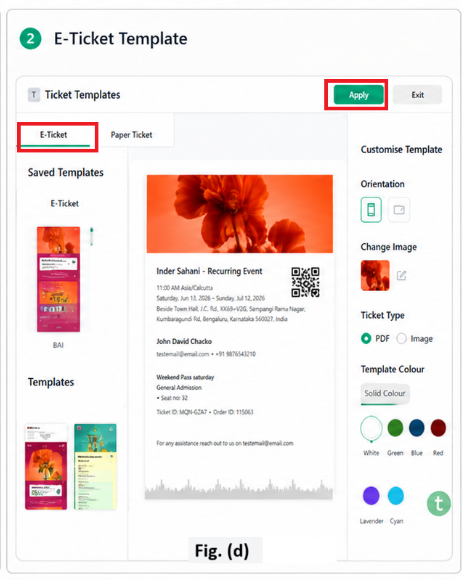
Configure Paper Ticket Fig. (d)
Customize the following options:
Template Orientation
Ticket Color
Ticket Type
Template Design
Click Save.
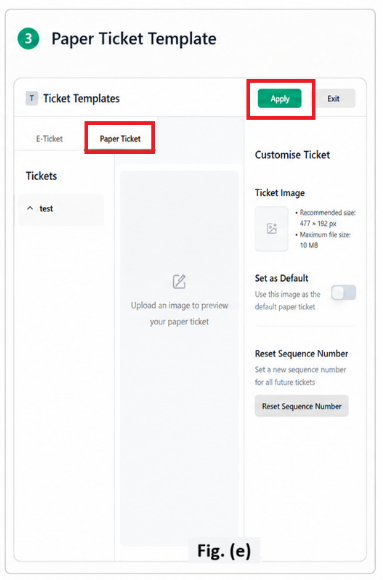
Configure Paper Ticket Fig. (e)
Click Paper Ticket.
Upload the required ticket image.
Enable Use this image as the default paper ticket if required.
Optionally click Reset Sequence Number. To Use this option to set a new sequence number for all future paper tickets.
Click Apply to save changes.
Ticket Settings
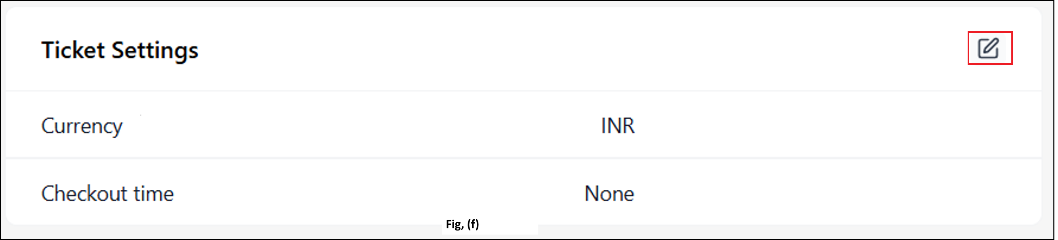
Configure the default ticket currency and checkout reservation time.
Edit Ticket Settings
Click Edit. Fig. (f)
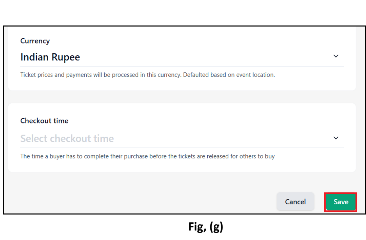
Select the required Currency.
Note: Ticket prices and payments will be processed in the selected currency. The currency is automatically defaulted based on the event location.
Select the Checkout Time from the dropdown. Fig. (g)
Checkout Time: The amount of time a buyer has to complete the purchase before reserved tickets are released back for sale.
Click Save. Fig. (g)
Order Settings
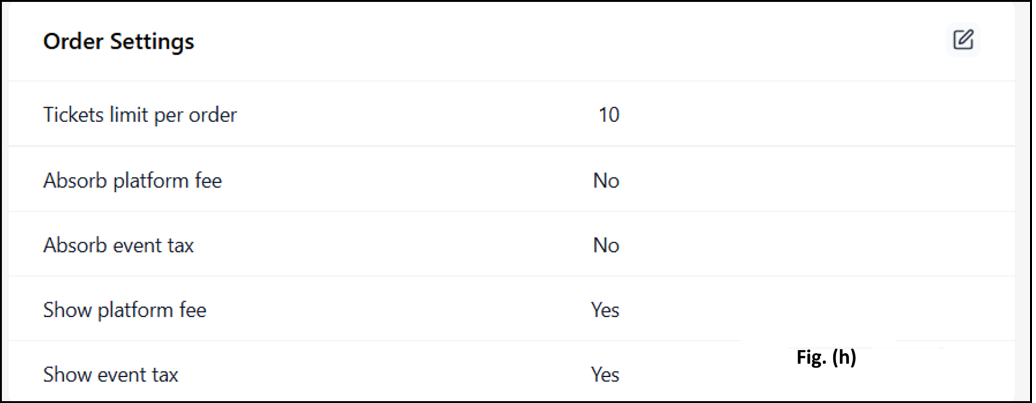
Order Settings control ticket purchase limits and fee visibility.
Click on Edit Fig. (h)
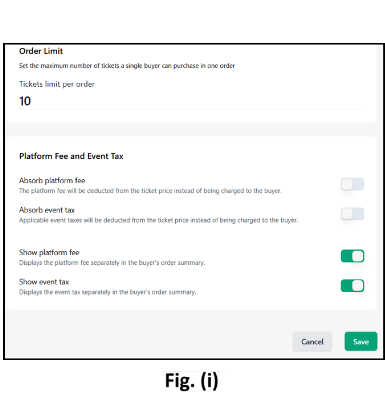
Order Limit
Set the maximum number of tickets that can be purchased in a single order.
Enter the Ticket Limit Per Order.
Platform Fee and Event Tax Fig. (i)
Configure how platform fees and taxes are displayed and charged.
Available Options
☐ Absorb Platform Fee
The platform fee is deducted from the ticket price instead of being charged separately to the buyer.
☐ Absorb Event Tax
Applicable event taxes are deducted from the ticket price instead of being charged separately.
☐ Show Platform Fee
Displays platform fees separately in the buyer’s order summary.
☐ Show Event Tax
Displays event taxes separately in the buyer’s order summary.
Click Save.
Ticket Upgrades
Ticket Upgrades allow attendees to upgrade their tickets by paying the price difference.
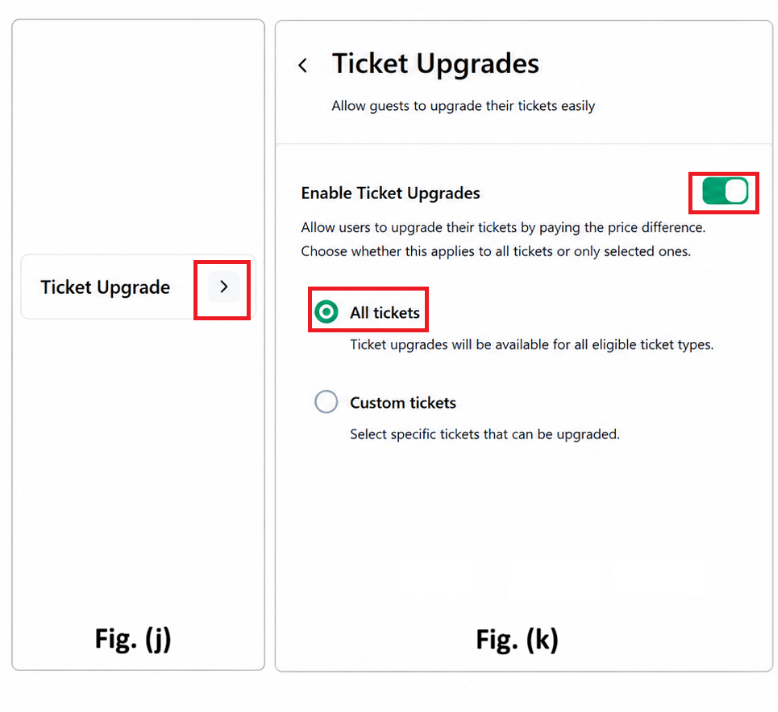
Click on Edit Fig. (j)
Enable Ticket Upgrades. Fig. (k)
Select the upgrade applicability.
Option 1: All Tickets Fig. (k)
Ticket upgrades will be available for all eligible ticket types.
☐ Apply to All Tickets
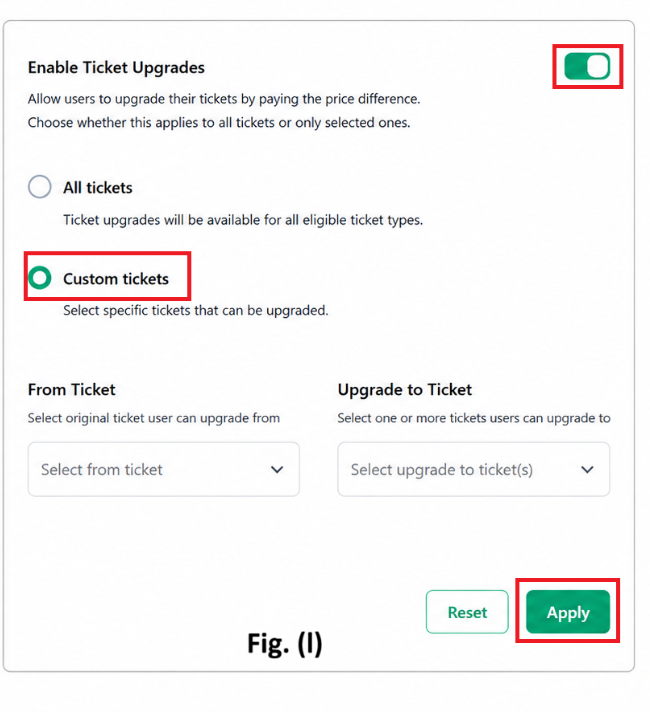
Option 2: Custom Tickets Fig. (l)
Select specific ticket types eligible for upgrades.
☐ Apply to Selected Tickets
Configure Upgrade Path
From Ticket
Select the original ticket users can upgrade from.
Upgrade To Ticket
Select one or more ticket types users can upgrade to.
Click Apply to save changes. Fig. (l)
Multi-Currency Pricing
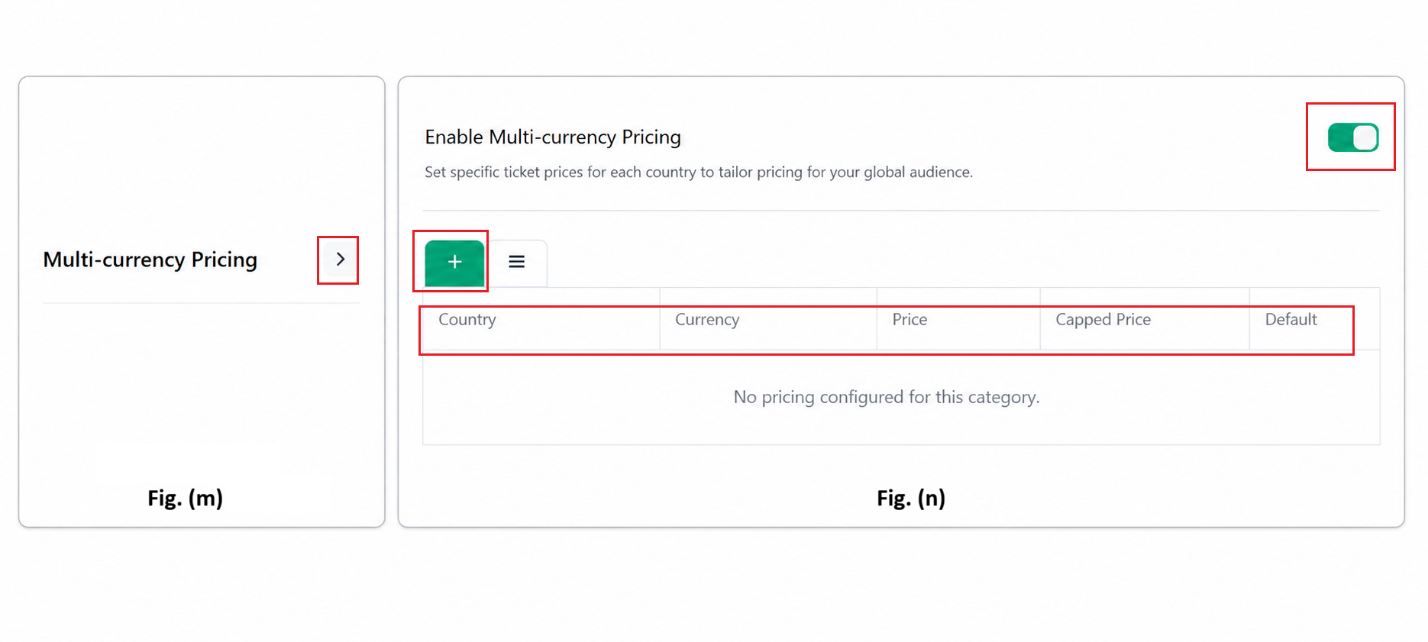
Multi-Currency Pricing allows organizers to display country-specific ticket prices.
Customers will see ticket prices based on their country, while all other buyers will see the default ticket price.
Configure Multi-Currency Pricing
Click on Edit. Fig. (m)
Enable Multi-Currency Pricing. Fig. (n)
Click + Add Country. Fig. (n)
Enter the details: Country name, Currency, Price, Capped Price, Default Fig. (n)
Convenience Fee
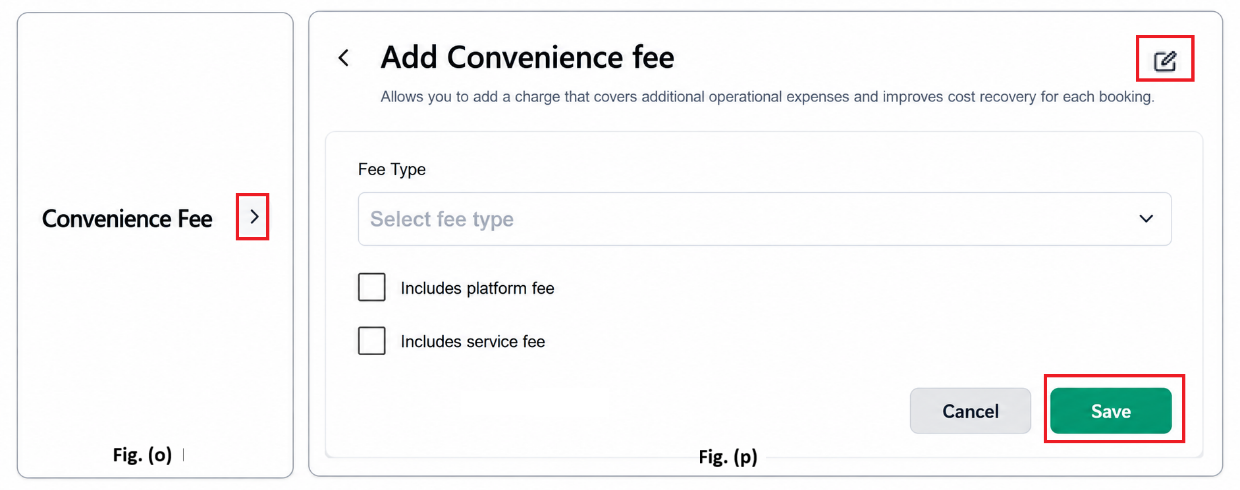
Convenience Fees help recover operational and processing costs.
Click Edit. Fig. (o)
Click Edit. Fig. (p)
Select the Fee Type and Enter the Fee Amount.
Configure the following options if required:
☐ Includes Platform Fee and Includes Service Fee
Click Save. Fig. (p)
Purchase Rules
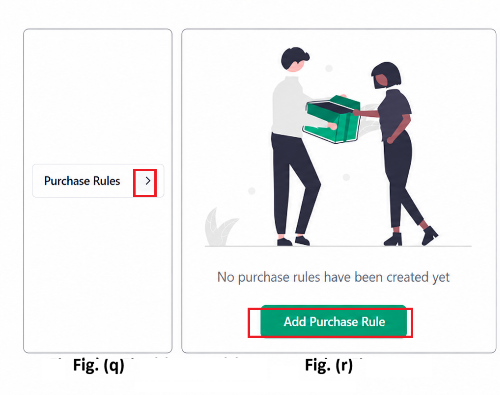
Purchase Rules allow organizers to define ticket purchase conditions.
Add Purchase Rule
Click Edit. Fig. (q)
Click Add Purchase Rule. Fig. (r)
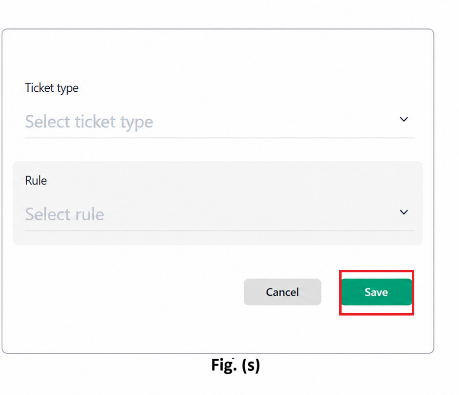
Select the required Ticket Type and Select the applicable Rule.
Click Save. Fig. (s)
Best Practices
Always preview your ticket template before publishing.
Use checkout time wisely to avoid ticket hoarding.
Clearly decide whether fees are absorbed or shown to buyers.
Enable ticket upgrades to increase average order value.
Use multi-country pricing for international audiences.
Need Help?
If you face any issues while configuring Ticket Settings:
Contact Ticmint Support via the support portal
Share your Event Name and Registered Email for faster assistance
Was this article helpful?
That’s Great!
Thank you for your feedback
Sorry! We couldn't be helpful
Thank you for your feedback
Feedback sent
We appreciate your effort and will try to fix the article