Introduction
This document provides a step-by-step guide to help organisers customise the visibility of the Date & Time and Host Name sections on the event page using the Theme Builder module in the Ticmint Dashboard.
These settings help organisers control what information is displayed to visitors on the event page and improve the overall presentation of event details.
Why These Settings Matter
The Show Date & Time and Show Host Name options help you decide which information should be visible on the event page.
Show Date & Time
This controls whether the event date and timing are displayed to users.
Benefits:
Helps attendees know when the event takes place
Improves event clarity
Reduces confusion for visitors
Show Host Name
This controls whether the organiser or host information is visible on the event page.
Benefits:
Builds credibility and trust
Helps attendees identify the organiser
Improves event branding
Step 1: Log in to the Ticmint Dashboard
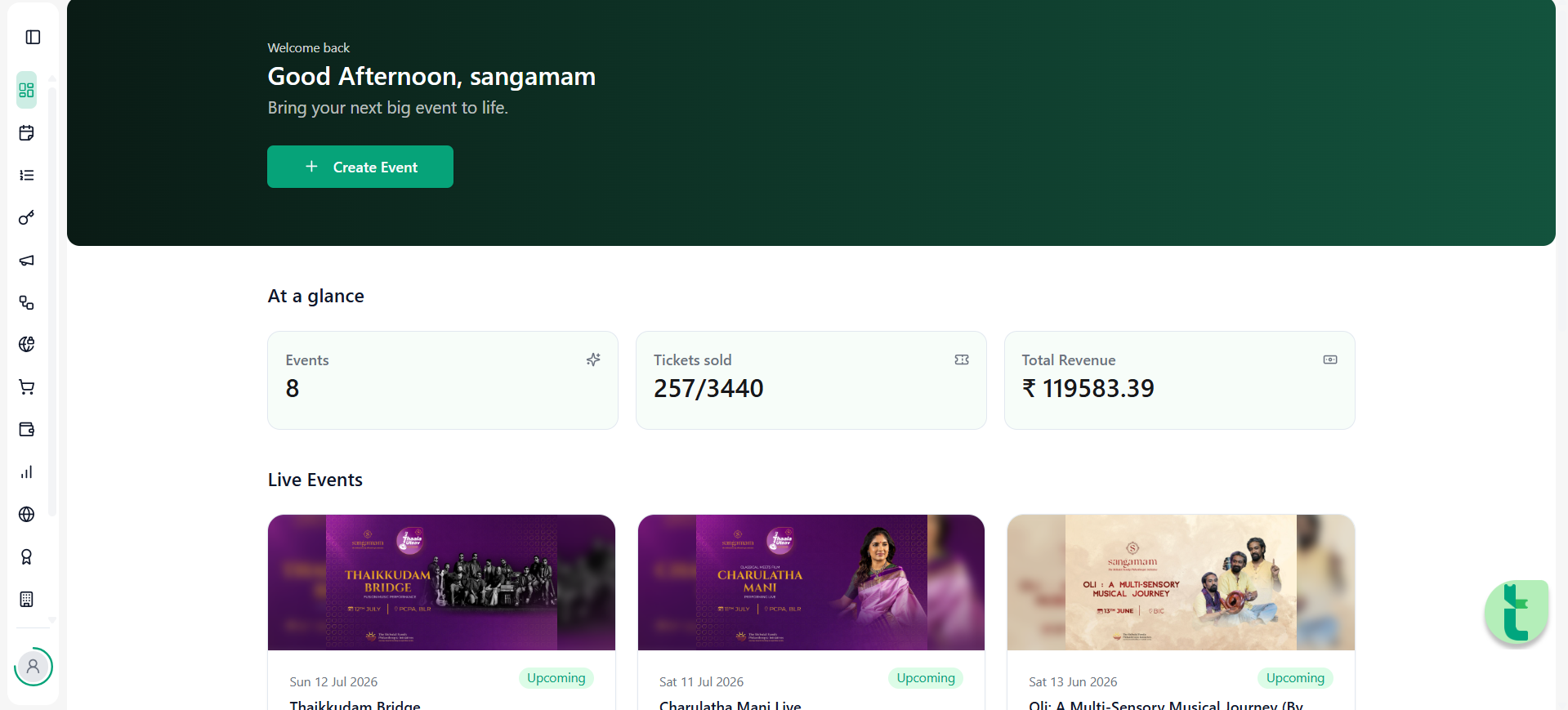
Sign in to the Ticmint Partner Dashboard using your registered credentials.
After successful login, you will be redirected to the Dashboard.
Step 2: Navigate to Events
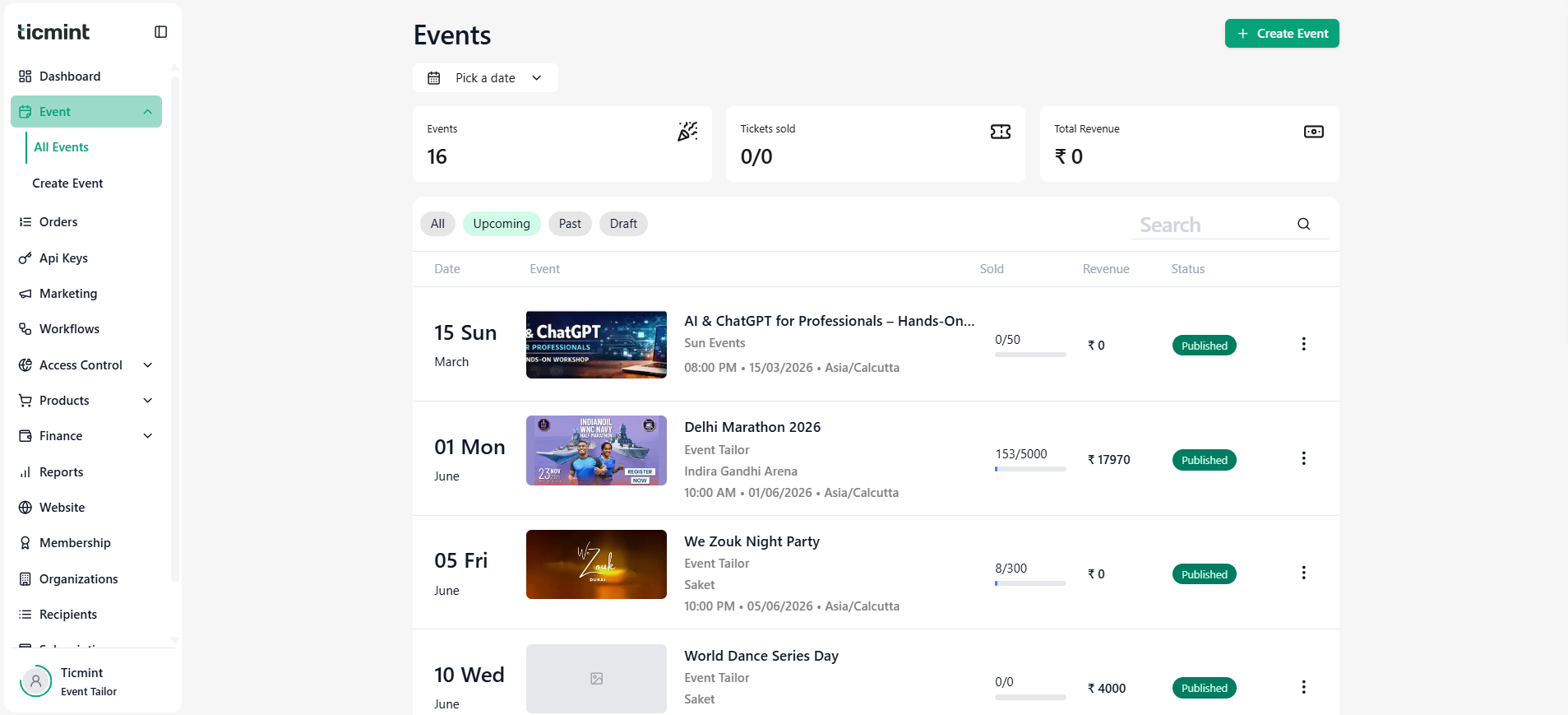
From the left navigation panel:
Click Event
Select All Events
Locate the event you want to customise
You will see event information such as:
Event Title
Event Date
Revenue
Event Status
Step 3: Open Event Editor
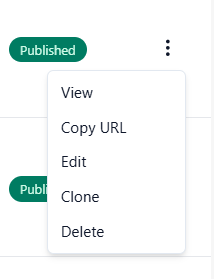
Click the three-dot (⋮) menu beside the event
Select Edit
This opens the Edit Event screen.
Step 4: Open Theme Builder
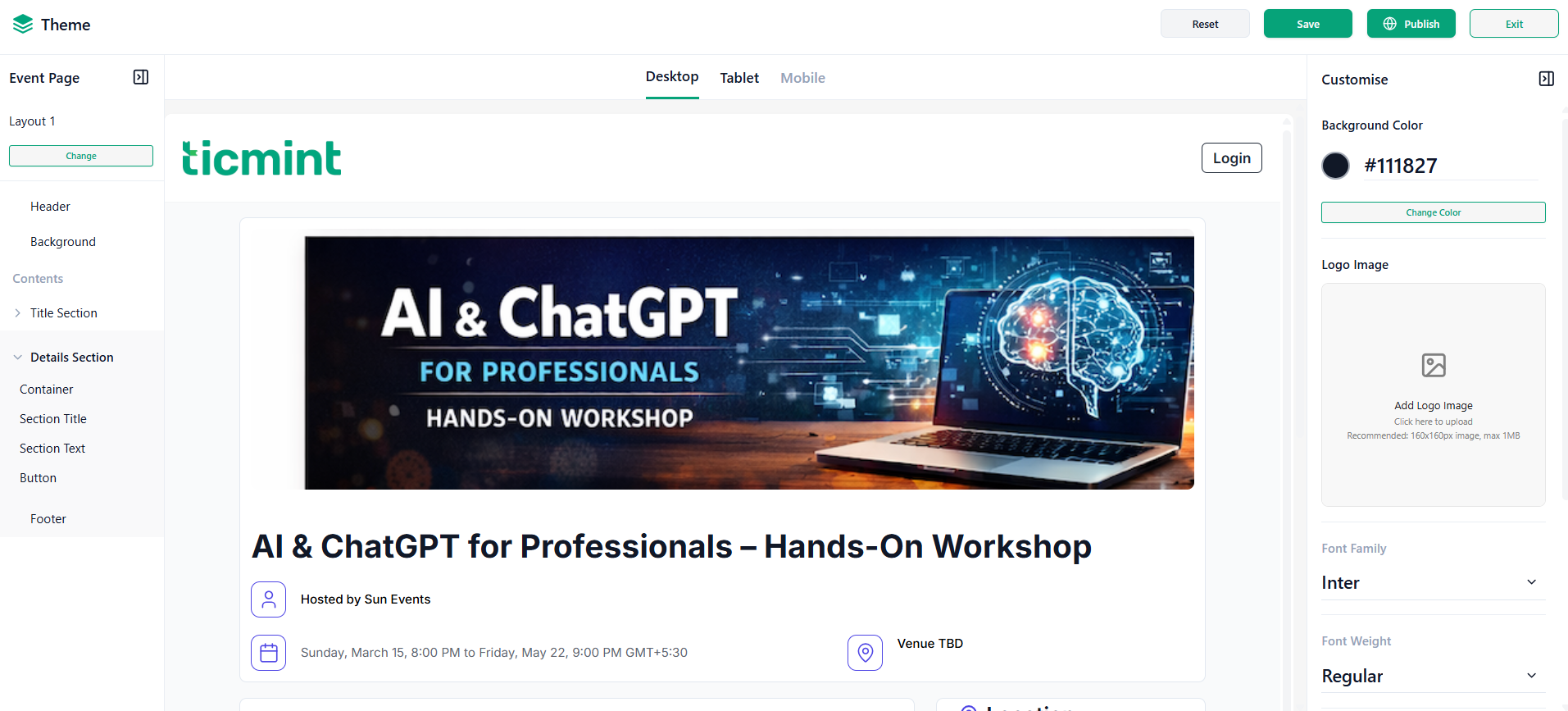
Scroll down within the Event Editor.
Under the More section:
Click Theme Builder
The Theme Editor screen will open.
Step 5: Change Event Layout
In the left panel:
Locate Event Page
Click Change
Select Layout 2
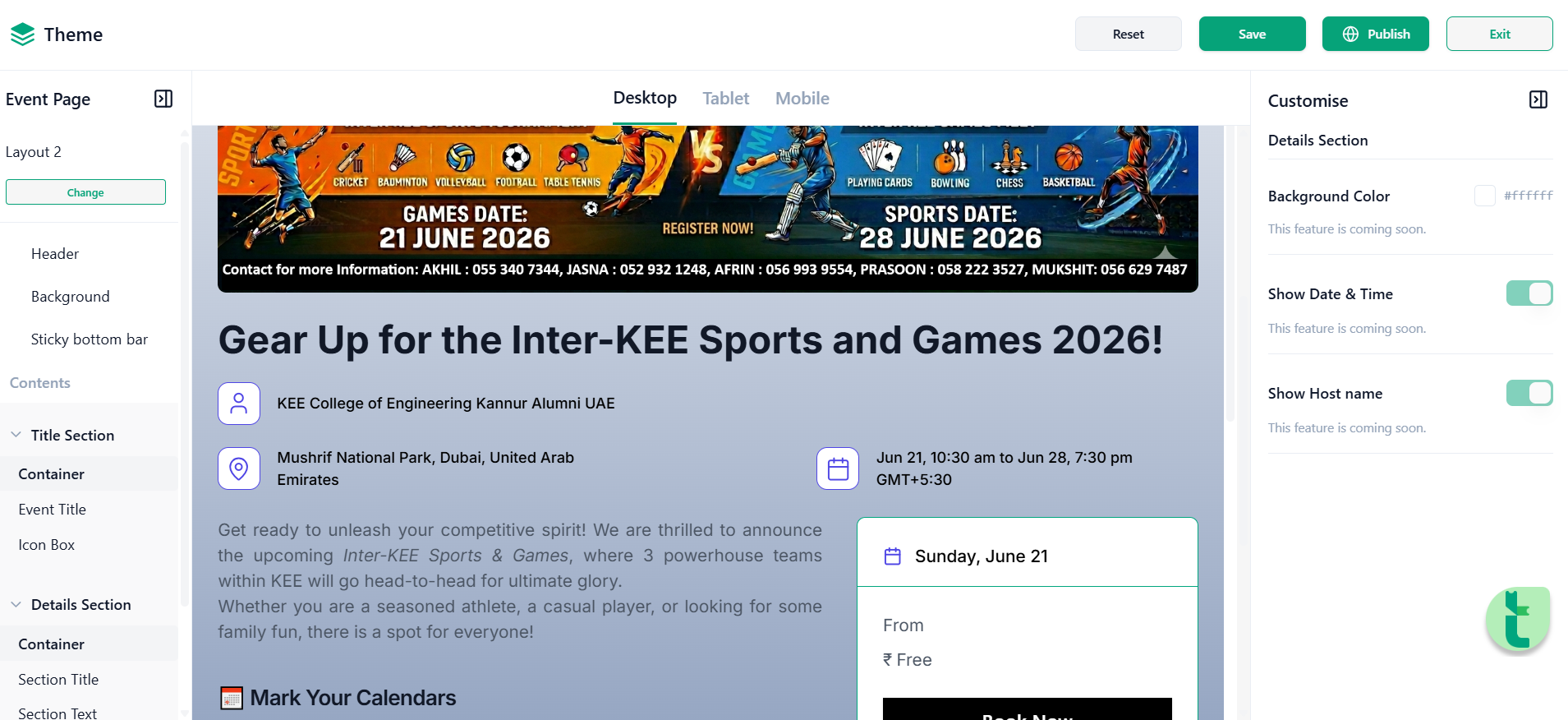
This layout contains additional configuration options for title and detail visibility.
Step 6: Open Title Section Container Settings
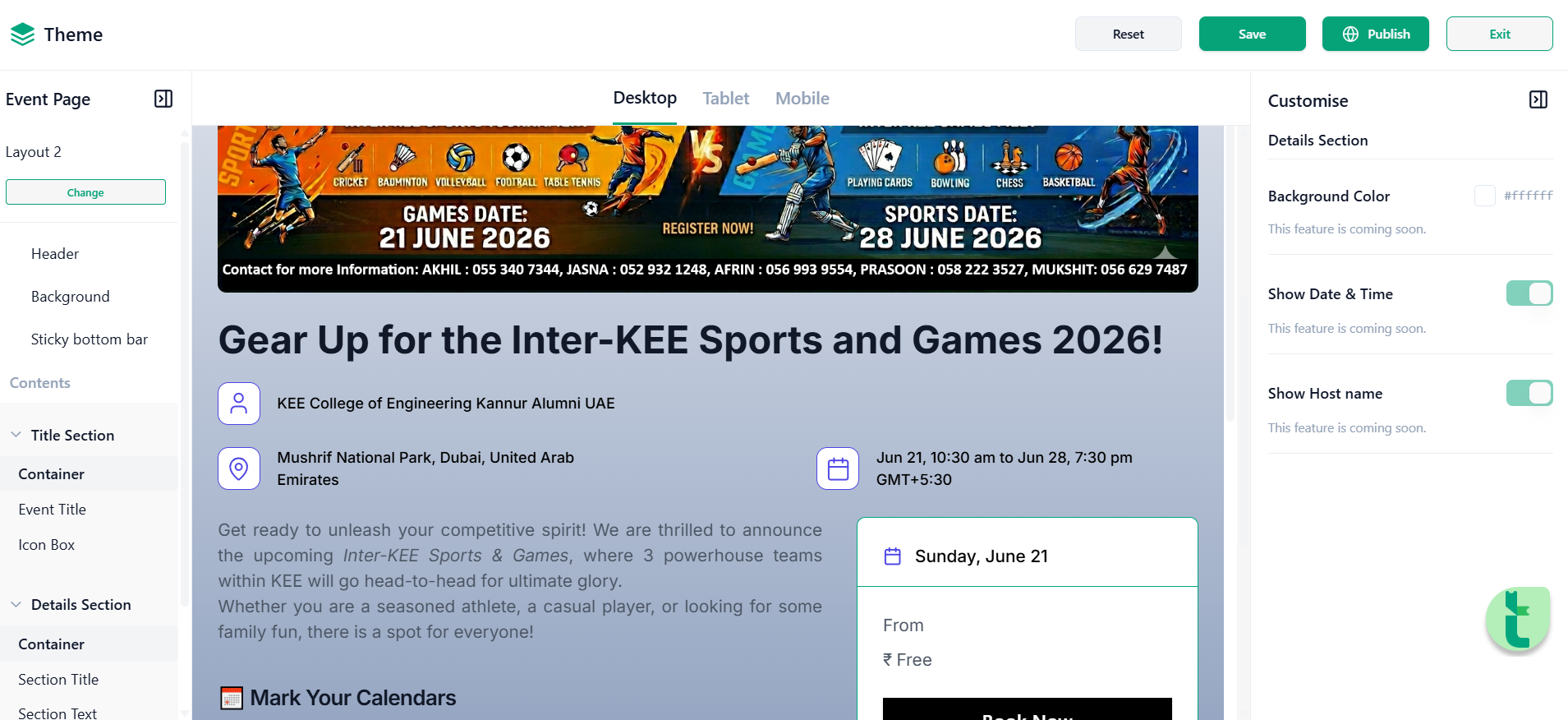
From the left-side panel:
Expand Title Section
Click Container
The customisation settings panel will appear on the right side.
Based on the selected layout, you will find visibility controls similar to the screenshot below.
Step 7: Configure Show Date & Time
Locate the Show Date & Time toggle.
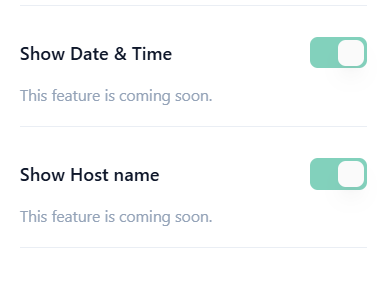
Enable Toggle
If enabled:
Event date and timing will be visible on the event page.
Example:
Jun 21, 10:30 AM – Jun 28, 7:30 PM
Disable Toggle
If disabled:
Event date and timing will be hidden from users.
Use this option when:
Event timing is yet to be finalised
You do not want timing displayed publicly
Step 8: Configure Show Host Name
Locate the Show Host Name toggle.
Enable Toggle
If enabled:
Host or organiser information becomes visible on the event page.
Example:
Hosted by: KEE College of Engineering Kannur Alumni UAE
Disable Toggle
If disabled:
Host information will remain hidden from users.
Use this option when:
Host information is not required
You want a cleaner page design
Step 9: Save Changes
After completing all changes:
Click Save at the top of the screen
Click Publish if you want the updated design to appear on the live event page
Your changes will now be reflected on the event page.
Result
You have successfully configured:
✔ Event layout
✔ Date & Time visibility
✔ Host Name visibility
These settings allow organisers to customise the event page and display only the information that matters most to attendees.
Was this article helpful?
That’s Great!
Thank you for your feedback
Sorry! We couldn't be helpful
Thank you for your feedback
Feedback sent
We appreciate your effort and will try to fix the article