Overview
Event SEO allows organizers to optimize how their event appears on search engines and social media platforms. By customizing titles, descriptions, keywords, and social sharing content, you can improve event visibility, attract the right audience, and increase engagement.
Navigation
Accessing Event SEO
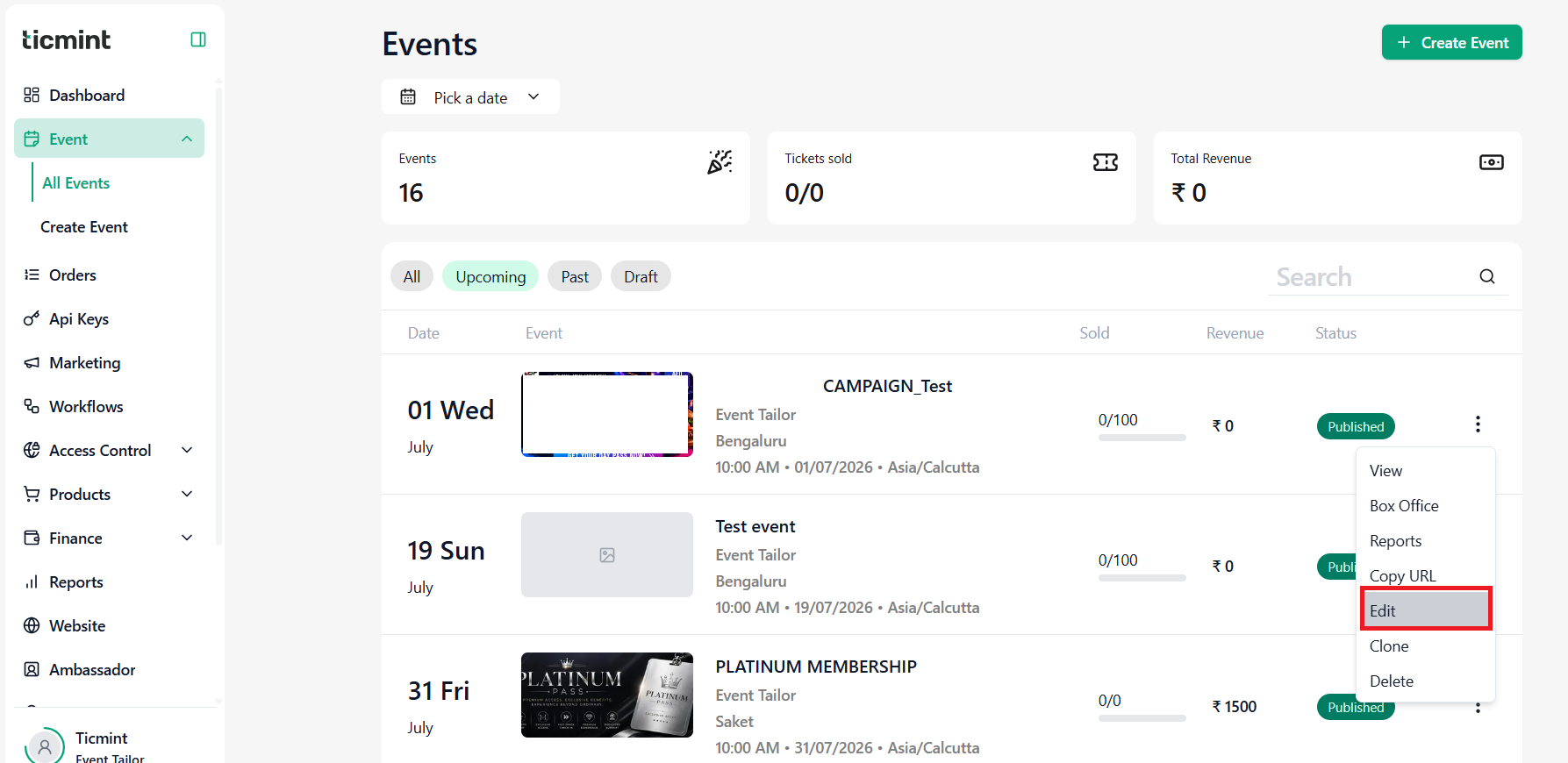
Navigate to Events.
Select the required event.
Click Edit.
For Existing Events
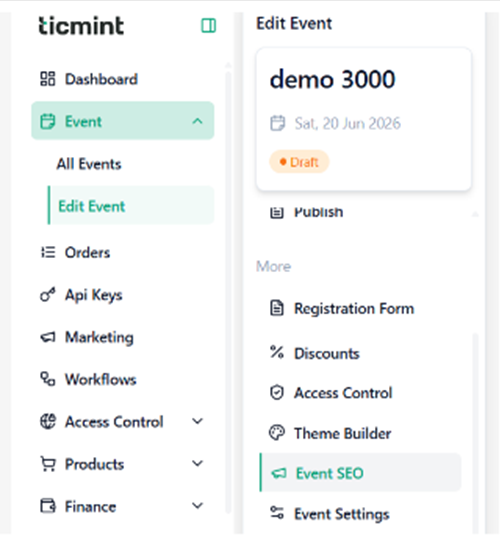
Select Edit Event.
Navigate to Event SEO.
For New Events
Complete the Basic Information section.
Navigate to Event SEO.
Event SEO Options
Once you open Event SEO, you will see the following sections:
☐ Google SERP
☐ Social Media
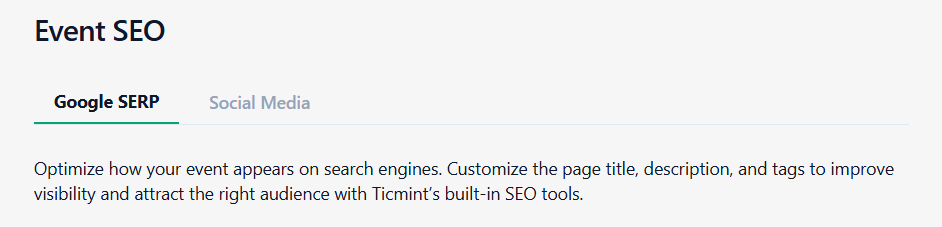
Google SERP
Google SERP (Search Engine Results Page) settings help optimize how your event appears on search engines such as Google.
Customize your event details to improve visibility and attract more attendees using Ticmint’s built-in SEO tools.
Configure Google SERP
Select Google SERP.
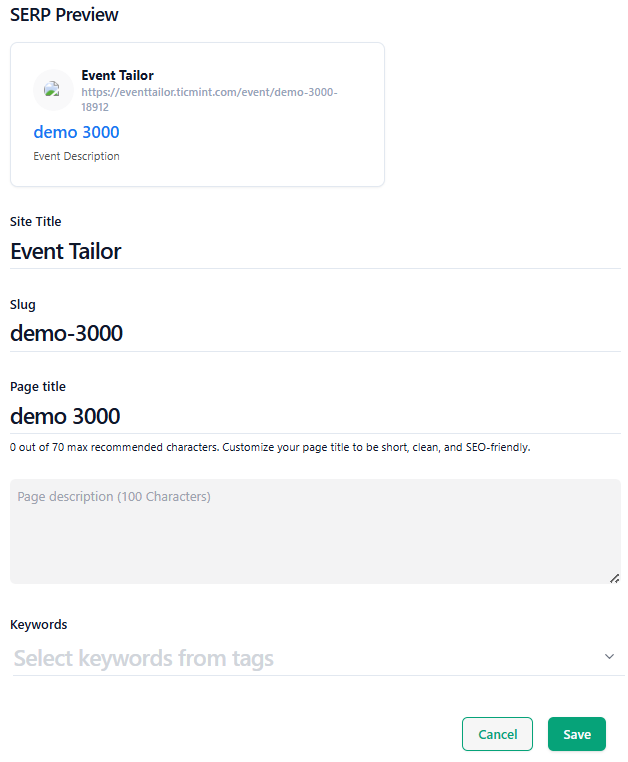
Enter the Site Title.
Enter the Slug.
Enter the Page Title (Maximum recommended length: 70 characters and keep the title short, clear, and SEO-friendly).
Enter the Page Description (Recommended length: 100 characters).
Select the required Keywords/Tags from the dropdown list.
Review all details.
Click Save.
Result
The event page will be optimized for search engines, helping improve discoverability and search rankings.
Social Media
Social Media settings allow you to customize how your event appears when shared on social platforms such as Facebook and X (Twitter).
These settings help create attractive previews and improve engagement when attendees share event links.
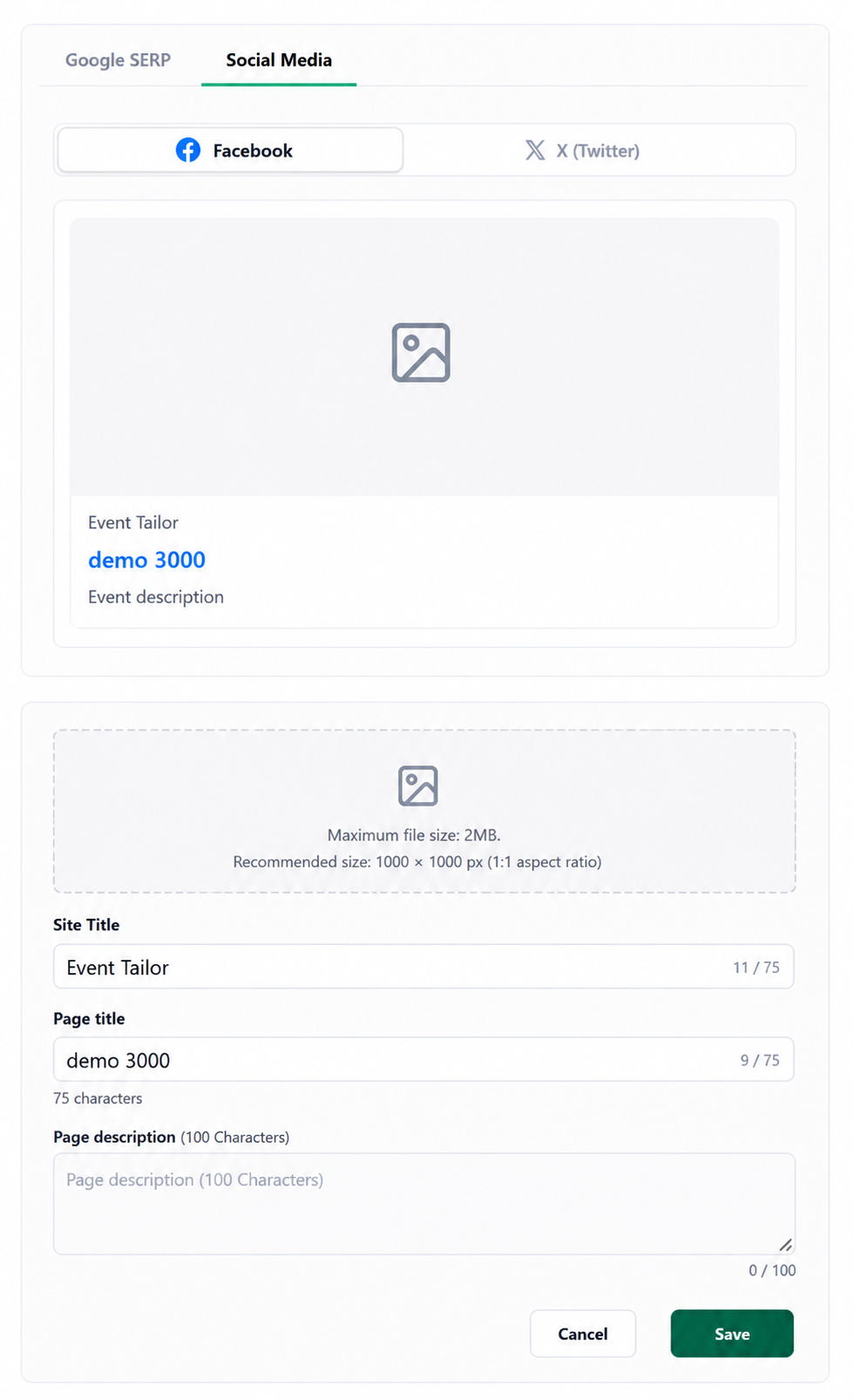
Configure Social Media Settings
Select social media.
Choose the required platform:
Facebook
X (Twitter)
Upload a social sharing image.
Enter the Site Title.
Enter the Page Title (Maximum recommended length: 75 characters).
Enter the Page Description (Recommended length: 100 characters).
Review the preview information.
Click Save.
Result
Your event will be optimized for search engines and social media platforms, displaying enhanced titles, descriptions, and images when shared, helping increase visibility, engagement, and ticket sales.
Need Help?
If you face any issues while editing Event SEO:
Review all fields for completeness
Refresh the page and try again
Contact Ticmint Support with screenshots and event details
Your Event SEO settings are now updated and optimised to improve visibility and reach.
Was this article helpful?
That’s Great!
Thank you for your feedback
Sorry! We couldn't be helpful
Thank you for your feedback
Feedback sent
We appreciate your effort and will try to fix the article